> ## Documentation Index
> Fetch the complete documentation index at: https://documentation.outpost.pub/llms.txt
> Use this file to discover all available pages before exploring further.
# Advanced Autoresponder
> Build custom multi-step email flows with flexible triggers, audience targeting, and stop conditions for scenarios the pre-built actions don't cover.
The Advanced Autoresponder lets you create **custom email flows**: multi-step sequences with flexible triggers, audience targeting, and stop conditions.
Use it when the pre-built [Basic Autoresponder](/features/basic-autoresponder) actions don't cover your needs: for example, a tailored welcome sequence for a list of members signed up in person at an event, or a one-off win-back series for a specific tier.
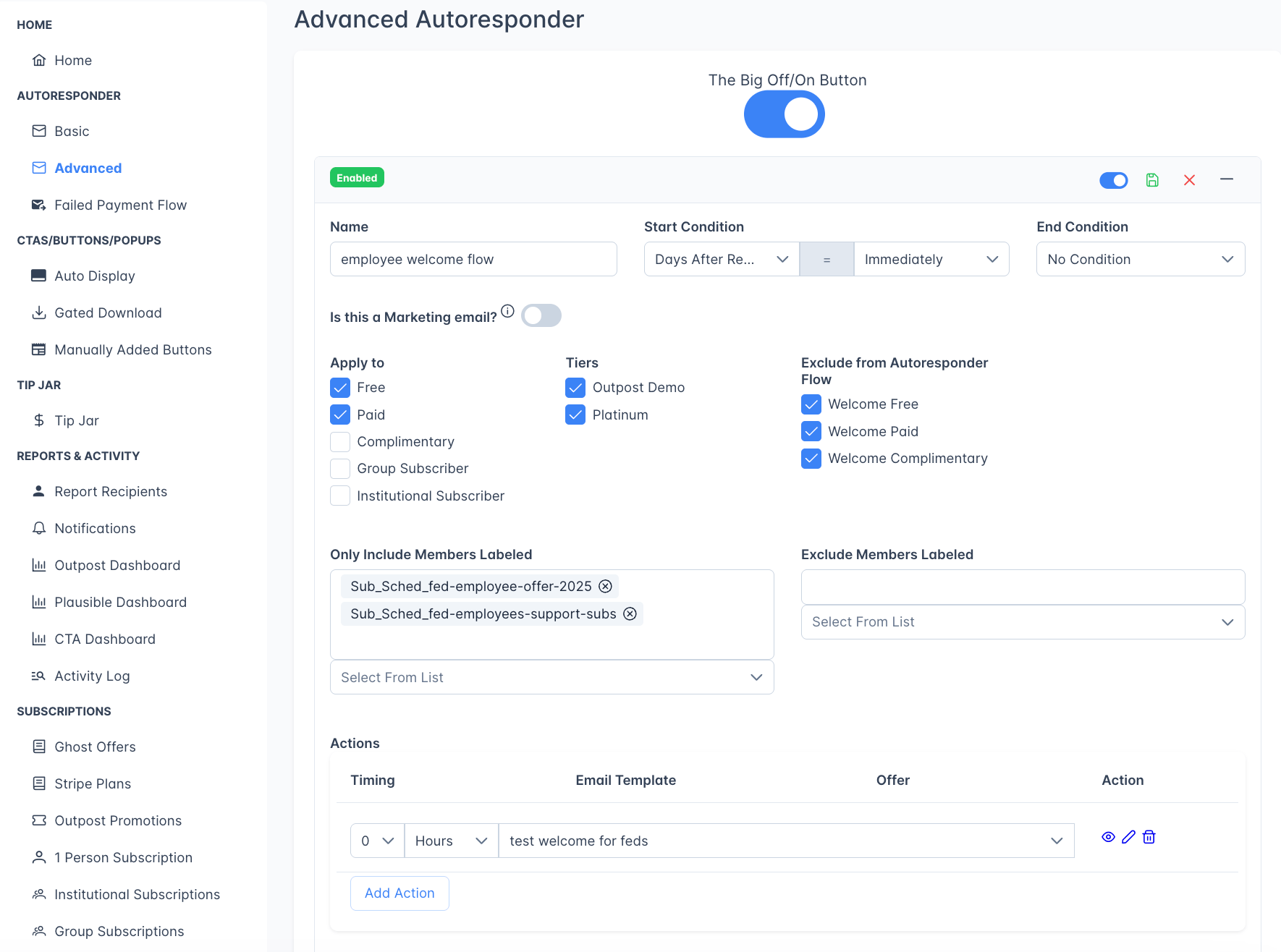 Go to **Autoresponder → Advanced** to manage custom flows.
## The Big Off/On Button
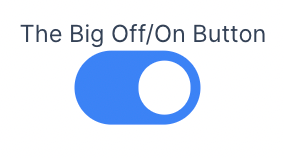
The Advanced Autoresponder has its own independent master toggle called **"The Big Off/On Button."** This is separate from the Basic Autoresponder toggle. Turning off one does not affect the other.
Go to **Autoresponder → Advanced** to manage custom flows.
## The Big Off/On Button
The Advanced Autoresponder has its own independent master toggle called **"The Big Off/On Button."** This is separate from the Basic Autoresponder toggle. Turning off one does not affect the other.
 ***
## Turning flows off with active members
When you switch off **The Big Off/On Button** (or disable an individual flow) and there are members **currently moving through** that flow, Outpost asks how to handle them with a **"Members are in active flows"** prompt. You get three choices:
* **Keep Running**: Cancel the change and leave the flow on.
* **Finish Active Members, No New Ones**: Turn the flow off so no new members enter it, but let everyone already in it finish the remaining steps.
* **Stop All Immediately**: Turn the flow off and stop every active member right away. They receive no further emails from that flow.
If no members are mid-flow, the toggle switches off without asking.
When you use **The Big Off/On Button** rather than a single flow's toggle, this prompt covers **every** advanced flow at once: Outpost tells you how many members are active across all your flows, and **Stop All Immediately** ends them in every flow in one step.
***
## Creating a flow
Click **"Add Flow"** at the bottom of the page.
***
## Turning flows off with active members
When you switch off **The Big Off/On Button** (or disable an individual flow) and there are members **currently moving through** that flow, Outpost asks how to handle them with a **"Members are in active flows"** prompt. You get three choices:
* **Keep Running**: Cancel the change and leave the flow on.
* **Finish Active Members, No New Ones**: Turn the flow off so no new members enter it, but let everyone already in it finish the remaining steps.
* **Stop All Immediately**: Turn the flow off and stop every active member right away. They receive no further emails from that flow.
If no members are mid-flow, the toggle switches off without asking.
When you use **The Big Off/On Button** rather than a single flow's toggle, this prompt covers **every** advanced flow at once: Outpost tells you how many members are active across all your flows, and **Stop All Immediately** ends them in every flow in one step.
***
## Creating a flow
Click **"Add Flow"** at the bottom of the page.
 Each flow has:
### Flow name
A descriptive name for your reference (e.g., "30-Day Win-Back Sequence" or "VIP Member Welcome").
### Start condition
What triggers the flow. Choose from:
| Condition | Description |
| ----------------------------- | ------------------------------------------------------------------------------------------------------------------------------------------------------------------------------------------------------------- |
| **Days After Registration** | Starts N days after the member first signed up |
| **Days After Subscription** | Starts N days after the member's paid subscription began. Paid members only. |
| **Days Before Renewal** | Starts N days before a paid subscription's billing period ends. Paid members only, whether or not they are set to renew. |
| **Member Label Added** | Starts when a specific label is applied to the member |
| **Member Label Removed** | Starts when a specific label is removed |
| **Member Email Like** | Starts when the member's email address matches a pattern |
| **Offer Clicked No Checkout** | Starts when a **free** member clicks an offer link but doesn't complete checkout. This condition only targets free members: paid subscribers who click an offer without checking out will not enter the flow. |
Timing options for day-based conditions: Immediately, 1–6 days, 1–10 weeks, or 1 month. (There's no 7-, 8-, or 9-day option: the dropdown jumps from 6 days to 1 week, then 10 days, then 2 weeks and up.)
### End condition
What stops the flow early (before all steps are sent):
| Condition | Description |
| ----------------------------- | ---------------------------------------------- |
| **No Condition** | Flow runs until all steps complete |
| **Member Renews** | Stop if the member renews their subscription |
| **Member Upgrades to Paid** | Stop if the member upgrades from free to paid |
| **Member Downgrades to Free** | Stop if the member cancels and returns to free |
### Marketing email toggle
Each flow has:
### Flow name
A descriptive name for your reference (e.g., "30-Day Win-Back Sequence" or "VIP Member Welcome").
### Start condition
What triggers the flow. Choose from:
| Condition | Description |
| ----------------------------- | ------------------------------------------------------------------------------------------------------------------------------------------------------------------------------------------------------------- |
| **Days After Registration** | Starts N days after the member first signed up |
| **Days After Subscription** | Starts N days after the member's paid subscription began. Paid members only. |
| **Days Before Renewal** | Starts N days before a paid subscription's billing period ends. Paid members only, whether or not they are set to renew. |
| **Member Label Added** | Starts when a specific label is applied to the member |
| **Member Label Removed** | Starts when a specific label is removed |
| **Member Email Like** | Starts when the member's email address matches a pattern |
| **Offer Clicked No Checkout** | Starts when a **free** member clicks an offer link but doesn't complete checkout. This condition only targets free members: paid subscribers who click an offer without checking out will not enter the flow. |
Timing options for day-based conditions: Immediately, 1–6 days, 1–10 weeks, or 1 month. (There's no 7-, 8-, or 9-day option: the dropdown jumps from 6 days to 1 week, then 10 days, then 2 weeks and up.)
### End condition
What stops the flow early (before all steps are sent):
| Condition | Description |
| ----------------------------- | ---------------------------------------------- |
| **No Condition** | Flow runs until all steps complete |
| **Member Renews** | Stop if the member renews their subscription |
| **Member Upgrades to Paid** | Stop if the member upgrades from free to paid |
| **Member Downgrades to Free** | Stop if the member cancels and returns to free |
### Marketing email toggle
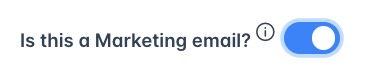
 Toggle this on for marketing flows. Members who have opted out of marketing won't receive emails from flows marked this way:
 ### Audience targeting
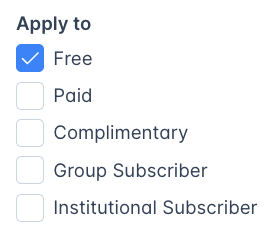 At the top of the Audience card, an **All membership types** checkbox reaches every membership level and greys out the individual options below it. New flows start with this checked. Uncheck it to target specific types:
* **Free**: Free subscribers
* **Paid**: Paid subscribers (with optional tier filtering)
* **Complimentary**: Members with complimentary subscriptions
* **Group Subscriber**: Members with group subscriptions
* **Institutional Subscriber**: Members with institutional subscriptions
When **Paid** or **Complimentary** is selected, you can further filter by specific **Tiers**.
Leaving every individual box unchecked has the same effect as checking **All membership types**: the flow is not limited by membership type and reaches members of any level who match the start condition and the label filters. Some start conditions restrict membership type on their own: **Days Before Renewal** and **Days After Subscription** only ever reach paid members, no matter what you check here. Free and complimentary members are never included in those flows.
### Autoresponder exclusions
Under **Exclude members in these autoresponders**, optionally exclude members who would also go into a Basic Autoresponder sequence:
* **Welcome Free**
* **Welcome Paid** (e.g. thank you emails)
* **Welcome Complimentary**
New flows start with Welcome Free and Welcome Paid checked.
### Site-wide exclusions
[Autoresponder Settings](/features/autoresponder-settings) lets you globally exclude paid and complimentary members on specific Stripe prices, Stripe products, or Ghost tiers, and that includes Advanced Autoresponder flows. Free members are never checked there.
In practice the Ghost tier rule is the one that reaches complimentary members, because most of them carry no Stripe price or product. Excluding a tier therefore also stops flow email to any gift recipients, group subscription seat holders, and members you comped by hand on it.
An excluded member isn't removed from an Advanced Autoresponder flow, they receive nothing from it while the exclusion applies. If they later move off the excluded price, product, or tier, the flow resumes and sends whichever steps they haven't already received.
### Label filters
Label filters narrow the audience in addition to the membership types and start condition above, never instead of them. A member only gets the flow if they meet the start condition, fall into a checked membership type (when any are checked), and clear both label filters:
* **Include members labeled**: members must have at least one of these labels to be eligible. A member without one is excluded even if they meet the start condition and membership type.
* **Exclude members labeled**: members with any of these labels are skipped, even if they meet everything else.
Because the include filter is checked after the start condition and membership type, adding one label is enough to keep members without it out of the flow. You do not also have to change the Audience targeting boxes.
***
## Flow actions (steps)
Each flow contains one or more action steps. Click **"Add Action"** to add a step.
| Field | Description |
| ------------------ | ------------------------------------------------------------------------------------------------------------------------------------------ |
| **Timing** | Delay before sending, a number plus a unit: hours (0–24), days (0–31), weeks (0–52), or months (0–12). |
| **Email Template** | Which template to send |
| **Offer** | Shown only when the step's template includes an offer link. A dropdown lists your active Ghost Offers, plus an option to create a new one. |
Steps execute in order, with each step's timing counting from the previous step.
### Attaching offers to flow steps
A step's offer control is a single dropdown, not the two-tab drawer on the Basic Autoresponder. It lists **No Offer**, **Create New Offer**, and your site's active Ghost Offers. Outpost Promotions aren't selectable from an Advanced flow step.
Choosing **Create New Offer** opens the Ghost offer creation dialog in place and assigns the new offer to the step.
Reusing an existing offer, rather than creating a new one every time, keeps your Ghost offer list clean and makes performance reporting easier. If you already have a "20% off annual" Ghost Offer for retention, select it directly instead of creating a duplicate.
Advanced flows prevent duplicate emails: each email template is only sent **once per member per flow**. If a member re-enters a flow or the flow is re-processed, templates that were already sent to that member will be skipped.
***
## Example flows
Here are some common Advanced Autoresponder flows:
* **30-Day Win-Back**: Start 30 days after cancellation, send 3 escalating offers to encourage resubscription. End condition: Member Upgrades to Paid.
* **VIP Welcome**: Start when the "VIP" label is added, send a personalized welcome with exclusive content links.
* **Pre-Renewal Upsell**: Start 14 days before renewal, offer an annual upgrade at a discount. End condition: Member Renews.
* **Institutional Onboarding**: Start when email matches your institutional pattern, send a multi-step guide to getting the most from the subscription.
***
## Related features
68 pre-built email actions for common member lifecycle events.
Create and customize the templates used by autoresponder flows
Create the discount offers used in retention and upsell emails
One-time email sends to targeted member segments
At the top of the Audience card, an **All membership types** checkbox reaches every membership level and greys out the individual options below it. New flows start with this checked. Uncheck it to target specific types:
* **Free**: Free subscribers
* **Paid**: Paid subscribers (with optional tier filtering)
* **Complimentary**: Members with complimentary subscriptions
* **Group Subscriber**: Members with group subscriptions
* **Institutional Subscriber**: Members with institutional subscriptions
When **Paid** or **Complimentary** is selected, you can further filter by specific **Tiers**.
Leaving every individual box unchecked has the same effect as checking **All membership types**: the flow is not limited by membership type and reaches members of any level who match the start condition and the label filters. Some start conditions restrict membership type on their own: **Days Before Renewal** and **Days After Subscription** only ever reach paid members, no matter what you check here. Free and complimentary members are never included in those flows.
### Autoresponder exclusions
Under **Exclude members in these autoresponders**, optionally exclude members who would also go into a Basic Autoresponder sequence:
* **Welcome Free**
* **Welcome Paid** (e.g. thank you emails)
* **Welcome Complimentary**
New flows start with Welcome Free and Welcome Paid checked.
### Site-wide exclusions
[Autoresponder Settings](/features/autoresponder-settings) lets you globally exclude paid and complimentary members on specific Stripe prices, Stripe products, or Ghost tiers, and that includes Advanced Autoresponder flows. Free members are never checked there.
In practice the Ghost tier rule is the one that reaches complimentary members, because most of them carry no Stripe price or product. Excluding a tier therefore also stops flow email to any gift recipients, group subscription seat holders, and members you comped by hand on it.
An excluded member isn't removed from an Advanced Autoresponder flow, they receive nothing from it while the exclusion applies. If they later move off the excluded price, product, or tier, the flow resumes and sends whichever steps they haven't already received.
### Label filters
Label filters narrow the audience in addition to the membership types and start condition above, never instead of them. A member only gets the flow if they meet the start condition, fall into a checked membership type (when any are checked), and clear both label filters:
* **Include members labeled**: members must have at least one of these labels to be eligible. A member without one is excluded even if they meet the start condition and membership type.
* **Exclude members labeled**: members with any of these labels are skipped, even if they meet everything else.
Because the include filter is checked after the start condition and membership type, adding one label is enough to keep members without it out of the flow. You do not also have to change the Audience targeting boxes.
***
## Flow actions (steps)
Each flow contains one or more action steps. Click **"Add Action"** to add a step.
| Field | Description |
| ------------------ | ------------------------------------------------------------------------------------------------------------------------------------------ |
| **Timing** | Delay before sending, a number plus a unit: hours (0–24), days (0–31), weeks (0–52), or months (0–12). |
| **Email Template** | Which template to send |
| **Offer** | Shown only when the step's template includes an offer link. A dropdown lists your active Ghost Offers, plus an option to create a new one. |
Steps execute in order, with each step's timing counting from the previous step.
### Attaching offers to flow steps
A step's offer control is a single dropdown, not the two-tab drawer on the Basic Autoresponder. It lists **No Offer**, **Create New Offer**, and your site's active Ghost Offers. Outpost Promotions aren't selectable from an Advanced flow step.
Choosing **Create New Offer** opens the Ghost offer creation dialog in place and assigns the new offer to the step.
Reusing an existing offer, rather than creating a new one every time, keeps your Ghost offer list clean and makes performance reporting easier. If you already have a "20% off annual" Ghost Offer for retention, select it directly instead of creating a duplicate.
Advanced flows prevent duplicate emails: each email template is only sent **once per member per flow**. If a member re-enters a flow or the flow is re-processed, templates that were already sent to that member will be skipped.
***
## Example flows
Here are some common Advanced Autoresponder flows:
* **30-Day Win-Back**: Start 30 days after cancellation, send 3 escalating offers to encourage resubscription. End condition: Member Upgrades to Paid.
* **VIP Welcome**: Start when the "VIP" label is added, send a personalized welcome with exclusive content links.
* **Pre-Renewal Upsell**: Start 14 days before renewal, offer an annual upgrade at a discount. End condition: Member Renews.
* **Institutional Onboarding**: Start when email matches your institutional pattern, send a multi-step guide to getting the most from the subscription.
***
## Related features
68 pre-built email actions for common member lifecycle events.
Create and customize the templates used by autoresponder flows
Create the discount offers used in retention and upsell emails
One-time email sends to targeted member segments