> ## Documentation Index
> Fetch the complete documentation index at: https://documentation.outpost.pub/llms.txt
> Use this file to discover all available pages before exploring further.
# Auto-Subscribe Rules
> Automatically grant complimentary or paid-tier access to new free members based on email pattern matching: how institutional subscriptions work.
Auto-subscribe rules automatically upgrade new free members to paid-tier or complimentary access when their email address matches a pattern you define. This is how [institutional subscriptions](/features/institutional-subscriptions) work, giving everyone at a university, corporation, or nonprofit access without manual invites or coupon codes.
When someone signs up with an email matching one of your rules (e.g., `@university.edu`), Outpost automatically upgrades them and applies an **Institutional Group Subscription** label along with a custom label you define for that Institutional Subscription.
***
## How it works
1. A new free member signs up on your Ghost site
2. Outpost checks the member's email against all active auto-subscribe rules (skipping any that have expired)
3. If the email matches a rule's pattern, Outpost upgrades the member to the configured tier (or complimentary access) and applies labels
4. Only the first matching rule applies; additional matches are ignored
5. Changes sync to Ghost automatically
Auto-subscribe rules only fire for **free members**. If a member signs up with a paid subscription, the rule does not apply.
***
## Use cases
* **University access**: Grant complimentary access to anyone signing up with a `.edu` email
* **Corporate partnerships**: Upgrade employees at a partner company (e.g., `@acmecorp.com`) to a specific paid tier
* **Nonprofit programs**: Provide free access to members of qualifying organizations
* **Bulk institutional deals**: Sell access to an entire organization without requiring individual invites or coupon codes
***
## Creating a rule
Go to **Subscriptions > Institutional Subscriptions** and click **Add New**:
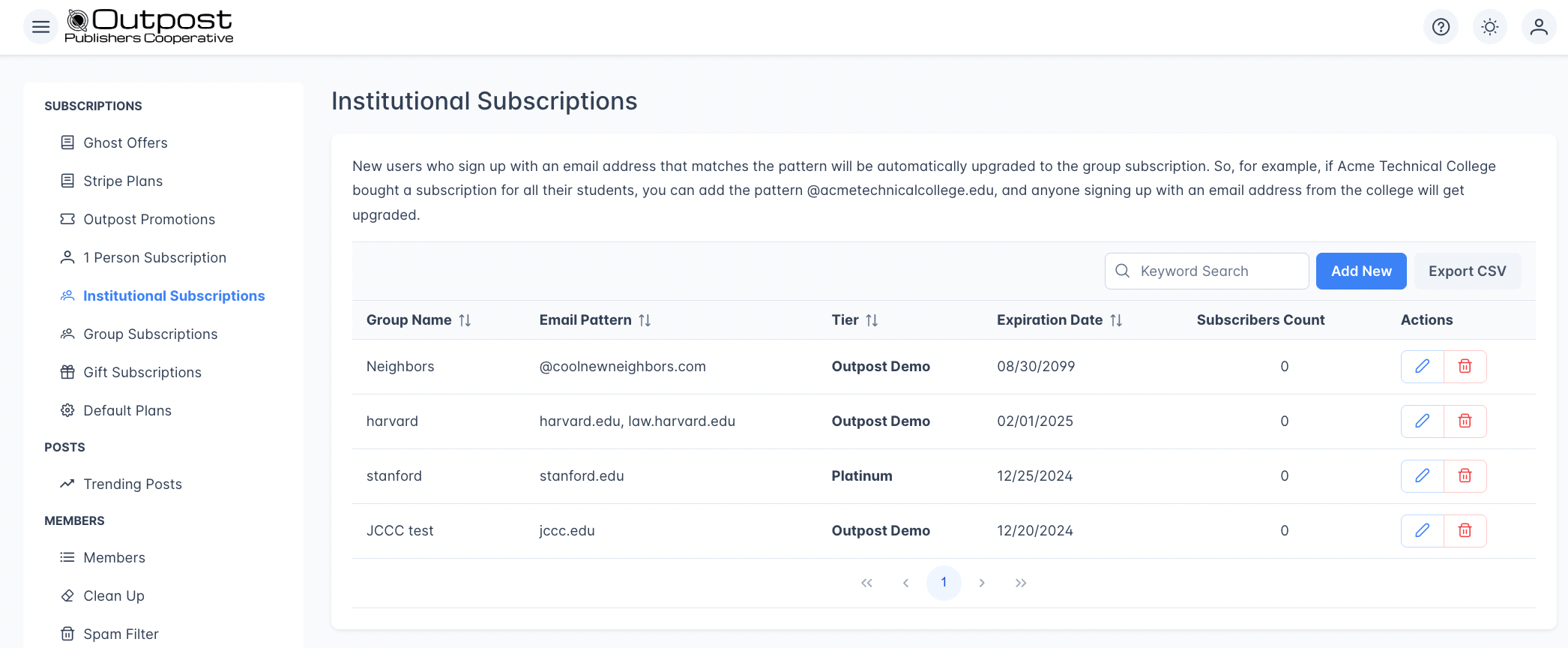 | Field | Description |
| ------------------- | ------------------------------------------------------------------------------------------------------------------------------------------------------------------------ |
| **Group Name** | A descriptive name for this rule (e.g., "Acme Technical College"). Must be unique per site. |
| **Email Patterns** | One or more email patterns to match against (e.g., `@university.edu`, `@alumni.university.edu`). A member's email is checked for a substring match against each pattern. |
| **Tier** | Which tier to assign: either a specific paid tier or complimentary access. |
| **Group Label** | A label applied to every member matched by this rule. Must be unique per site. Supports the `%DATE%` placeholder (replaced with the date the rule was applied). |
| **Expiration Date** | Optional. When set, the rule stops matching new members after this date. |
You can add multiple email patterns per rule. For example, a university might use both `@university.edu` and `@alumni.university.edu`.
***
## What happens when a rule matches
When a free member's email matches a rule:
1. The member is upgraded to the configured tier (or given complimentary access)
2. If an expiration date is set, the member's access end date is set accordingly
3. Two labels are applied in Ghost:
* **Institutional Group Subscription** (applied to all institutional members)
* The custom label defined in the rule
4. An admin notification is sent to alert you that someone was auto-subscribed
***
## Rule matching behavior
* Rules are checked in order, and **only the first matching rule applies**; additional matches are ignored
* Rules that have passed their expiration date are skipped
* Email matching is case-insensitive (e.g., pattern `@university.edu` matches `student@university.edu`)
* Patterns are matched as **substrings**, not glob/wildcard expressions. The pattern `@university.edu` matches any email containing that substring (e.g., `student@university.edu`, `bob@alumni.university.edu`). The pattern `.edu` would match every `.edu` address regardless of institution.
* The single character `*` is a special "match every email" pattern. Use it carefully; it upgrades every new free member.
***
## Applying rules to existing members
You can retroactively apply a rule to members who already exist in your system. When you save a rule (new or edited) and existing members match it, Outpost automatically shows an **Apply to Existing Members** dialog. There is no separate button in the rules table, so re-save the rule if you need to trigger it again.
When applying to existing members, you can configure two options:
| Option | Default | Description |
| ---------------------------------------------------------------------------------------------------------------- | ---------------------------- | ---------------------------------------------------------------------------------------------------------------------------------------------------------- |
| **Send welcome upgrade email** | Unchecked (choose each time) | Sends the institutional subscription welcome email (configured in the [Autoresponder](/features/basic-autoresponder)) to each matched member. |
| **Cancel auto-renewal for paid members and add a complimentary subscription when the paid subscription expires** | Off | For existing paid members whose email matches, cancels their renewal and queues up a complimentary subscription that takes over once the paid period ends. |
Applying to existing members may take a few minutes to complete. Free members with matching emails are upgraded right away. Paid members are only affected if the cancel-and-comp option is enabled.
***
## Editing and deleting rules
* **Editing** a rule allows you to update the name, email patterns, and expiration date. The tier and label cannot be changed after creation.
* **Deleting** a rule stops it from matching new members. Existing members who were upgraded keep their access until the expiration date (if set).
***
## Autoresponder integration
When you create your first auto-subscribe rule, Outpost automatically enables the institutional subscription welcome email actions in the [Autoresponder](/features/basic-autoresponder). You can customize these welcome emails in the Autoresponder's Welcome tab.
***
## Relationship to institutional subscriptions
Auto-subscribe rules **are** institutional subscriptions. The [Institutional Subscriptions](/features/institutional-subscriptions) page in Outpost manages these rules, and the two terms refer to the same feature. This page covers how the rules work in detail; the institutional subscriptions page focuses on the use case.
***
## Related features
The use-case guide for setting up organizational access.
Welcome emails sent to auto-upgraded institutional members.
The subscription tiers that institutional members receive.
Auto-subscribe changes sync to Ghost in real time.
***
## FAQ
No. Rules only fire for free members. If someone signs up with a paid subscription, the auto-subscribe rule does not apply. You can use the "Apply to Existing Members" feature with the "Cancel Paid Members' Renewal" option to transition existing paid members to institutional access.
Only the first matching rule fires. If you have overlapping email patterns across multiple rules, order matters. Subsequent matching rules are not evaluated.
Yes. Using `*` as an email pattern will match any email address. This can be useful in specific scenarios but should be used carefully since it will upgrade every new free member.
Expired rules stop matching new members. Members who were already upgraded keep their access until their individual membership end date (if one was set).
Two labels are applied: **Institutional Group Subscription** (shared across all institutional rules) and the custom label you define when creating the rule. Both labels sync to Ghost automatically.
| Field | Description |
| ------------------- | ------------------------------------------------------------------------------------------------------------------------------------------------------------------------ |
| **Group Name** | A descriptive name for this rule (e.g., "Acme Technical College"). Must be unique per site. |
| **Email Patterns** | One or more email patterns to match against (e.g., `@university.edu`, `@alumni.university.edu`). A member's email is checked for a substring match against each pattern. |
| **Tier** | Which tier to assign: either a specific paid tier or complimentary access. |
| **Group Label** | A label applied to every member matched by this rule. Must be unique per site. Supports the `%DATE%` placeholder (replaced with the date the rule was applied). |
| **Expiration Date** | Optional. When set, the rule stops matching new members after this date. |
You can add multiple email patterns per rule. For example, a university might use both `@university.edu` and `@alumni.university.edu`.
***
## What happens when a rule matches
When a free member's email matches a rule:
1. The member is upgraded to the configured tier (or given complimentary access)
2. If an expiration date is set, the member's access end date is set accordingly
3. Two labels are applied in Ghost:
* **Institutional Group Subscription** (applied to all institutional members)
* The custom label defined in the rule
4. An admin notification is sent to alert you that someone was auto-subscribed
***
## Rule matching behavior
* Rules are checked in order, and **only the first matching rule applies**; additional matches are ignored
* Rules that have passed their expiration date are skipped
* Email matching is case-insensitive (e.g., pattern `@university.edu` matches `student@university.edu`)
* Patterns are matched as **substrings**, not glob/wildcard expressions. The pattern `@university.edu` matches any email containing that substring (e.g., `student@university.edu`, `bob@alumni.university.edu`). The pattern `.edu` would match every `.edu` address regardless of institution.
* The single character `*` is a special "match every email" pattern. Use it carefully; it upgrades every new free member.
***
## Applying rules to existing members
You can retroactively apply a rule to members who already exist in your system. When you save a rule (new or edited) and existing members match it, Outpost automatically shows an **Apply to Existing Members** dialog. There is no separate button in the rules table, so re-save the rule if you need to trigger it again.
When applying to existing members, you can configure two options:
| Option | Default | Description |
| ---------------------------------------------------------------------------------------------------------------- | ---------------------------- | ---------------------------------------------------------------------------------------------------------------------------------------------------------- |
| **Send welcome upgrade email** | Unchecked (choose each time) | Sends the institutional subscription welcome email (configured in the [Autoresponder](/features/basic-autoresponder)) to each matched member. |
| **Cancel auto-renewal for paid members and add a complimentary subscription when the paid subscription expires** | Off | For existing paid members whose email matches, cancels their renewal and queues up a complimentary subscription that takes over once the paid period ends. |
Applying to existing members may take a few minutes to complete. Free members with matching emails are upgraded right away. Paid members are only affected if the cancel-and-comp option is enabled.
***
## Editing and deleting rules
* **Editing** a rule allows you to update the name, email patterns, and expiration date. The tier and label cannot be changed after creation.
* **Deleting** a rule stops it from matching new members. Existing members who were upgraded keep their access until the expiration date (if set).
***
## Autoresponder integration
When you create your first auto-subscribe rule, Outpost automatically enables the institutional subscription welcome email actions in the [Autoresponder](/features/basic-autoresponder). You can customize these welcome emails in the Autoresponder's Welcome tab.
***
## Relationship to institutional subscriptions
Auto-subscribe rules **are** institutional subscriptions. The [Institutional Subscriptions](/features/institutional-subscriptions) page in Outpost manages these rules, and the two terms refer to the same feature. This page covers how the rules work in detail; the institutional subscriptions page focuses on the use case.
***
## Related features
The use-case guide for setting up organizational access.
Welcome emails sent to auto-upgraded institutional members.
The subscription tiers that institutional members receive.
Auto-subscribe changes sync to Ghost in real time.
***
## FAQ
No. Rules only fire for free members. If someone signs up with a paid subscription, the auto-subscribe rule does not apply. You can use the "Apply to Existing Members" feature with the "Cancel Paid Members' Renewal" option to transition existing paid members to institutional access.
Only the first matching rule fires. If you have overlapping email patterns across multiple rules, order matters. Subsequent matching rules are not evaluated.
Yes. Using `*` as an email pattern will match any email address. This can be useful in specific scenarios but should be used carefully since it will upgrade every new free member.
Expired rules stop matching new members. Members who were already upgraded keep their access until their individual membership end date (if one was set).
Two labels are applied: **Institutional Group Subscription** (shared across all institutional rules) and the custom label you define when creating the rule. Both labels sync to Ghost automatically.