> ## Documentation Index
> Fetch the complete documentation index at: https://documentation.outpost.pub/llms.txt
> Use this file to discover all available pages before exploring further.
# CTA Slots & Targeting
> Configure where Auto Display CTAs appear and which audiences and post tags they target.
Slots define *where* a CTA appears; audiences define *who* sees it. This page covers the six slot types, audience targeting, tag-based variants, and site-wide exclusions. To browse, edit, and style the CTAs you assign here, see [Library & Styling](/features/cta-library).
 ## Auto Display Slots
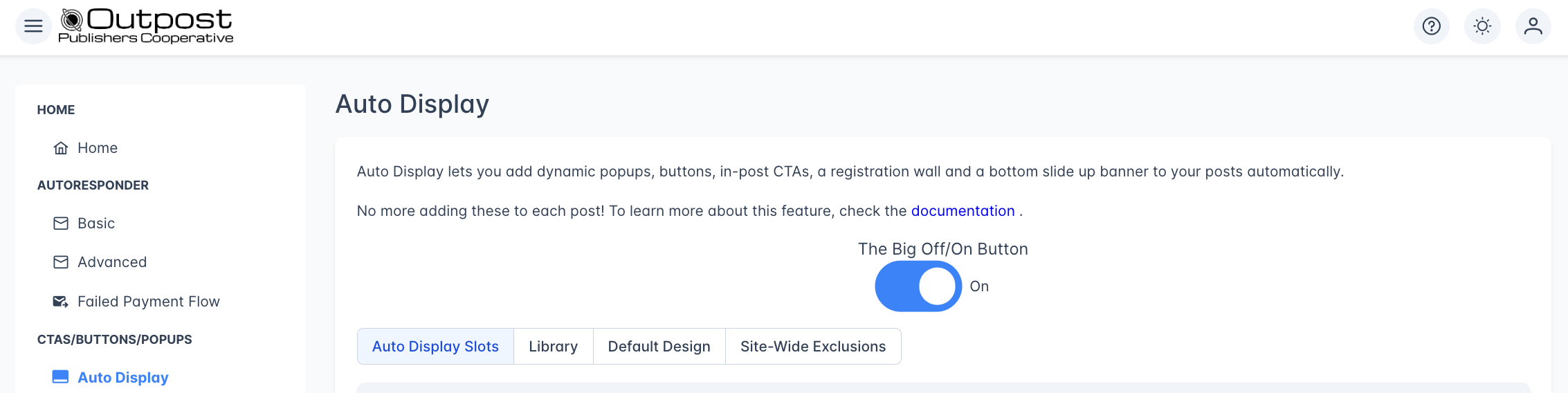
This is where you configure the placement and targeting for each CTA position on your site. There are six slot types, each accessible via tabs across the top of the page.
## Auto Display Slots
This is where you configure the placement and targeting for each CTA position on your site. There are six slot types, each accessible via tabs across the top of the page.
 ### In-Post
In-Post slots place CTAs directly within the body of your Ghost posts. There are three In-Post slots available, each independently configurable:
### In-Post
In-Post slots place CTAs directly within the body of your Ghost posts. There are three In-Post slots available, each independently configurable:
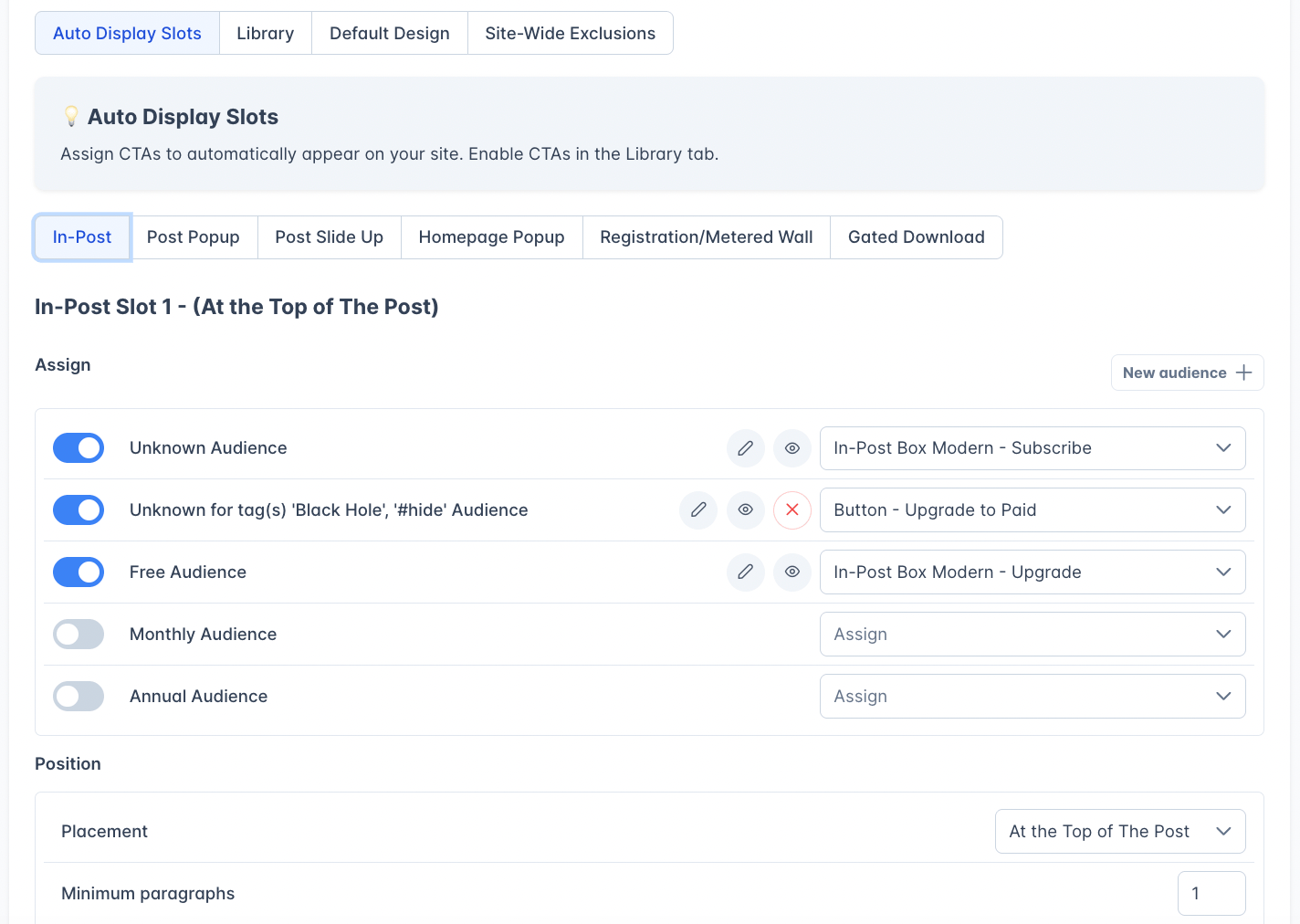 * **In-Post Slot 1** — Defaults to the top of the post
* **In-Post Slot 2** — Defaults to manual placement (after paragraph 6, with a minimum of 10 paragraphs required)
* **In-Post Slot 3** — Defaults to the end of the post
**Position settings for each slot:**
| Setting | Options | Description |
| ------------------------------------ | ------------------------------------------------------ | ------------------------------------------------------------ |
| **Placement** | At the Top of the Post, At the End of the Post, Manual | Where in the post the CTA appears |
| **After/Before** | After, Before | Whether to place the CTA after or before the target element |
| **Paragraph, Headings, Line Breaks** | 1, 2, 3, etc. | Which paragraph number to place near |
| **Direction** | From the Beginning, From the End | Count paragraphs from the start or end of the post |
| **Minimum paragraphs** | 1–99 | Post must have at least this many paragraphs to show the CTA |
| **Don't show on posts with tags** | Tag selector | Skip posts tagged with specific Ghost tags |
This lets you decide to show a CTA at the top of a post, after the 2nd header, at the end of the post, and decide whether to hide a CTA on a shorter post.
You can see CTAs in Ghost's preview mode. If a CTA falls awkwardly on a particular post, you can manually reposition it in that post.
For manual placement, copy a snippet like `` from the manual snippet field and paste it into a Ghost HTML card where you want the CTA to appear.
If you find this happens more than once, you can save that HTML card as a snippet in your editor so you can easily add it in other posts.
### Post Popup
A popup that appears over a Ghost post. You can configure when it triggers - e.g. on page load, after X percent scroll or after a set period of time.
Scroll percentage includes the full page, including comments.
* **In-Post Slot 1** — Defaults to the top of the post
* **In-Post Slot 2** — Defaults to manual placement (after paragraph 6, with a minimum of 10 paragraphs required)
* **In-Post Slot 3** — Defaults to the end of the post
**Position settings for each slot:**
| Setting | Options | Description |
| ------------------------------------ | ------------------------------------------------------ | ------------------------------------------------------------ |
| **Placement** | At the Top of the Post, At the End of the Post, Manual | Where in the post the CTA appears |
| **After/Before** | After, Before | Whether to place the CTA after or before the target element |
| **Paragraph, Headings, Line Breaks** | 1, 2, 3, etc. | Which paragraph number to place near |
| **Direction** | From the Beginning, From the End | Count paragraphs from the start or end of the post |
| **Minimum paragraphs** | 1–99 | Post must have at least this many paragraphs to show the CTA |
| **Don't show on posts with tags** | Tag selector | Skip posts tagged with specific Ghost tags |
This lets you decide to show a CTA at the top of a post, after the 2nd header, at the end of the post, and decide whether to hide a CTA on a shorter post.
You can see CTAs in Ghost's preview mode. If a CTA falls awkwardly on a particular post, you can manually reposition it in that post.
For manual placement, copy a snippet like `` from the manual snippet field and paste it into a Ghost HTML card where you want the CTA to appear.
If you find this happens more than once, you can save that HTML card as a snippet in your editor so you can easily add it in other posts.
### Post Popup
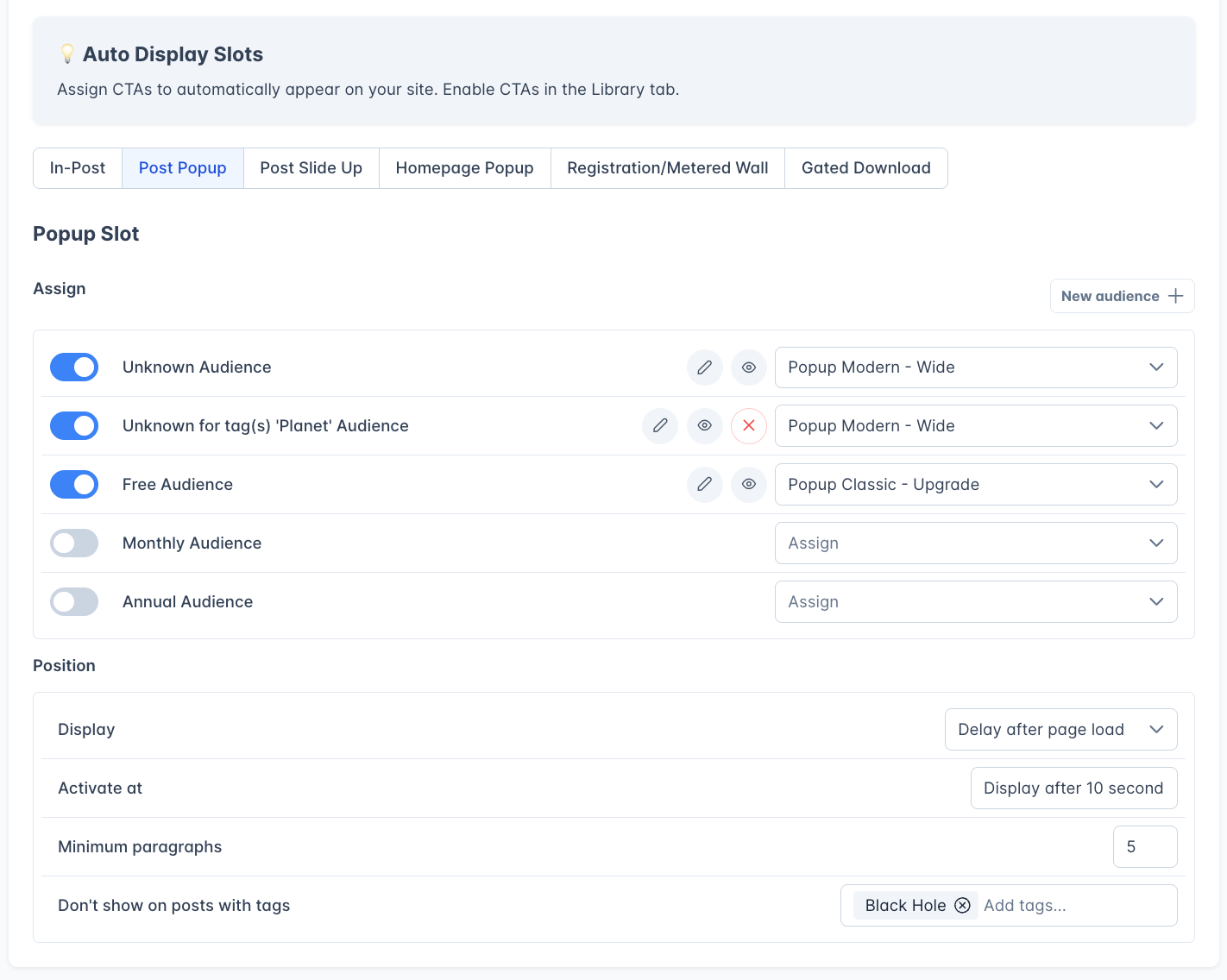
A popup that appears over a Ghost post. You can configure when it triggers - e.g. on page load, after X percent scroll or after a set period of time.
Scroll percentage includes the full page, including comments.
 | Setting | Options | Description |
| --------------------------------- | ---------------------------------------------------- | ------------------------------------- |
| **Display** | On Page load, On scroll depth, Delay after page load | What triggers the popup |
| **Activate at** | seconds / scroll % | The specific trigger threshold |
| **Minimum paragraphs** | 1–99 | Minimum post length to show the popup |
| **Don't show on posts with tags** | Tag selector | Exclude specific tagged posts |
### Post Slide Up
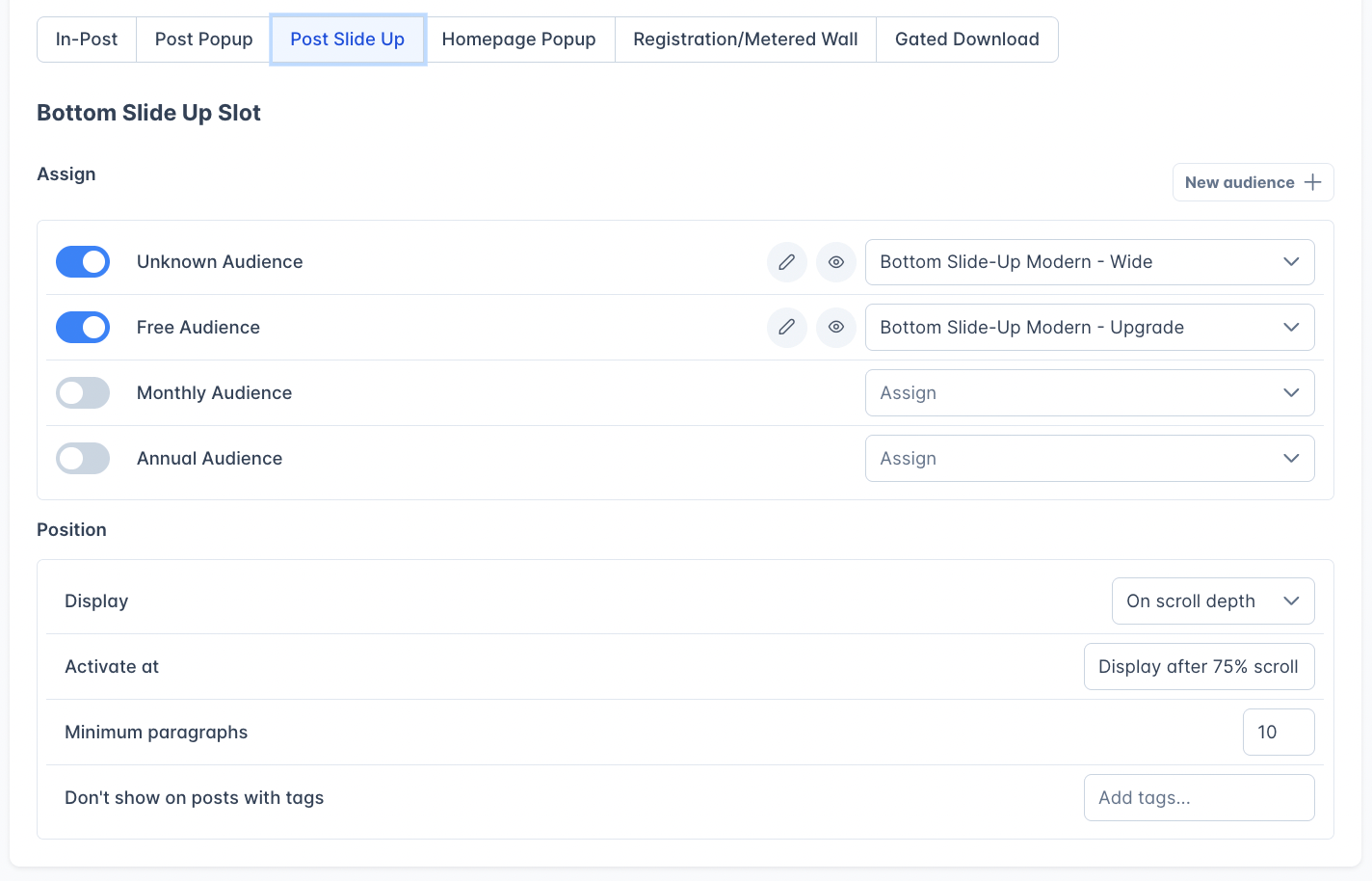
A banner that slides up from the bottom of the screen while reading a post. Most sites use either a popup or a Slide Up on a post but not both (unless you have very long articles).
Slide-ups support the same trigger options as Post Popups (immediate, scroll depth, or time delay).
| Setting | Options | Description |
| --------------------------------- | ---------------------------------------------------- | ------------------------------------- |
| **Display** | On Page load, On scroll depth, Delay after page load | What triggers the popup |
| **Activate at** | seconds / scroll % | The specific trigger threshold |
| **Minimum paragraphs** | 1–99 | Minimum post length to show the popup |
| **Don't show on posts with tags** | Tag selector | Exclude specific tagged posts |
### Post Slide Up
A banner that slides up from the bottom of the screen while reading a post. Most sites use either a popup or a Slide Up on a post but not both (unless you have very long articles).
Slide-ups support the same trigger options as Post Popups (immediate, scroll depth, or time delay).
 ### Homepage Popup
A popup that appears on your site's homepage. This has the same configuration — choose between immediate display on page load, scroll depth trigger, or delay.
### Homepage Popup
A popup that appears on your site's homepage. This has the same configuration — choose between immediate display on page load, scroll depth trigger, or delay.
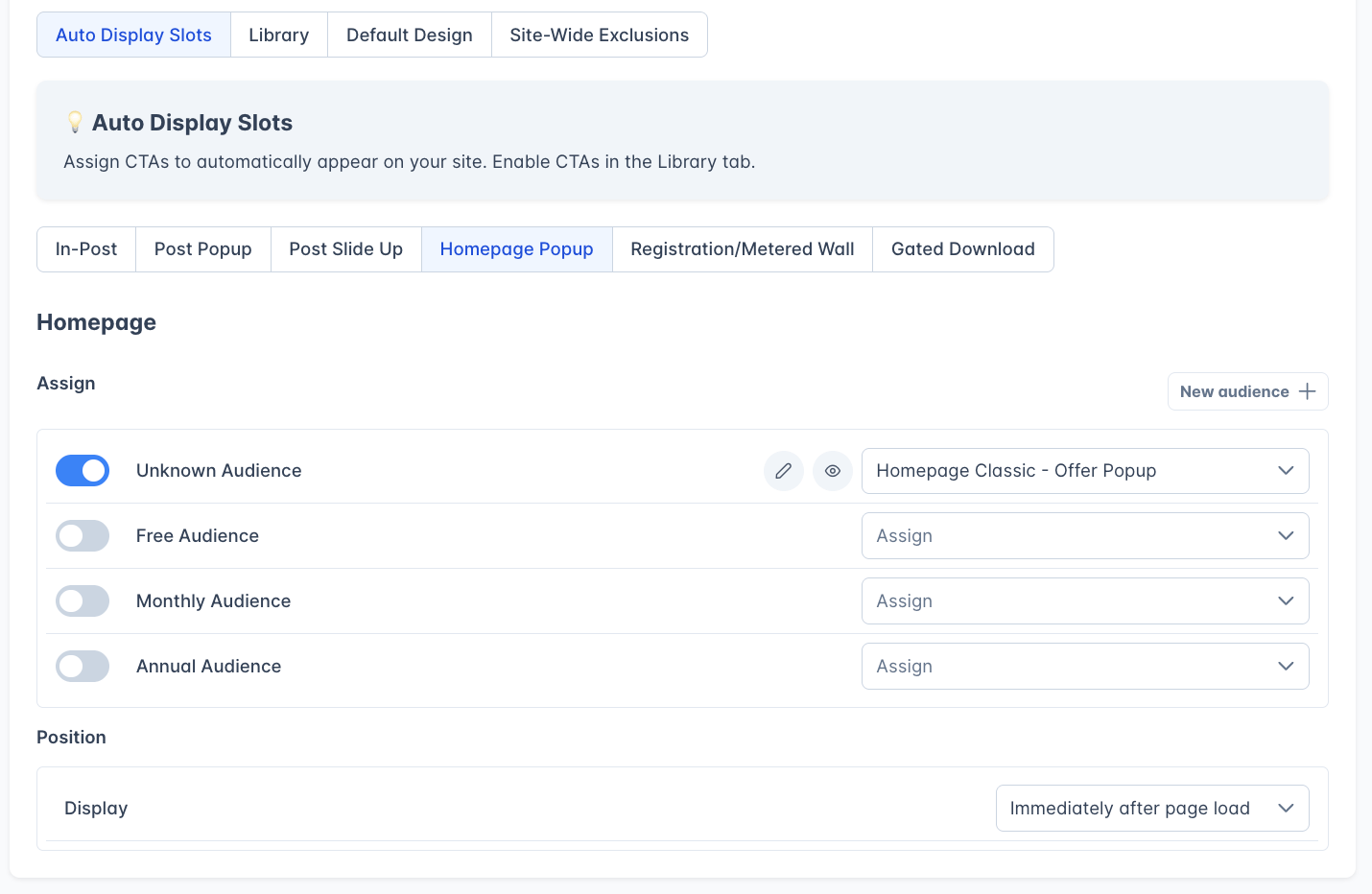 | Setting | Options |
| ----------- | ------------------------------------------------------------------- |
| **Display** | Immediately after page load, On scroll depth, Delay after page load |
### Registration Wall and Metered Paywall
This slot meters how many full posts a reader can view before they're prompted to get on the free list (registration wall) or upgrade to paid (metered paywall). It works alongside Ghost's per-post access settings. This slot is **disabled by default** and supports two independent limits:
| Setting | Options |
| ----------- | ------------------------------------------------------------------- |
| **Display** | Immediately after page load, On scroll depth, Delay after page load |
### Registration Wall and Metered Paywall
This slot meters how many full posts a reader can view before they're prompted to get on the free list (registration wall) or upgrade to paid (metered paywall). It works alongside Ghost's per-post access settings. This slot is **disabled by default** and supports two independent limits:
 | Setting | Description |
| --------------------------------- | ---------------------------------------------------------------------------------------------------------------------------- |
| **Unknown Member posts limit** | Number of posts an unregistered visitor can read per 30-day period before seeing the registration wall. Set to 0 to disable. |
| **Free Member posts limit** | Number of posts a free member can read per month before seeing the upgrade paywall. Set to 0 to disable. |
| **Don't show on posts with tags** | Exclude specific tagged posts from metering |
| **Display trigger** | On page load, on scroll depth, or after delay |
The stats box shows real-time performance: how many times the wall and paywall have been shown, how many free signups resulted (with click-through rate), and how many paid upgrades resulted (with click-through rate).
For how reads are counted (the rolling 30-day window, and the difference between unknown and free metering) and the full paywall behavior, see [Paywalls](/features/paywalls).
### Gated Download
This works as a lead magnet. It lets you offer a PDF or ePub to a reader in the body of a Ghost post (regardless of whether that post is public, free, or paid), and only grant access if they meet the rules you set.
So you can have a completely public post with a PDF download card — a research report, a recipe collection, a buyer's guide — set to free readers only. To download it, the reader either has to be a free or paid reader or sign up for your free list.
| Setting | Description |
| --------------------------------- | ---------------------------------------------------------------------------------------------------------------------------- |
| **Unknown Member posts limit** | Number of posts an unregistered visitor can read per 30-day period before seeing the registration wall. Set to 0 to disable. |
| **Free Member posts limit** | Number of posts a free member can read per month before seeing the upgrade paywall. Set to 0 to disable. |
| **Don't show on posts with tags** | Exclude specific tagged posts from metering |
| **Display trigger** | On page load, on scroll depth, or after delay |
The stats box shows real-time performance: how many times the wall and paywall have been shown, how many free signups resulted (with click-through rate), and how many paid upgrades resulted (with click-through rate).
For how reads are counted (the rolling 30-day window, and the difference between unknown and free metering) and the full paywall behavior, see [Paywalls](/features/paywalls).
### Gated Download
This works as a lead magnet. It lets you offer a PDF or ePub to a reader in the body of a Ghost post (regardless of whether that post is public, free, or paid), and only grant access if they meet the rules you set.
So you can have a completely public post with a PDF download card — a research report, a recipe collection, a buyer's guide — set to free readers only. To download it, the reader either has to be a free or paid reader or sign up for your free list.
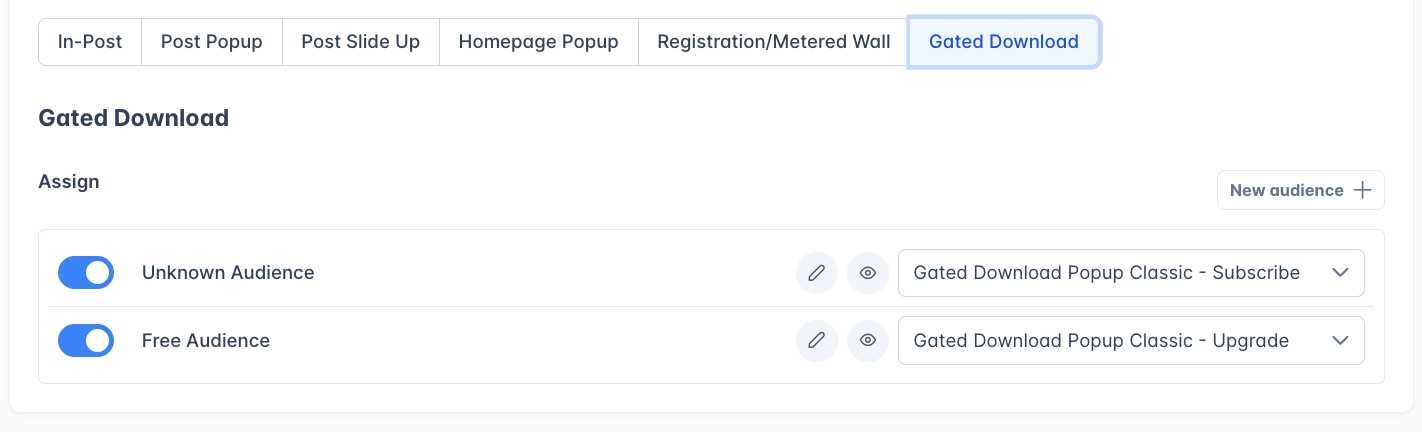 The CTA setting here controls the *popup* that appears when a reader needs to subscribe or upgrade to access a [Gated Download](/features/gated-pdfs). This slot is **disabled by default** and has two audiences:
* **Unknown Audience** — Shows a subscribe popup to non-logged-in visitors
* **Free Audience** — Shows an upgrade popup to free members trying to access a paid-only PDF
The stats box shows signup and download metrics for all Gated Downloads. The look of each Gated Download card in a post is controlled separately, on the [Gated PDFs](/features/gated-pdfs) page.
## Audience targeting
Each slot can show a different CTA to different audience segments. Every slot has audience rows, each with:
* **Toggle** — Enable or disable this audience
* **Audience type** — Who this CTA targets
* **CTA dropdown** — Which CTA to show this audience (select from the [Library](/features/cta-library))
* **Edit button** — Jump to edit the selected CTA
* **Preview button** — Preview what the reader will see
### Audience types
| Audience | Who it targets |
| ----------- | --------------------------------------------- |
| **Unknown** | Visitors who are not logged in (not a member) |
| **Free** | Members with a free subscription |
| **Monthly** | Members with a monthly paid subscription |
| **Annual** | Members with an annual paid subscription |
The Registration/Metered Wall and Gated Download slots only show audience rows for **Unknown** and **Free** — paid members aren't a target audience for those walls.
It is not currently possible to target a CTA based on a paid user tier or by labels.
### Tag-based variants
Tag-based variants let you show different CTAs depending on a post's Ghost tags.
For example, you could show a CTA touting your weather newsletter on posts tagged Weather and a different CTA on posts tagged Basketball or Baseball.
To create one, click **New audience**, then follow the prompts to choose the audience and tag(s) and select the CTA.
If multiple variants target the same tag, they apply in the order they appear in the interface.
## Site-Wide Exclusions
This allows you to prevent any Auto Display CTAs from appearing on specific content, which you might want to do for things like FOIA content or member announcements.
The CTA setting here controls the *popup* that appears when a reader needs to subscribe or upgrade to access a [Gated Download](/features/gated-pdfs). This slot is **disabled by default** and has two audiences:
* **Unknown Audience** — Shows a subscribe popup to non-logged-in visitors
* **Free Audience** — Shows an upgrade popup to free members trying to access a paid-only PDF
The stats box shows signup and download metrics for all Gated Downloads. The look of each Gated Download card in a post is controlled separately, on the [Gated PDFs](/features/gated-pdfs) page.
## Audience targeting
Each slot can show a different CTA to different audience segments. Every slot has audience rows, each with:
* **Toggle** — Enable or disable this audience
* **Audience type** — Who this CTA targets
* **CTA dropdown** — Which CTA to show this audience (select from the [Library](/features/cta-library))
* **Edit button** — Jump to edit the selected CTA
* **Preview button** — Preview what the reader will see
### Audience types
| Audience | Who it targets |
| ----------- | --------------------------------------------- |
| **Unknown** | Visitors who are not logged in (not a member) |
| **Free** | Members with a free subscription |
| **Monthly** | Members with a monthly paid subscription |
| **Annual** | Members with an annual paid subscription |
The Registration/Metered Wall and Gated Download slots only show audience rows for **Unknown** and **Free** — paid members aren't a target audience for those walls.
It is not currently possible to target a CTA based on a paid user tier or by labels.
### Tag-based variants
Tag-based variants let you show different CTAs depending on a post's Ghost tags.
For example, you could show a CTA touting your weather newsletter on posts tagged Weather and a different CTA on posts tagged Basketball or Baseball.
To create one, click **New audience**, then follow the prompts to choose the audience and tag(s) and select the CTA.
If multiple variants target the same tag, they apply in the order they appear in the interface.
## Site-Wide Exclusions
This allows you to prevent any Auto Display CTAs from appearing on specific content, which you might want to do for things like FOIA content or member announcements.
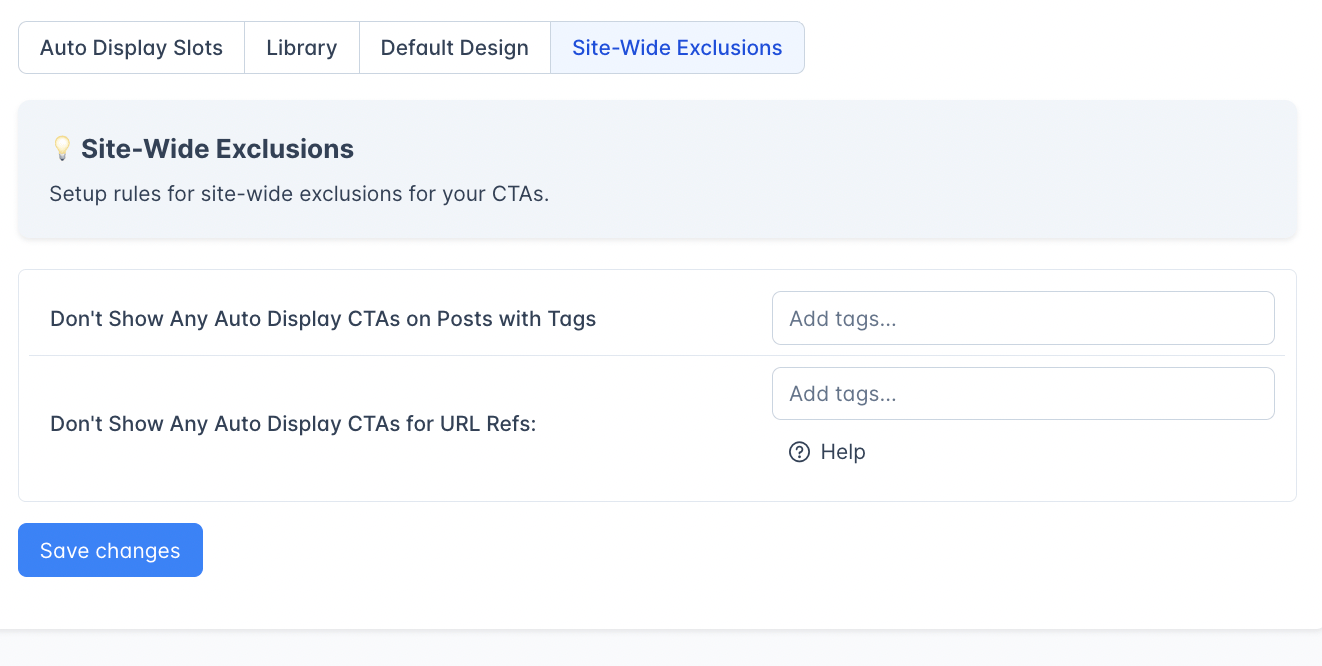 | Setting | Description |
| --------------------------------- | ----------------------------------------------------------------------------------------------------------------------------------- |
| **Don't show on posts with tags** | Enter Ghost tags (e.g., `#event`). Posts with these tags will never show Auto Display CTAs. |
| **Don't show for URL refs** | Enter URL ref values (e.g., `newsletter`). Readers arriving via these refs won't see CTAs. Useful for excluding newsletter traffic. |
Some sites apply this to URL refs that show up when someone clicks the "read on the web" link in a newsletter, assuming those readers are already members but might not be logged in. To do that, copy the ref for each newsletter you want to exclude. Note: if a newsletter reader shares that link on social, anyone who clicks it inherits the ref and also won't see CTAs.
These exclusions apply globally across all slots. Individual slots can also have their own tag exclusions in addition to these.
## Related
Overview of how slots, audiences, and CTAs fit together
Browse, edit, and style the CTAs you assign to slots
Meter content access and prompt upgrades
Offer downloadable files exclusively to subscribers
| Setting | Description |
| --------------------------------- | ----------------------------------------------------------------------------------------------------------------------------------- |
| **Don't show on posts with tags** | Enter Ghost tags (e.g., `#event`). Posts with these tags will never show Auto Display CTAs. |
| **Don't show for URL refs** | Enter URL ref values (e.g., `newsletter`). Readers arriving via these refs won't see CTAs. Useful for excluding newsletter traffic. |
Some sites apply this to URL refs that show up when someone clicks the "read on the web" link in a newsletter, assuming those readers are already members but might not be logged in. To do that, copy the ref for each newsletter you want to exclude. Note: if a newsletter reader shares that link on social, anyone who clicks it inherits the ref and also won't see CTAs.
These exclusions apply globally across all slots. Individual slots can also have their own tag exclusions in addition to these.
## Related
Overview of how slots, audiences, and CTAs fit together
Browse, edit, and style the CTAs you assign to slots
Meter content access and prompt upgrades
Offer downloadable files exclusively to subscribers