> ## Documentation Index
> Fetch the complete documentation index at: https://documentation.outpost.pub/llms.txt
> Use this file to discover all available pages before exploring further.
# Email Templates
> Create reusable email content with merge field personalization, rich text editing, and offer links for use in autoresponder flows and campaigns.
Email templates are the building blocks for all Outpost email communication. A template defines the subject line and body of an email, with merge fields for personalization. Templates are used by [campaigns](/features/email-campaigns), the [Advanced Autoresponder](/features/advanced-autoresponder), the [Basic Autoresponder](/features/basic-autoresponder) actions, and the [failed payment flow](/features/failed-payment-flow). How you pick a template differs by feature, as the FAQ below explains.
 ***
## Template list
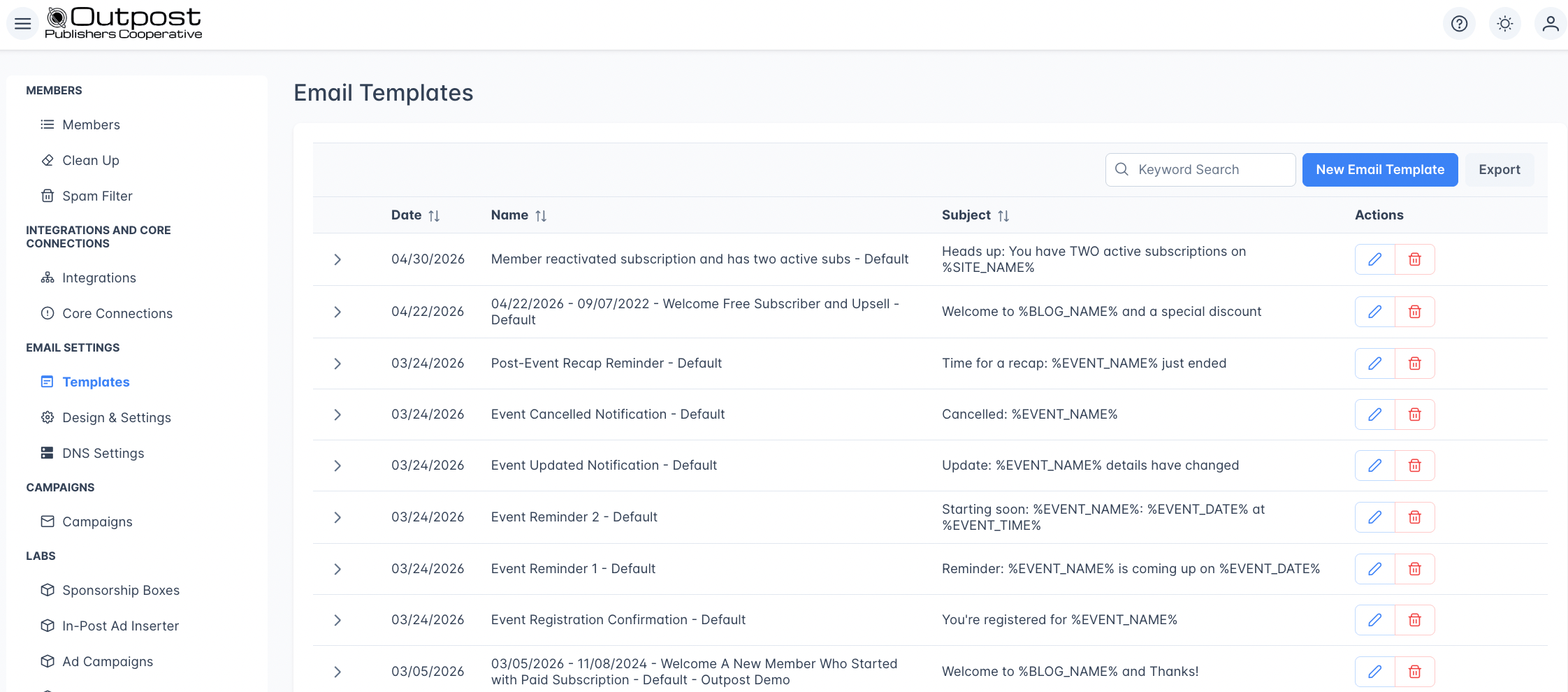
Find the Templates page under the Email Settings Menu, where you'll find all your templates in a searchable table:
| Column | Description |
| ----------- | -------------------------------------- |
| **Date** | When the template was created |
| **Name** | Internal name for organizing templates |
| **Subject** | The email subject line |
| **Actions** | Edit or delete the template |
Click a row to expand it and see an HTML preview of the template body. Use the **Export** button to download your template list.
***
## Creating a template
Go to **Email Settings → Templates** and click **New Email Template**. The form opens with the title **Add Notification Email Template**.
Templates you create here are available in Campaigns and the Advanced Autoresponder. To create a template for a Basic Autoresponder action, edit that action's template on the Autoresponder page instead. See [Use your own template in a Basic action](/features/basic-autoresponder#use-your-own-template-in-a-basic-action).
The exception is the **New** button on a tier's row inside a Basic action's **Tier Templates** drawer. That opens the same form, and the template it creates is attached to that action and that tier.
***
## Template list
Find the Templates page under the Email Settings Menu, where you'll find all your templates in a searchable table:
| Column | Description |
| ----------- | -------------------------------------- |
| **Date** | When the template was created |
| **Name** | Internal name for organizing templates |
| **Subject** | The email subject line |
| **Actions** | Edit or delete the template |
Click a row to expand it and see an HTML preview of the template body. Use the **Export** button to download your template list.
***
## Creating a template
Go to **Email Settings → Templates** and click **New Email Template**. The form opens with the title **Add Notification Email Template**.
Templates you create here are available in Campaigns and the Advanced Autoresponder. To create a template for a Basic Autoresponder action, edit that action's template on the Autoresponder page instead. See [Use your own template in a Basic action](/features/basic-autoresponder#use-your-own-template-in-a-basic-action).
The exception is the **New** button on a tier's row inside a Basic action's **Tier Templates** drawer. That opens the same form, and the template it creates is attached to that action and that tier.
 | Field | Description |
| ------------------- | ------------------------------------------------------------------------------------------------------------- |
| **Template Name** | Internal label for organizing templates. Required. |
| **Subject** | The email subject line. Merge fields supported. Required. |
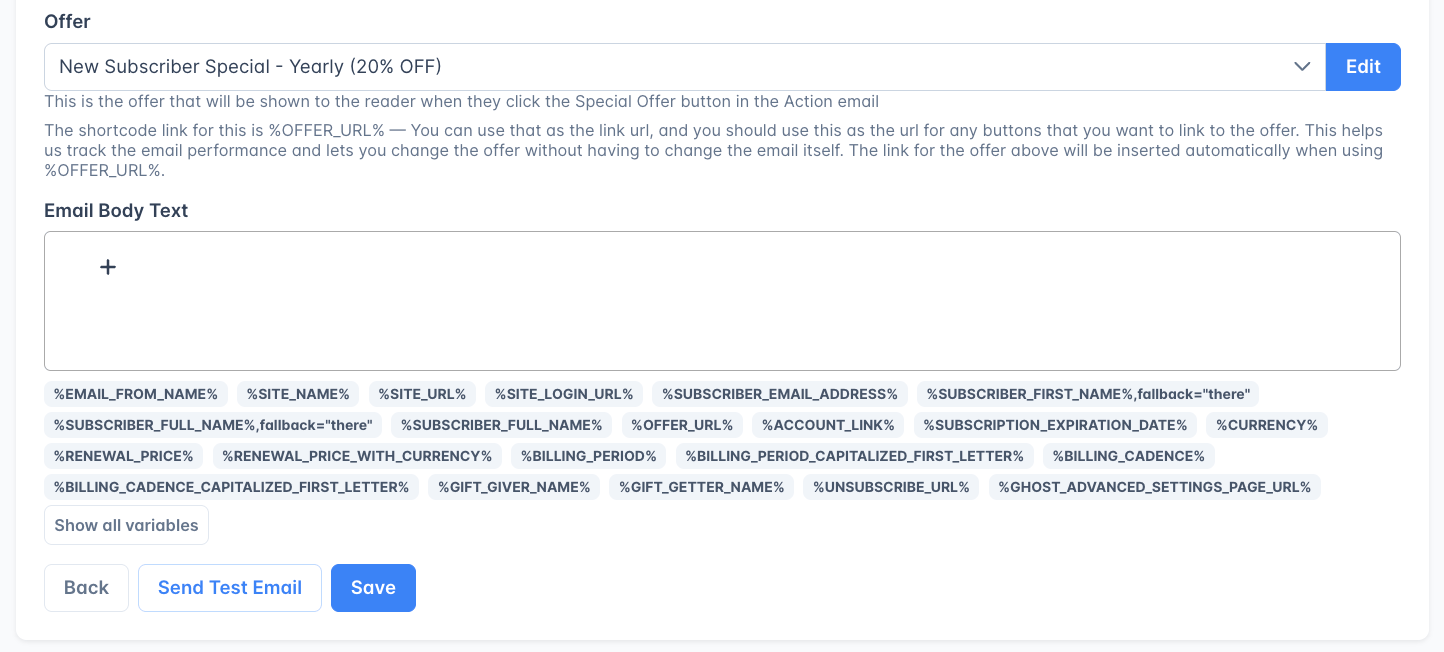
| **Offer** | Optionally link an offer: this enables the `%OFFER_URL%` merge field to generate personalized checkout links. |
| **Email Body Text** | The email body content. Use the rich text editor to format text, add images, links, and merge fields. |
***
## Images and video
The email body editor has two image blocks. Click the **+** button in the editor and choose:
* **Image** for a plain image.
* **Image with Link** for an image that opens a URL when a reader clicks it.
Choosing either one opens your file picker, so you can upload an image from your computer. Once it has uploaded, both blocks offer a **Caption** field, and **Image with Link** adds a second field below the caption marked **Image URL**. That field is the address the image points to, not the image file. If you leave it empty, the image is still wrapped in an empty link, so use the plain **Image** block whenever the image should not be clickable.
If your site uses the **Plain Text** email design, images are stripped from every email you send. See [Plain text mode](/features/email-design-settings#plain-text-mode).
Most email clients will not play video inside an email, and there is no reliable way to make one play everywhere. To promote a video, upload a still frame with a play button drawn over it as an **Image with Link**, and set the link to the page where the video is hosted. Readers click the image and watch the video in their browser. An animated GIF is another option, though some email clients show only its first frame.
The block menu has no video block, and pasting a video URL is not a substitute. A pasted URL can turn into a player inside the editor, but that player is dropped when the email is built: the video disappears from the email with nothing in its place. Delete the block, use **Image with Link** instead, and confirm with [Send Test Email](#preview-and-test).
***
## Merge fields
Merge fields let you insert dynamic content into your email templates. Wrap the field name in `%` characters: for example, `%SUBSCRIBER_FIRST_NAME%`.
Merge fields work in both the **subject line** and the **email body**.
### Fallback values
Ghost stores names in a single optional field, so many members register without a first name at all. If your template says `Hey %SUBSCRIBER_FIRST_NAME%,` and the name is blank, your email reads `Hey ,`. That's awkward. Add a fallback any time a blank value would read awkwardly, most often in greetings.
Use the `,fallback="..."` format. Quotes let you use any phrase, including multiple words and punctuation:
```text theme={"theme":{"light":"github-light","dark":"github-dark"}}
Hey %SUBSCRIBER_FIRST_NAME%,fallback="dear reader", thanks for subscribing!
```
If the member's first name is "Alex", the email reads "Hey Alex, thanks for subscribing!" If the name is blank, it reads "Hey dear reader, thanks for subscribing!"
Single or double quotes both work. For a single word with no spaces you can skip the quotes: `%SUBSCRIBER_FIRST_NAME%,fallback=there`.
Fallback values work with `%SUBSCRIBER_FIRST_NAME%`, `%SUBSCRIBER_FULL_NAME%`, and `%SUBSCRIBER_EMAIL_ADDRESS%`.
### When to skip the fallback
Use a fallback when the name is part of a sentence ("Hi …, thanks for subscribing"). Skip it when the name is the value itself: for example, an account summary that lists what's on file.
**Greeting (use a fallback):**
```text theme={"theme":{"light":"github-light","dark":"github-dark"}}
Hello %SUBSCRIBER_FULL_NAME%,fallback="there", thanks for being a member of %SITE_NAME%.
```
If the member's full name is "Alex Rivera", this reads "Hello Alex Rivera, thanks…". If it's blank, it reads "Hello there, thanks…".
**Account information (skip the fallback):**
```text theme={"theme":{"light":"github-light","dark":"github-dark"}}
Name on file: %SUBSCRIBER_FULL_NAME%
Email: %SUBSCRIBER_EMAIL_ADDRESS%
```
Here the field *is* the answer: substituting "there" would misrepresent what's stored. Leaving the value blank lets the line read accurately ("Name on file:") so the member knows to update their profile.
Outpost watches your templates, autoresponder flows, and campaigns for malformed fallback patterns: common typos like `%VAR%,fallback="unclosed` (unclosed quote) or `%VAR%,fallback=` (empty fallback) show up as warnings so you can fix them before sending.
**Older templates may use** `%SUBSCRIBER_FIRST_NAME%|there`: a pipe followed by a single word. This format still works wherever you already have it, but it only accepts one word (so `|dear reader` falls back to just "dear"). When you write something new, use the `,fallback="..."` form above.
### Member fields
| Field | Description |
| ---------------------------- | ------------------------------------------------- |
| `%SUBSCRIBER_FIRST_NAME%` | Member's first name. Supports fallback syntax. |
| `%SUBSCRIBER_FULL_NAME%` | Member's full name. Supports fallback syntax. |
| `%SUBSCRIBER_EMAIL_ADDRESS%` | Member's email address. Supports fallback syntax. |
| `%SUBSCRIBER_TIER_NAME%` | Name of the member's current subscription tier |
| `%UNSUBSCRIBE_URL%` | Member's email unsubscribe link |
| `%MEMBER_GHOST_GUID%` | Member's unique identifier |
### Site fields
These fields pull from your publication's settings. Use the `SITE_` versions. Older templates may still contain `%BLOG_NAME%`, `%BLOG_URL%`, and similar; these keep working, but the editor only offers the `SITE_` versions when you insert a field.
| Field | Description |
| ------------------- | ------------------------------------------------------------------------------------------------------------------------------------------------------- |
| `%SITE_NAME%` | Your publication name |
| `%SITE_URL%` | Your publication URL |
| `%SITE_LOGIN_URL%` | Your member sign-in page URL. Set in **Publication Details**: defaults to your Ghost Portal sign-in, but changes if you point it at a custom URL there. |
| `%ACCOUNT_LINK%` | Member account management page URL |
| `%EMAIL_FROM_NAME%` | The sender name configured in your email settings |
| `%CURRENT_DATE%` | Today's date (formatted as "March 15, 2026") |
### Subscription and billing fields
| Field | Description |
| -------------------------------------------- | ------------------------------------------------------------------------- |
| `%RENEWAL_PRICE%` | The member's next renewal price (number only) |
| `%RENEWAL_PRICE_WITH_CURRENCY%` | The member's next renewal price with currency symbol |
| `%CURRENCY%` | The member's subscription currency code (e.g. USD) |
| `%BILLING_PERIOD%` | The billing interval: "monthly", "yearly", etc. |
| `%BILLING_PERIOD_CAPITALIZED_FIRST_LETTER%` | Billing interval with first letter capitalized: "Monthly", "Yearly" |
| `%BILLING_CADENCE%` | Billing cadence text: "month", "year", etc. |
| `%BILLING_CADENCE_CAPITALIZED_FIRST_LETTER%` | Billing cadence with first letter capitalized: "Month", "Year" |
| `%SUBSCRIPTION_EXPIRATION_DATE%` | When the current subscription period ends |
| `%SUBSCRIPTION_EXPIRATION_PLUS_1YEAR_DATE%` | One year after the current expiration date |
| `%TRIAL_END_DATE%` | When the member's trial period ends (only available for trialing members) |
| `%END_TRIAL_PRICE%` | The price the member will be charged when their trial ends |
### Offer and action links
| Field | Description |
| ----------------------------- | --------------------------------------------------------------------------------------------------------------- |
| `%OFFER_URL%` | A personalized checkout link for the offer attached to this template or action. Requires an offer to be linked. |
| `%UPDATE_PAYMENT_METHOD_URL%` | Link for the member to update their payment method on file |
### Complimentary subscription fields
These fields are only available in templates used by complimentary subscription actions (e.g., renewal reminders for comped members).
| Field | Description |
| --------------------------------------------- | ------------------------------------------------------ |
| `%RENEW_COMPLIMENTARY_SUBSCRIBER_URL%` | Link for a comped member to confirm they want to renew |
| `%DO_NOT_RENEW_COMPLIMENTARY_SUBSCRIBER_URL%` | Link for a comped member to decline renewal |
### Gift subscription fields
These fields are only available in templates used by gift subscription actions. They are populated from the gift subscription record.
| Field | Description |
| ------------------------- | ------------------------------------------------------- |
| `%GIFT_GIVER_NAME%` | Name of the person who purchased the gift |
| `%GIFT_GETTER_NAME%` | Name of the gift recipient |
| `%GIFT_SUB_MESSAGE%` | The personal message the giver included with the gift |
| `%RENEW_GIFT_URL%` | Link for the gift giver to extend the gift subscription |
| `%DO_NOT_RENEW_GIFT_URL%` | Link for the gift giver to let the gift expire |
### Group subscription fields
These fields are only available in templates used by group subscription invite actions.
| Field | Description |
| ------------------------------------- | ------------------------------------------------------ |
| `%GROUP_SUBSCRIPTION_BUYER_EMAIL%` | Email of the group subscription owner |
| `%GROUP_SUBSCRIPTION_BUYER_NAME%` | Name of the group subscription owner |
| `%GROUP_SUBSCRIPTION_INVITE_URL%` | Invite link for the recipient to accept the group seat |
| `%GROUP_SUBSCRIPTION_RECEIVER_EMAIL%` | Email of the invited group member |
### Gated PDF fields
These fields are only available in CTA gated PDF delivery emails.
| Field | Description |
| ----------- | ------------------------------------ |
| `%PDF_URL%` | Download link for the gated PDF file |
### Event fields
These fields are only available in event email templates (registration confirmation, reminders, cancellation, and update notifications).
Event email templates have their own set of merge tags: `%EVENT_NAME%`, `%EVENT_DATE%`, calendar links, and more. See [Event emails](/features/events#customizing-event-email-templates) for the full list and how to edit each template.
### Conditional content blocks
Show or hide sections of your email based on whether the member is on a free or paid plan:
```html theme={"theme":{"light":"github-light","dark":"github-dark"}}
%RECIPIENT.PAID_BLOCK_START%
This content is only visible to paid members.
%RECIPIENT.PAID_BLOCK_END%
%RECIPIENT.FREE_BLOCK_START%
This content is only visible to free members.
%RECIPIENT.FREE_BLOCK_END%
```
Use these blocks to include upgrade CTAs for free members while showing thank-you messages or exclusive content links for paid members, all within a single template.
The block tags must be on their own lines. Do not nest paid blocks inside free blocks or vice versa.
***
## Offer templates
If a template is linked to an offer, the `%OFFER_URL%` merge field generates a personalized URL that takes the member directly to checkout with the offer pre-applied. This is used for:
* Win-back campaigns to bring cancelled members back at a discount
* Renewal reminder emails with a one-click resubscribe link
* Upgrade offers for free members
The offer dropdown shows both regular [offers](/features/offers-and-discounts) and subscription plans.
| Field | Description |
| ------------------- | ------------------------------------------------------------------------------------------------------------- |
| **Template Name** | Internal label for organizing templates. Required. |
| **Subject** | The email subject line. Merge fields supported. Required. |
| **Offer** | Optionally link an offer: this enables the `%OFFER_URL%` merge field to generate personalized checkout links. |
| **Email Body Text** | The email body content. Use the rich text editor to format text, add images, links, and merge fields. |
***
## Images and video
The email body editor has two image blocks. Click the **+** button in the editor and choose:
* **Image** for a plain image.
* **Image with Link** for an image that opens a URL when a reader clicks it.
Choosing either one opens your file picker, so you can upload an image from your computer. Once it has uploaded, both blocks offer a **Caption** field, and **Image with Link** adds a second field below the caption marked **Image URL**. That field is the address the image points to, not the image file. If you leave it empty, the image is still wrapped in an empty link, so use the plain **Image** block whenever the image should not be clickable.
If your site uses the **Plain Text** email design, images are stripped from every email you send. See [Plain text mode](/features/email-design-settings#plain-text-mode).
Most email clients will not play video inside an email, and there is no reliable way to make one play everywhere. To promote a video, upload a still frame with a play button drawn over it as an **Image with Link**, and set the link to the page where the video is hosted. Readers click the image and watch the video in their browser. An animated GIF is another option, though some email clients show only its first frame.
The block menu has no video block, and pasting a video URL is not a substitute. A pasted URL can turn into a player inside the editor, but that player is dropped when the email is built: the video disappears from the email with nothing in its place. Delete the block, use **Image with Link** instead, and confirm with [Send Test Email](#preview-and-test).
***
## Merge fields
Merge fields let you insert dynamic content into your email templates. Wrap the field name in `%` characters: for example, `%SUBSCRIBER_FIRST_NAME%`.
Merge fields work in both the **subject line** and the **email body**.
### Fallback values
Ghost stores names in a single optional field, so many members register without a first name at all. If your template says `Hey %SUBSCRIBER_FIRST_NAME%,` and the name is blank, your email reads `Hey ,`. That's awkward. Add a fallback any time a blank value would read awkwardly, most often in greetings.
Use the `,fallback="..."` format. Quotes let you use any phrase, including multiple words and punctuation:
```text theme={"theme":{"light":"github-light","dark":"github-dark"}}
Hey %SUBSCRIBER_FIRST_NAME%,fallback="dear reader", thanks for subscribing!
```
If the member's first name is "Alex", the email reads "Hey Alex, thanks for subscribing!" If the name is blank, it reads "Hey dear reader, thanks for subscribing!"
Single or double quotes both work. For a single word with no spaces you can skip the quotes: `%SUBSCRIBER_FIRST_NAME%,fallback=there`.
Fallback values work with `%SUBSCRIBER_FIRST_NAME%`, `%SUBSCRIBER_FULL_NAME%`, and `%SUBSCRIBER_EMAIL_ADDRESS%`.
### When to skip the fallback
Use a fallback when the name is part of a sentence ("Hi …, thanks for subscribing"). Skip it when the name is the value itself: for example, an account summary that lists what's on file.
**Greeting (use a fallback):**
```text theme={"theme":{"light":"github-light","dark":"github-dark"}}
Hello %SUBSCRIBER_FULL_NAME%,fallback="there", thanks for being a member of %SITE_NAME%.
```
If the member's full name is "Alex Rivera", this reads "Hello Alex Rivera, thanks…". If it's blank, it reads "Hello there, thanks…".
**Account information (skip the fallback):**
```text theme={"theme":{"light":"github-light","dark":"github-dark"}}
Name on file: %SUBSCRIBER_FULL_NAME%
Email: %SUBSCRIBER_EMAIL_ADDRESS%
```
Here the field *is* the answer: substituting "there" would misrepresent what's stored. Leaving the value blank lets the line read accurately ("Name on file:") so the member knows to update their profile.
Outpost watches your templates, autoresponder flows, and campaigns for malformed fallback patterns: common typos like `%VAR%,fallback="unclosed` (unclosed quote) or `%VAR%,fallback=` (empty fallback) show up as warnings so you can fix them before sending.
**Older templates may use** `%SUBSCRIBER_FIRST_NAME%|there`: a pipe followed by a single word. This format still works wherever you already have it, but it only accepts one word (so `|dear reader` falls back to just "dear"). When you write something new, use the `,fallback="..."` form above.
### Member fields
| Field | Description |
| ---------------------------- | ------------------------------------------------- |
| `%SUBSCRIBER_FIRST_NAME%` | Member's first name. Supports fallback syntax. |
| `%SUBSCRIBER_FULL_NAME%` | Member's full name. Supports fallback syntax. |
| `%SUBSCRIBER_EMAIL_ADDRESS%` | Member's email address. Supports fallback syntax. |
| `%SUBSCRIBER_TIER_NAME%` | Name of the member's current subscription tier |
| `%UNSUBSCRIBE_URL%` | Member's email unsubscribe link |
| `%MEMBER_GHOST_GUID%` | Member's unique identifier |
### Site fields
These fields pull from your publication's settings. Use the `SITE_` versions. Older templates may still contain `%BLOG_NAME%`, `%BLOG_URL%`, and similar; these keep working, but the editor only offers the `SITE_` versions when you insert a field.
| Field | Description |
| ------------------- | ------------------------------------------------------------------------------------------------------------------------------------------------------- |
| `%SITE_NAME%` | Your publication name |
| `%SITE_URL%` | Your publication URL |
| `%SITE_LOGIN_URL%` | Your member sign-in page URL. Set in **Publication Details**: defaults to your Ghost Portal sign-in, but changes if you point it at a custom URL there. |
| `%ACCOUNT_LINK%` | Member account management page URL |
| `%EMAIL_FROM_NAME%` | The sender name configured in your email settings |
| `%CURRENT_DATE%` | Today's date (formatted as "March 15, 2026") |
### Subscription and billing fields
| Field | Description |
| -------------------------------------------- | ------------------------------------------------------------------------- |
| `%RENEWAL_PRICE%` | The member's next renewal price (number only) |
| `%RENEWAL_PRICE_WITH_CURRENCY%` | The member's next renewal price with currency symbol |
| `%CURRENCY%` | The member's subscription currency code (e.g. USD) |
| `%BILLING_PERIOD%` | The billing interval: "monthly", "yearly", etc. |
| `%BILLING_PERIOD_CAPITALIZED_FIRST_LETTER%` | Billing interval with first letter capitalized: "Monthly", "Yearly" |
| `%BILLING_CADENCE%` | Billing cadence text: "month", "year", etc. |
| `%BILLING_CADENCE_CAPITALIZED_FIRST_LETTER%` | Billing cadence with first letter capitalized: "Month", "Year" |
| `%SUBSCRIPTION_EXPIRATION_DATE%` | When the current subscription period ends |
| `%SUBSCRIPTION_EXPIRATION_PLUS_1YEAR_DATE%` | One year after the current expiration date |
| `%TRIAL_END_DATE%` | When the member's trial period ends (only available for trialing members) |
| `%END_TRIAL_PRICE%` | The price the member will be charged when their trial ends |
### Offer and action links
| Field | Description |
| ----------------------------- | --------------------------------------------------------------------------------------------------------------- |
| `%OFFER_URL%` | A personalized checkout link for the offer attached to this template or action. Requires an offer to be linked. |
| `%UPDATE_PAYMENT_METHOD_URL%` | Link for the member to update their payment method on file |
### Complimentary subscription fields
These fields are only available in templates used by complimentary subscription actions (e.g., renewal reminders for comped members).
| Field | Description |
| --------------------------------------------- | ------------------------------------------------------ |
| `%RENEW_COMPLIMENTARY_SUBSCRIBER_URL%` | Link for a comped member to confirm they want to renew |
| `%DO_NOT_RENEW_COMPLIMENTARY_SUBSCRIBER_URL%` | Link for a comped member to decline renewal |
### Gift subscription fields
These fields are only available in templates used by gift subscription actions. They are populated from the gift subscription record.
| Field | Description |
| ------------------------- | ------------------------------------------------------- |
| `%GIFT_GIVER_NAME%` | Name of the person who purchased the gift |
| `%GIFT_GETTER_NAME%` | Name of the gift recipient |
| `%GIFT_SUB_MESSAGE%` | The personal message the giver included with the gift |
| `%RENEW_GIFT_URL%` | Link for the gift giver to extend the gift subscription |
| `%DO_NOT_RENEW_GIFT_URL%` | Link for the gift giver to let the gift expire |
### Group subscription fields
These fields are only available in templates used by group subscription invite actions.
| Field | Description |
| ------------------------------------- | ------------------------------------------------------ |
| `%GROUP_SUBSCRIPTION_BUYER_EMAIL%` | Email of the group subscription owner |
| `%GROUP_SUBSCRIPTION_BUYER_NAME%` | Name of the group subscription owner |
| `%GROUP_SUBSCRIPTION_INVITE_URL%` | Invite link for the recipient to accept the group seat |
| `%GROUP_SUBSCRIPTION_RECEIVER_EMAIL%` | Email of the invited group member |
### Gated PDF fields
These fields are only available in CTA gated PDF delivery emails.
| Field | Description |
| ----------- | ------------------------------------ |
| `%PDF_URL%` | Download link for the gated PDF file |
### Event fields
These fields are only available in event email templates (registration confirmation, reminders, cancellation, and update notifications).
Event email templates have their own set of merge tags: `%EVENT_NAME%`, `%EVENT_DATE%`, calendar links, and more. See [Event emails](/features/events#customizing-event-email-templates) for the full list and how to edit each template.
### Conditional content blocks
Show or hide sections of your email based on whether the member is on a free or paid plan:
```html theme={"theme":{"light":"github-light","dark":"github-dark"}}
%RECIPIENT.PAID_BLOCK_START%
This content is only visible to paid members.
%RECIPIENT.PAID_BLOCK_END%
%RECIPIENT.FREE_BLOCK_START%
This content is only visible to free members.
%RECIPIENT.FREE_BLOCK_END%
```
Use these blocks to include upgrade CTAs for free members while showing thank-you messages or exclusive content links for paid members, all within a single template.
The block tags must be on their own lines. Do not nest paid blocks inside free blocks or vice versa.
***
## Offer templates
If a template is linked to an offer, the `%OFFER_URL%` merge field generates a personalized URL that takes the member directly to checkout with the offer pre-applied. This is used for:
* Win-back campaigns to bring cancelled members back at a discount
* Renewal reminder emails with a one-click resubscribe link
* Upgrade offers for free members
The offer dropdown shows both regular [offers](/features/offers-and-discounts) and subscription plans.
 ***
## Preview and test
Before using a template in a flow or campaign:
1. Click **Send Test Email** to send a real email to your own address with actual merge field values.
***
## Preview and test
Before using a template in a flow or campaign:
1. Click **Send Test Email** to send a real email to your own address with actual merge field values.
 1. If the template has unsaved changes, the button label switches to **Send Test Email before saving changes** as a reminder to save first.
2. Check the email in both desktop and mobile email clients before activating.
***
## Special action templates
Some templates are linked to specific built-in autoresponder actions (such as card expiration reminders or offer click reminders). These templates show a warning in the editor indicating they are connected to built-in automations.
***
## Related features
Customize colors, fonts, header image, and custom HTML for all email templates.
Use templates in automated email sequences.
Send templates as one-time campaigns to targeted segments.
Link offers to templates for personalized checkout links.
***
## FAQ
Yes. The email body editor supports rich text and HTML. For full control over the email layout, you can also set a custom HTML template in [Email Design Settings](/features/email-design-settings).
Not as a playable video. Most email clients will not play video inside an email, and the editor has no video block. Use a still frame with a play button drawn over it, linked to the page where the video is hosted, so readers click through to watch. See [Images and video](#images-and-video) for how to set it up.
Use merge fields in the subject field: for example, `We miss you, %SUBSCRIBER_FIRST_NAME%,fallback="friend"!` will insert the member's first name, or "friend" if they didn't share one when they signed up. Ghost stores names in a single optional field, so many members register without a first name: always include `,fallback="..."` so your subject reads naturally either way. See [Fallback values](#fallback-values) for the full syntax.
It renders as an empty string, which can leave awkward gaps like "Hey , thanks for subscribing!" Wrap the field in a fallback so the email reads naturally when the value is blank: `Hey %SUBSCRIBER_FIRST_NAME%,fallback="dear reader", thanks for subscribing!` See [Fallback values](#fallback-values) for the full syntax.
Not always. Use `,fallback="there"` (or similar) whenever the name is part of a sentence: greetings, sign-offs, subject lines. Skip the fallback when the name is the value itself, like an account-summary line ("Name on file: `%SUBSCRIBER_FULL_NAME%`"). Substituting a generic word there would misrepresent what's actually on file. See [Fallback values](#fallback-values) for examples.
It depends on where you want to use it. **Campaigns** and the **Advanced Autoresponder** let you pick any template from your library, so you can reuse one template across as many campaigns and advanced flows as you like.
The **Basic Autoresponder** works differently. Each built-in action only lists templates that were created for that specific action, so a template you build from **Email Settings → Templates → New Email Template** will not appear in a Basic action's dropdown. To use your own wording in a Basic action, open that action's current template on the **Basic Autoresponder** page, edit it, and save. The first time you edit an action's built-in template, Outpost keeps the default and saves your version as a new template attached to that action. See [Use your own template in a Basic action](/features/basic-autoresponder#use-your-own-template-in-a-basic-action).
In emails aimed at existing subscribers (cancellation and retention actions), the offer button is locked to the `%OFFER_URL%` merge field. This keeps it pointed at the right personalized checkout: an [Outpost Promotion](/features/upgrading-existing-subscribers) that can switch or prorate an existing subscriber's plan. A hardcoded Ghost offer link would show those subscribers nothing, since Ghost Offers only render for free or unknown visitors. To change the destination, change the offer attached in the action's **Offer** dropdown rather than the link. See [Upgrading Existing Subscribers](/features/upgrading-existing-subscribers).
1. If the template has unsaved changes, the button label switches to **Send Test Email before saving changes** as a reminder to save first.
2. Check the email in both desktop and mobile email clients before activating.
***
## Special action templates
Some templates are linked to specific built-in autoresponder actions (such as card expiration reminders or offer click reminders). These templates show a warning in the editor indicating they are connected to built-in automations.
***
## Related features
Customize colors, fonts, header image, and custom HTML for all email templates.
Use templates in automated email sequences.
Send templates as one-time campaigns to targeted segments.
Link offers to templates for personalized checkout links.
***
## FAQ
Yes. The email body editor supports rich text and HTML. For full control over the email layout, you can also set a custom HTML template in [Email Design Settings](/features/email-design-settings).
Not as a playable video. Most email clients will not play video inside an email, and the editor has no video block. Use a still frame with a play button drawn over it, linked to the page where the video is hosted, so readers click through to watch. See [Images and video](#images-and-video) for how to set it up.
Use merge fields in the subject field: for example, `We miss you, %SUBSCRIBER_FIRST_NAME%,fallback="friend"!` will insert the member's first name, or "friend" if they didn't share one when they signed up. Ghost stores names in a single optional field, so many members register without a first name: always include `,fallback="..."` so your subject reads naturally either way. See [Fallback values](#fallback-values) for the full syntax.
It renders as an empty string, which can leave awkward gaps like "Hey , thanks for subscribing!" Wrap the field in a fallback so the email reads naturally when the value is blank: `Hey %SUBSCRIBER_FIRST_NAME%,fallback="dear reader", thanks for subscribing!` See [Fallback values](#fallback-values) for the full syntax.
Not always. Use `,fallback="there"` (or similar) whenever the name is part of a sentence: greetings, sign-offs, subject lines. Skip the fallback when the name is the value itself, like an account-summary line ("Name on file: `%SUBSCRIBER_FULL_NAME%`"). Substituting a generic word there would misrepresent what's actually on file. See [Fallback values](#fallback-values) for examples.
It depends on where you want to use it. **Campaigns** and the **Advanced Autoresponder** let you pick any template from your library, so you can reuse one template across as many campaigns and advanced flows as you like.
The **Basic Autoresponder** works differently. Each built-in action only lists templates that were created for that specific action, so a template you build from **Email Settings → Templates → New Email Template** will not appear in a Basic action's dropdown. To use your own wording in a Basic action, open that action's current template on the **Basic Autoresponder** page, edit it, and save. The first time you edit an action's built-in template, Outpost keeps the default and saves your version as a new template attached to that action. See [Use your own template in a Basic action](/features/basic-autoresponder#use-your-own-template-in-a-basic-action).
In emails aimed at existing subscribers (cancellation and retention actions), the offer button is locked to the `%OFFER_URL%` merge field. This keeps it pointed at the right personalized checkout: an [Outpost Promotion](/features/upgrading-existing-subscribers) that can switch or prorate an existing subscriber's plan. A hardcoded Ghost offer link would show those subscribers nothing, since Ghost Offers only render for free or unknown visitors. To change the destination, change the offer attached in the action's **Offer** dropdown rather than the link. See [Upgrading Existing Subscribers](/features/upgrading-existing-subscribers).