> ## Documentation Index
> Fetch the complete documentation index at: https://documentation.outpost.pub/llms.txt
> Use this file to discover all available pages before exploring further.
# Manually Added Buttons
> Generate custom CTA buttons with embed code to place manually in Ghost posts, emails, and external pages.
While [Auto Display](/features/ctas) places CTAs automatically, sometimes you need a specific button in a specific place. The Manually Added Buttons page lets you generate custom CTA buttons with embed code that you paste into Ghost posts, emails, or any HTML page.
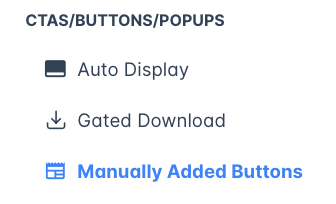
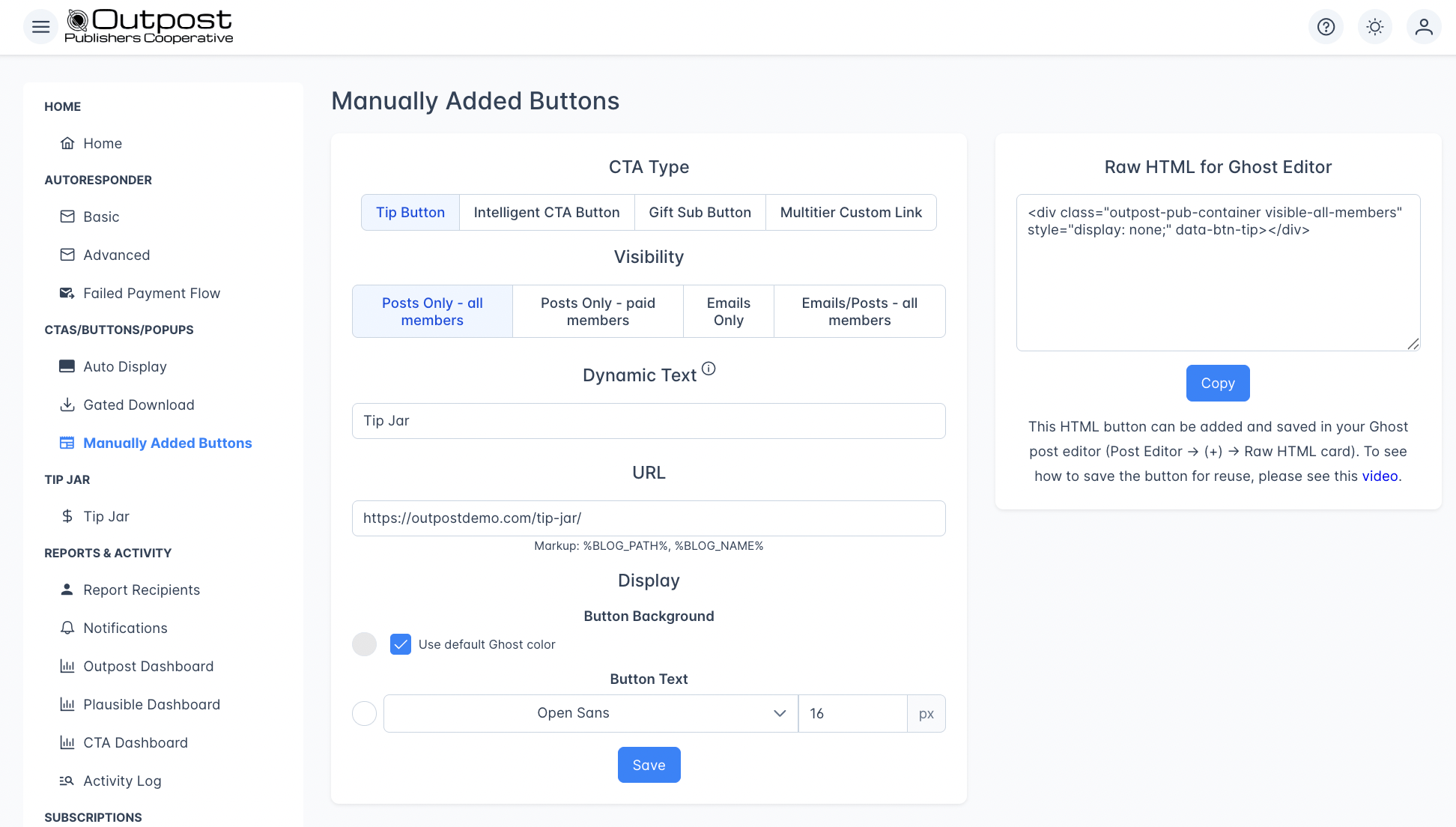 Go to **CTAs/Buttons/Popups → Manually Added Buttons** to get started.
 ## Button types
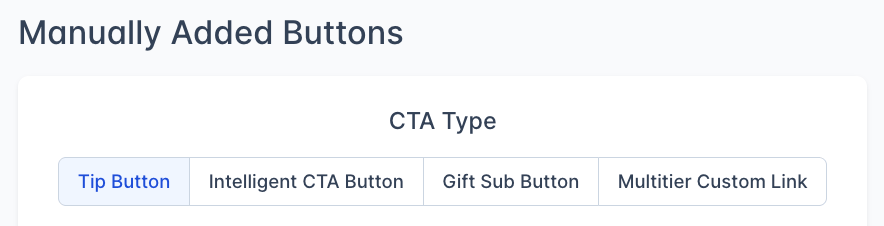 Choose from four CTA button types across the top tabs:
| Type | Purpose |
| -------------------------- | -------------------------------------------------------------------------------------------------- |
| **Tip Button** | A one-time donation button linked to your [Tip Jar](/features/tip-jar) |
| **Intelligent CTA Button** | A button whose text and action change based on the reader's membership status (requires Luna plan) |
| **Gift Sub Button** | A button to purchase a [Gift Subscription](/features/gift-subscriptions) |
| **Multi-tier Custom Link** | One button with a different label and link for each reader tier |
### Intelligent CTA Button sub-types
When you select **Intelligent CTA Button**, you choose which audience variant to generate. Each produces a different button that targets a specific reader segment.
Choose from four CTA button types across the top tabs:
| Type | Purpose |
| -------------------------- | -------------------------------------------------------------------------------------------------- |
| **Tip Button** | A one-time donation button linked to your [Tip Jar](/features/tip-jar) |
| **Intelligent CTA Button** | A button whose text and action change based on the reader's membership status (requires Luna plan) |
| **Gift Sub Button** | A button to purchase a [Gift Subscription](/features/gift-subscriptions) |
| **Multi-tier Custom Link** | One button with a different label and link for each reader tier |
### Intelligent CTA Button sub-types
When you select **Intelligent CTA Button**, you choose which audience variant to generate. Each produces a different button that targets a specific reader segment.
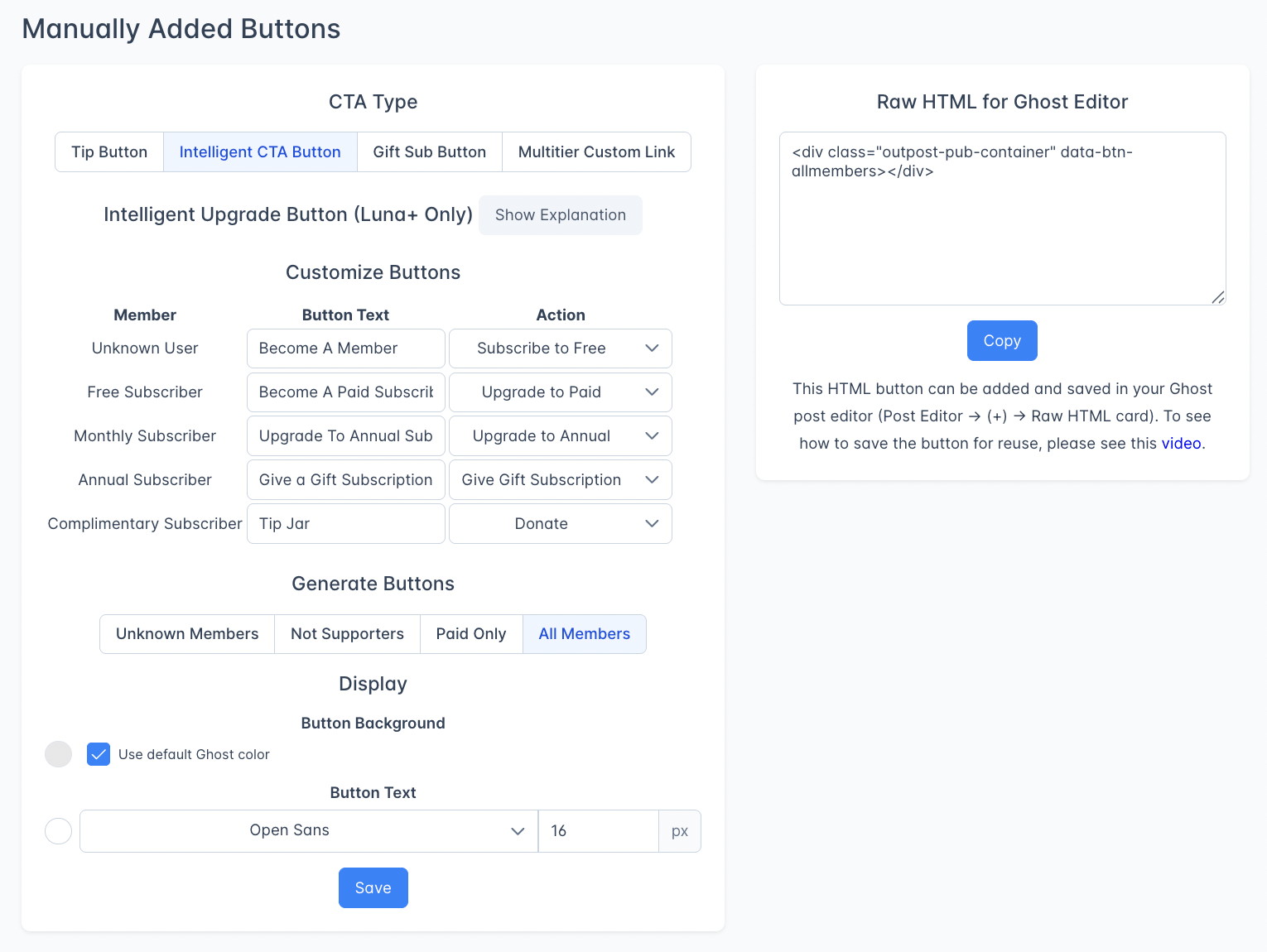 | Sub-type | Who sees the CTA |
| ------------------- | -------------------------------------------------------------------------------------------------- |
| **Unknown Members** | Only anonymous (not logged-in) readers |
| **Not Supporters** | Unknown readers and logged-in free members; monthly, annual, and complimentary members see nothing |
| **All Members** | Every reader regardless of membership status |
| **Paid Only** | Only paying members (including complimentary); unknown and free readers see nothing |
### Customizing button text and action per member level
Within each Intelligent CTA Button, you can configure a separate button text and action for each membership level (Unknown, Free, Monthly, Annual, Complimentary). For each level, the available actions are: Subscribe to Free, Upgrade to Paid, Upgrade to Annual, Donate, or Give Gift Subscription.
Changes to button text and action are universal and retroactive — existing buttons on posts update automatically when you save.
### Ghost Snippets (Luna plan)
On the Luna plan, all four Intelligent CTA Button variants are automatically added to your Ghost editor as **Snippets**. To insert a button, click the **+** button in the Ghost post editor and scroll to Snippets. This means you don't need to copy and paste embed code for each post — just select the snippet you want.
### Multi-tier Custom Link
One embed code, a different button for each tier of your readers. Unlike the Intelligent CTA Button — which picks from a fixed list of actions (Subscribe, Upgrade, Donate, Gift) — a Multi-tier Custom Link lets you write your own button text and point to your own URL, separately for every tier on your site.
#### When to use it
* Sending each paid tier to a different exclusive resource (e.g. a Founders Slack invite for top-tier members, a private archive for mid-tier, a newsletter signup for free readers).
* Showing an upgrade prompt to monthly subscribers and a "thank you" link to annual subscribers — from the same embedded button.
#### What each reader sees
For each reader, the button checks their membership and shows the matching row:
| Reader | Sees |
| ------------------------------ | ------------------- |
| Not logged in | The **Unknown** row |
| Free member | The **Free** row |
| Paid member on a specific tier | That tier's row |
If the matching row is disabled, the reader won't see the button.
#### Setting one up
1. Choose **Multi-tier Custom Link** in the button-type tabs.
2. You'll see one row per tier on your site, plus an **Unknown** row for anonymous readers and a **Free** row for free members.
3. For each row, enable it and fill in the **Button text** and **URL** you want that group to see.
4. Disable any row where the button shouldn't appear.
5. Copy the embed code from the right-hand panel and paste it into your Ghost post.
Adding a new paid tier to your site? Edit the existing Multi-tier Custom Link to add a row for the new tier — otherwise readers on that tier won't see the button.
***
## Visibility options
Control where and to whom the button is shown:
| Visibility | Description |
| ------------------------------ | ------------------------------------------------ |
| **Posts Only - all members** | Shows in Ghost posts to all readers |
| **Posts Only - paid members** | Shows in Ghost posts only to paid subscribers |
| **Emails Only** | Shows in Outpost-sent emails only |
| **Emails/Posts - all members** | Shows in both Ghost posts and emails to everyone |
Not all visibility options are available for every button type. **Tip Button** and **Gift Sub Button** support all four options. **Intelligent CTA Button** and **Multi-tier Custom Link** only support "Posts Only" visibility.
## Configuring a button
### Text and URL
| Field | Description |
| ---------------- | -------------------------------------------------------------------------------------------------------------------------------------------------------------------------------------------- |
| **Dynamic Text** | The button label readers see. For Tip Button and Gift Sub Button, text changes apply site-wide to all instances. For other types, you'll need to re-copy the embed code after changing text. |
| **URL** | Auto-generated based on your button type and site settings. Displays markup variables `%BLOG_PATH%` (your site URL) and `%BLOG_NAME%` (your publication name) for reference. |
### Display settings
| Setting | Description |
| --------------------- | -------------------------------------------------------------------------------------- |
| **Button Background** | Choose a color, or check "Use default Ghost color" to inherit your site's accent color |
| **Button Text** | Text color |
| **Font** | Select a font family |
| **Size** | Font size in pixels (e.g., 18 px) |
## Getting the embed code
| Sub-type | Who sees the CTA |
| ------------------- | -------------------------------------------------------------------------------------------------- |
| **Unknown Members** | Only anonymous (not logged-in) readers |
| **Not Supporters** | Unknown readers and logged-in free members; monthly, annual, and complimentary members see nothing |
| **All Members** | Every reader regardless of membership status |
| **Paid Only** | Only paying members (including complimentary); unknown and free readers see nothing |
### Customizing button text and action per member level
Within each Intelligent CTA Button, you can configure a separate button text and action for each membership level (Unknown, Free, Monthly, Annual, Complimentary). For each level, the available actions are: Subscribe to Free, Upgrade to Paid, Upgrade to Annual, Donate, or Give Gift Subscription.
Changes to button text and action are universal and retroactive — existing buttons on posts update automatically when you save.
### Ghost Snippets (Luna plan)
On the Luna plan, all four Intelligent CTA Button variants are automatically added to your Ghost editor as **Snippets**. To insert a button, click the **+** button in the Ghost post editor and scroll to Snippets. This means you don't need to copy and paste embed code for each post — just select the snippet you want.
### Multi-tier Custom Link
One embed code, a different button for each tier of your readers. Unlike the Intelligent CTA Button — which picks from a fixed list of actions (Subscribe, Upgrade, Donate, Gift) — a Multi-tier Custom Link lets you write your own button text and point to your own URL, separately for every tier on your site.
#### When to use it
* Sending each paid tier to a different exclusive resource (e.g. a Founders Slack invite for top-tier members, a private archive for mid-tier, a newsletter signup for free readers).
* Showing an upgrade prompt to monthly subscribers and a "thank you" link to annual subscribers — from the same embedded button.
#### What each reader sees
For each reader, the button checks their membership and shows the matching row:
| Reader | Sees |
| ------------------------------ | ------------------- |
| Not logged in | The **Unknown** row |
| Free member | The **Free** row |
| Paid member on a specific tier | That tier's row |
If the matching row is disabled, the reader won't see the button.
#### Setting one up
1. Choose **Multi-tier Custom Link** in the button-type tabs.
2. You'll see one row per tier on your site, plus an **Unknown** row for anonymous readers and a **Free** row for free members.
3. For each row, enable it and fill in the **Button text** and **URL** you want that group to see.
4. Disable any row where the button shouldn't appear.
5. Copy the embed code from the right-hand panel and paste it into your Ghost post.
Adding a new paid tier to your site? Edit the existing Multi-tier Custom Link to add a row for the new tier — otherwise readers on that tier won't see the button.
***
## Visibility options
Control where and to whom the button is shown:
| Visibility | Description |
| ------------------------------ | ------------------------------------------------ |
| **Posts Only - all members** | Shows in Ghost posts to all readers |
| **Posts Only - paid members** | Shows in Ghost posts only to paid subscribers |
| **Emails Only** | Shows in Outpost-sent emails only |
| **Emails/Posts - all members** | Shows in both Ghost posts and emails to everyone |
Not all visibility options are available for every button type. **Tip Button** and **Gift Sub Button** support all four options. **Intelligent CTA Button** and **Multi-tier Custom Link** only support "Posts Only" visibility.
## Configuring a button
### Text and URL
| Field | Description |
| ---------------- | -------------------------------------------------------------------------------------------------------------------------------------------------------------------------------------------- |
| **Dynamic Text** | The button label readers see. For Tip Button and Gift Sub Button, text changes apply site-wide to all instances. For other types, you'll need to re-copy the embed code after changing text. |
| **URL** | Auto-generated based on your button type and site settings. Displays markup variables `%BLOG_PATH%` (your site URL) and `%BLOG_NAME%` (your publication name) for reference. |
### Display settings
| Setting | Description |
| --------------------- | -------------------------------------------------------------------------------------- |
| **Button Background** | Choose a color, or check "Use default Ghost color" to inherit your site's accent color |
| **Button Text** | Text color |
| **Font** | Select a font family |
| **Size** | Font size in pixels (e.g., 18 px) |
## Getting the embed code
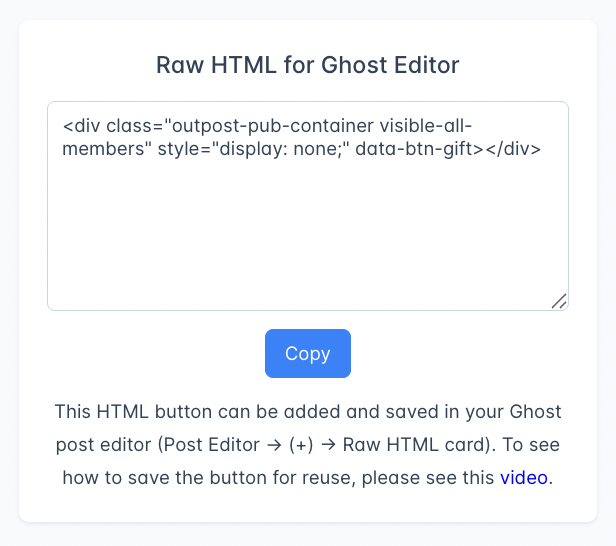 The right side panel shows the **Raw HTML for Ghost Editor** — the generated HTML code for your button. Click **Copy** to copy it to your clipboard, then paste it into:
* A Ghost post using an **HTML card** (Post Editor → **+** → Raw HTML)
* An Outpost email template
* Any external HTML page
## Frequently asked questions
Auto Display CTAs are placed automatically by Outpost based on slot configuration and audience targeting — you set it up once and it works across all posts. Manually Added Buttons give you embed code that you paste into specific Ghost posts, emails, or external pages. Use Auto Display for site-wide CTAs and Manually Added Buttons when you need a specific button in a specific place.
It depends on the button type. For **Tip Button** and **Gift Sub Button**, text changes apply site-wide to all instances automatically. For **Intelligent CTA Button** and **Multi-tier Custom Link**, you'll need to re-copy and re-paste the embed code after changing the text.
Yes, but only **Tip Button** and **Gift Sub Button** support email visibility. Choose the "Emails Only" or "Emails/Posts - all members" visibility option. **Intelligent CTA Button** and **Multi-tier Custom Link** only work in posts.
Yes. Manually Added Buttons are completely independent of the Auto Display system. Turning off the Auto Display master toggle has no effect on buttons you've manually embedded.
The Intelligent CTA Button shows different content based on the reader's membership status. There are four sub-types: Unknown Members only, Not Supporters (unknown + free), All Members, and Paid Only. Within each variant, you can customize the button text and action (subscribe, upgrade, donate, etc.) separately for each membership level — Unknown, Free, Monthly, Annual, and Complimentary. Changes apply universally and retroactively. It requires the Luna plan.
Multi-tier Custom Link lets you write your own button text and URL for every tier on your site — a separate version for each paid tier, not just free vs. paid. Use it when you want one embedded button that sends different readers to different places (e.g. a private Slack link for top-tier members, an upgrade page for free readers). The Intelligent CTA Button, by contrast, picks from a built-in action list (Subscribe, Upgrade, Donate, Gift).
***
## Related features
Automatically place CTAs without manual embedding
Set up the Tip Jar that powers Tip Buttons
Configure gift subscriptions linked by Gift Sub Buttons
The right side panel shows the **Raw HTML for Ghost Editor** — the generated HTML code for your button. Click **Copy** to copy it to your clipboard, then paste it into:
* A Ghost post using an **HTML card** (Post Editor → **+** → Raw HTML)
* An Outpost email template
* Any external HTML page
## Frequently asked questions
Auto Display CTAs are placed automatically by Outpost based on slot configuration and audience targeting — you set it up once and it works across all posts. Manually Added Buttons give you embed code that you paste into specific Ghost posts, emails, or external pages. Use Auto Display for site-wide CTAs and Manually Added Buttons when you need a specific button in a specific place.
It depends on the button type. For **Tip Button** and **Gift Sub Button**, text changes apply site-wide to all instances automatically. For **Intelligent CTA Button** and **Multi-tier Custom Link**, you'll need to re-copy and re-paste the embed code after changing the text.
Yes, but only **Tip Button** and **Gift Sub Button** support email visibility. Choose the "Emails Only" or "Emails/Posts - all members" visibility option. **Intelligent CTA Button** and **Multi-tier Custom Link** only work in posts.
Yes. Manually Added Buttons are completely independent of the Auto Display system. Turning off the Auto Display master toggle has no effect on buttons you've manually embedded.
The Intelligent CTA Button shows different content based on the reader's membership status. There are four sub-types: Unknown Members only, Not Supporters (unknown + free), All Members, and Paid Only. Within each variant, you can customize the button text and action (subscribe, upgrade, donate, etc.) separately for each membership level — Unknown, Free, Monthly, Annual, and Complimentary. Changes apply universally and retroactively. It requires the Luna plan.
Multi-tier Custom Link lets you write your own button text and URL for every tier on your site — a separate version for each paid tier, not just free vs. paid. Use it when you want one embedded button that sends different readers to different places (e.g. a private Slack link for top-tier members, an upgrade page for free readers). The Intelligent CTA Button, by contrast, picks from a built-in action list (Subscribe, Upgrade, Donate, Gift).
***
## Related features
Automatically place CTAs without manual embedding
Set up the Tip Jar that powers Tip Buttons
Configure gift subscriptions linked by Gift Sub Buttons