> ## Documentation Index
> Fetch the complete documentation index at: https://documentation.outpost.pub/llms.txt
> Use this file to discover all available pages before exploring further.
# Members
> View, search, filter, and manage all subscribers across your publication from a single dashboard.
The Members page is where you view and manage everyone subscribed to your publication. Every subscriber (free, paid, complimentary, gifted, or part of a group) appears here with their subscription status, tier, and some engagement history.
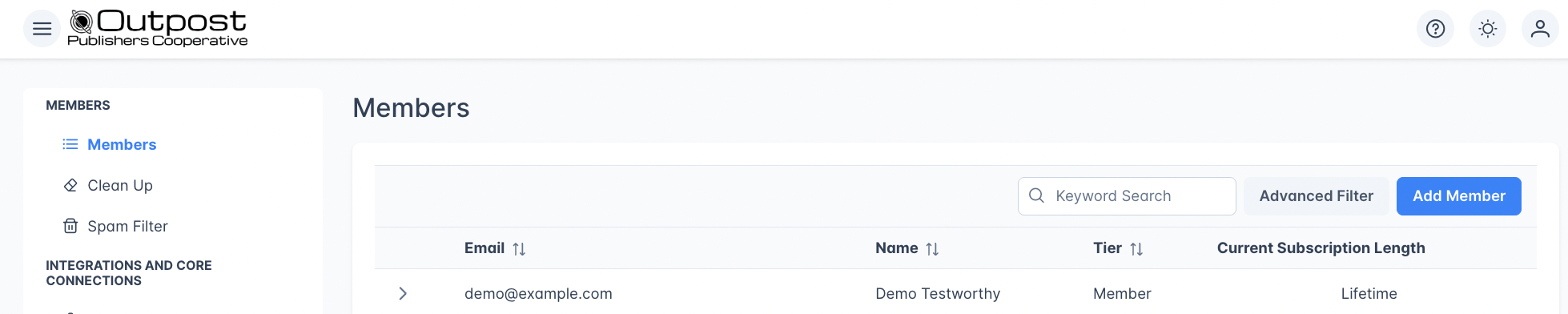 The Members page surfaces information Ghost doesn't, including group subscription details and Outpost-specific member fields.
## Member types
Outpost tracks several types of members, each with a different relationship to your publication:
| Type | Description |
| ----------------- | ----------------------------------------------------- |
| **Member** | Signed up for free. Has access to free content only. |
| **Paid** | Active Stripe subscription. Has access to paid tiers. |
| **Complimentary** | Manually granted paid-tier access with no billing. |
The Members page surfaces information Ghost doesn't, including group subscription details and Outpost-specific member fields.
## Member types
Outpost tracks several types of members, each with a different relationship to your publication:
| Type | Description |
| ----------------- | ----------------------------------------------------- |
| **Member** | Signed up for free. Has access to free content only. |
| **Paid** | Active Stripe subscription. Has access to paid tiers. |
| **Complimentary** | Manually granted paid-tier access with no billing. |
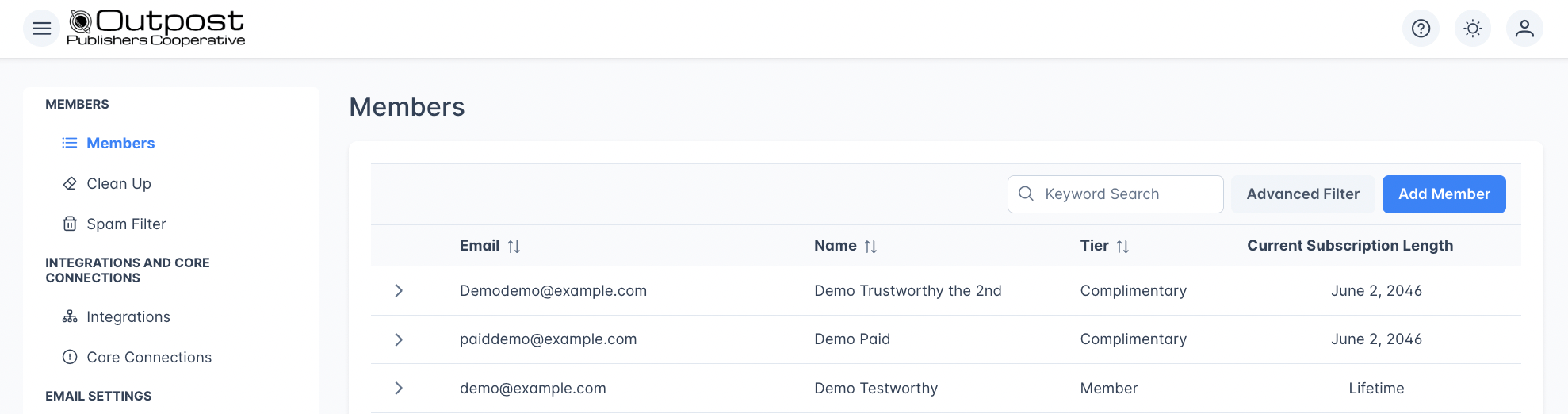 Members who received a [gift subscription](/features/gift-subscriptions) or belong to a [group subscription](/features/group-subscriptions) or [institutional subscription](/features/institutional-subscriptions) also appear here. Their underlying type is still one of the three above: the relationship is tracked separately as labels and detail-panel cards.
### Member lifecycle
```mermaid theme={"theme":{"light":"github-light","dark":"github-dark"}}
stateDiagram-v2
[*] --> Free: signs up
Free --> Paid: subscribes
Free --> Complimentary: staff grants comp
Paid --> PastDue: payment fails
PastDue --> Paid: payment recovered
PastDue --> Canceled: dunning exhausted
Paid --> Canceled: cancels
Canceled --> Free: subscription ends
Complimentary --> Free: comp removed or expires
```
Gift, group, and institutional subscriptions don't introduce new states: they overlay the same Member / Paid / Complimentary types with extra metadata about how the member got there.
## The members list
The members table displays the following columns:
| Column | Description |
| ------------------------------- | ---------------------------------------------------------------------------------------------------------------------------------------------- |
| **Email** | The member's email address. Sortable and searchable. |
| **Name** | The member's display name. Sortable. |
| **Tier** | Their current Ghost subscription tier (e.g., Premium, Basic, Founding Member). Sortable. |
| **Current Subscription Length** | How long they've been on their current subscription. Free members show "Lifetime"; complimentary members show their granted membership length. |
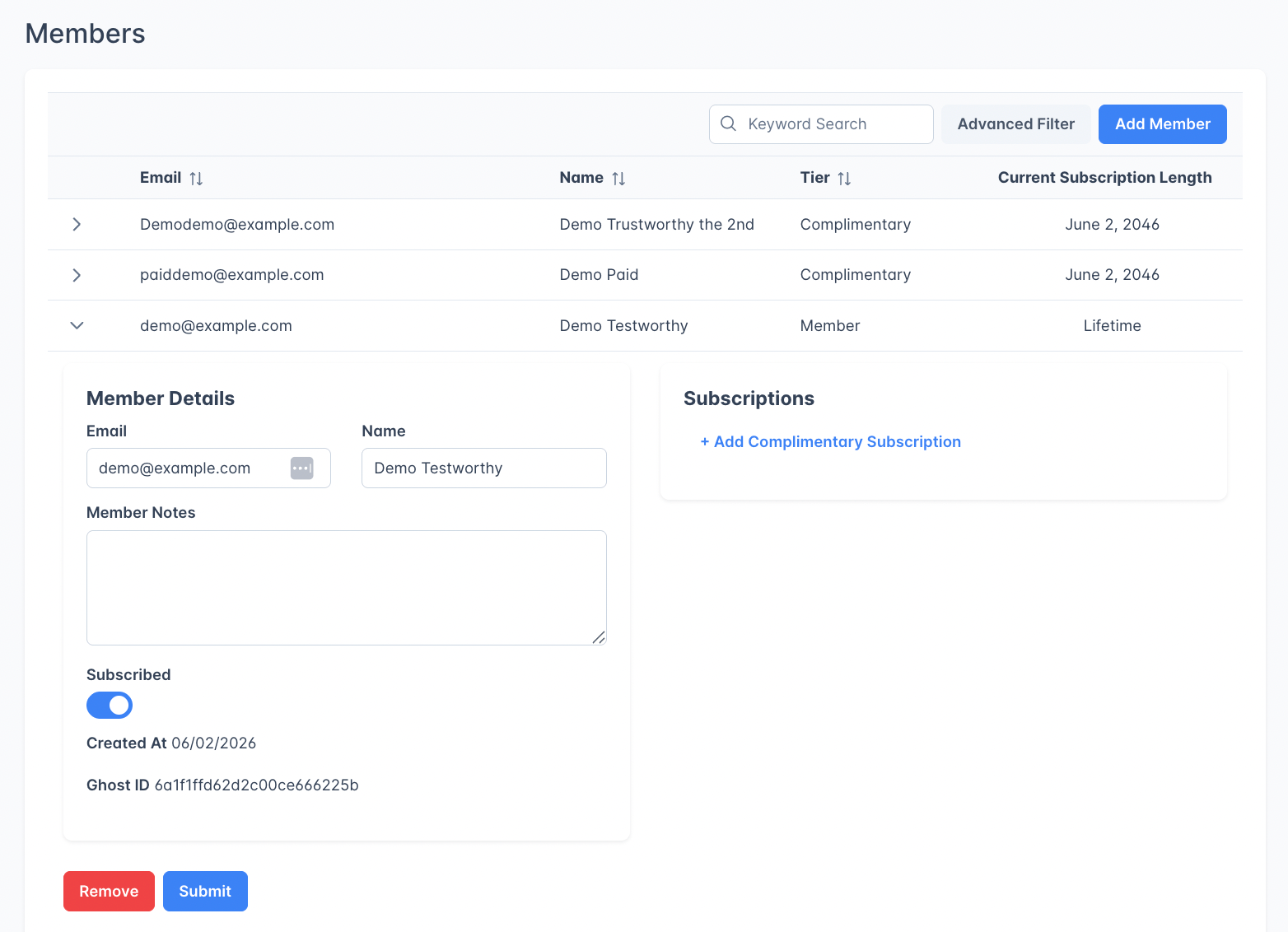
Click the expand arrow on any row to open the full member detail view inline.
### Searching members
Type in the **Keyword Search** box to find members. The search runs a contains match, so typing "gmail" will find all Gmail addresses. Press **Enter** or click away to apply the search.
Members who received a [gift subscription](/features/gift-subscriptions) or belong to a [group subscription](/features/group-subscriptions) or [institutional subscription](/features/institutional-subscriptions) also appear here. Their underlying type is still one of the three above: the relationship is tracked separately as labels and detail-panel cards.
### Member lifecycle
```mermaid theme={"theme":{"light":"github-light","dark":"github-dark"}}
stateDiagram-v2
[*] --> Free: signs up
Free --> Paid: subscribes
Free --> Complimentary: staff grants comp
Paid --> PastDue: payment fails
PastDue --> Paid: payment recovered
PastDue --> Canceled: dunning exhausted
Paid --> Canceled: cancels
Canceled --> Free: subscription ends
Complimentary --> Free: comp removed or expires
```
Gift, group, and institutional subscriptions don't introduce new states: they overlay the same Member / Paid / Complimentary types with extra metadata about how the member got there.
## The members list
The members table displays the following columns:
| Column | Description |
| ------------------------------- | ---------------------------------------------------------------------------------------------------------------------------------------------- |
| **Email** | The member's email address. Sortable and searchable. |
| **Name** | The member's display name. Sortable. |
| **Tier** | Their current Ghost subscription tier (e.g., Premium, Basic, Founding Member). Sortable. |
| **Current Subscription Length** | How long they've been on their current subscription. Free members show "Lifetime"; complimentary members show their granted membership length. |
Click the expand arrow on any row to open the full member detail view inline.
### Searching members
Type in the **Keyword Search** box to find members. The search runs a contains match, so typing "gmail" will find all Gmail addresses. Press **Enter** or click away to apply the search.
 ### Advanced filtering
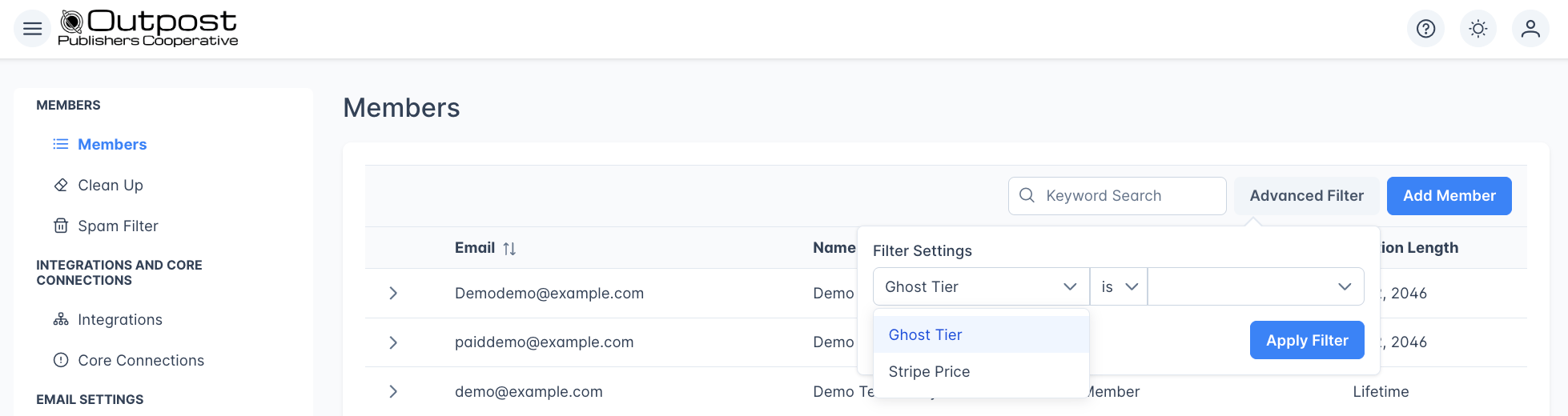 Click the **Advanced Filter** button to open the filter panel with these options:
| Filter option | Description |
| ---------------- | ---------------------------------------------------------------------------------------------------------------------------------------------------- |
| **Filter By** | Choose what to filter on: **Ghost Tier** (the member's tier in Ghost) or **Stripe Price** (the specific price plan they're subscribed to in Stripe). |
| **Match Mode** | Currently supports **is** (exact match). |
| **Filter Value** | Select the specific tier or price to match. The dropdown options update based on your Filter By selection. |
Click **Apply Filter** to filter the list, or **Clear** to remove the filter. When a filter is active, the button label changes to **+ Advanced Filter** so you can see at a glance that filtering is applied.
You can combine keyword search with an advanced filter. For example, filter by a specific tier and then search within those results by keyword.
### Pagination
The members list loads 15 members per page. Use the pagination controls at the bottom of the table to navigate between pages. The total member count is displayed below the table.
Click the **Advanced Filter** button to open the filter panel with these options:
| Filter option | Description |
| ---------------- | ---------------------------------------------------------------------------------------------------------------------------------------------------- |
| **Filter By** | Choose what to filter on: **Ghost Tier** (the member's tier in Ghost) or **Stripe Price** (the specific price plan they're subscribed to in Stripe). |
| **Match Mode** | Currently supports **is** (exact match). |
| **Filter Value** | Select the specific tier or price to match. The dropdown options update based on your Filter By selection. |
Click **Apply Filter** to filter the list, or **Clear** to remove the filter. When a filter is active, the button label changes to **+ Advanced Filter** so you can see at a glance that filtering is applied.
You can combine keyword search with an advanced filter. For example, filter by a specific tier and then search within those results by keyword.
### Pagination
The members list loads 15 members per page. Use the pagination controls at the bottom of the table to navigate between pages. The total member count is displayed below the table.
 ***
## Adding a new member
Adding a member normally fires your welcome flow. If you're bringing someone over from another tool, or importing a list, and don't want that, see [Skipping Welcome Emails](/faq/skipping-welcome-emails).
***
## Adding a new member
Adding a member normally fires your welcome flow. If you're bringing someone over from another tool, or importing a list, and don't want that, see [Skipping Welcome Emails](/faq/skipping-welcome-emails).
 Click the **Add Member** button above the members list to open the Create Member page. Fill in all the information you have, or at least an email address, then click **Submit** to create the member. You should see the green Success notification pictured here:
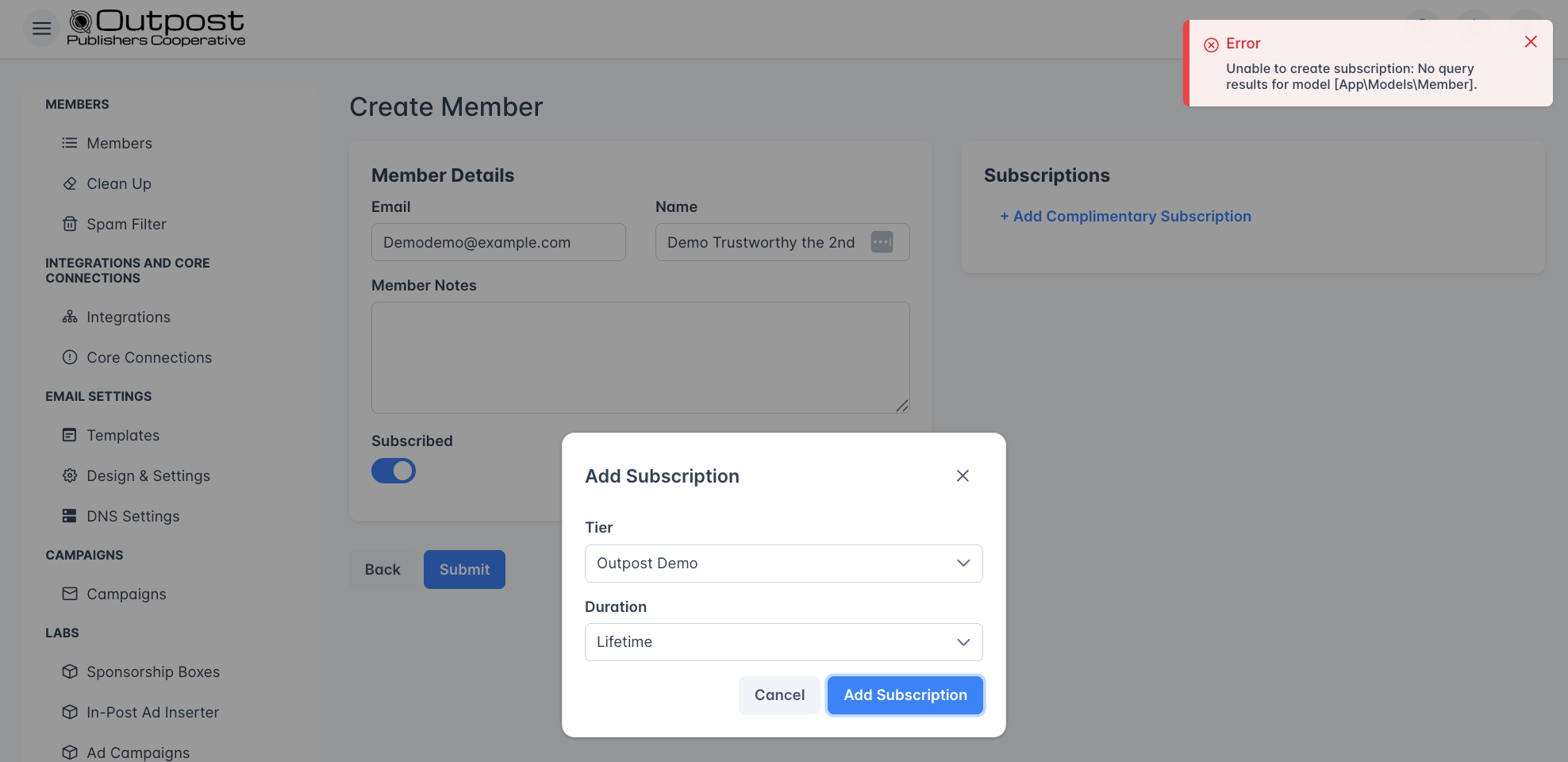
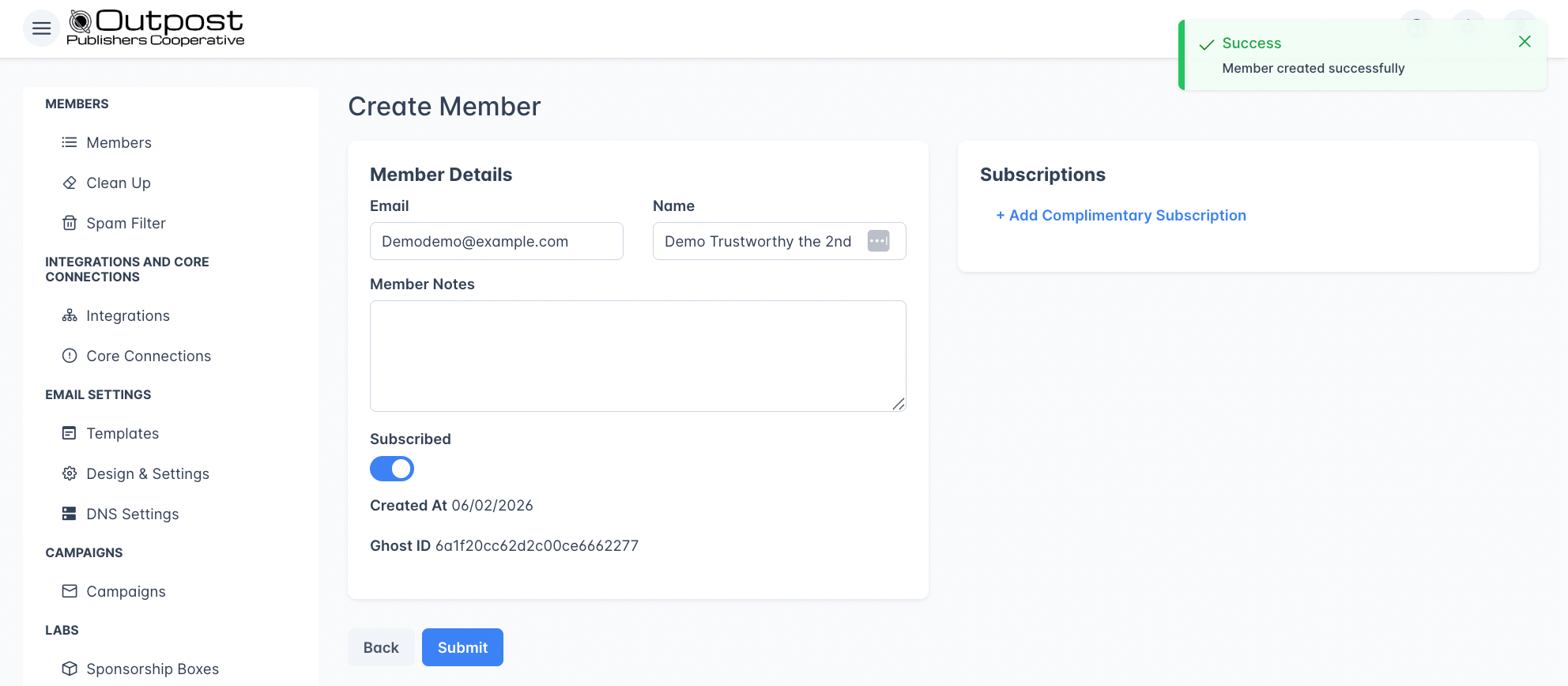 **New members are created with the free newsletter subscription enabled by default, so you will need to hit "Submit" before adding a complimentary subscription**. The new member will be synced to Ghost automatically, and you can add a complimentary subscription to your paid content after creating the new member.
If you do not submit the new member before trying to create a complimentary subscription, the following error message will appear:
**New members are created with the free newsletter subscription enabled by default, so you will need to hit "Submit" before adding a complimentary subscription**. The new member will be synced to Ghost automatically, and you can add a complimentary subscription to your paid content after creating the new member.
If you do not submit the new member before trying to create a complimentary subscription, the following error message will appear:
 ***
## Member detail
Click the expand arrow on any member row to view and edit their full profile. The detail view has two cards side by side: **Member Details** on the left and **Subscriptions** on the right.
***
## Member detail
Click the expand arrow on any member row to view and edit their full profile. The detail view has two cards side by side: **Member Details** on the left and **Subscriptions** on the right.
 ### Member Details card
| Field | Editable? | Description |
| ----------------- | --------- | ------------------------------------------------------------------------------------------------------------------------------------------------------------------------------------------ |
| **Email** | Yes | The member's email address. Required. |
| **Name** | Yes | Display name. |
| **Member Notes** | Yes | Internal notes about this member (visible only to your team). The textarea shows 5 rows but accepts longer text. |
| **Subscribed** | Yes | Toggle whether this member is subscribed to your newsletter(s). This controls newsletter email delivery only: turning it off does not cancel a paid subscription or remove content access. |
| **Created At** | No | When this member first joined. |
| **Ghost ID** | No | The member's unique identifier in Ghost. |
| **Custom API ID** | No | A custom member identifier, shown if your site uses the Outpost API for member management. |
| **Meta** | No | Custom metadata key-value pairs attached to this member. |
Read-only fields like Ghost ID, Custom API ID, and Meta only appear when they have a value. If you don't use the Outpost API or haven't set metadata for a member, those fields won't be shown.
The **Subscribed** toggle controls newsletters only. A separate preference (which readers manage on the unsubscribe page) controls whether your promotional, automated, and event-notification emails reach a member. Turning one off doesn't affect the other.
### Member notes
### Member Details card
| Field | Editable? | Description |
| ----------------- | --------- | ------------------------------------------------------------------------------------------------------------------------------------------------------------------------------------------ |
| **Email** | Yes | The member's email address. Required. |
| **Name** | Yes | Display name. |
| **Member Notes** | Yes | Internal notes about this member (visible only to your team). The textarea shows 5 rows but accepts longer text. |
| **Subscribed** | Yes | Toggle whether this member is subscribed to your newsletter(s). This controls newsletter email delivery only: turning it off does not cancel a paid subscription or remove content access. |
| **Created At** | No | When this member first joined. |
| **Ghost ID** | No | The member's unique identifier in Ghost. |
| **Custom API ID** | No | A custom member identifier, shown if your site uses the Outpost API for member management. |
| **Meta** | No | Custom metadata key-value pairs attached to this member. |
Read-only fields like Ghost ID, Custom API ID, and Meta only appear when they have a value. If you don't use the Outpost API or haven't set metadata for a member, those fields won't be shown.
The **Subscribed** toggle controls newsletters only. A separate preference (which readers manage on the unsubscribe page) controls whether your promotional, automated, and event-notification emails reach a member. Turning one off doesn't affect the other.
### Member notes
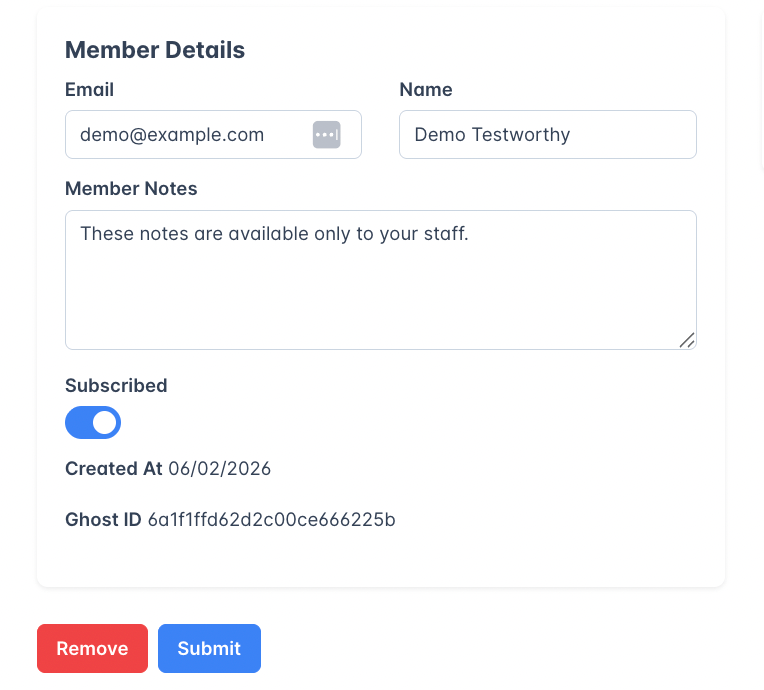 Member Notes are a free-text field visible only to your staff. Common uses include:
* Recording the reason a complimentary subscription was granted
* Noting VIP or high-value subscribers
* Tracking support interactions or special requests
* Adding context about the member for other team members
Notes are saved when you click **Submit** along with any other changes to the member's profile.
### Custom API ID
If you manage members through the Outpost API or an external system, you can assign each member a **Custom API ID**. This ID appears in the member detail view and lets you cross-reference members between Outpost and your own database, CRM, or membership platform.
Custom API IDs are set when creating or updating members through the API. They are not editable from the Outpost dashboard.
### Subscriptions card
For **paid or complimentary members**, this card shows:
* The tier name
* Membership type (Paid or Complimentary)
* A **Renews** or **Expires** date, or "Forever" when there is no end date set (lifetime complimentary access)
For complimentary members, a menu button (three dots) provides the option to **Remove Complimentary Subscription**.
For **free members with no subscription**, this card shows a **+ Add Complimentary Subscription** button that opens a dialog with:
| Field | Options |
| ------------ | ---------------------------------- |
| **Tier** | Any active paid tier on your site. |
| **Duration** | 1-11 months, 1 year, or Lifetime. |
Click **Add Subscription** to grant the complimentary access, or **Cancel** to close the dialog.
### Member addons
Depending on the member's account, additional cards may appear below the main panels:
* **Group Subscriptions**: If the member belongs to a [group subscription](/features/group-subscriptions), you can view and manage their group membership here.
* **Group Subscription Invites**: If the member has pending group invites, they are listed here with management options.
* **Private Feed**: If the member has FeedPress private feed access.
* **Institutional Subscription**: If the member belongs to an [institutional subscription](/features/institutional-subscriptions).
### Saving and removing members
* Click **Submit** to save changes to the member's email, name, notes, or subscription status.
* Click **Remove** to delete the member entirely. A confirmation dialog will appear before deletion.
Removing a member deletes them from both Outpost and Ghost. This action cannot be undone. If the member has an active paid subscription, cancel their subscription in Stripe first.
***
## Syncing with Ghost
Outpost keeps members synchronized with Ghost bidirectionally:
* **Outpost to Ghost**: When a member's subscription status changes in Outpost (upgrade, cancel, comp added or removed), their Ghost membership is updated automatically. Changes to email, name, or subscription toggles also sync when you save.
* **Ghost to Outpost**: Members who sign up through your Ghost site are synced into Outpost automatically.
***
## Related features
Organize members with custom labels for segmentation and automation.
Automatically block spam signups using email, domain, or keyword rules.
Remove free members who have unsubscribed from your newsletters.
Export your member list or filtered segments to CSV.
***
## FAQ
A **free member** signed up without a paid subscription and only has access to free content. A **complimentary member** has been manually granted access to a paid tier without any billing: they get the same content access as a paying subscriber, but for free.
Yes. Expand the member's row, edit the email field, and click **Submit**. The change will sync to Ghost automatically.
It controls newsletter delivery for that member, and nothing else. Turning it off stops your newsletters reaching them, but it does not cancel a paid subscription or remove their access to content. Whether your promotional, automated, and event-notification emails reach a member is a separate preference that readers manage themselves on the unsubscribe page, so turning one off doesn't affect the other.
Removing a member deletes them from Outpost and Ghost. This action cannot be undone. If the member has an active paid subscription, you should cancel their subscription in Stripe first.
Expand the member's row, then click **+ Add Complimentary Subscription** in the Subscriptions card. Choose the tier and duration (1 month to lifetime), then click **Add Subscription**.
The Custom API ID is an identifier you assign to a member through the Outpost API. It lets you link Outpost members to records in your own systems (CRM, database, etc.). If you don't use the API to manage members, this field will not appear.
Member Notes are an internal free-text field visible only to your team. Use them to record context about a member: why they were comped, support history, VIP status, or anything else your team needs to know. Notes are not visible to the member.
The Meta field displays custom key-value pairs attached to a member through the API or integrations. These might include data from your CRM, analytics tags, or other external systems. Meta values are read-only in the dashboard.
Member Notes are a free-text field visible only to your staff. Common uses include:
* Recording the reason a complimentary subscription was granted
* Noting VIP or high-value subscribers
* Tracking support interactions or special requests
* Adding context about the member for other team members
Notes are saved when you click **Submit** along with any other changes to the member's profile.
### Custom API ID
If you manage members through the Outpost API or an external system, you can assign each member a **Custom API ID**. This ID appears in the member detail view and lets you cross-reference members between Outpost and your own database, CRM, or membership platform.
Custom API IDs are set when creating or updating members through the API. They are not editable from the Outpost dashboard.
### Subscriptions card
For **paid or complimentary members**, this card shows:
* The tier name
* Membership type (Paid or Complimentary)
* A **Renews** or **Expires** date, or "Forever" when there is no end date set (lifetime complimentary access)
For complimentary members, a menu button (three dots) provides the option to **Remove Complimentary Subscription**.
For **free members with no subscription**, this card shows a **+ Add Complimentary Subscription** button that opens a dialog with:
| Field | Options |
| ------------ | ---------------------------------- |
| **Tier** | Any active paid tier on your site. |
| **Duration** | 1-11 months, 1 year, or Lifetime. |
Click **Add Subscription** to grant the complimentary access, or **Cancel** to close the dialog.
### Member addons
Depending on the member's account, additional cards may appear below the main panels:
* **Group Subscriptions**: If the member belongs to a [group subscription](/features/group-subscriptions), you can view and manage their group membership here.
* **Group Subscription Invites**: If the member has pending group invites, they are listed here with management options.
* **Private Feed**: If the member has FeedPress private feed access.
* **Institutional Subscription**: If the member belongs to an [institutional subscription](/features/institutional-subscriptions).
### Saving and removing members
* Click **Submit** to save changes to the member's email, name, notes, or subscription status.
* Click **Remove** to delete the member entirely. A confirmation dialog will appear before deletion.
Removing a member deletes them from both Outpost and Ghost. This action cannot be undone. If the member has an active paid subscription, cancel their subscription in Stripe first.
***
## Syncing with Ghost
Outpost keeps members synchronized with Ghost bidirectionally:
* **Outpost to Ghost**: When a member's subscription status changes in Outpost (upgrade, cancel, comp added or removed), their Ghost membership is updated automatically. Changes to email, name, or subscription toggles also sync when you save.
* **Ghost to Outpost**: Members who sign up through your Ghost site are synced into Outpost automatically.
***
## Related features
Organize members with custom labels for segmentation and automation.
Automatically block spam signups using email, domain, or keyword rules.
Remove free members who have unsubscribed from your newsletters.
Export your member list or filtered segments to CSV.
***
## FAQ
A **free member** signed up without a paid subscription and only has access to free content. A **complimentary member** has been manually granted access to a paid tier without any billing: they get the same content access as a paying subscriber, but for free.
Yes. Expand the member's row, edit the email field, and click **Submit**. The change will sync to Ghost automatically.
It controls newsletter delivery for that member, and nothing else. Turning it off stops your newsletters reaching them, but it does not cancel a paid subscription or remove their access to content. Whether your promotional, automated, and event-notification emails reach a member is a separate preference that readers manage themselves on the unsubscribe page, so turning one off doesn't affect the other.
Removing a member deletes them from Outpost and Ghost. This action cannot be undone. If the member has an active paid subscription, you should cancel their subscription in Stripe first.
Expand the member's row, then click **+ Add Complimentary Subscription** in the Subscriptions card. Choose the tier and duration (1 month to lifetime), then click **Add Subscription**.
The Custom API ID is an identifier you assign to a member through the Outpost API. It lets you link Outpost members to records in your own systems (CRM, database, etc.). If you don't use the API to manage members, this field will not appear.
Member Notes are an internal free-text field visible only to your team. Use them to record context about a member: why they were comped, support history, VIP status, or anything else your team needs to know. Notes are not visible to the member.
The Meta field displays custom key-value pairs attached to a member through the API or integrations. These might include data from your CRM, analytics tags, or other external systems. Meta values are read-only in the dashboard.