> ## Documentation Index
> Fetch the complete documentation index at: https://documentation.outpost.pub/llms.txt
> Use this file to discover all available pages before exploring further.
# Publication Details
> Configure your site's logo, URL, name, timezone, and date format, manage Ghost tiers, refresh data from Ghost, and view your Outpost subscription.
The Publication Details page is where you configure your site's core settings, decide how Ghost tiers are handled in Outpost, sync data from Ghost, and view or change your Outpost subscription. It's also where you go if you ever need to fully reset the publication.
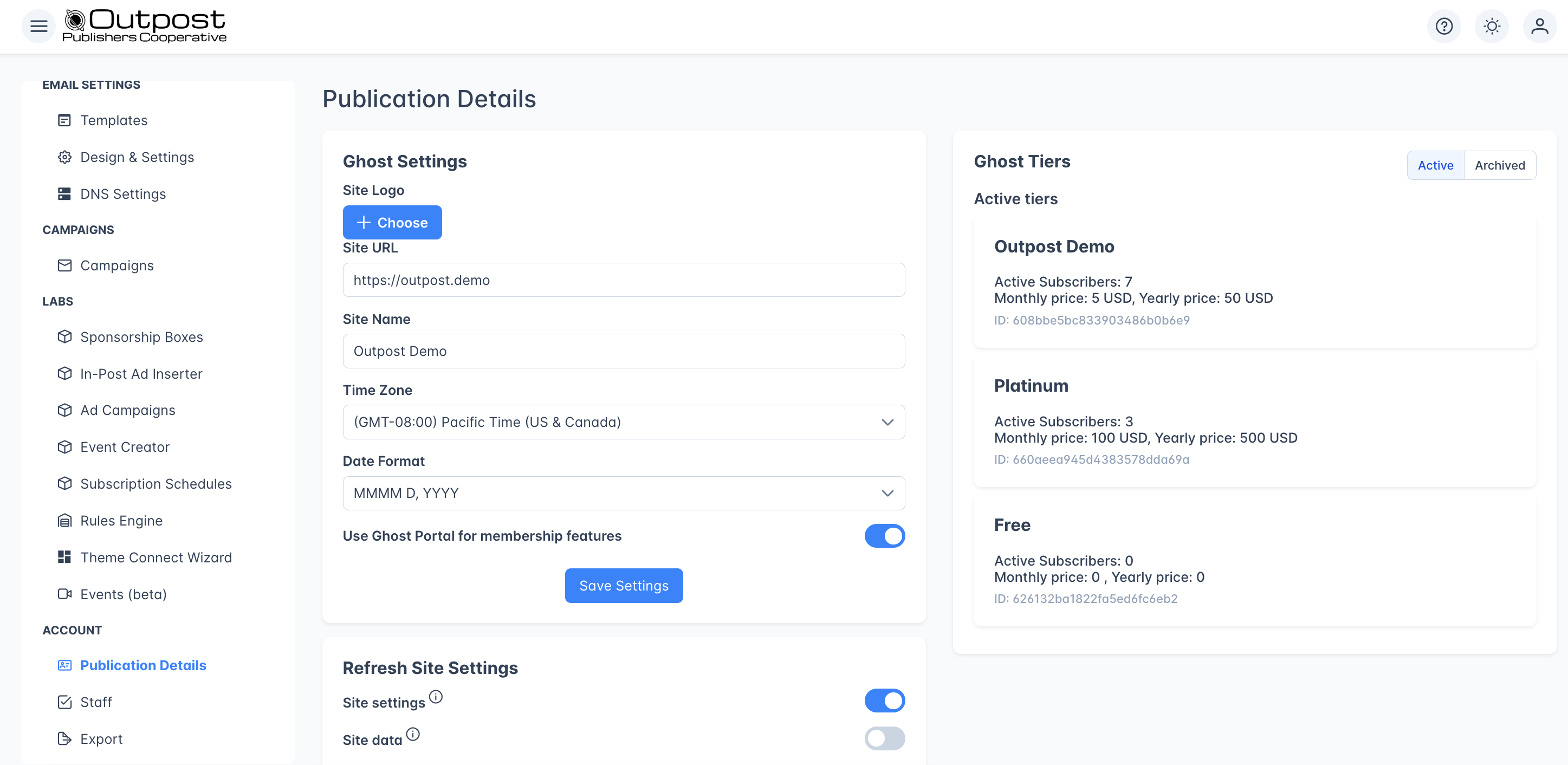 ***
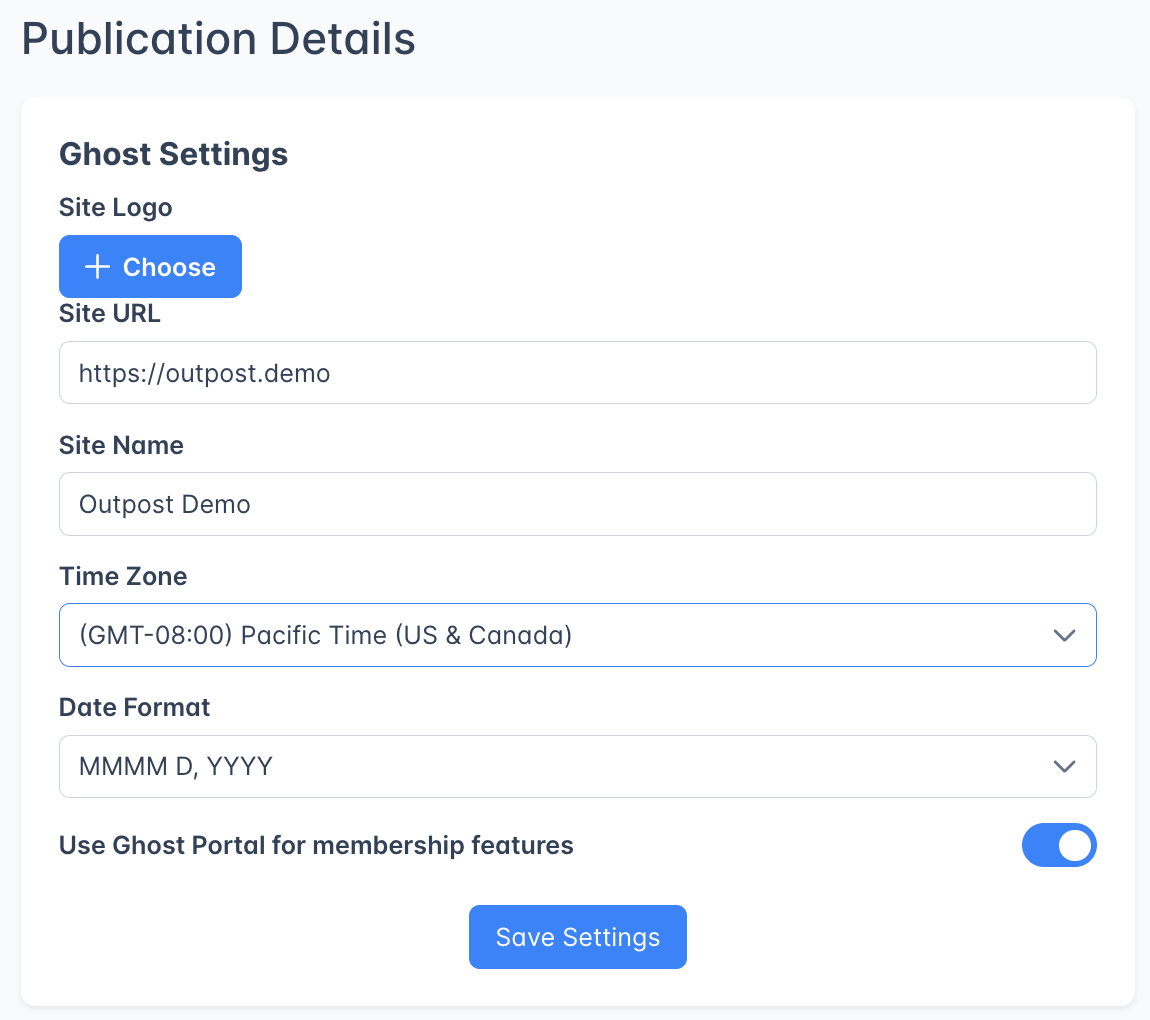
Click **Save Settings** at the bottom of the card to persist any changes. URL, name, timezone, date format, and the Ghost Portal toggle are all saved together.
## Ghost Settings
The **Ghost Settings** card on the left side of the page controls everything Outpost knows about your publication's identity and presentation.
***
Click **Save Settings** at the bottom of the card to persist any changes. URL, name, timezone, date format, and the Ghost Portal toggle are all saved together.
## Ghost Settings
The **Ghost Settings** card on the left side of the page controls everything Outpost knows about your publication's identity and presentation.
 ### Site Logo
Upload a logo (any standard image format, **up to 1 MB**) and Outpost stores it as your `publicSiteLogo`. The logo appears in emails Outpost sends on your behalf and in the Outpost admin.
### Site Logo
Upload a logo (any standard image format, **up to 1 MB**) and Outpost stores it as your `publicSiteLogo`. The logo appears in emails Outpost sends on your behalf and in the Outpost admin.
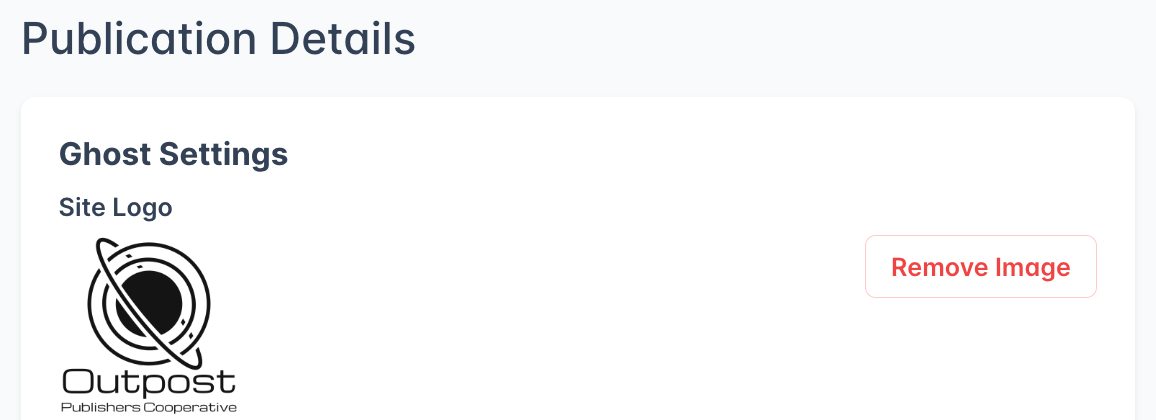
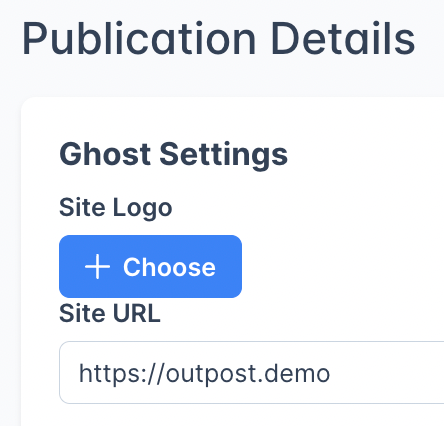 When a logo is already set, the upload button is replaced with a **Remove Image** button: to swap logos, remove the existing one first and then upload the new file.
 If you don't upload a logo, Outpost tries to pull the favicon from your Ghost site's `` tags the first time it syncs and uses that instead.
### Site URL
The publication URL Outpost talks to. This is editable here: type a new URL into the field and click **Save Settings**. You'd typically only change this if you've moved your Ghost install to a new domain.
If you change the Site URL, click **Refresh** with the **Site settings** switch on so Outpost re-pulls metadata, tiers, and webhook URLs from the new domain. Webhook URLs registered in Ghost may also need to be updated if your subdomain or path changed.
### Site Name
Your publication name. Outpost uses it in email subjects, email bodies, the admin dashboard, and anywhere else `{{blog_name}}` is referenced.
### Time Zone & Date Format
Pick the timezone you actually operate in using the **Time zone** dropdown. It affects:
* When the **Daily Report Email** is sent (between 1 AM and 3 AM in your timezone)
* When the **Weekly Report Email** is sent (Monday, between 6 AM and 8 AM in your timezone)
* Scheduled email sends and campaign timing
* The time zone a new event is pre-filled with (see [Events](/features/events))
* How dates and times are displayed across Outpost
If you never set a timezone, Outpost falls back to UTC.
If you don't upload a logo, Outpost tries to pull the favicon from your Ghost site's `` tags the first time it syncs and uses that instead.
### Site URL
The publication URL Outpost talks to. This is editable here: type a new URL into the field and click **Save Settings**. You'd typically only change this if you've moved your Ghost install to a new domain.
If you change the Site URL, click **Refresh** with the **Site settings** switch on so Outpost re-pulls metadata, tiers, and webhook URLs from the new domain. Webhook URLs registered in Ghost may also need to be updated if your subdomain or path changed.
### Site Name
Your publication name. Outpost uses it in email subjects, email bodies, the admin dashboard, and anywhere else `{{blog_name}}` is referenced.
### Time Zone & Date Format
Pick the timezone you actually operate in using the **Time zone** dropdown. It affects:
* When the **Daily Report Email** is sent (between 1 AM and 3 AM in your timezone)
* When the **Weekly Report Email** is sent (Monday, between 6 AM and 8 AM in your timezone)
* Scheduled email sends and campaign timing
* The time zone a new event is pre-filled with (see [Events](/features/events))
* How dates and times are displayed across Outpost
If you never set a timezone, Outpost falls back to UTC.
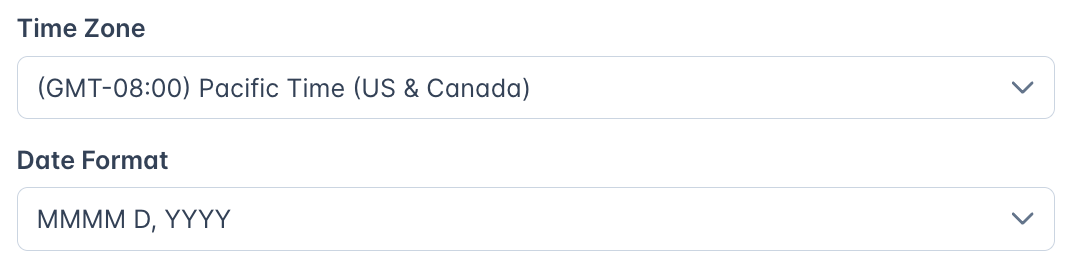 Date Format controls how dates render everywhere in Outpost: the dashboard, member lists, History tables, autoresponder emails, the report emails, and exports. Six formats are available:
| Label | PHP format | Example |
| ------------ | ---------- | -------------- |
| MMMM D, YYYY | `F j, Y` | April 25, 2028 |
| D MMMM YYYY | `j F Y` | 25 April 2028 |
| DD/MM/YYYY | `d/m/Y` | 25/04/2028 |
| MM/DD/YYYY | `m/d/Y` | 04/25/2028 |
| DD.MM.YYYY | `d.m.Y` | 25.04.2028 |
| YYYY-MM-DD | `Y-m-d` | 2028-04-25 |
Pick the one that matches your audience's locale: US publications usually pick **MM/DD/YYYY**, European publications usually pick **DD/MM/YYYY** or **DD MMMM YYYY**, and ISO/data-friendly publications pick **YYYY-MM-DD**.
### Default currency
Set the **Default currency** for your publication here. It's the currency Outpost uses when you create new offers and when prices are displayed, so set it before you build tiers and offers rather than assuming US Dollars.
### Membership features
By default, we use Ghost's built-in Portal for sign-in, sign-up, and account management. If you've created a custom theme that has it's own membership/sign-in page, you can specify that we do that instead. Toggle it off if you've replaced Portal with your own pages. When off, the **Edit Portal Links** button appears so you can configure custom URLs (see below under Custom portal links).
***
## Custom portal links
Note: this is only applicable if your site has a customized theme with a personalized sign-up, sign-in, or account management page.
When **Use Ghost Portal** is off, click **Edit Portal Links** to open the side drawer. You can set custom URLs for each Portal action so Outpost emails and CTAs link to your own pages instead of Ghost's Portal:
* **Membership**: your pricing or membership landing page
* **Sign In**: your custom login page
* **Sign Up**: your free signup page
* **Upgrade**: the page where members go to upgrade to paid
* **Account**: where logged-in members manage their account
Each URL saves independently of the main Ghost Settings card; the drawer has its own **Save** button.
Your **Sign In** link is also where the "Sign in" link on a CTA sends readers. New CTAs follow this setting automatically.
Two things override it. The **Default sign-in URL** on the CTA Default Design tab replaces it for every CTA at once, and a URL filled in on a single CTA replaces both for that CTA. CTAs created before the 3.16 release each saved the Ghost sign-in URL on themselves, so they keep sending readers to Ghost until you clear their **Sign-in link URL** field. See [Where the sign-in link points](/features/cta-library#where-the-sign-in-link-points).
***
## Ghost Tiers
The right side of the page lists the subscription products synced from Ghost. Outpost pulls these in but **does not let you create or edit tiers here**; that still happens in **Ghost > Settings > Membership**. After making changes in Ghost, use the **Refresh** button (see below) to bring them into Outpost.
The list has two views, toggled by the **Active / Archived** switch in the card header.
### Active tiers
Active tiers are listed sorted by **subscriber count** (highest first). Each card shows the tier name, subscriber count, description, monthly and yearly price, currency, and the underlying Ghost tier ID. The ID is useful when you need to reference the tier in custom integrations, BigQuery queries, or support tickets.
### Archived tiers with active subscribers
This is the most important part of this page to get right. When you archive a tier in Ghost, **existing subscribers stay on it**. Ghost doesn't migrate them to a different tier automatically. Outpost needs to know what to do with those subscribers when sending autoresponder emails, applying autoresponder actions, or evaluating offer eligibility.
Archived tiers with subscribers appear with one of two highlight colors:
* **Orange**: the tier hasn't been "handled" yet. Outpost is waiting for you to decide. You'll also see an orange info banner elsewhere in the admin (`There is an archived tier 'X' that has subscribers. Please let us know how to handle these subscribers...`) until you handle it.
* **Green**: the tier has been handled and Outpost knows how to treat its subscribers.
Each archived-with-subscribers tier offers two radio options:
| Option | What it does |
| -------------------------------------------------- | ----------------------------------------------------------------------------------------------------------------------------------------------------------------------------------------------------------------------------------------------------------------------------------------------- |
| **Keep this tier as an option in autoresponder** | Treat the archived tier as a first-class tier in autoresponder action targeting. Subscribers stay segmented under the archived tier name. Pick this if the archived tier still represents a meaningful audience segment you want to target separately (e.g., legacy "Founding Member" pricing). |
| **Treat as a tier**\*(with active-tier dropdown)\* | Map the archived tier's subscribers onto an existing active tier for autoresponder and segmentation purposes. Pick the active tier from the dropdown next to the radio button. Use this when you want archived subscribers to be treated identically to one of your current tiers. |
You can change your selection at any time. Once you pick one, the card turns green and the orange banner clears.
### Archived tiers with no active subscribers
Tiers you've archived in Ghost that have no remaining subscribers appear in a collapsible section at the bottom of the **Archived** view. Click the **+** to expand and review them. There's no action to take; they're listed only for reference.
***
## Refresh Site Settings
Click **Refresh** to re-sync data from Ghost. Two switches let you choose what to pull:
| Switch | What it pulls |
| ------------------------------------ | -------------------------------------------------------------------------------------------------------------------------------------------- |
| **Site settings**\*(on by default)\* | URL, name, timezone, tiers, site logo, accent color, fonts, authors, and webhook URLs. |
| **Site data**\*(off by default)\* | Members, labels, and tags. Runs as a background job: for large sites this can take several minutes, and Outpost emails you when it finishes. |
You'll be asked to confirm before the refresh runs. You almost always want **Site settings** on; turn **Site data** on too if you've made bulk member or label changes in Ghost (or in another tool that pushes to Ghost) and want them mirrored into Outpost.
Pulling a freshly imported member list into Outpost can trigger your welcome flow for everyone on it. Before a bulk import, see [Skipping Welcome Emails](/faq/skipping-welcome-emails).
After making any change in Ghost (adding a tier, archiving a tier, changing the site name, swapping the logo), come here and click Refresh with Site settings on. Outpost doesn't auto-poll Ghost for these changes between webhooks.
***
## Outpost Subscription
The **Outpost Subscription** card shows the state of your Outpost account itself (your billing relationship with Outpost, separate from your Ghost or Stripe billing).
| Field | What it means |
| ---------------------------- | ----------------------------------------------------------------------------------- |
| **Status tag** | The plan name with a green tag if active, an orange "(Cancelled)" tag if cancelled. |
| **Email** | The email on your Outpost account. |
| **Plan** | Your current Outpost plan name. |
| **Next Bill Date / Expires** | When your next Outpost charge is due (or, if cancelled, when access ends). |
From the buttons below:
* **See your invoices and View/Change your payment method**: opens the Stripe Customer Portal in a new tab so you can download invoices, update card details, or change billing email
* **Cancel Subscription**: cancels your Outpost plan. You keep full access through the end of the current billing period; nothing is lost mid-cycle.
* **Resume Subscription**: re-activates a cancelled subscription before it expires. Only shown when the subscription is in the cancelled-but-not-yet-expired window.
***
## Reset publication (Delete my Outpost account and data)
At the very bottom of the page is a red **Delete my Outpost account and data** button. This is the publication reset button: use it when you want to start fresh or shut down completely.
### What this actually does
Clicking it does **not** immediately delete anything. Outpost sends an email to the Outpost team letting us know you want to remove your Outpost account, with your name and email so we can reach out. A team member will contact you to confirm scope before any data is removed.
We do it this way intentionally: full deletion removes member records, email templates, autoresponder configuration, CTAs, paywalls, integration credentials, and historical reporting, and we'd rather double-check before pulling that trigger.
### When to use it
* **Decommissioning a publication**: the publication is shutting down and you want member data and Stripe customer linkage cleared out of Outpost
* **Starting over**: you want to wipe Outpost-side configuration (CTAs, flows, templates, etc.) and re-onboard from scratch
* **Migrating away**: you're moving to a different membership tool and want your Outpost data removed afterward
* **Handing off ownership**: the publication is changing hands and the new owner wants a clean slate
### What happens to Ghost and Stripe
This button only affects **Outpost's** copy of your data. Your Ghost site, Ghost members, and Stripe customers/subscriptions are not touched. If you also need to clean those up, do it directly in Ghost and Stripe.
If you only want to pause Outpost, use **Cancel Subscription** instead: that stops billing while preserving your data so you can resume later. The reset/delete request is for permanent removal.
***
## Related features
Manage admin users and invitations for your Outpost account.
Details on how Outpost syncs with your Ghost site.
How tiers are structured and used across Outpost.
Manage payment processing for your subscriptions.
***
## FAQ
Edit the **Site URL** field directly and click **Save Settings**. Then click **Refresh** with the **Site settings** switch on so Outpost re-pulls metadata, tiers, and webhook URLs from the new domain. Update any webhook URLs registered in Ghost as well if your subdomain or path changed.
Everywhere in Outpost: the dashboard, member lists, History tables (e.g. one-person subscriptions), autoresponder emails that include dates, the daily and weekly report emails, and exported CSVs. Pick once and the change propagates.
On the **Archived** view, find the tier (it'll be highlighted orange) and pick a handling mode: **Keep** to treat the archived tier as its own segment in autoresponder targeting, or **Treat as a tier** to map its subscribers onto an active tier. Once you pick, the card turns green and the orange banner clears.
Click **Refresh** with the **Site settings** switch on. Tiers are synced from Ghost on demand and won't appear until the next sync after you create them in Ghost.
**Site settings** pulls configuration: URL, name, timezone, tiers, logo, accent color, fonts, and authors. **Site data** pulls members, labels, and tags as a background job (slower for large sites, but necessary if you've made bulk changes outside Outpost).
You keep full access until the end of your current billing period. After that, Outpost features are disabled but your data is preserved. You can resume any time before deletion via **Resume Subscription**.
**Cancel Subscription** stops billing but keeps all your data (flows, templates, CTAs, members, history) so you can resume later. **Delete my Outpost account and data** is the permanent reset: it sends a request to the Outpost team to wipe everything Outpost-side. Cancel for a pause; delete for a true reset.
No. The reset only removes Outpost's copy of your data. Your Ghost site, Ghost members, and Stripe customers and subscriptions are untouched. Clean those up directly in Ghost and Stripe if you also need to.
Date Format controls how dates render everywhere in Outpost: the dashboard, member lists, History tables, autoresponder emails, the report emails, and exports. Six formats are available:
| Label | PHP format | Example |
| ------------ | ---------- | -------------- |
| MMMM D, YYYY | `F j, Y` | April 25, 2028 |
| D MMMM YYYY | `j F Y` | 25 April 2028 |
| DD/MM/YYYY | `d/m/Y` | 25/04/2028 |
| MM/DD/YYYY | `m/d/Y` | 04/25/2028 |
| DD.MM.YYYY | `d.m.Y` | 25.04.2028 |
| YYYY-MM-DD | `Y-m-d` | 2028-04-25 |
Pick the one that matches your audience's locale: US publications usually pick **MM/DD/YYYY**, European publications usually pick **DD/MM/YYYY** or **DD MMMM YYYY**, and ISO/data-friendly publications pick **YYYY-MM-DD**.
### Default currency
Set the **Default currency** for your publication here. It's the currency Outpost uses when you create new offers and when prices are displayed, so set it before you build tiers and offers rather than assuming US Dollars.
### Membership features
By default, we use Ghost's built-in Portal for sign-in, sign-up, and account management. If you've created a custom theme that has it's own membership/sign-in page, you can specify that we do that instead. Toggle it off if you've replaced Portal with your own pages. When off, the **Edit Portal Links** button appears so you can configure custom URLs (see below under Custom portal links).
***
## Custom portal links
Note: this is only applicable if your site has a customized theme with a personalized sign-up, sign-in, or account management page.
When **Use Ghost Portal** is off, click **Edit Portal Links** to open the side drawer. You can set custom URLs for each Portal action so Outpost emails and CTAs link to your own pages instead of Ghost's Portal:
* **Membership**: your pricing or membership landing page
* **Sign In**: your custom login page
* **Sign Up**: your free signup page
* **Upgrade**: the page where members go to upgrade to paid
* **Account**: where logged-in members manage their account
Each URL saves independently of the main Ghost Settings card; the drawer has its own **Save** button.
Your **Sign In** link is also where the "Sign in" link on a CTA sends readers. New CTAs follow this setting automatically.
Two things override it. The **Default sign-in URL** on the CTA Default Design tab replaces it for every CTA at once, and a URL filled in on a single CTA replaces both for that CTA. CTAs created before the 3.16 release each saved the Ghost sign-in URL on themselves, so they keep sending readers to Ghost until you clear their **Sign-in link URL** field. See [Where the sign-in link points](/features/cta-library#where-the-sign-in-link-points).
***
## Ghost Tiers
The right side of the page lists the subscription products synced from Ghost. Outpost pulls these in but **does not let you create or edit tiers here**; that still happens in **Ghost > Settings > Membership**. After making changes in Ghost, use the **Refresh** button (see below) to bring them into Outpost.
The list has two views, toggled by the **Active / Archived** switch in the card header.
### Active tiers
Active tiers are listed sorted by **subscriber count** (highest first). Each card shows the tier name, subscriber count, description, monthly and yearly price, currency, and the underlying Ghost tier ID. The ID is useful when you need to reference the tier in custom integrations, BigQuery queries, or support tickets.
### Archived tiers with active subscribers
This is the most important part of this page to get right. When you archive a tier in Ghost, **existing subscribers stay on it**. Ghost doesn't migrate them to a different tier automatically. Outpost needs to know what to do with those subscribers when sending autoresponder emails, applying autoresponder actions, or evaluating offer eligibility.
Archived tiers with subscribers appear with one of two highlight colors:
* **Orange**: the tier hasn't been "handled" yet. Outpost is waiting for you to decide. You'll also see an orange info banner elsewhere in the admin (`There is an archived tier 'X' that has subscribers. Please let us know how to handle these subscribers...`) until you handle it.
* **Green**: the tier has been handled and Outpost knows how to treat its subscribers.
Each archived-with-subscribers tier offers two radio options:
| Option | What it does |
| -------------------------------------------------- | ----------------------------------------------------------------------------------------------------------------------------------------------------------------------------------------------------------------------------------------------------------------------------------------------- |
| **Keep this tier as an option in autoresponder** | Treat the archived tier as a first-class tier in autoresponder action targeting. Subscribers stay segmented under the archived tier name. Pick this if the archived tier still represents a meaningful audience segment you want to target separately (e.g., legacy "Founding Member" pricing). |
| **Treat as a tier**\*(with active-tier dropdown)\* | Map the archived tier's subscribers onto an existing active tier for autoresponder and segmentation purposes. Pick the active tier from the dropdown next to the radio button. Use this when you want archived subscribers to be treated identically to one of your current tiers. |
You can change your selection at any time. Once you pick one, the card turns green and the orange banner clears.
### Archived tiers with no active subscribers
Tiers you've archived in Ghost that have no remaining subscribers appear in a collapsible section at the bottom of the **Archived** view. Click the **+** to expand and review them. There's no action to take; they're listed only for reference.
***
## Refresh Site Settings
Click **Refresh** to re-sync data from Ghost. Two switches let you choose what to pull:
| Switch | What it pulls |
| ------------------------------------ | -------------------------------------------------------------------------------------------------------------------------------------------- |
| **Site settings**\*(on by default)\* | URL, name, timezone, tiers, site logo, accent color, fonts, authors, and webhook URLs. |
| **Site data**\*(off by default)\* | Members, labels, and tags. Runs as a background job: for large sites this can take several minutes, and Outpost emails you when it finishes. |
You'll be asked to confirm before the refresh runs. You almost always want **Site settings** on; turn **Site data** on too if you've made bulk member or label changes in Ghost (or in another tool that pushes to Ghost) and want them mirrored into Outpost.
Pulling a freshly imported member list into Outpost can trigger your welcome flow for everyone on it. Before a bulk import, see [Skipping Welcome Emails](/faq/skipping-welcome-emails).
After making any change in Ghost (adding a tier, archiving a tier, changing the site name, swapping the logo), come here and click Refresh with Site settings on. Outpost doesn't auto-poll Ghost for these changes between webhooks.
***
## Outpost Subscription
The **Outpost Subscription** card shows the state of your Outpost account itself (your billing relationship with Outpost, separate from your Ghost or Stripe billing).
| Field | What it means |
| ---------------------------- | ----------------------------------------------------------------------------------- |
| **Status tag** | The plan name with a green tag if active, an orange "(Cancelled)" tag if cancelled. |
| **Email** | The email on your Outpost account. |
| **Plan** | Your current Outpost plan name. |
| **Next Bill Date / Expires** | When your next Outpost charge is due (or, if cancelled, when access ends). |
From the buttons below:
* **See your invoices and View/Change your payment method**: opens the Stripe Customer Portal in a new tab so you can download invoices, update card details, or change billing email
* **Cancel Subscription**: cancels your Outpost plan. You keep full access through the end of the current billing period; nothing is lost mid-cycle.
* **Resume Subscription**: re-activates a cancelled subscription before it expires. Only shown when the subscription is in the cancelled-but-not-yet-expired window.
***
## Reset publication (Delete my Outpost account and data)
At the very bottom of the page is a red **Delete my Outpost account and data** button. This is the publication reset button: use it when you want to start fresh or shut down completely.
### What this actually does
Clicking it does **not** immediately delete anything. Outpost sends an email to the Outpost team letting us know you want to remove your Outpost account, with your name and email so we can reach out. A team member will contact you to confirm scope before any data is removed.
We do it this way intentionally: full deletion removes member records, email templates, autoresponder configuration, CTAs, paywalls, integration credentials, and historical reporting, and we'd rather double-check before pulling that trigger.
### When to use it
* **Decommissioning a publication**: the publication is shutting down and you want member data and Stripe customer linkage cleared out of Outpost
* **Starting over**: you want to wipe Outpost-side configuration (CTAs, flows, templates, etc.) and re-onboard from scratch
* **Migrating away**: you're moving to a different membership tool and want your Outpost data removed afterward
* **Handing off ownership**: the publication is changing hands and the new owner wants a clean slate
### What happens to Ghost and Stripe
This button only affects **Outpost's** copy of your data. Your Ghost site, Ghost members, and Stripe customers/subscriptions are not touched. If you also need to clean those up, do it directly in Ghost and Stripe.
If you only want to pause Outpost, use **Cancel Subscription** instead: that stops billing while preserving your data so you can resume later. The reset/delete request is for permanent removal.
***
## Related features
Manage admin users and invitations for your Outpost account.
Details on how Outpost syncs with your Ghost site.
How tiers are structured and used across Outpost.
Manage payment processing for your subscriptions.
***
## FAQ
Edit the **Site URL** field directly and click **Save Settings**. Then click **Refresh** with the **Site settings** switch on so Outpost re-pulls metadata, tiers, and webhook URLs from the new domain. Update any webhook URLs registered in Ghost as well if your subdomain or path changed.
Everywhere in Outpost: the dashboard, member lists, History tables (e.g. one-person subscriptions), autoresponder emails that include dates, the daily and weekly report emails, and exported CSVs. Pick once and the change propagates.
On the **Archived** view, find the tier (it'll be highlighted orange) and pick a handling mode: **Keep** to treat the archived tier as its own segment in autoresponder targeting, or **Treat as a tier** to map its subscribers onto an active tier. Once you pick, the card turns green and the orange banner clears.
Click **Refresh** with the **Site settings** switch on. Tiers are synced from Ghost on demand and won't appear until the next sync after you create them in Ghost.
**Site settings** pulls configuration: URL, name, timezone, tiers, logo, accent color, fonts, and authors. **Site data** pulls members, labels, and tags as a background job (slower for large sites, but necessary if you've made bulk changes outside Outpost).
You keep full access until the end of your current billing period. After that, Outpost features are disabled but your data is preserved. You can resume any time before deletion via **Resume Subscription**.
**Cancel Subscription** stops billing but keeps all your data (flows, templates, CTAs, members, history) so you can resume later. **Delete my Outpost account and data** is the permanent reset: it sends a request to the Outpost team to wipe everything Outpost-side. Cancel for a pause; delete for a true reset.
No. The reset only removes Outpost's copy of your data. Your Ghost site, Ghost members, and Stripe customers and subscriptions are untouched. Clean those up directly in Ghost and Stripe if you also need to.