

Spam Filtering is available on advanced plans. If you’re on a basic plan, you’ll see a restriction message when navigating to this page.
How it works
Each spam filter rule is a string pattern matched against incoming member email addresses as a substring. When a new member signs up and their email contains the pattern, they are immediately removed, before they ever receive an email from your publication.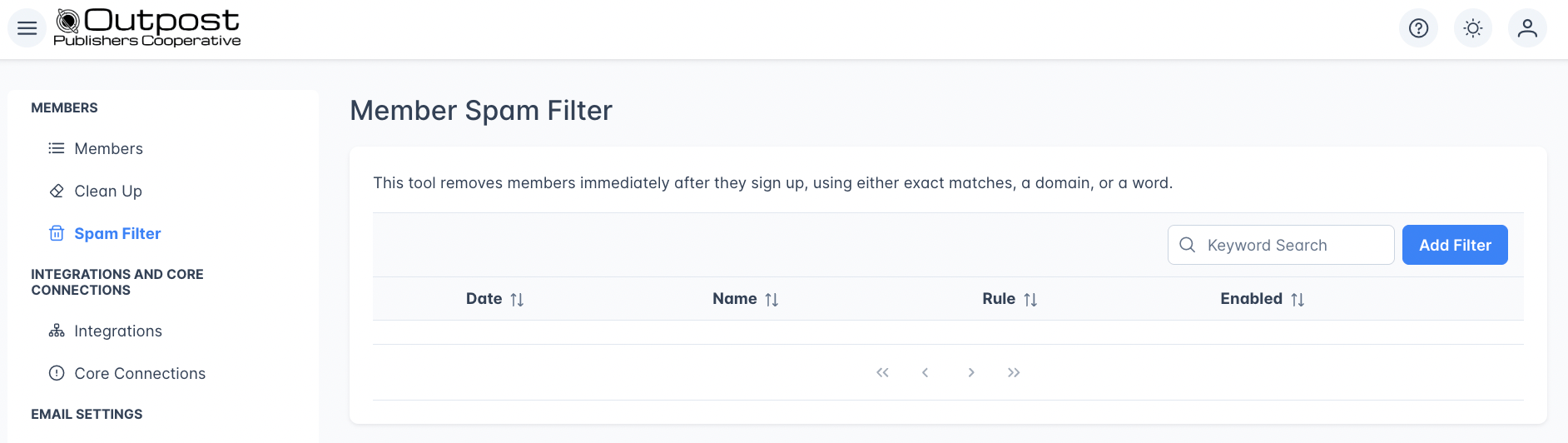
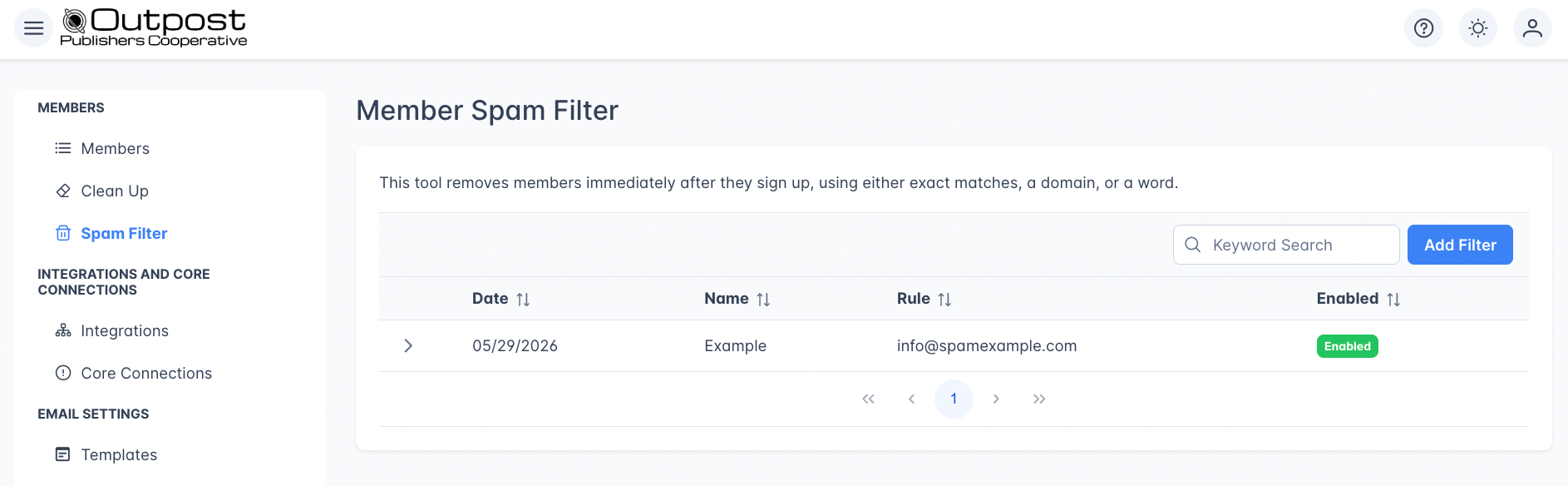
The spam filter list
The filter list table displays:
Use the search box to find filters by name or rule text.
Creating a spam filter
1
Open Spam Filter
Go to Members → Spam Filter.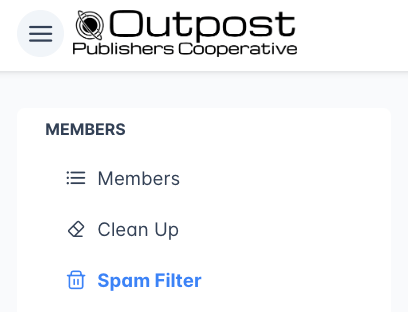
2
Add a filter
Click Add Filter.
3
Fill in the filter form
4
Save the filter
Click Save. The filter starts blocking matching signups immediately.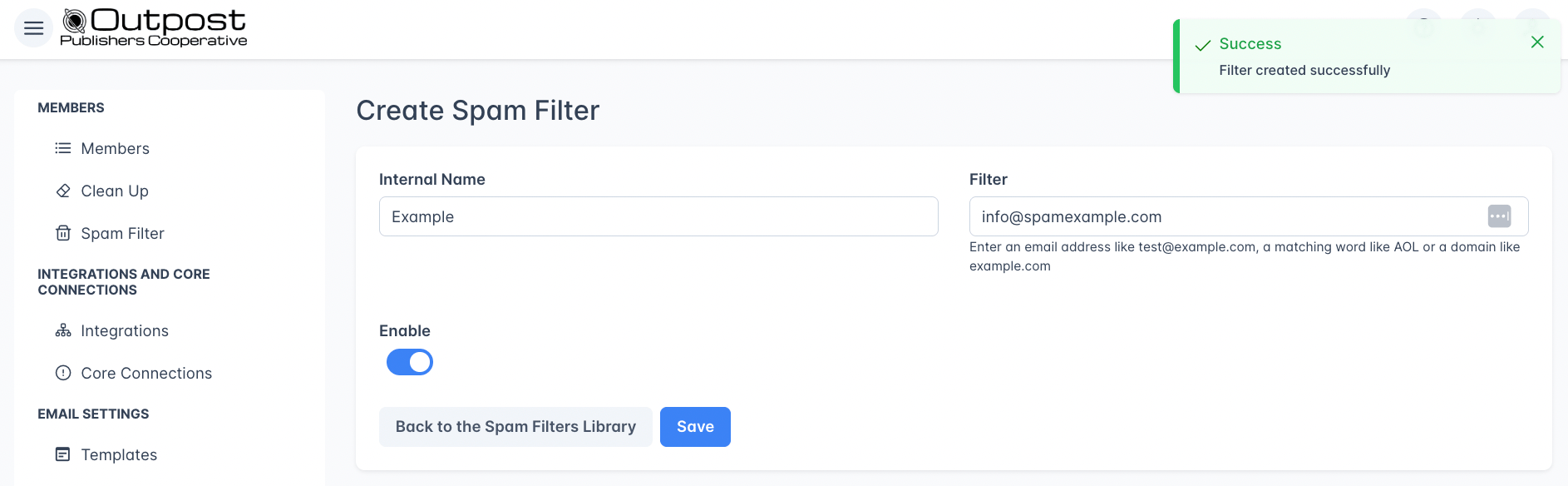
Checking for existing matches
After entering a filter rule, the form shows a count of existing members that match the pattern. This helps you see the potential impact before saving. If matches are found, a Remove [N] member(s) from Ghost button appears. Clicking it removes all matching members from Ghost immediately.Editing a spam filter
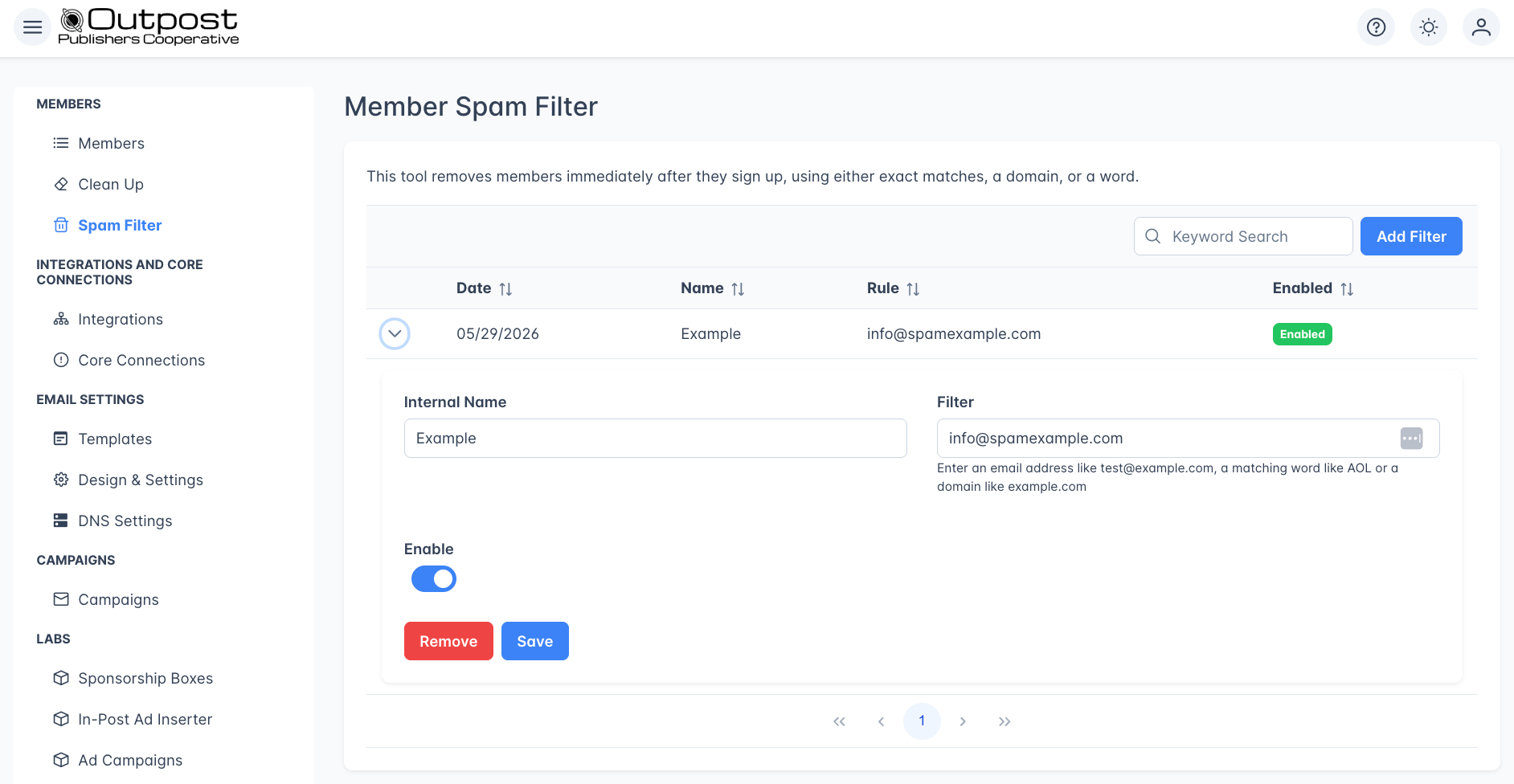
- Change the internal name or rule pattern
- Toggle the filter on or off
- Check how many existing members match
- Remove matching members
- Delete the filter entirely by clicking Remove
Tips for effective spam filtering
- Use keywords sparingly: A keyword like “test” might match legitimate emails. Prefer exact domains or email addresses when possible.
- Review before removing: Always check the match count before using “Remove Matching Members” to avoid accidentally deleting real subscribers.
- Disable instead of delete: If you’re unsure about a rule, toggle it off instead of removing it. You can re-enable it later.
Related features
Members
View and manage your full member list.
Member Cleanup
Remove free members who have unsubscribed from your newsletters.
ZeroBounce
Validate email addresses with ZeroBounce to reduce bounces and protect sender reputation.
FAQ
Does the spam filter catch existing members or only new signups?
Does the spam filter catch existing members or only new signups?
The spam filter primarily catches new signups: it removes matching members the moment they register. However, you can also check for existing matches and remove them manually using the Remove Matching Members button on any filter rule.
What's the difference between the spam filter and ZeroBounce?
What's the difference between the spam filter and ZeroBounce?
The spam filter blocks signups based on rules you define (specific emails, domains, or keywords). ZeroBounce is an external email validation service that checks whether an email address is real, deliverable, or a known spam trap. They complement each other: use the spam filter for known bad patterns and ZeroBounce for general email validation.
Can a spam filter accidentally block real subscribers?
Can a spam filter accidentally block real subscribers?
Yes, if a keyword rule is too broad. For example, a keyword filter for “test” would block someone with the email
contest@example.com. Review the match count before saving, and prefer exact domains or email addresses over keywords when possible.Does disabling a filter re-add members it previously removed?
Does disabling a filter re-add members it previously removed?
No. Disabling a filter only stops it from catching future signups. Members that were already removed are not restored. If you need to re-add someone, you can create them manually from the Members page.