

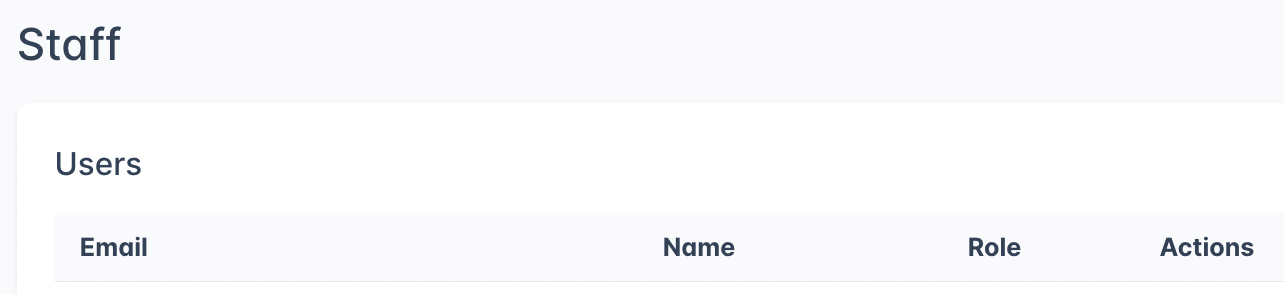
Users
The users table shows everyone with access to your Outpost account:Roles
Outpost has two roles for staff users:
Both roles can view and edit members, create email campaigns, configure automations, and manage content. The key difference is that only the Site owner can access billing settings and delete the account.
Admins are kept informed about account deletion even though they cannot act on it. When the Site owner asks to delete the Outpost account, every Admin is emailed about it, and emailed again as the deletion date approaches, so a request nobody expected gets noticed while there is still time to stop it. Outpost also queues a site for removal when its Outpost subscription ends, and every Admin is emailed about that too. That email is headed “Your Outpost account and data for [your site name] are queued for removal”. It names no deletion date, because none is set yet, and no reminder emails follow it. Only the Site owner can stop either one, using Keep my site on the Publication Details page. An Admin who receives one of those emails and was not expecting it should contact the Site owner, or reply to the email to reach Outpost support.
User actions
Each user row in the table has action buttons:
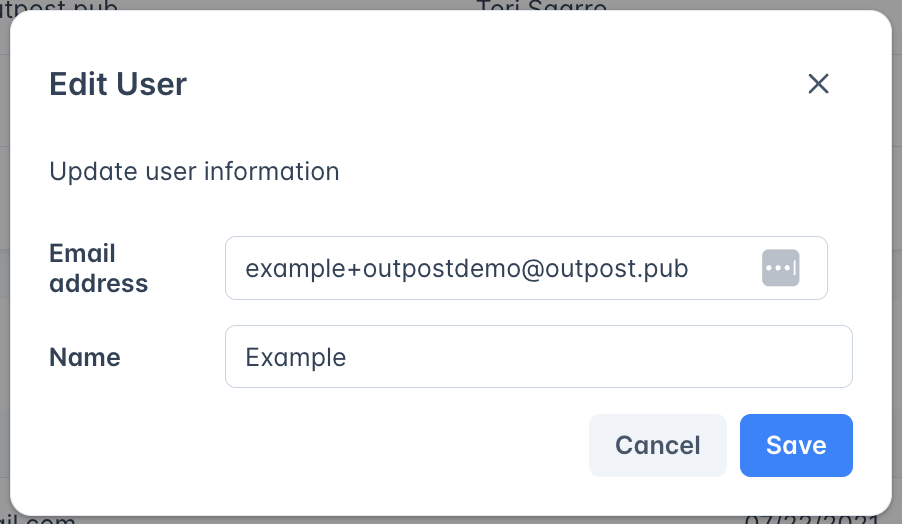
Edit
Remove
Remove this admin user’s access to the account. Only visible for admin users (the site owner cannot be removed). A confirmation dialog will appear before removal.
Set as owner
Transfer site ownership to this admin user. Only visible for admin users, and only the current owner can perform this action. A confirmation dialog will appear before the transfer. Only the current site owner can transfer ownership. To transfer:- Find the admin user you want to make the new owner in the Users table
- Click Set as owner next to their name
- Confirm the transfer in the dialog that appears
- Ensure your Stripe account has the same owner
Invitations
When you invite a new admin, the invitation appears in a separate Invitations table below the users table. This table only appears when there are pending invitations.Invitation actions
- Resend: Re-send the invitation email. Resend restarts the 72-hour expiration window from the moment the new email is sent.
- Remove: Cancel the pending invitation. The invite link will no longer work.
Invitation links expire 72 hours after the invitation is sent. If a user doesn’t accept in time, click Resend to issue a new link.
Inviting a new admin

- Click the Invite Admin User button below the users table
- In the dialog that appears, enter the person’s email address
- Click Send
Invited users must complete the account setup process, which includes setting a password and configuring two-factor authentication, before they can access your Outpost account.
Two-factor authentication (2FA)
Outpost requires all users to set up two-factor authentication for account security. During initial login setup, each user chooses one of two verification methods:Authentication app (recommended)
- Download a free authenticator app on your mobile device, such as Authy or Google Authenticator
- Open the app and choose Add New Account
- Scan the QR code displayed on screen, or manually enter the setup code shown below it
- Click Continue to complete setup
Text message (SMS)
- Enter your mobile phone number
- Click Send Code to receive a verification code via text message
- Enter the code to complete setup
Transferring site ownership
See Set as owner under User actions. Only the current site owner can transfer ownership, the transfer moves billing and account-deletion access to the new owner, and your Stripe account needs to match whoever owns the site.Related features
Publication Details
Manage your site settings and Outpost subscription.
Notifications
Configure which events trigger email notifications for your team.
FAQ
How many admin users can I have?
How many admin users can I have?
There is no limit on the number of admin users. Invite as many team members as needed.
Can I transfer site ownership?
Can I transfer site ownership?
Yes. The current site owner can click Set as owner next to any admin user to transfer ownership. This cannot be undone without the new owner transferring it back.
What happens when I remove an admin user?
What happens when I remove an admin user?
The user immediately loses access to your Outpost account. Their actions and data are not deleted; they simply can no longer log in.
Is two-factor authentication required?
Is two-factor authentication required?
Yes. All Outpost users must set up 2FA during their first login. You can choose between an authenticator app or SMS verification. After verifying, Outpost remembers the device for one month before prompting again.
Can I change my 2FA method after setup?
Can I change my 2FA method after setup?
Yes. On the 2FA verification screen, click the Use a different method link to switch between the authenticator app and SMS options.
What's the difference between the Site owner and Admin roles?
What's the difference between the Site owner and Admin roles?
Both roles have full access to manage members, email flows, CTAs, and integrations. The Site owner additionally has access to billing settings and account deletion. There can only be one Site owner at a time.