

New sites on the Space Station plan are limited to 20 emails a day. The limit lifts when you connect Stripe or upgrade your plan. Every email Outpost sends for your site counts toward it, including autoresponder and report emails, not just campaign sends.
Campaign list
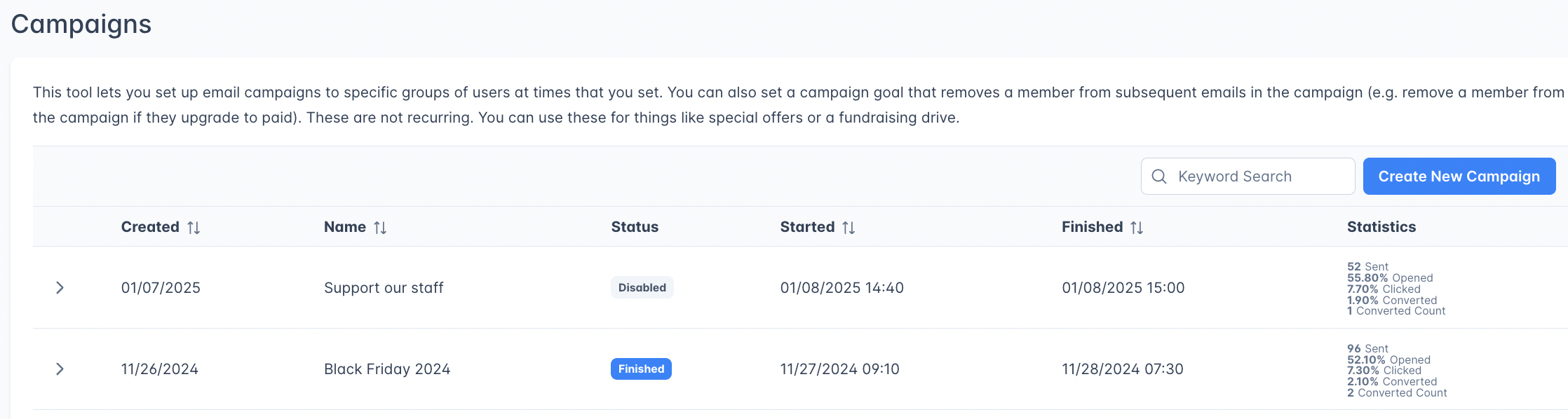
The Campaigns page displays all your campaigns, including active ones, scheduled ones and your past ones, in an expandable table:Creating a campaign
Go to Campaigns in the left navigation and click Create New Campaign.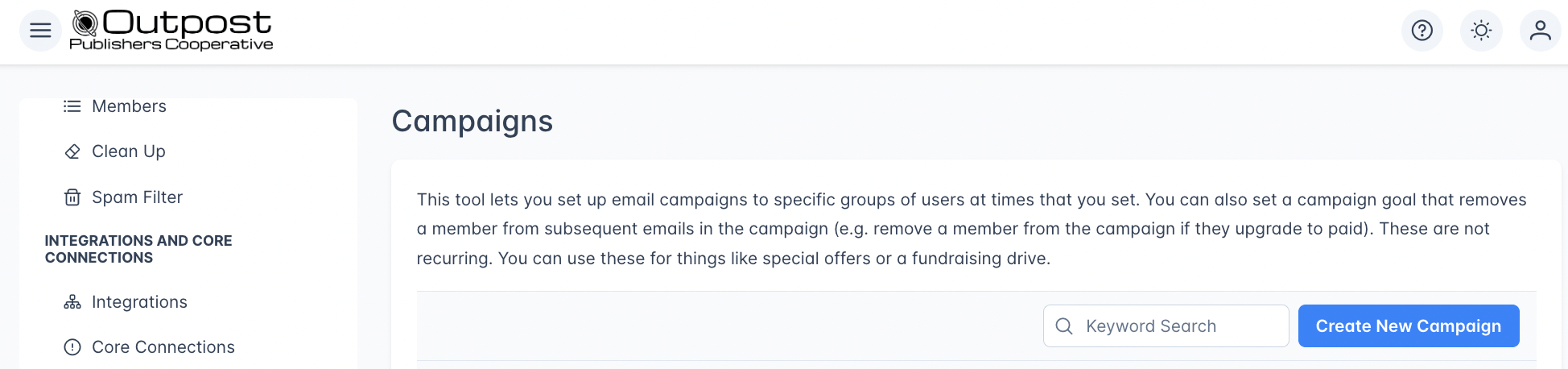
Basic settings
The removal condition also narrows which members the campaign can reach, not only when a member stops receiving it. Member Upgrades to Paid reaches free and complimentary members, and drops each one as soon as they start paying. Member Downgrades to Free reaches paid members only. Member Renews reaches members whose current subscription period ends within the next year. Choose a condition that fits your Apply to selection: a campaign that applies only to paid members and removes members who upgrade to paid has no one left to send to.
Audience targeting
Actions (email sends)
Each campaign has one or more actions, individual email sends at specific times:
Click Add Action to add additional sends to the campaign. Each action can use a different template and send at a different time.
Each template sends only once per member per campaign. If a member has already received a particular template in this campaign, they will not receive it again.
Attaching an offer is only half the job: the email has to link to it. If you attach an offer to an email whose body has no
%OFFER_URL% link, a line appears under that email telling you readers will not see the offer. Open the email with the pencil icon and use %OFFER_URL% as the link for the offer button.Campaign status
Use the On/Off switch at the top of the campaign editor to enable or disable the entire campaign.
When you save a campaign that is switched on and whose Apply to selection includes readers who already have a subscription, Outpost asks you to confirm first. The dialog is a reminder to check that every offer is attached in the Offer column and that each email links to it with
%OFFER_URL%. Choose Turn on the campaign to save, or Go back to switch the campaign off again and leave it unsaved. Saving a campaign that was already on and already aimed at those readers does not ask again.
Statistics
After a campaign sends, Outpost tracks per-action statistics:Campaign vs. autoresponder flow
Related features
Email Templates
Create the email content used in campaigns.
Autoresponder
Set up ongoing automated email sequences.
Offers & Discounts
Link offers to campaign emails for tracked conversions.
Autoresponder Settings
Configure global exclusions that apply to campaigns.
FAQ
Can I add multiple email sends to one campaign?
Can I add multiple email sends to one campaign?
Yes. Click Add Action to add additional sends. Each action can use a different template and be scheduled for a different time, creating a multi-touch campaign.
What does the marketing email toggle do?
What does the marketing email toggle do?
When enabled, the campaign’s Exclude Members Labeled list automatically includes
Marketing_OptOut, the label for members who have opted out of marketing emails. Members who have opted out never receive campaigns either way: Outpost checks every recipient’s marketing preference when it works out who will receive the campaign.Can I edit a campaign after it finishes?
Can I edit a campaign after it finishes?
No. Once a campaign reaches the Finished status, the editor is read-only. Create a new campaign if you want to re-send to a similar audience.
How are campaign audiences calculated?
How are campaign audiences calculated?
Outpost works out who receives each email at the time that email is due to send. It applies your audience settings, the Remove Member from the Campaign when condition and each member’s email preferences as they stand at that moment, and it leaves out anyone who has already been sent that email. Because every send is worked out fresh, a member who joins or changes status part-way through a campaign is included in the later emails if they match, and a member who no longer matches receives nothing further.
Why is my campaign audience smaller than the same filter in Ghost?
Why is my campaign audience smaller than the same filter in Ghost?
Outpost’s count is usually the smaller of the two. There are three common reasons.
- The removal condition narrows the audience as well. With Remove Member from the Campaign when set to anything other than No Condition, the count includes only members who have not met that condition yet.
- Campaigns only count members who can currently receive email from you. Anyone who has unsubscribed from your newsletters, or turned off promotional and event notification emails in their subscription settings, is left out. A label filter in Ghost does not apply that check, so Ghost still counts those members.
- Labels applied through Ghost’s bulk Add label and Remove label actions may not have reached Outpost yet. Outpost catches up on its own within a few hours; see labels for how to bring the two in line right away.