

How to
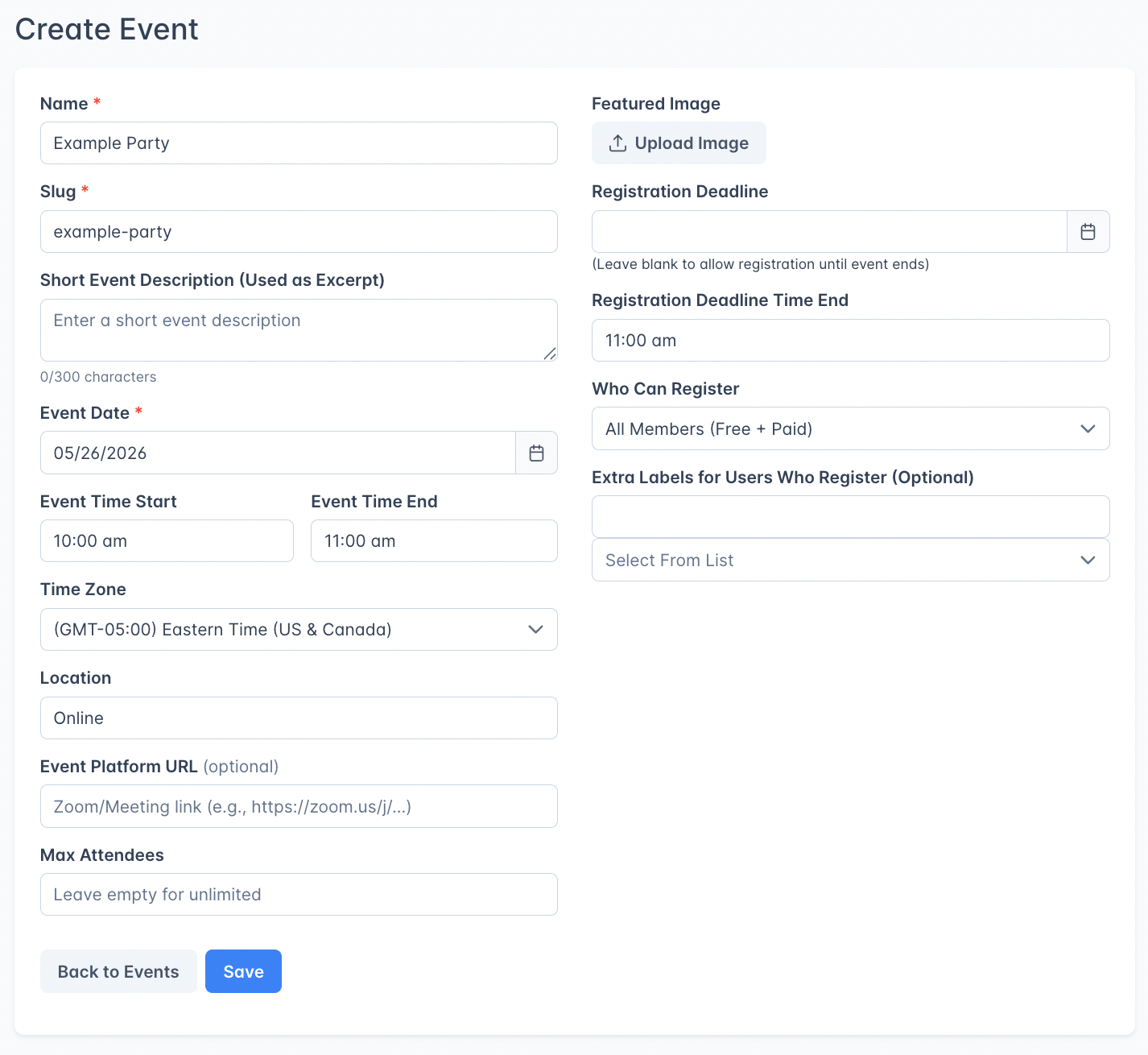
- Create an event in the Outpost dashboard by clicking the blue Create Event button. Fill in a name, date, time, and access settings (including link and image if applicable). Save, then the Create Draft Post in Ghost button will appear. This will open a draft post with an embedded registration code.
You should see confirmation in the top right corner after saving:
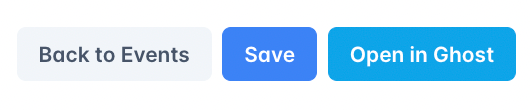
 After saving, the “Create Draft Post” button will change into one that opens the draft page in a new tab: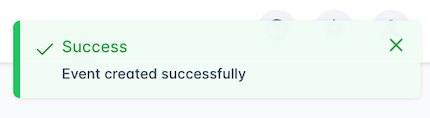
- Publish to Ghost: Fill in any additional information you would like to share with your readers in the draft post that’s created, then publish to Ghost.
Note: the draft post may not look like it has your event in it. The details you entered in Outpost are stored in the post’s Code Injection section, and the event widget displays them once the post is published, provided your theme is set up to show events.
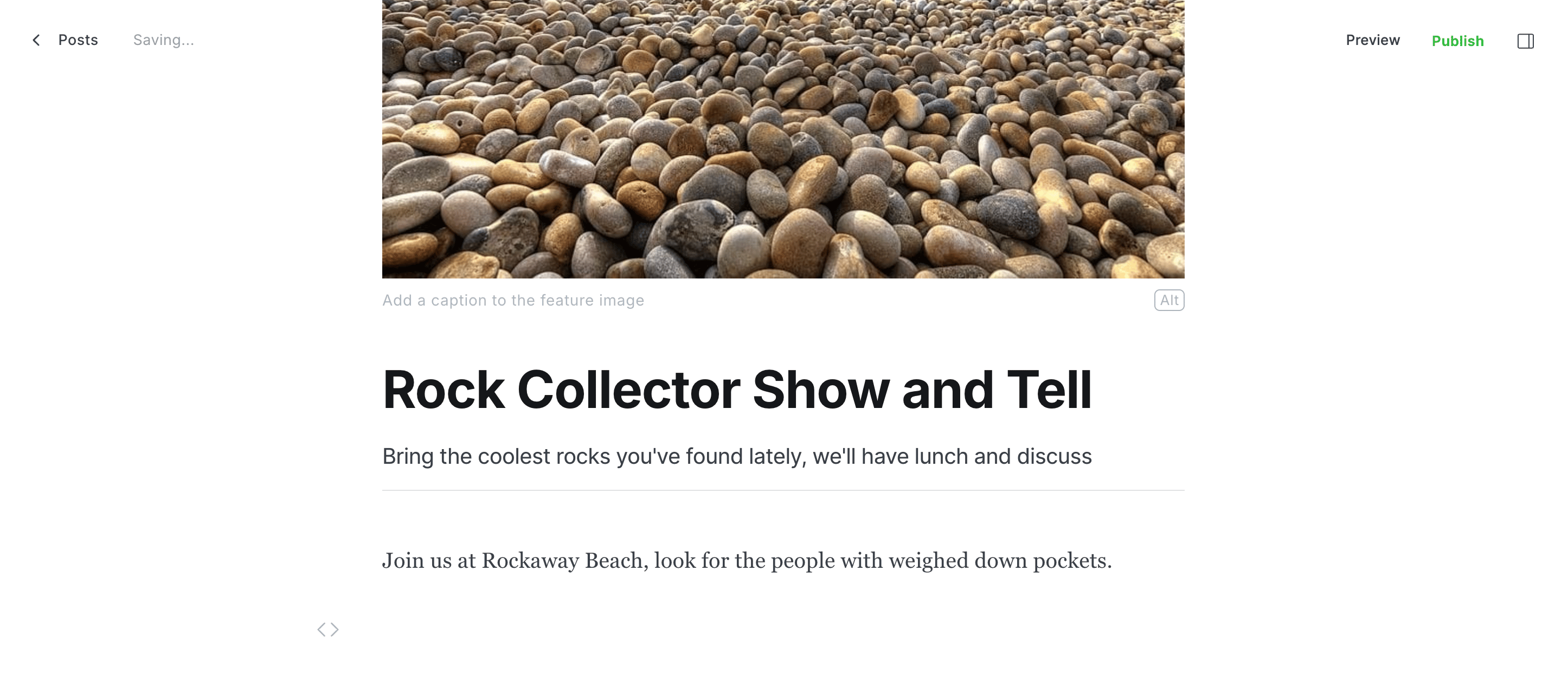
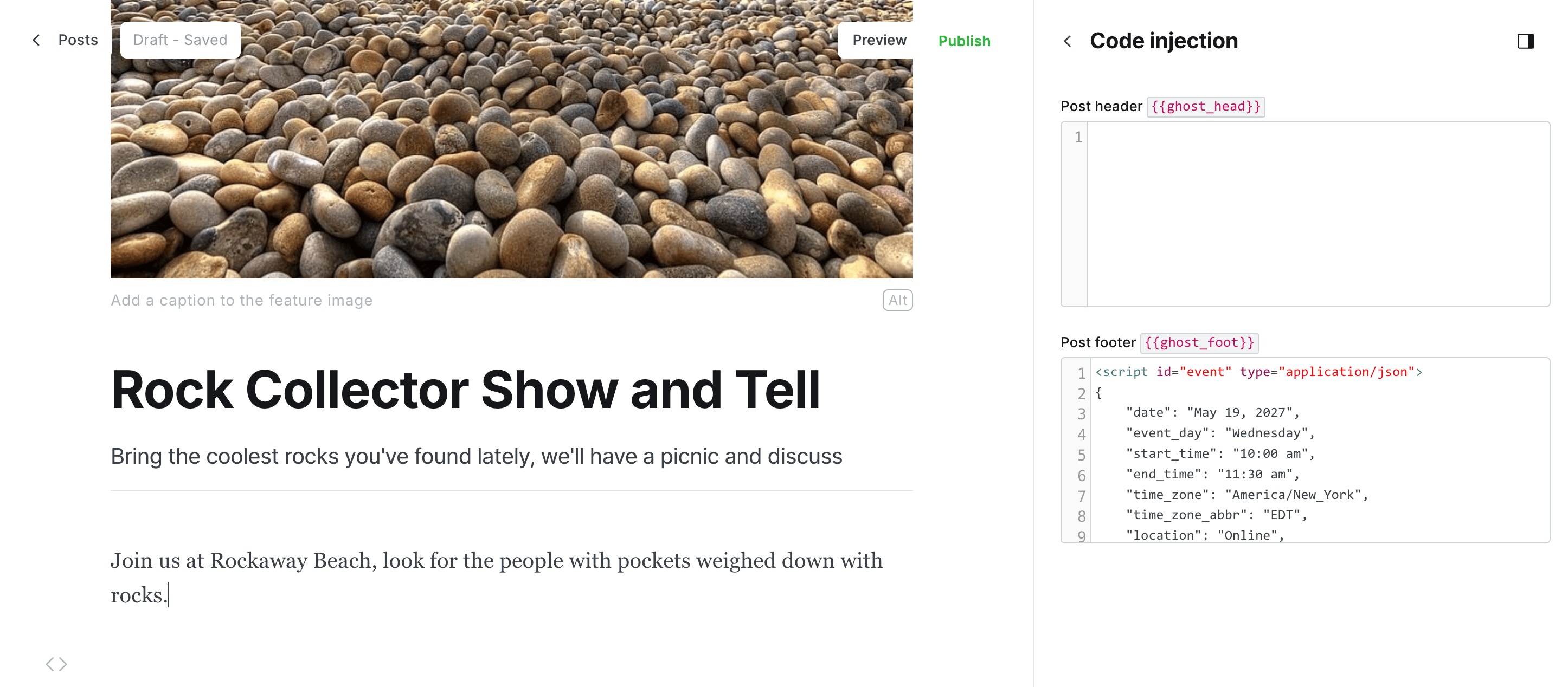
- Members register via the on-page widget, which handles login, access checks, and RSVP.
- Calendar links appear after registration so attendees can save the event.
- Attendee tracking records registrations and cancellations.
- Event countdown displays a live countdown to the event start time.
Creating an event
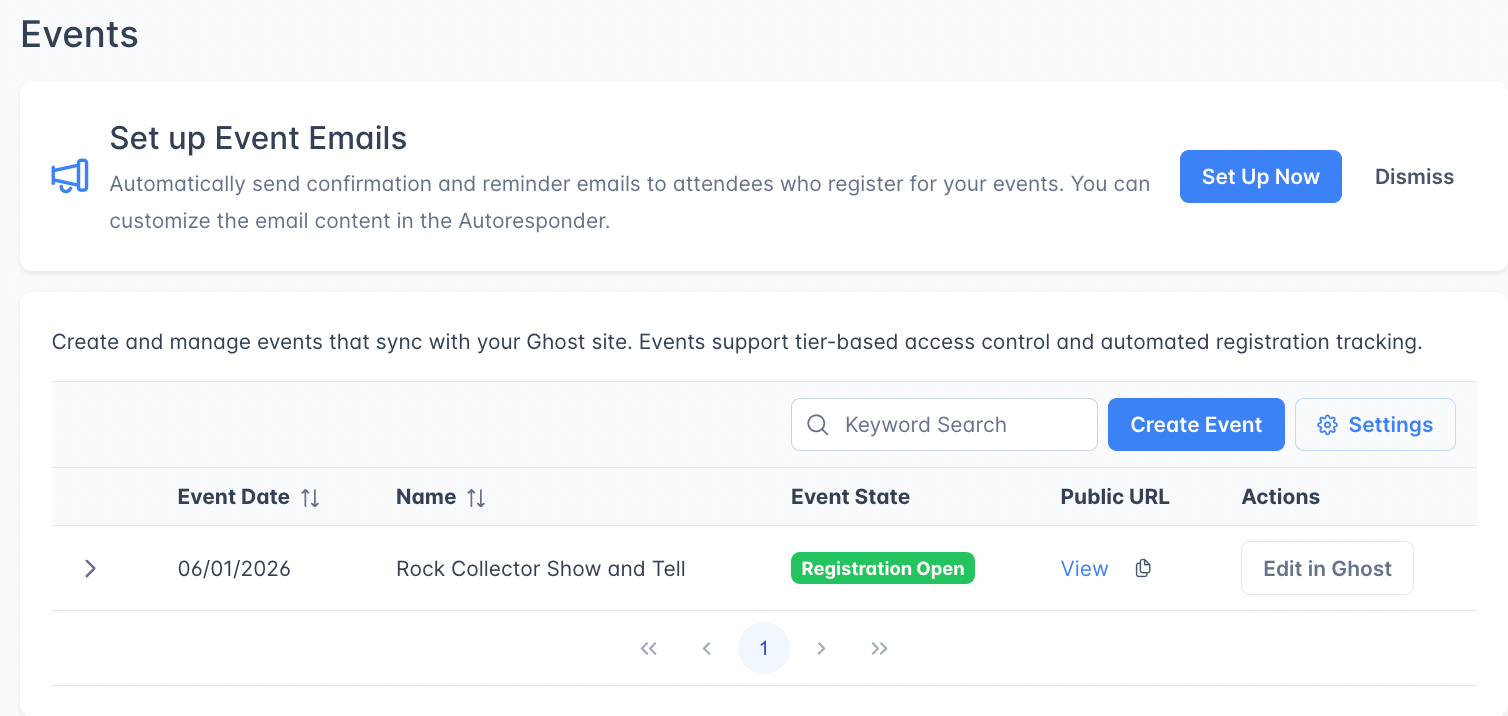
Go to Events (beta) under the Labs group in the left navigation (pictured below) and click Create Event.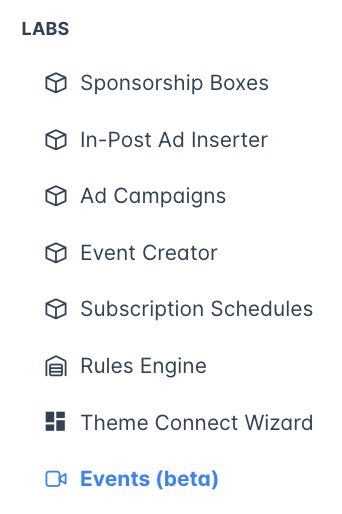
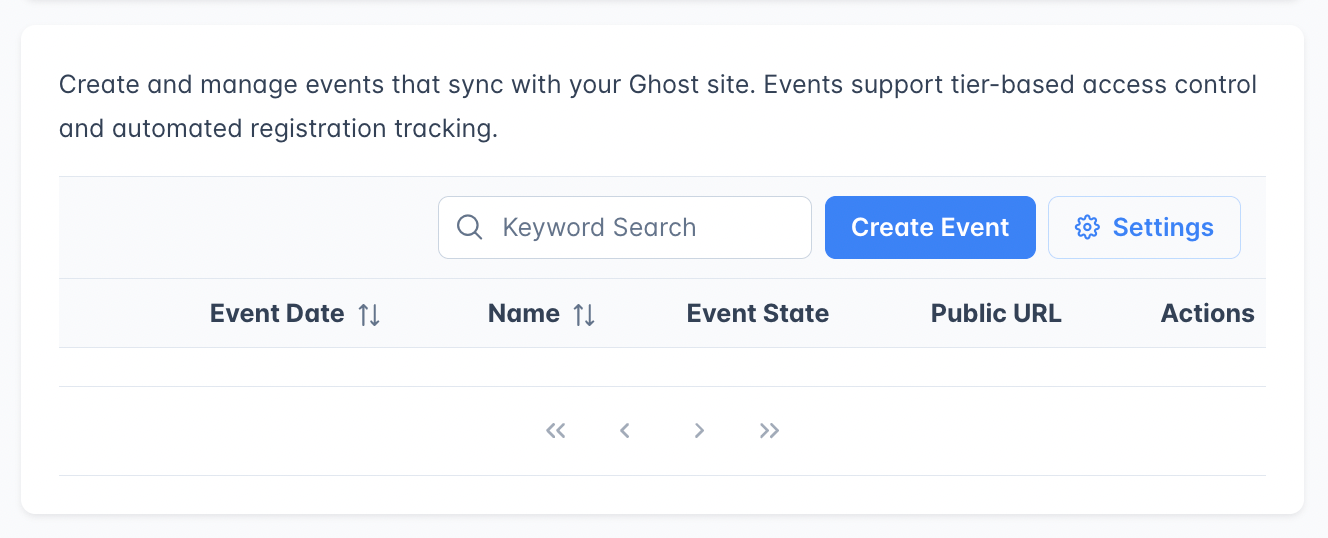
Event details
Registration settings
A Recommended size line sits under the Featured Image field, and the same line appears inside the crop dialog. Outpost takes that size from the first of these that is set: the featured image constraint in your theme manifest, then Event Settings → Default Featured Image Size, then a built-in 1200 x 630px. The recommendation always shows, even when neither of the first two is configured.
Editing an event
Every event has its own page. Click Edit on any row of the Events list to open it. A breadcrumb trail above the form shows where you are: Events, then New event while you’re creating one, or the event’s name once it has been saved. Click Events in the trail to return to the list. Saving a new event takes you to that event’s own page, and the browser address, breadcrumb, and page title update to match. The editor also does the following:- Cmd+S saves the event. Ctrl+S does the same on Windows.
- Unsaved edits are protected. Leaving the page with changes you haven’t saved raises a Leave without saving? confirmation, offering Keep editing or Discard changes. Closing the browser tab raises your browser’s own leave-this-page warning instead.
- Errors appear next to the field that caused them. If a required value is missing, the message appears under that field and the page scrolls to it. When publishing to Ghost fails, the reasons are attached to the fields they belong to, and anything that doesn’t belong to a field appears as a notification instead.
Post address
As soon as a Ghost post exists for the event, a Post address line appears on the event page showing the address the post will have. Until the post is published, that address is plain text with a Not live yet tag beside it. Once the post is live, the same line becomes a working link. The copy button next to it works in both states, so you can put the address into a newsletter or an invitation ahead of publishing.Events list
The Events page lists every event you have created, with columns for Event Date, Name, Event State, Ghost Post, and Actions. The Ghost Post column tracks where the event’s post stands in Ghost:
Draft rows link to the Ghost editor rather than to the public address, since the post isn’t live yet.
The Actions column always includes Edit, which opens the event in Outpost. Next to it sits Create Draft Post in Ghost while the event has no post, and Edit in Ghost once a post exists.
Event lifecycle
Events transition automatically through three states based on dates and times:1
Registration Open
The event date is in the future and the registration deadline (if set) hasn’t passed. Members can RSVP.
2
Registration Closed
The registration deadline has passed but the event hasn’t happened yet. New RSVPs are blocked.
3
Event Passed
The event date has passed and the end time (or start time, if no end time was set) has come and gone. The widget shows a past-event message.
Who sees the join link
Only members who have registered for the event can see the Event Platform URL. On the event page it appears as a Join Event button inside the registration widget. Event emails include it when you add the%EVENT_JOIN_LINK% merge tag to a template, and those emails go only to registrants. The templates you start with don’t use that tag, so add it to your confirmation or reminder template if you want registrants to have the link in their inbox. See Customizing event email templates.
Outpost leaves the link out of the event data it publishes to your Ghost post, so a theme reading that data never sees it. The link arrives with the registration widget instead, and only for a member who has registered. A reader who hasn’t registered has no way to reach it from the page.
A member who registered before the deadline still sees the Join Event button after registration closes, right through to the start of the event.
Attendee management
Once an event has registrations, the event detail page shows an Attendees section with:- Member name and email
- Registration timestamp (
Registered At) - Export CSV button to download the attendee list (Name, Email, Registered At)
Calendar links
After registering, members see calendar buttons to add the event to their preferred platform:- ICS File Download (Apple Calendar, Outlook desktop)
- Google Calendar
- Outlook Web
- Yahoo Calendar
What gets added to the calendar
Every platform receives the same core information, derived from the event you published:ICS file specifics
The ICS download produces a standards-compliant file (RFC 5545) that Apple Calendar, Outlook desktop, Thunderbird, and other clients can import directly. Each entry includes:Google, Outlook, and Yahoo handoffs
These three buttons don’t generate a file; they open the platform’s “create event” form pre-filled via URL parameters. Every form receives:- The site-prefixed title (
{Site Name}: {Event Name}). - The event start and end times in UTC.
- The location.
- The description with the
From {Site Name}attribution.
These platforms don’t expose a separate
STATUS or URL field via their compose URLs, so members get the title, time, location, and description; if you want the event page link to be discoverable from the calendar entry, include it in your event description.
Ghost integration
Publishing
When you publish an event from Outpost, a Ghost post is created (or updated) with:- The event name as the post title.
- A placeholder body with a
<div class="outpost-ghost-event-container"></div>element where the registration widget renders, plus the prompt “Put your event description here”; replace this with your own copy in Ghost. - A JSON payload of event details in the post’s
codeinjection_footfor themes to read (date, time, access level, registration state). - A custom post template if you’ve configured one in Event Settings or your theme manifest.
- The featured image uploaded to Ghost (uploaded once, on first sync).
Automatic ordering
Ghost normally displays posts by publish date, not event date. Outpost bridges that gap by quietly adjusting event posts’ publish dates so that publish-date order always matches event-date order. The reorder runs every time an event is published or its date changes, so an events listing in your theme needs no special sorting: Ghost’s default publish-date ordering shows events in event-date order, with past events sinking below upcoming ones.Because Outpost manages these publish dates, the dates themselves aren’t meaningful: an event post can show a “published” date that has nothing to do with when you actually published it. Event post templates and event cards should hide the publication date and show the event date from the code injection payload instead.
Theme support
Compatible Ghost themes (like Gazet) read event details from thecodeinjection_foot payload to display event information, registration status, and sign-up buttons natively. The registration widget uses your AutoDisplay CTA design settings (accent colors, button styles, fonts).
RSVP labels
When a member registers, Outpost adds two labels to their member record so you can segment and filter event attendees in both Outpost and Ghost. The first is an RSVP label built from the event name and the month the event was created: an event named “Spring Webinar” created in March 2026 producesZZZ_RSVP_spring_webinar_2026_03. Outpost writes this label into the event’s Extra Labels for Members Who Register (Optional) field when you first save, so you can see it there and remove it if you would rather not use it.
The second matches the event’s Slug field exactly, so an event with the slug spring-webinar gives every registrant the label spring-webinar.
The RSVP label is set once when the event is created. Renaming the event later does not update the label: existing registrants keep their original label, and new registrants receive the same label as everyone else on the event.
Every label the event adds, including any you added yourself, is removed automatically when a member cancels their registration.
Event countdown
When an event has a date and start time configured, Outpost generates a live countdown displayed on the event page. The countdown adapts based on how far away the event is:- More than a day away: shows days and hours (e.g., “3d 5h”).
- Less than a day: shows hours and minutes (e.g., “2h 30m”).
- Less than an hour: shows minutes only (e.g., “45m”).
Event settings
Open global event defaults by clicking the Settings button on the Events list page.
Values under Event Defaults fill in automatically when you create a new event, and you can override any of them on an individual event. Event email settings live in the same drawer, under Event Emails: see Event emails.
Default Post Template
The dropdown lists the custom templates Outpost read from the theme you uploaded through the Theme Connect Wizard. Outpost re-reads your theme each time you open Event Settings, so a template from a theme you uploaded a moment ago appears as soon as you close and reopen the drawer. If a template you expect is missing, upload your theme again through the wizard so Outpost reads the current files, then reopen Event Settings. If your theme has no custom templates, the dropdown reads “No templates found in your theme. Refresh your theme or type a template name.” The field also accepts a template name you type yourself. Only do that if you know what you are doing: it is there for the rare case where you are certain the template is in your theme and you know why Outpost isn’t listing it. A name that doesn’t match a real template means your event posts won’t render the way you expect. Enter the file name without the.hbs extension, so custom-event-post.hbs is entered as custom-event-post.
Default messaging
Event Settings includes customizable messaging templates for each audience state:
Each state has configurable text and toggles. Per-event overrides take priority over site-level defaults.
Link Pending Message sits in the Registered / Confirmed panel. A registered member sees it where the Join Event button would go, on an event that expects a join link and has no Event Platform URL yet. It reads “The event link will be provided on this page before the event starts.” until you write your own, and it holds up to 500 characters. The button takes its place as soon as you fill in the Event Platform URL.
The message is only shown to members who have registered, and it stops showing once the event has passed. An event that expects no join link, such as an in-person event at a venue, shows nothing in its place.
Outpost uses the Location to decide whether an event expects a link. A location of “Online”, or one that mentions “virtual”, means the event expects a link, and a venue name means it does not. If your theme defines event types, the event’s type decides instead: an event whose type includes the Event Platform URL field expects a link, and one whose type leaves that field out does not.
Event emails don’t use this wording. On an event that expects a link and has no Event Platform URL yet, they use a fixed line, in your site’s language, telling the reader the link will be posted on the event page.
Event emails
Outpost can send emails to registrants at key moments in the event lifecycle. Event emails are managed through the Basic Autoresponder and use the same template system as other autoresponder actions.Enabling event emails
Event emails are controlled at two levels:- Site-level switch: Enable event emails in Event Settings turns event emails on or off for your whole publication. Switching it on turns on all six event emails in the Basic Autoresponder, even ones you had switched off there, and switching it off turns them all off. Saving any other event setting leaves your Autoresponder choices alone.
- Per-event override: Individual events can disable emails even when the site-level switch is on. Useful for informal events where you don’t want automated notifications.
Email types
Confirmation emails send regardless of a member’s email opt-out preference: they’re transactional. Reminder emails respect the member’s email preferences and will not send to members who have opted out.
Pre-event reminder
About two days before a published event starts, Outpost emails you a short checklist for it. The email gives the event name, the start date and time, and how many members have registered so far. It asks you to add the meeting link in the Event Platform URL field if the event uses one and you haven’t set it yet, points you to the attendee export, and gives you the label to target if you want to email everyone who registered. It goes out once per event, to the site owner and every other user on your Outpost account, and it goes out whether or not anyone has registered. An event whose Ghost post hasn’t been published yet doesn’t get one. If you publish an event less than two days before it starts, the reminder goes out on the next hourly check.Reminder configuration
Reminders are set at the site level in Event Settings and can be overridden per event:
Reminders are checked every hour and send within a three-hour window, so the exact timing varies: a reminder set for “24 hours before” can go out any time between 25 and 22 hours before the event starts.
Tracked fields for the update email
Outpost watches six fields and prompts you to send the Event Updated email if any of them change after registrations exist:- Event Date
- Start Time
- End Time
- Time Zone
- Location
- Event Platform URL
Customizing event email templates
Each event email has its own template in the Basic Autoresponder. Templates support event-specific merge tags:Event templates also support the standard member, site, and subscription merge fields, plus fallback syntax for empty values like
%SUBSCRIBER_FIRST_NAME%,fallback="there". See Email templates for the full reference.Related features
Event Creator
Create reusable event HTML widgets to embed in Ghost posts.
Theme Connect Wizard
Connect your Ghost theme to enable event widgets and other Outpost features.
Labels
RSVP labels are auto-applied when members register for events.
Basic Autoresponder
Configure event email templates and reminder timing.
FAQ
What's the difference between Events and Event Creator?
What's the difference between Events and Event Creator?
Events (this page) creates full Ghost-integrated events with registration, attendee tracking, and lifecycle management. Event Creator is a simpler tool for creating reusable event HTML widgets that you paste into Ghost posts: no registration or attendee tracking.
Can I limit the number of registrations?
Can I limit the number of registrations?
Yes. Set the Max Attendees field when creating an event. Once the cap is reached, new registrations are blocked.
How do I export my attendee list?
How do I export my attendee list?
Open the event detail page, scroll to the Attendees section, and click Export CSV. The export includes name, email, and registration timestamp.
Do events work with any Ghost theme?
Do events work with any Ghost theme?
The registration widget works on any theme as long as the theme renders
codeinjection_foot and the placeholder <div class="outpost-ghost-event-container"></div> is left in the post body. Themes specifically built for Outpost (like Gazet) provide richer event rendering using the metadata Outpost injects.What happens if I change the event date after publishing?
What happens if I change the event date after publishing?
Outpost updates the Ghost post and reorders all event posts so they display in chronological event-date order. If event emails are enabled and members have registered, Outpost detects the change and offers to send an update notification to all registrants.
Why did my event post's publish date change?
Why did my event post's publish date change?
That’s Outpost keeping your events in order. Ghost sorts posts by publish date, so Outpost automatically adjusts event posts’ publish dates to match the order of their event dates. The reorder runs whenever any event is published or has its date changed. It’s harmless, but it means the publish date on an event post isn’t meaningful; themes should hide the publication date on event posts and show the event date instead.
Why don't my theme's custom templates show up in Default Post Template?
Why don't my theme's custom templates show up in Default Post Template?
The dropdown lists the custom templates Outpost read from the theme you uploaded through the Theme Connect Wizard. Outpost re-reads your theme every time you open Event Settings, so closing the drawer and opening it again picks up a theme you uploaded a moment ago. If the template still doesn’t appear, upload your theme again through the wizard and reopen Event Settings. That is the ordinary fix. If your theme has no custom templates at all, the dropdown reads “No templates found in your theme. Refresh your theme or type a template name.”The field will also accept a template name you type yourself. Only do that if you know what you are doing: it is there for the rare case where you are certain the template is in your theme and you know why Outpost isn’t listing it. A name that doesn’t match a real template means your event posts won’t render the way you expect. If you do need it, enter the file name without the
.hbs extension, so custom-event-post.hbs is entered as custom-event-post.How do I enable event emails?
How do I enable event emails?
Go to Event Settings and turn on Enable event emails. That one switch turns on all six event emails in the Basic Autoresponder, including any you had switched off there. You can still disable emails for individual events without turning off the site-wide setting. The pre-event reminder and the post-event recap, which come to you rather than to your registrants, send whatever these settings say.
Can I customize the reminder timing?
Can I customize the reminder timing?
Yes. The default is two reminders: 24 hours and 2 hours before the event. You can change the timing and the count (0, 1, or 2) in Event Settings, and override these settings on individual events.
Will members who opted out of emails still get event confirmations?
Will members who opted out of emails still get event confirmations?
Yes. Confirmation emails are transactional and send regardless of email preferences. Reminder emails respect opt-out preferences and won’t go to members who have unsubscribed.