

How it works (Space Station)
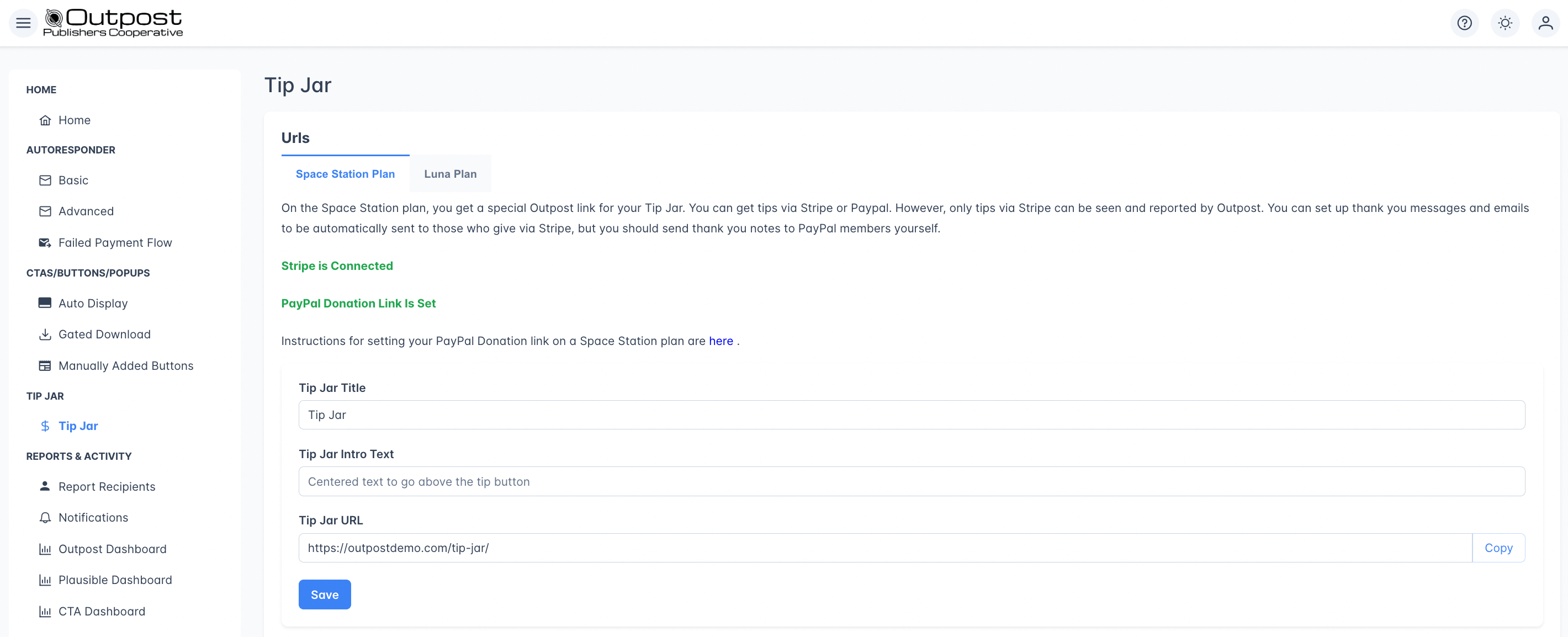
- You configure the Tip Jar in Outpost with a title, intro text, and preset donation amounts. You can also add a PayPal option.
- Outpost generates a hosted donation page on an Outpost URL like
yoursite.outpost.pub. - Outpost provides a link you can use in buttons, in your theme, in posts, or on social.
- Readers who go to the page choose a preset amount or enter a custom amount.
- They complete payment via Stripe or PayPal (PayPal on Space Station uses a personal link, so Outpost can’t record those donations).
- A thank-you page appears after the donation where they can optionally send you a note.
- A donation through Stripe is recorded in Outpost and appears in your Outpost Dashboard.
- The reader gets a thank-you note (Stripe only: Outpost can’t record PayPal donations on Space Station because the integration uses a personal PayPal link).
How it works (Voyager and Luna)
- Outpost creates a donation page on your site during setup, with a default slug of
/tip-jar. You can change the slug, the title, the intro text, and the preset donation amounts. You can also add a PayPal option, including a business-level integration that lets Outpost record PayPal donations. - You have controls over the page’s display.
- Outpost provides a link you can use in buttons, in your theme, in posts, or on social.
- Outpost CTAs that promote a donation link to the page on your site (even if you change the URL).
- Readers who go to the page choose a preset amount or enter a custom amount.
- They complete payment via Stripe or PayPal.
- A thank-you page appears after the donation where they can optionally send you a note.
- Donations through Stripe or a business-level PayPal account are recorded in Outpost and appear in your Outpost Dashboard.
- The reader gets a thank-you note.
Setup
The Tip Jar settings page is found under Tip Jar in the left navigation. The configuration options vary slightly depending on your plan.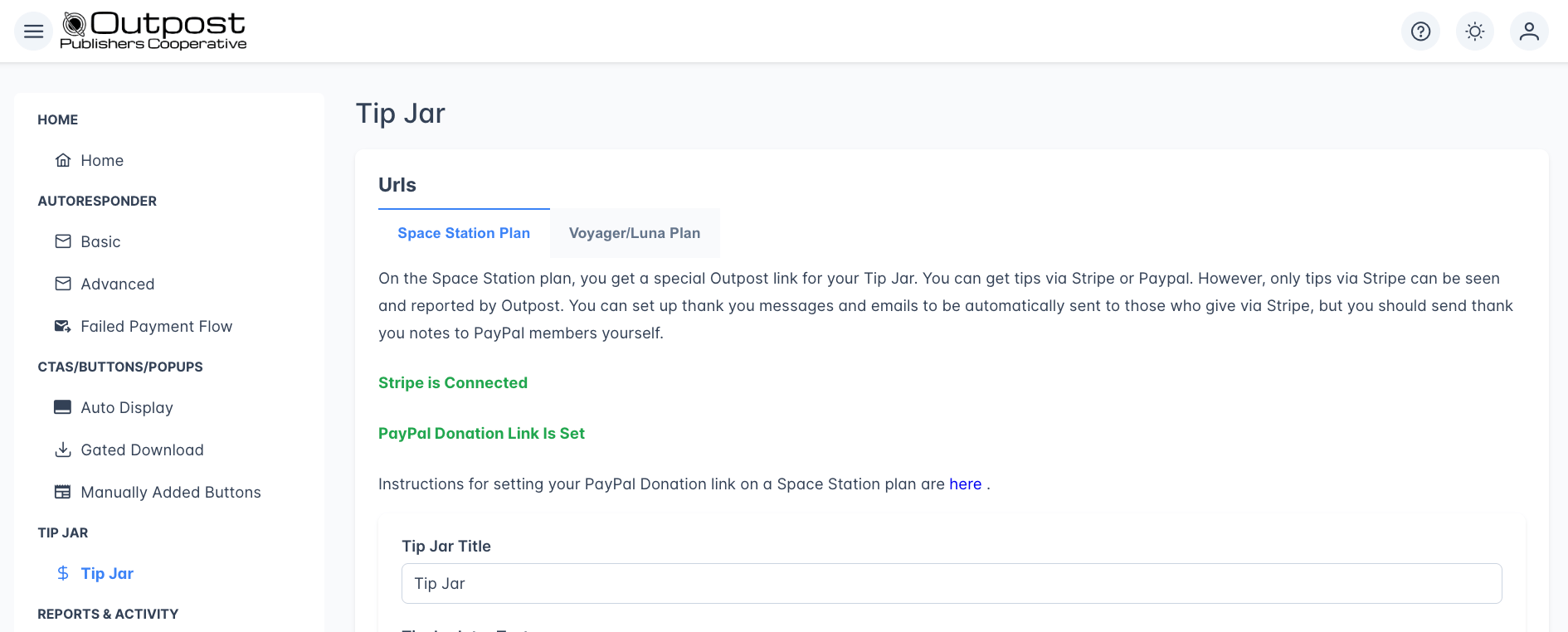
Basic settings
Payment connections
Your Tip Jar can accept payments through Stripe, PayPal, or both:
When both Stripe and PayPal are connected, readers see both payment options on the donation page with an “OR” separator between them. PayPal processes a smaller set of currencies than Stripe. If your site’s default currency is not one PayPal can process, the on-site PayPal button is not shown and readers see the Stripe option only. See PayPal for the currencies PayPal supports.
Plan differences
The Tip Jar is available on the Space Station plan but lives on an Outpost-hosted page, not on your site. On the Voyager and Luna plans, you can set a custom URL slug that creates a donation page directly on your domain, keeping readers on your site through checkout. Both Voyager and Luna include the full PayPal integration.
Default amounts
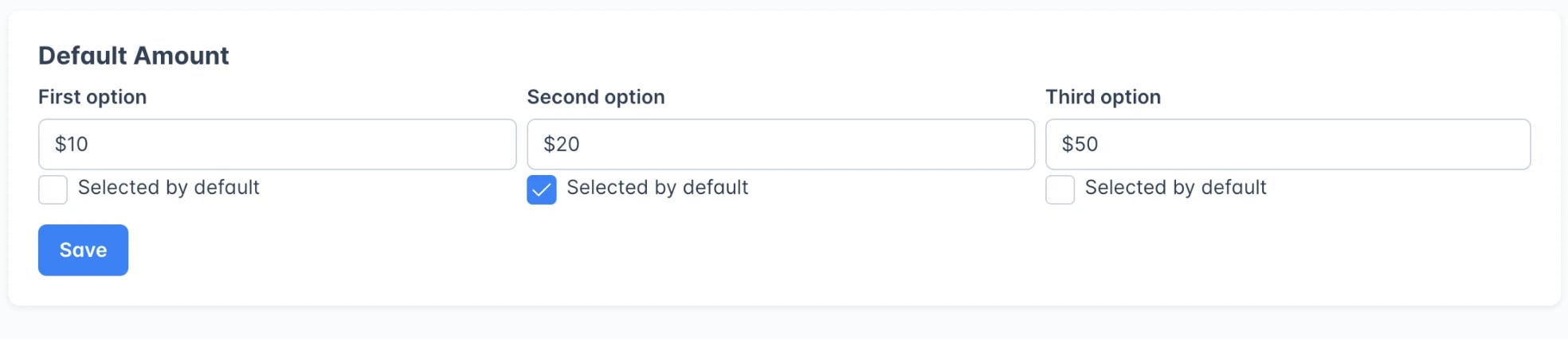
Default amount configuration with preset donation options
The default presets are 10, 20, and 50, with the 20 amount selected. Readers can also enter a custom amount.
Keep your amounts at $5 or higher. This deters card-testing fraud, where stolen card numbers are validated using small-amount donations.
Design customization
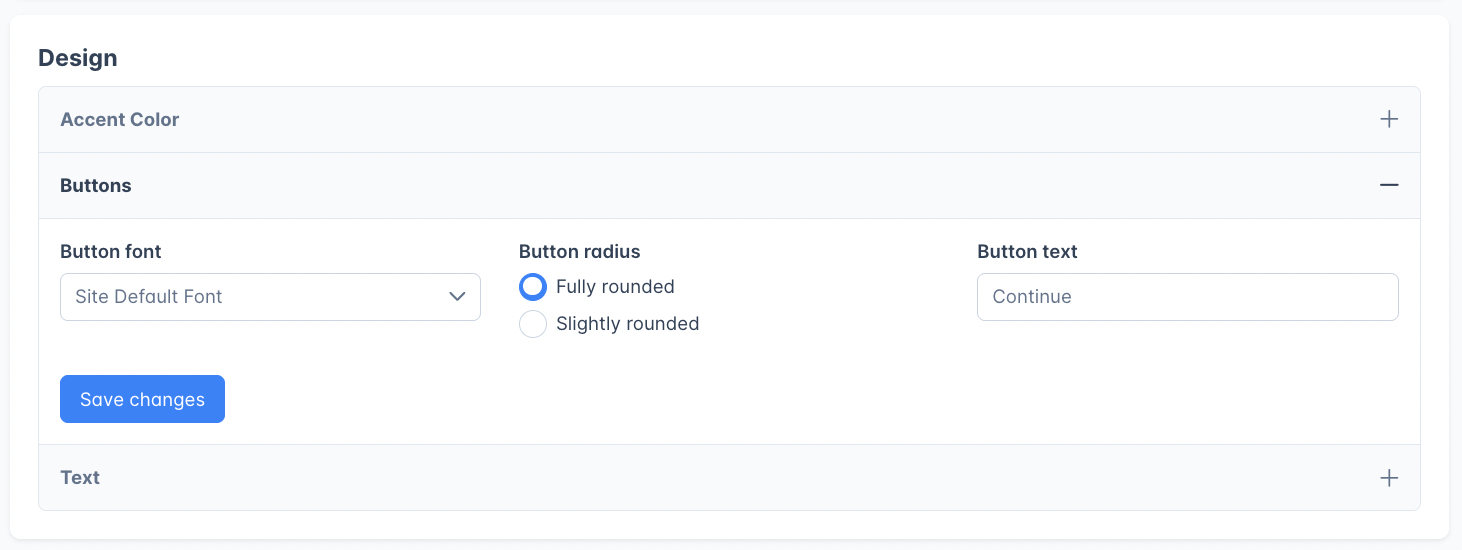
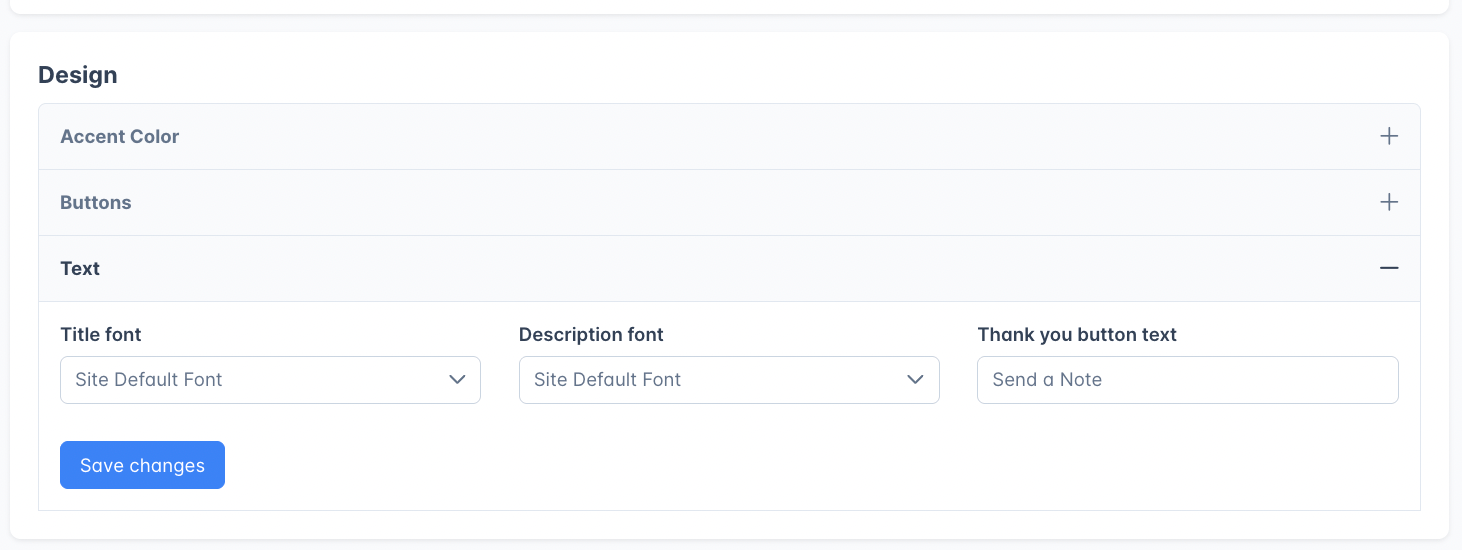
The Design section lets you customize the look and feel of your donation page to match your site’s branding. Click the Design accordion to expand three sections:Accent color
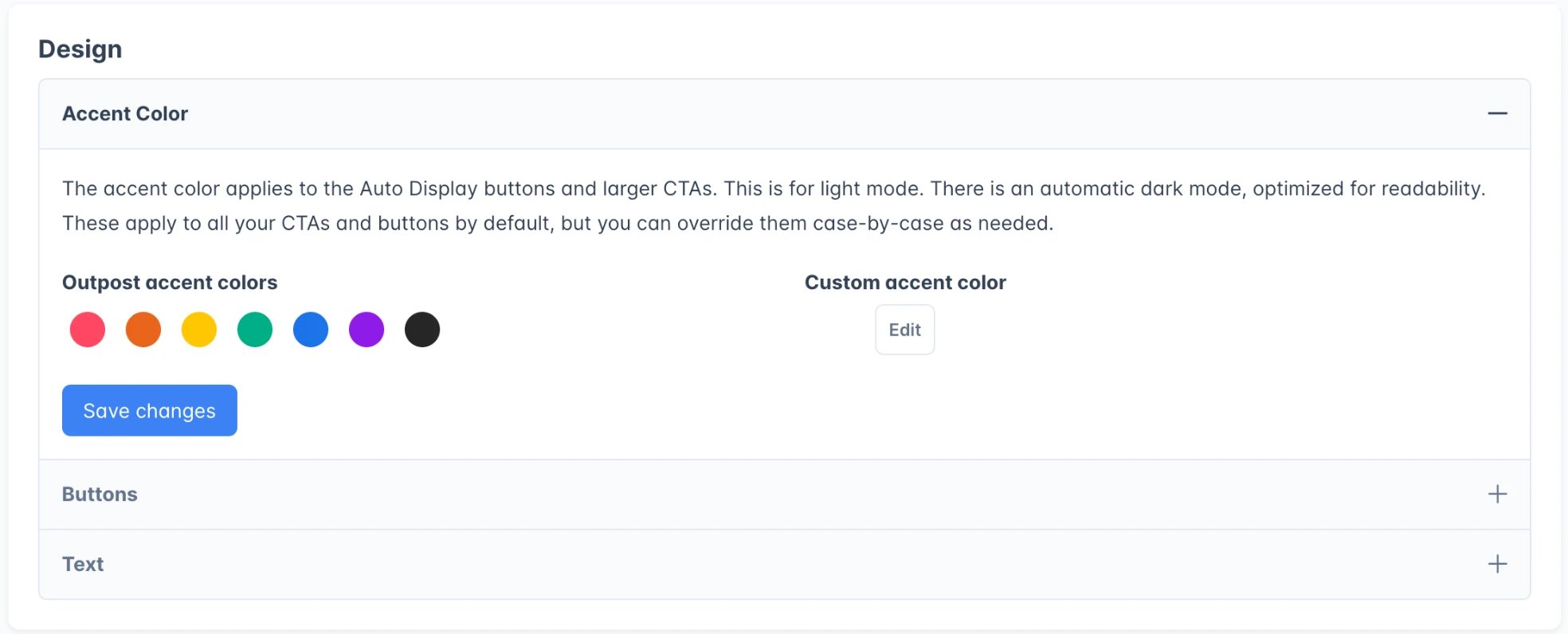
You set one color, and it is the light mode color. Outpost derives the dark mode version automatically and tunes it for readability, so there is nothing to set for dark mode. Choose Save changes to apply it.
Buttons
Text
The donation page
When a reader visits your Tip Jar URL, they see:- Title and intro text: Your configured heading and description. On Voyager and Luna, you can also add text and other items above and below the donation embed on the Ghost page itself.
- Preset amount buttons: Quick-select buttons for each configured amount, with the default highlighted.
- Custom amount field: A text input for entering any amount, with a minimum of 1 in your site’s currency.
- Stripe button: Styled with your accent color and custom button text.
- PayPal button: Appears below an “OR” separator if PayPal is also connected and your site’s default currency is one PayPal can process. PayPal controls the styling of this button.
On the Voyager and Luna plans, changing your site’s address in Ghost refreshes Outpost’s link to this page. The page itself is left as it is, and anything you added around the donation embed stays. Outpost records which Ghost page it created and looks that page up directly, so a page you renamed in Ghost is still found and the donation links Outpost shows readers keep working. The Tip Jar URL field above still shows the slug you last saved here, so it can look out of date while everything is working. This runs in the background, so give it a few minutes. Your gift subscription and group subscription pages work the same way. See When your site URL changes in Ghost.
Thank-you flow
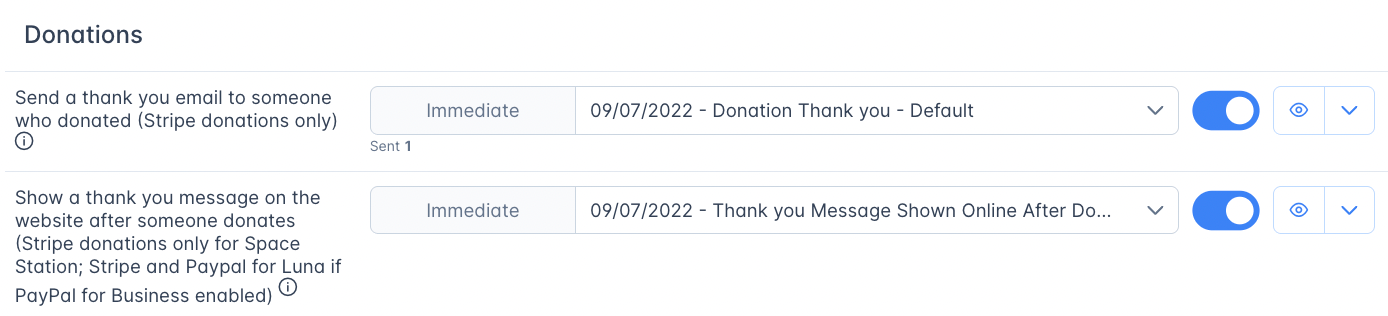
- A thank-you title and message set by you in the Basic Autoresponder
- An optional message textarea where they can write a note to you
- A Send button (text customizable in Design settings) to submit their message
- A button to return to your site
Tips vs. subscriptions
Tips are one-time payments. They do not:- Change the reader’s subscription status
- Grant access to paid content
- Create a recurring billing relationship
Viewing donation data
Donation revenue and activity appear in:- The Donations section of the Outpost Dashboard
- The Activity Log as donation events
- Notifications if you’ve enabled donation alerts
- In PayPal or Stripe as completed transactions
Gave_A_Donation: Outpost applies it automatically to every member who donates via Stripe or PayPal.
Related features
Outpost Dashboard
View donation totals and trends alongside member growth data.
Notifications
Get email alerts when readers make donations.
CTAs
Create calls to action that drive readers to subscribe or donate.
Stripe Integration
Connect Stripe to process tip payments.
FAQ
Do I need Stripe to use the Tip Jar?
Do I need Stripe to use the Tip Jar?
You need at least one payment method connected: either Stripe, PayPal, or both. Stripe is the most common choice, but PayPal works as an alternative or complement.
Can readers tip without creating an account?
Can readers tip without creating an account?
Yes. The Tip Jar payment flow does not require the reader to have a member account. However, if they are already a member, the donation is linked to their profile.
What's the minimum donation amount?
What's the minimum donation amount?
The minimum is $1 (or equivalent in your publication’s currency).
Does a tip change someone's membership status?
Does a tip change someone's membership status?
No. Tips are one-time payments that don’t affect subscription status, tier access, or newsletter subscriptions. A free member who tips remains free.
Where do I see how much I've received in tips?
Where do I see how much I've received in tips?
Donation totals appear in the Donations section of the Outpost Dashboard. Individual donations also appear in the Activity Log.
Can I customize the donation page to match my site?
Can I customize the donation page to match my site?
Yes. The Design section lets you set an accent color, with dark mode handled automatically, plus button shape and font, title and description fonts, and custom button text.
Why does my Tip Jar show a blank space instead of the donation box?
Why does my Tip Jar show a blank space instead of the donation box?
On the Voyager and Luna plans, your donation page holds the box inside a frame that loads from your Outpost domain. Some cookie-consent tools scan a page, catalog what a frame loads or stores, and then block that frame until the reader accepts a category such as Statistics. Readers who decline, or who have not answered the banner yet, see blank space where the box should be.The page also loads Stripe’s payment script, because it can take a payment, and Stripe sets cookies of its own. If your consent tool blocks Stripe, or blocks frames by domain, allow your Outpost domain and Stripe so the box loads for every reader.Your gift subscription and group subscription pages are built the same way, so check those too.