

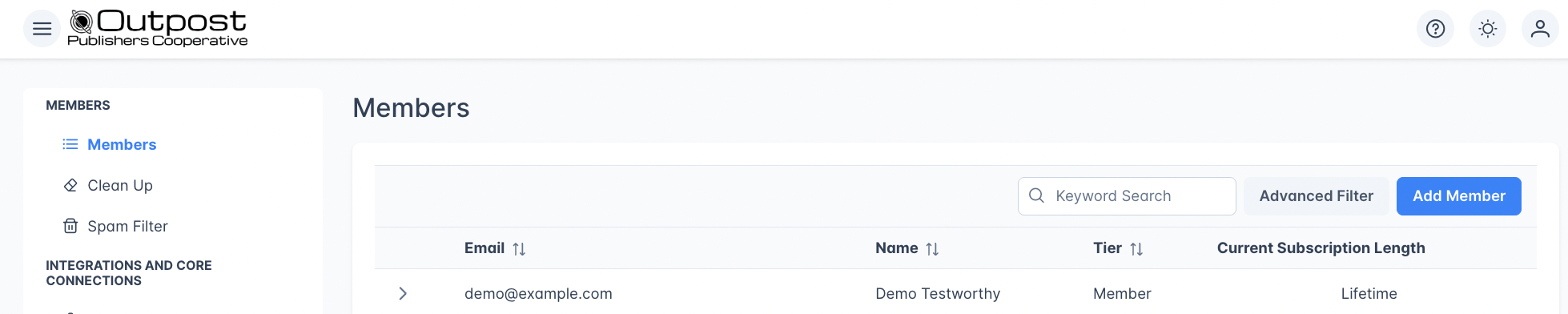
Member types
Outpost tracks several types of members, each with a different relationship to your publication: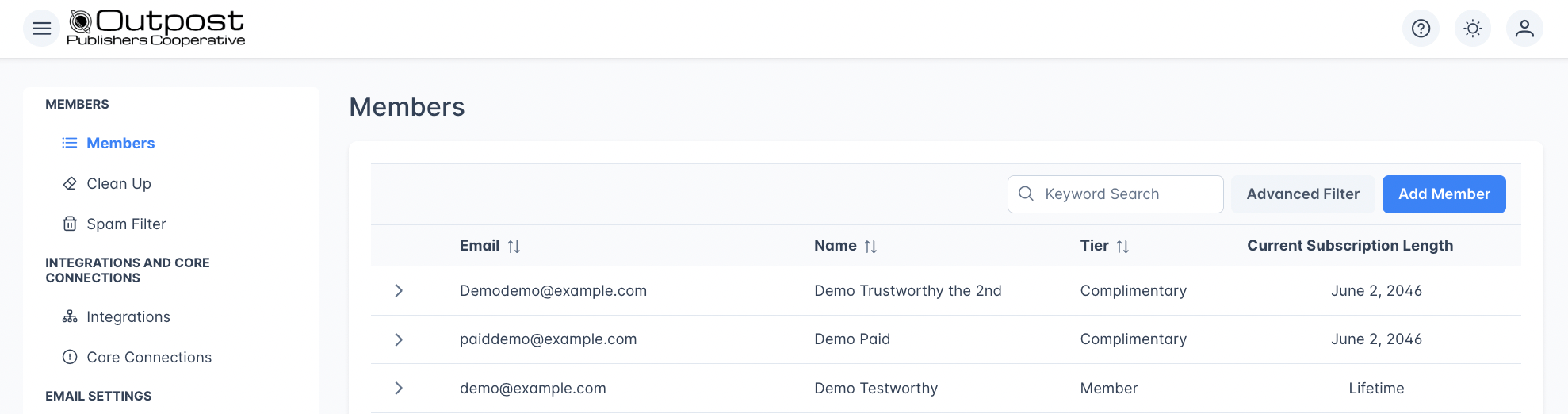
Member lifecycle
Gift, group, and institutional subscriptions don’t introduce new states: they overlay the same Member / Paid / Complimentary types with extra metadata about how the member got there.The members list
The members table displays the following columns:
Click the expand arrow on any row to open the full member detail view inline.
Searching members
Type in the Keyword Search box to find members. The search runs a contains match, so typing “gmail” will find all Gmail addresses. Press Enter or click away to apply the search.
Advanced filtering
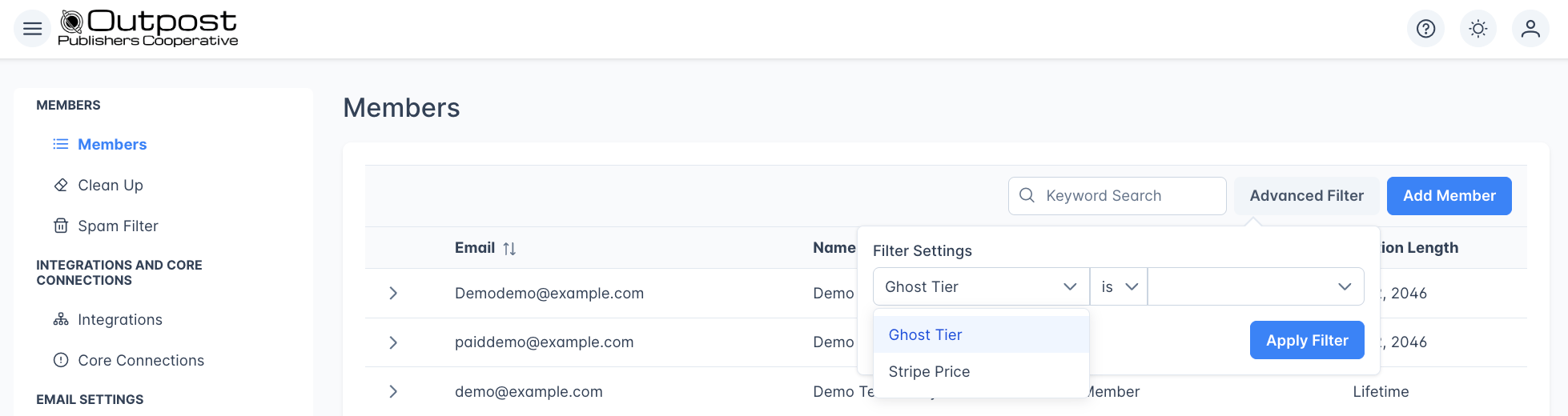
Click Apply Filter to filter the list, or Clear to remove the filter. When a filter is active, the button label changes to + Advanced Filter so you can see at a glance that filtering is applied.
Pagination
The members list loads 15 members per page. Use the pagination controls at the bottom of the table to navigate between pages. The total member count is displayed below the table.
Adding a new member
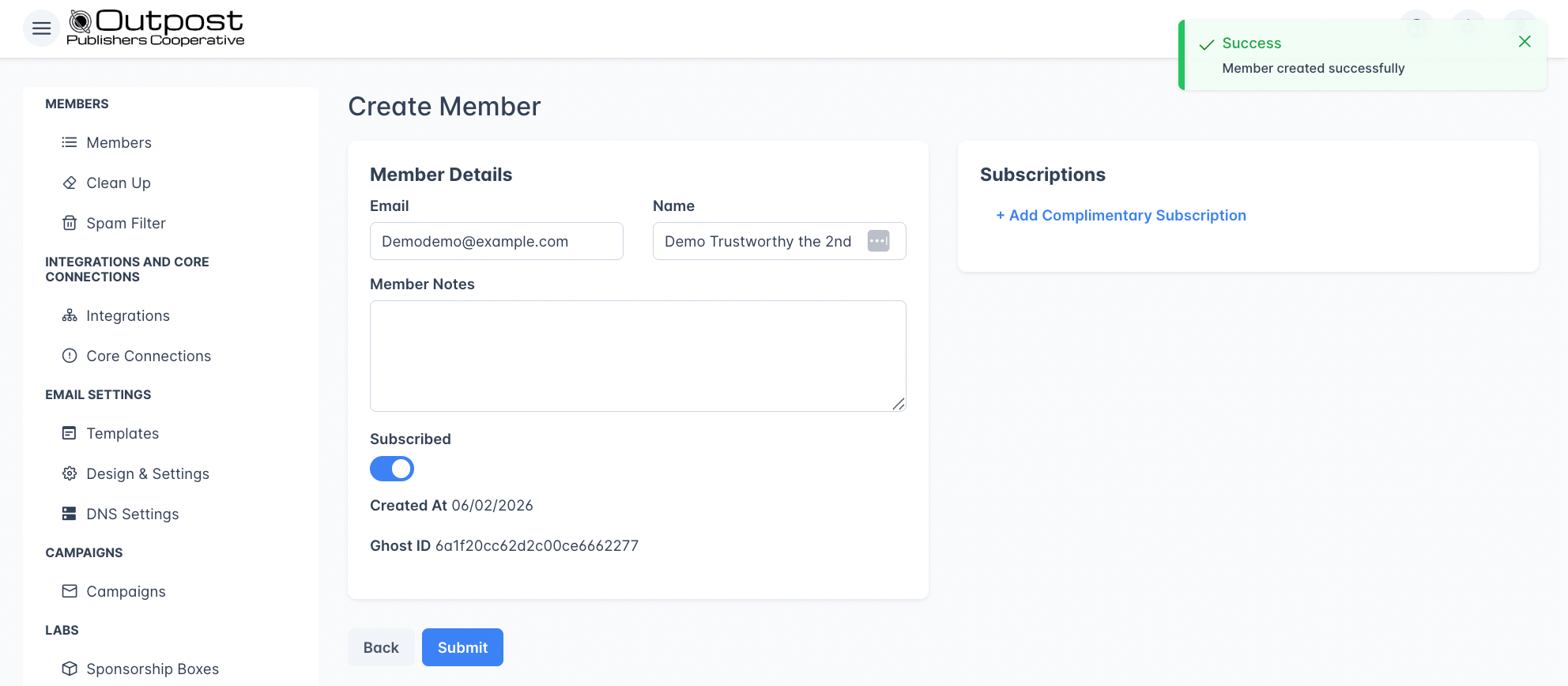
If you do not submit the new member before trying to create a complimentary subscription, the following error message will appear: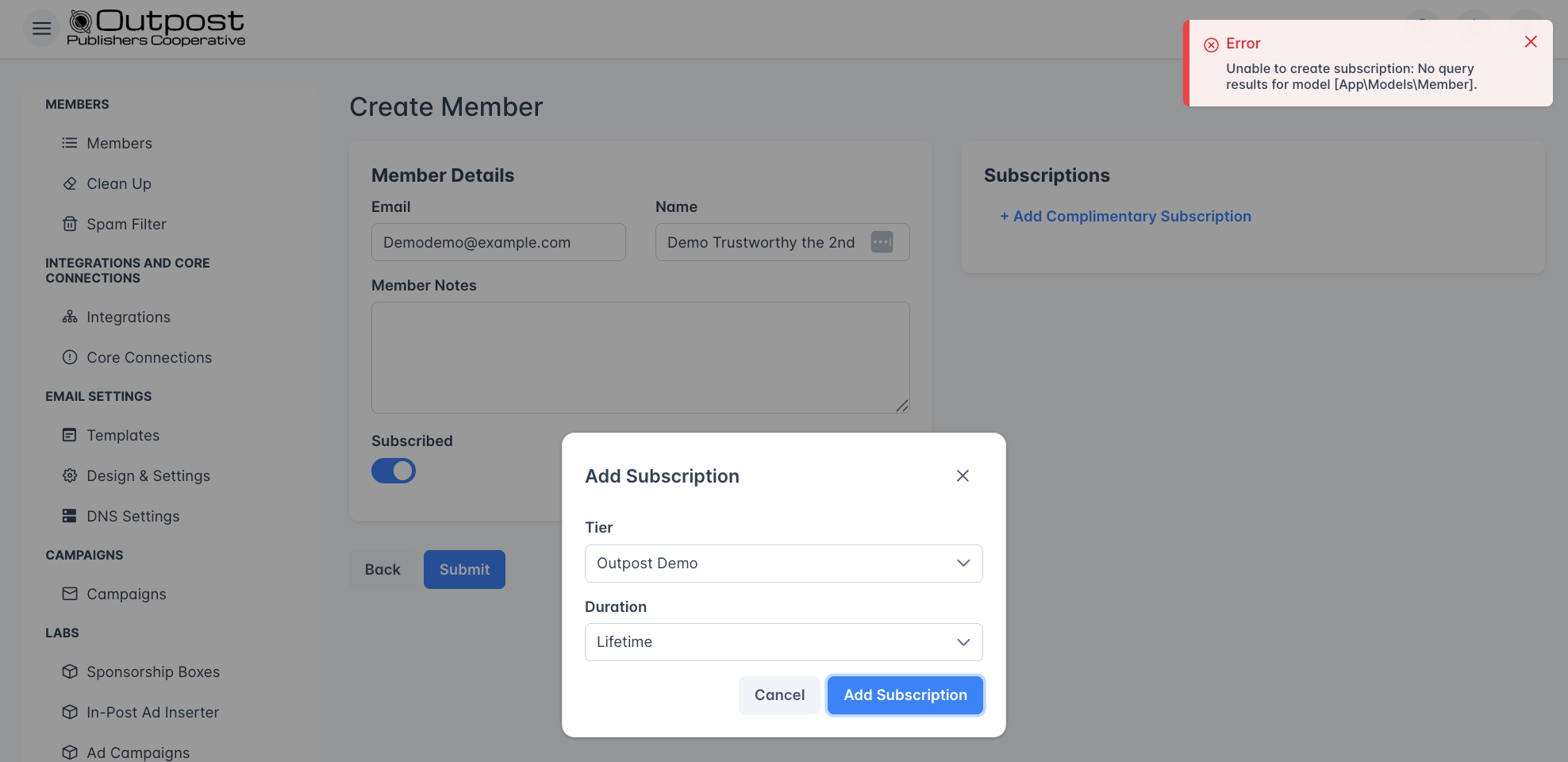
Member detail
Click the expand arrow on any member row to view and edit their full profile. The detail view has two cards side by side: Member Details on the left and Subscriptions on the right.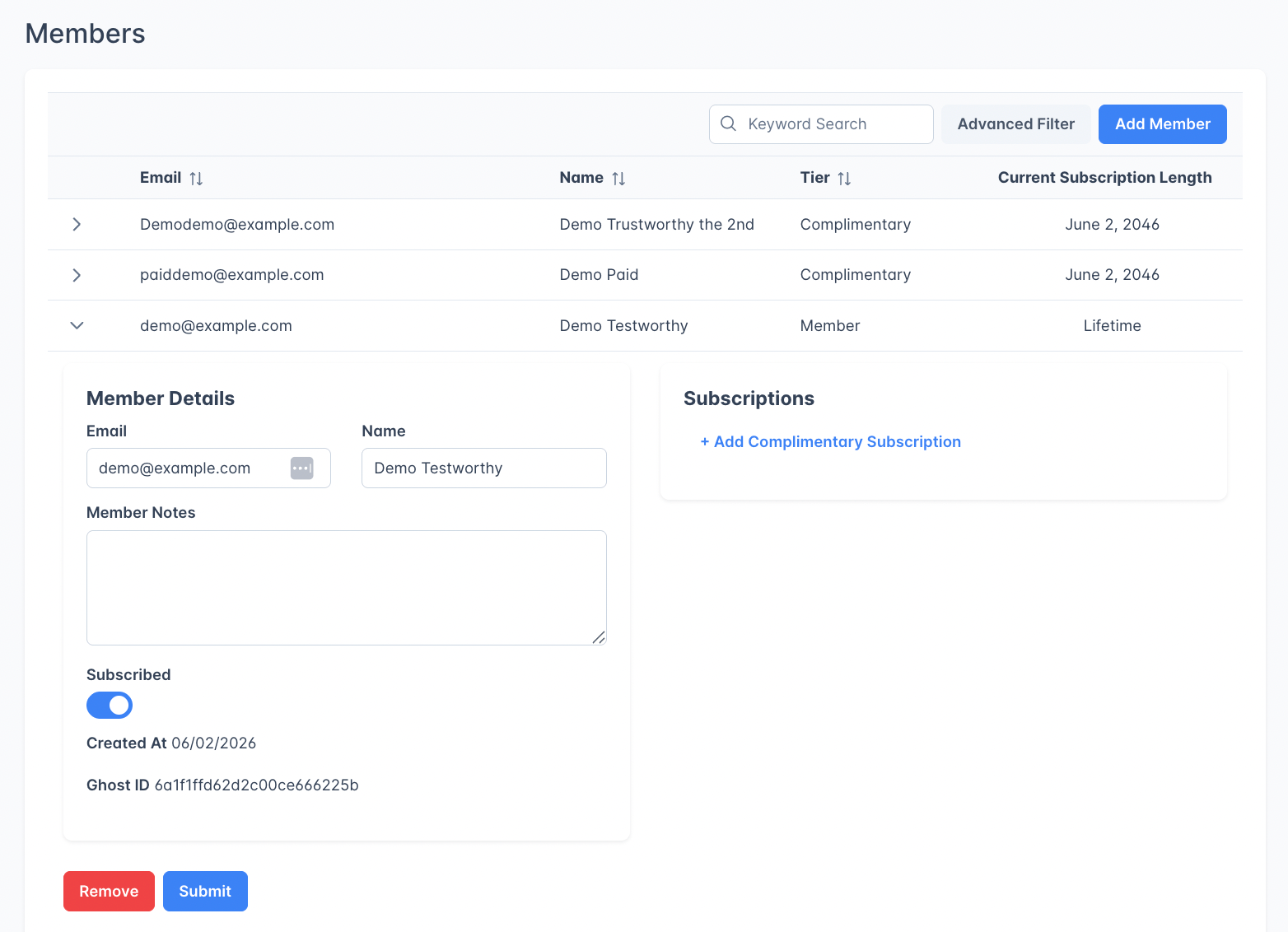
Member Details card
Read-only fields only appear when they have a value. Custom API ID stays hidden unless your site uses the Outpost API. Meta is different: Outpost stores Ghost’s own record of each member there, so it appears on nearly every member synced from Ghost.
The Subscribed toggle controls newsletter delivery. A separate preference controls whether your promotional, automated, and event-notification emails reach a member: readers manage it on the unsubscribe page, and when a member has opted out it shows on their record as the
Marketing_OptOut label. Campaigns and automated emails only reach members who have both switched on, and turning Subscribed off also opts the member out of marketing emails a few minutes later.Member notes
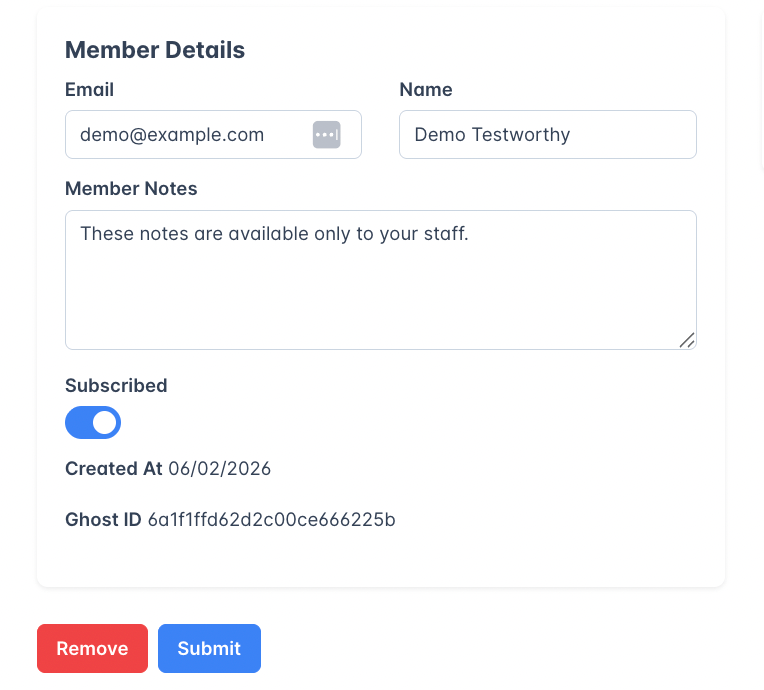
- Recording the reason a complimentary subscription was granted
- Noting VIP or high-value subscribers
- Tracking support interactions or special requests
- Adding context about the member for other team members
Custom API ID
If you manage members through the Outpost API or an external system, you can assign each member a Custom API ID. This ID appears in the member detail view and lets you cross-reference members between Outpost and your own database, CRM, or membership platform. Custom API IDs are set when creating or updating members through the API. They are not editable from the Outpost dashboard.Subscriptions card
For paid or complimentary members, this card shows:- The tier name
- Membership type (Paid or Complimentary)
- A Renews or Expires date, or “Forever” when there is no end date set (lifetime complimentary access)
Click Add Subscription to grant the complimentary access, or Cancel to close the dialog.
Member addons
Depending on the member’s account, additional cards may appear below the main panels:- Group Subscriptions: If the member belongs to a group subscription, you can view and manage their group membership here.
- Group Subscription Invites: If the member has been invited to a group subscription, those invites are listed here with management options. The Details column shows who sent each invite and the date it was sent, plus an Expires date once the invite has been accepted. Invites that have been sent, accepted, or expired all appear.
- Private Feed: If the member has FeedPress private feed access.
- Institutional Subscription: If the member belongs to an institutional subscription.
Saving and removing members
- Click Submit to save changes to the member’s email, name, notes, or subscription status.
- Click Remove to delete the member entirely. A confirmation dialog will appear before deletion.
Syncing with Ghost
Outpost keeps members synchronized with Ghost bidirectionally:- Outpost to Ghost: When a member’s subscription status changes in Outpost (upgrade, cancel, comp added or removed), their Ghost membership is updated automatically. Changes to email, name, or subscription toggles also sync when you save.
- Ghost to Outpost: Members who sign up through your Ghost site are synced into Outpost automatically.
Related features
Labels
Organize members with custom labels for segmentation and automation.
Spam Filtering
Automatically block spam signups using email, domain, or keyword rules.
Member Cleanup
Remove free members who have unsubscribed from your newsletters.
Data Export
Export your member list or filtered segments to CSV.
FAQ
What's the difference between a free member and a complimentary member?
What's the difference between a free member and a complimentary member?
A free member signed up without a paid subscription and only has access to free content. A complimentary member has been manually granted access to a paid tier without any billing: they get the same content access as a paying subscriber, but for free.
Can I change a member's email address?
Can I change a member's email address?
Yes. Expand the member’s row, edit the email field, and click Submit. The change will sync to Ghost automatically.
What does the Subscribed toggle do?
What does the Subscribed toggle do?
It controls newsletter delivery for that member. Turning it off stops your newsletters reaching them, and a few minutes later Outpost also opts them out of your promotional, automated, and event-notification emails. It does not cancel a paid subscription or remove their access to content. Members can opt back in themselves from the unsubscribe page. When a member has opted out, the preference shows on their record as the
Marketing_OptOut label; see labels.What happens when I remove a member?
What happens when I remove a member?
Removing a member deletes them from Outpost and Ghost. This action cannot be undone. If the member has an active paid subscription, you should cancel their subscription in Stripe first.
How do I give someone free access to paid content?
How do I give someone free access to paid content?
Expand the member’s row, then click + Add Complimentary Subscription in the Subscriptions card. Choose the tier and duration (1 month to lifetime), then click Add Subscription.
What does the Custom API ID field mean?
What does the Custom API ID field mean?
The Custom API ID is an identifier you assign to a member through the Outpost API. It lets you link Outpost members to records in your own systems (CRM, database, etc.). If you don’t use the API to manage members, this field will not appear.
What are Member Notes used for?
What are Member Notes used for?
Member Notes are an internal free-text field visible only to your team. Use them to record context about a member: why they were comped, support history, VIP status, or anything else your team needs to know. Notes are not visible to the member.
What does the Meta field show?
What does the Meta field show?
Meta is a raw view of the background data Outpost keeps against a member. Most of it is copied from your Ghost site. Each entry updates only when Ghost sends that piece of information, so some entries can be older than the rest of the record. The entries you’ll see include:
ghost_newsletters: the newsletters this member is subscribed to in Ghost. An empty list means they are subscribed to none.ghost_subscriptions: Ghost’s record of their subscription, including tier name, status, whether auto-renewal has been turned off, the price, the end of the current billing period, and the expiry date on a complimentary tier. The price is stored the way Ghost sends it, in the smallest unit of the currency, so $7.00 appears as 700. Each subscription can also have its own attribution fields, Ghost’s record of what led this member to a paid subscription, which is separate from theghost_attributionentry below.ghost_engagement: how many emails Ghost has sent this member, how many they opened, the open rate Ghost calculates from those two, and when they were last seen on your site. Ghost leaves the open rate empty until a member has received enough tracked sends.ghost_geolocation: the approximate location Ghost recorded for this member from their IP address, such as country and region. If Ghost never recorded one, you will not see this entry.ghost_attribution: where Ghost recorded that this member signed up, such as the post or page and the referring site. Ghost sends it only when Outpost reads that member’s record individually, so many member records will not have this entry. On a member Outpost created in Ghost for you, such as a complimentary subscription you added from the member screen or a member added through the Outpost API, this entry can describe that creation rather than a reader signup. For the attribution Outpost captures itself, see Traffic Source Tracking.