

@university.edu), Outpost automatically upgrades them and applies an Institutional Group Subscription label along with a custom label you define for that Institutional Subscription.
How it works
- A new free member signs up on your Ghost site
- Outpost checks the member’s email against all active auto-subscribe rules (skipping any that have expired)
- If the email matches a rule’s pattern, Outpost upgrades the member to the configured tier (or complimentary access) and applies labels
- Only the first matching rule applies; additional matches are ignored
- Changes sync to Ghost automatically
Use cases
- University access: Grant complimentary access to anyone signing up with a
.eduemail - Corporate partnerships: Upgrade employees at a partner company (e.g.,
@acmecorp.com) to a specific paid tier - Nonprofit programs: Provide free access to members of qualifying organizations
- Bulk institutional deals: Sell access to an entire organization without requiring individual invites or coupon codes
Creating a rule
Go to Subscriptions > Institutional Subscriptions and click Add New: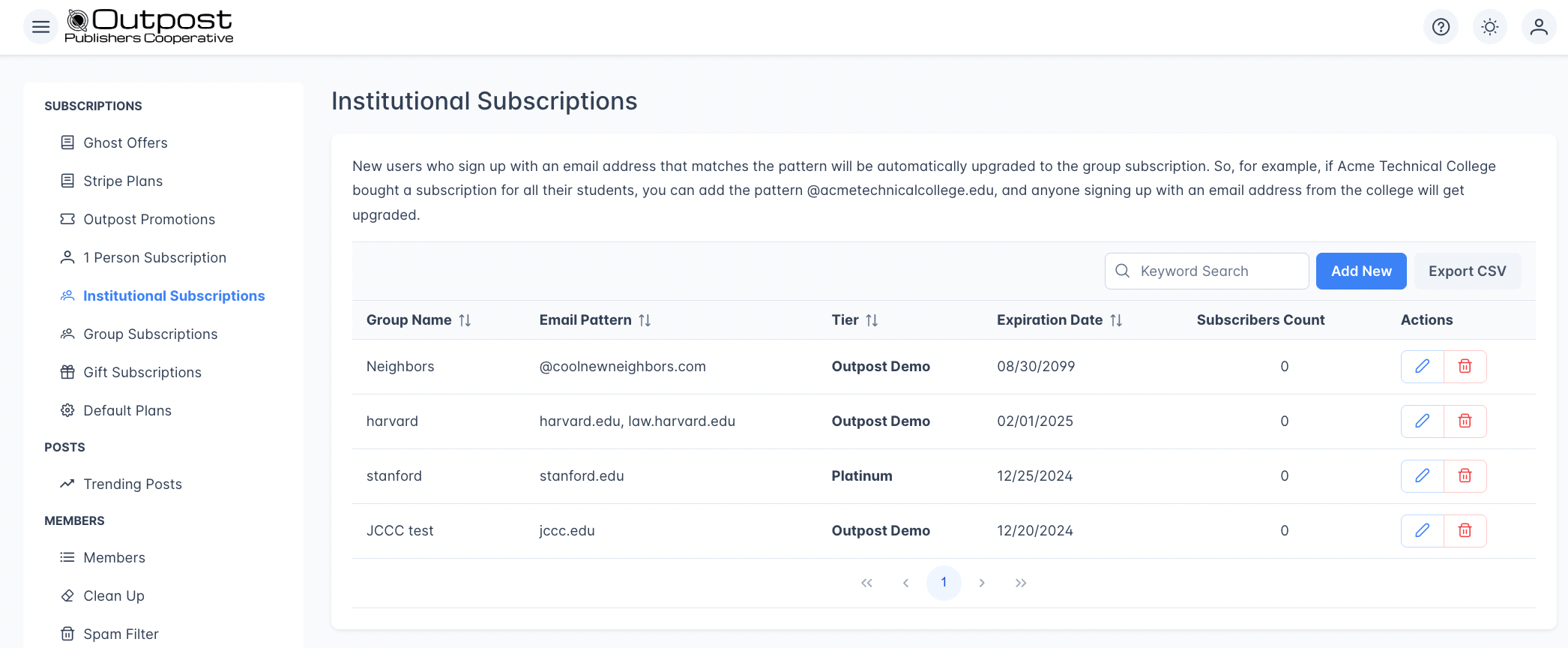
You can add multiple email patterns per rule. For example, a university might use both
@university.edu and @alumni.university.edu.What happens when a rule matches
When a free member’s email matches a rule:- The member is upgraded to the configured tier (or given complimentary access)
- If an expiration date is set, the member’s access end date is set accordingly
- Two labels are applied in Ghost:
- Institutional Group Subscription (applied to all institutional members)
- The custom label defined in the rule
- An admin notification is sent to alert you that someone was auto-subscribed
Rule matching behavior
- Rules are checked in order, and only the first matching rule applies; additional matches are ignored
- Rules that have passed their expiration date are skipped
- Email matching is case-insensitive (e.g., pattern
@university.edumatchesstudent@university.edu) - Patterns are matched as substrings, not glob/wildcard expressions. The pattern
@university.edumatches any email containing that substring (e.g.,student@university.edu,bob@alumni.university.edu). The pattern.eduwould match every.eduaddress regardless of institution. - The single character
*is a special “match every email” pattern. Use it carefully; it upgrades every new free member.
Applying rules to existing members
You can retroactively apply a rule to members who already exist in your system. When you save a rule (new or edited) and existing members match it, Outpost automatically shows an Apply to Existing Members dialog. There is no separate button in the rules table, so re-save the rule if you need to trigger it again. When applying to existing members, you can configure two options:Applying to existing members may take a few minutes to complete. Free members with matching emails are upgraded right away. Paid members are only affected if the cancel-and-comp option is enabled.
Editing and deleting rules
- Editing a rule allows you to update the name, email patterns, and expiration date. The tier and label cannot be changed after creation.
- Deleting a rule stops it from matching new members. Existing members who were upgraded keep their access until the expiration date (if set).
Autoresponder integration
When you create your first auto-subscribe rule, Outpost automatically enables the institutional subscription welcome email actions in the Autoresponder. You can customize these welcome emails in the Autoresponder’s Welcome tab.Relationship to institutional subscriptions
Auto-subscribe rules are institutional subscriptions. The Institutional Subscriptions page in Outpost manages these rules, and the two terms refer to the same feature. This page covers how the rules work in detail; the institutional subscriptions page focuses on the use case.Related features
Institutional Subscriptions
The use-case guide for setting up organizational access.
Autoresponder
Welcome emails sent to auto-upgraded institutional members.
Tiers & Pricing
The subscription tiers that institutional members receive.
Ghost Integration
Auto-subscribe changes sync to Ghost in real time.
FAQ
Do auto-subscribe rules work for paid members?
Do auto-subscribe rules work for paid members?
No. Rules only fire for free members. If someone signs up with a paid subscription, the auto-subscribe rule does not apply. You can use the “Apply to Existing Members” feature with the “Cancel Paid Members’ Renewal” option to transition existing paid members to institutional access.
What happens if a member matches multiple rules?
What happens if a member matches multiple rules?
Only the first matching rule fires. If you have overlapping email patterns across multiple rules, order matters. Subsequent matching rules are not evaluated.
Can I use a wildcard to match all emails?
Can I use a wildcard to match all emails?
Yes. Using
* as an email pattern will match any email address. This can be useful in specific scenarios but should be used carefully since it will upgrade every new free member.What happens when a rule expires?
What happens when a rule expires?
Expired rules stop matching new members. Members who were already upgraded keep their access until their individual membership end date (if one was set).
What label is applied to matched members?
What label is applied to matched members?
Two labels are applied: Institutional Group Subscription (shared across all institutional rules) and the custom label you define when creating the rule. Both labels sync to Ghost automatically.