

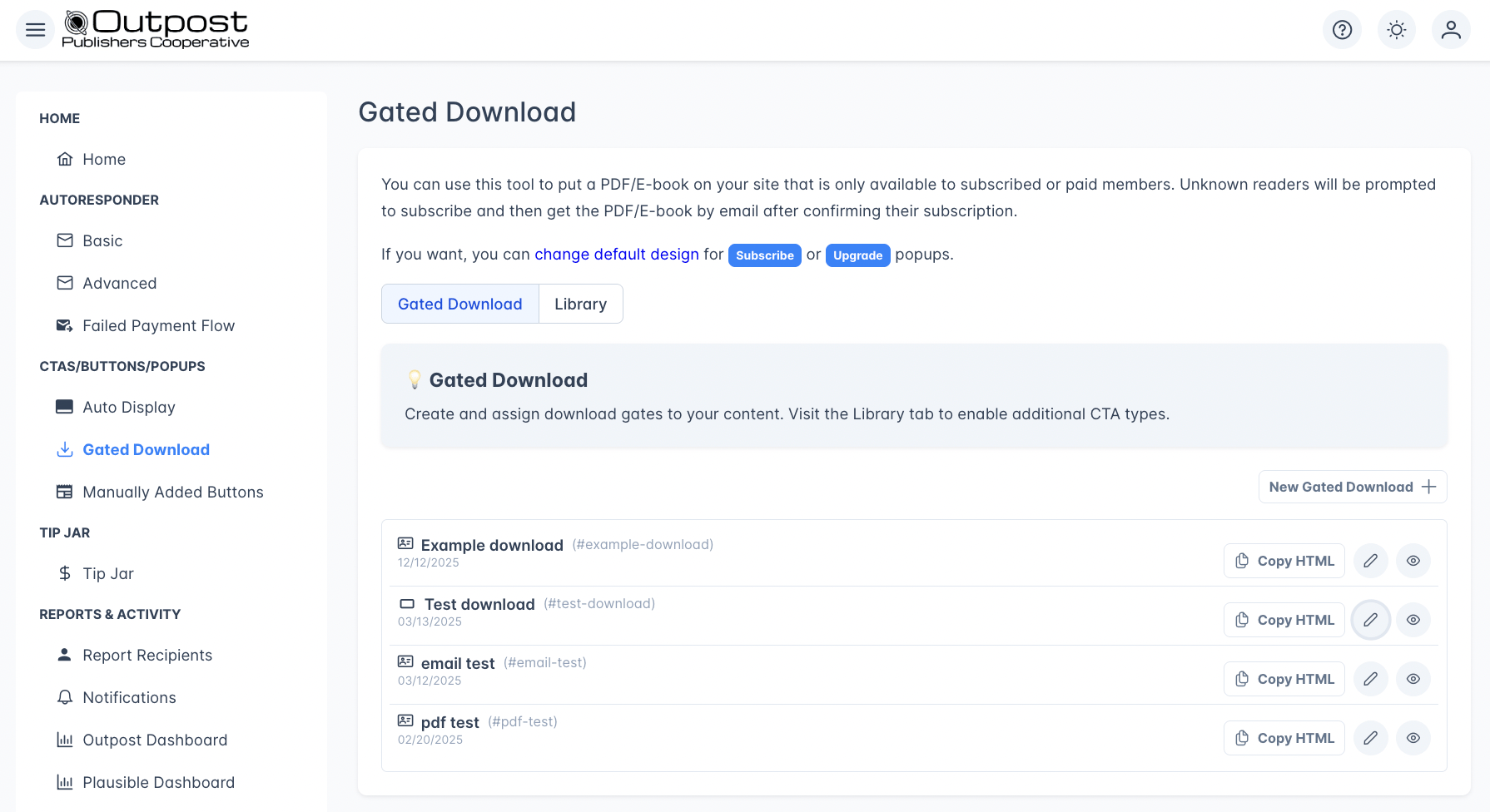
The Gated Download page
How it works
- You upload a PDF or ePub file
- You choose the access and delivery requirements in Outpost
- You choose what these look like, including a Card version
- Outpost generates an embed code you paste into a Ghost post or page
- Readers see a download button (if qualified) or a subscribe/upgrade prompt
- On download for qualified users, Outpost lets them view the file immediately, get it emailed to them as an attachment or link, or both.
- Outpost tracks signups, upgrades, and downloads per file
Setting up a Gated Download
Go to CTAs/Buttons/Popups → Gated Download and click New Gated Download +.
Closing the editor with unsaved changes now asks first, whichever way you leave: the header X, the Cancel button, or navigating elsewhere in Outpost. Choose Save and close to save and exit, Discard changes to put the gated download back the way it was last saved, or Keep editing to stay.
Settings tab
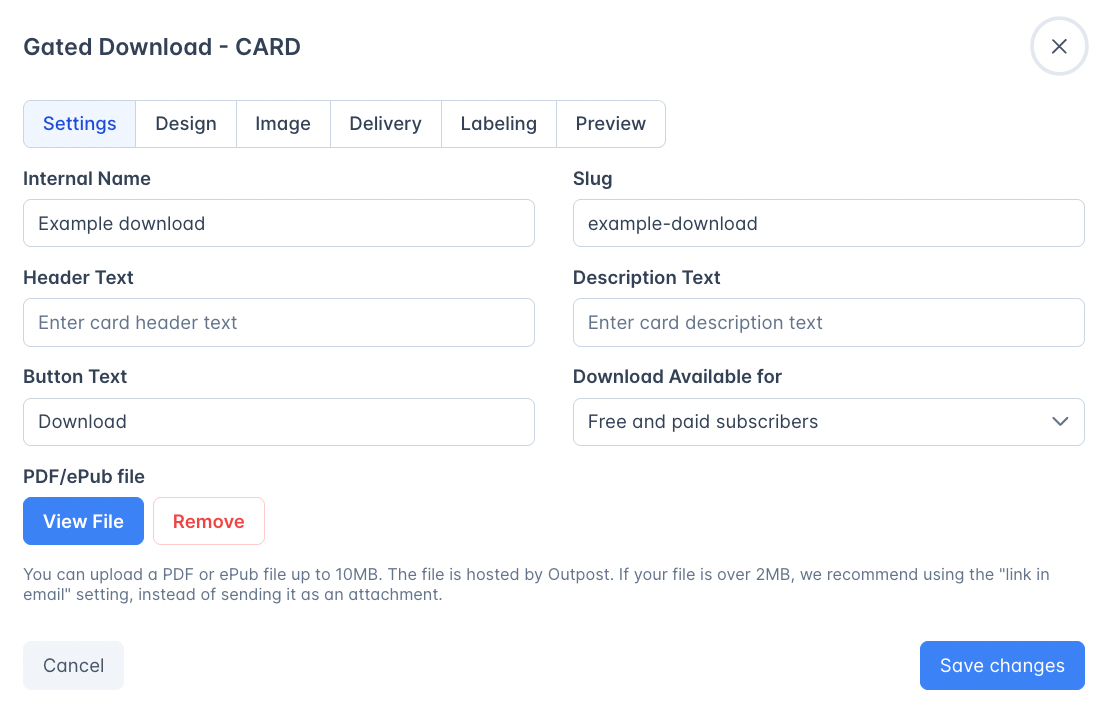
The display style (Button, Card, or Box) is chosen when you create the download from the “Select base model” dialog and shown as an icon on the download list.
Access levels
Delivery tab
Configure what happens after a reader subscribes to access the file: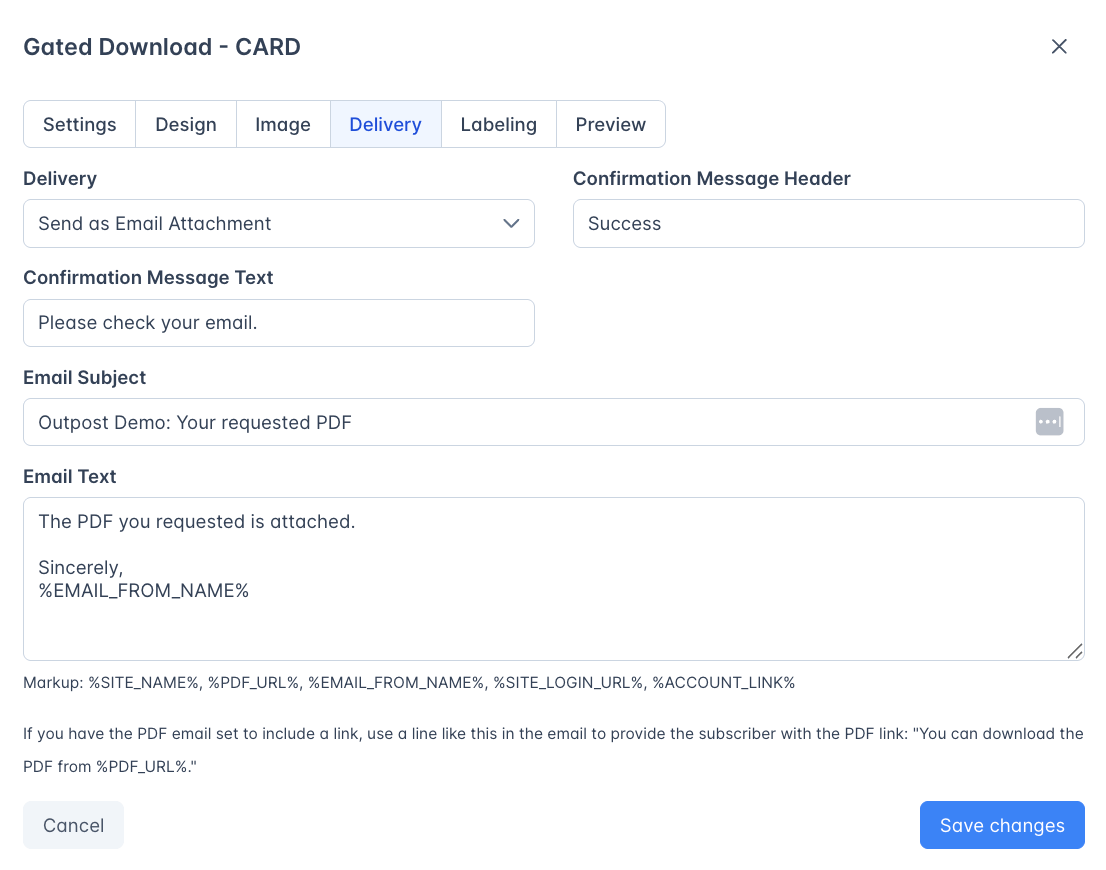
Labeling tab
This lets you automatically apply member labels when someone downloads a Gated Download.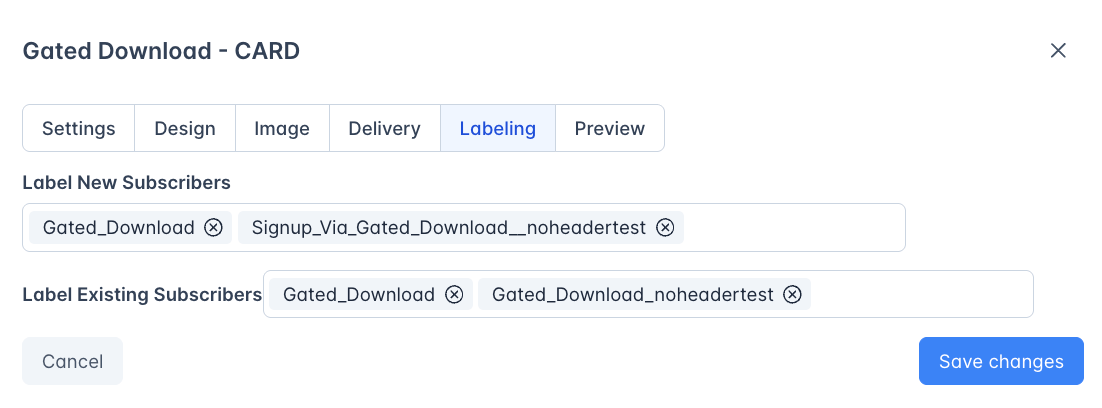
These labels are useful for building segments and triggering Basic Autoresponder actions: for example, sending a follow-up email to everyone who downloaded a specific report.
Design tab
Settings auto-default to site settings, but if you’d like to customize the gated download cards just uncheck the default site settings and the design palette will pop up: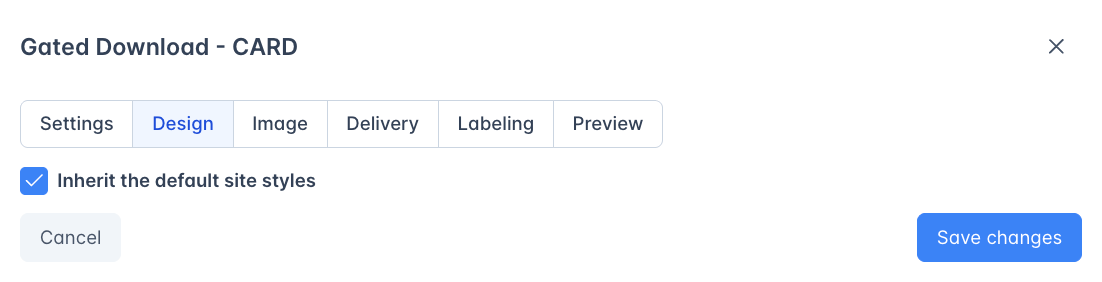
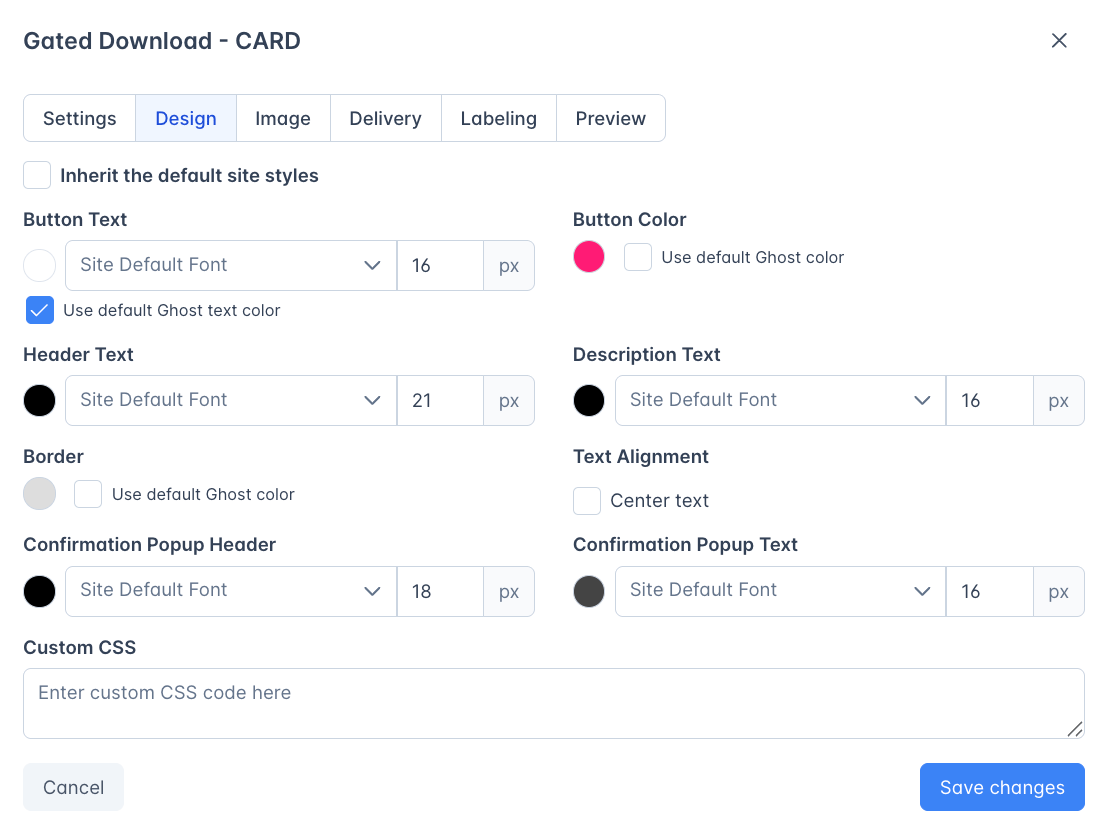
Image tab
Card and Box display styles have an additional Image tab, for the logo shown above the header text. The image must be square (1:1 ratio): at least 480 pixels wide for the Card style, at least 120 pixels wide for the Box style. The Button style has no image and no Image tab.Display styles
Embedding in Ghost
Subscribe and upgrade popups
When an unqualified reader tries to download, they see a popup:- Unknown visitors see a subscribe popup
- Free members trying to access a paid-only file see an upgrade popup
Tracking
Each Gated Download shows stats in the list view:
The aggregate stats appear in a blue summary box at the top of the page.
Download URLs
Download links are hosted by Outpost. If keeping the file out of casual reshares matters, choose a delivery method that sends the PDF as an email attachment.Library tab
The Gated Download page has its own Library tab, next to Gated Download and below the summary statistics. It controls which display styles you can build a download from. Each of the Button, Box, and Card headings holds one row, named Classic, with a switch and Preview and Edit buttons.- The switch controls whether that style is offered in the Select base model dialog when you click New Gated Download +. Switch a style off and it no longer appears there. Downloads you already built from it keep working.
- Edit opens the base style itself. Set the headline text, button copy, and styling here, and every download you create from it afterward starts that way. Downloads you have already created are separate records and don’t change.
Use cases
Lead magnets
Gate a free ebook behind email signup to grow your free member list
Subscriber benefits
Offer exclusive reports or templates as a perk for paid subscribers
Content upgrades
Add a downloadable companion resource to specific posts
E-edition archives
If you have PDF versions of your site, you can use these cards to build a PDF archive page in Ghost.
Frequently asked questions
What's the difference between a Gated Download and a paywall?
What's the difference between a Gated Download and a paywall?
A Gated Download protects a specific downloadable file (PDF, ebook, template) that requires signup or a paid subscription to access. A paywall limits how many posts someone can read before being prompted to subscribe. Gated Downloads protect individual files; paywalls meter access to your articles.
I set access to 'Free'. Can paid members still download?
I set access to 'Free'. Can paid members still download?
Yes. “Free and paid subscribers” means free members and above. Paid members already exceed that requirement, so they can download it too.
Can I use Gated Downloads as a lead magnet?
Can I use Gated Downloads as a lead magnet?
Yes, this is one of the primary use cases. Set access to “Free and paid subscribers,” configure labels to tag new signups, and set up a Basic Autoresponder action triggered by that label. Visitors provide their email to download, growing your free member list.
Do Gated Downloads work if Auto Display is turned off?
Do Gated Downloads work if Auto Display is turned off?
The embed code itself will render in your post, but the subscribe and upgrade popups for unqualified readers are part of the Auto Display system. If Auto Display is off, those popups won’t appear and unqualified readers can’t sign up through the download prompt.
Related features
Auto Display CTAs
Configure the subscribe/upgrade popups shown for Gated Downloads
Labels
Use download-triggered labels for segmentation and automation