

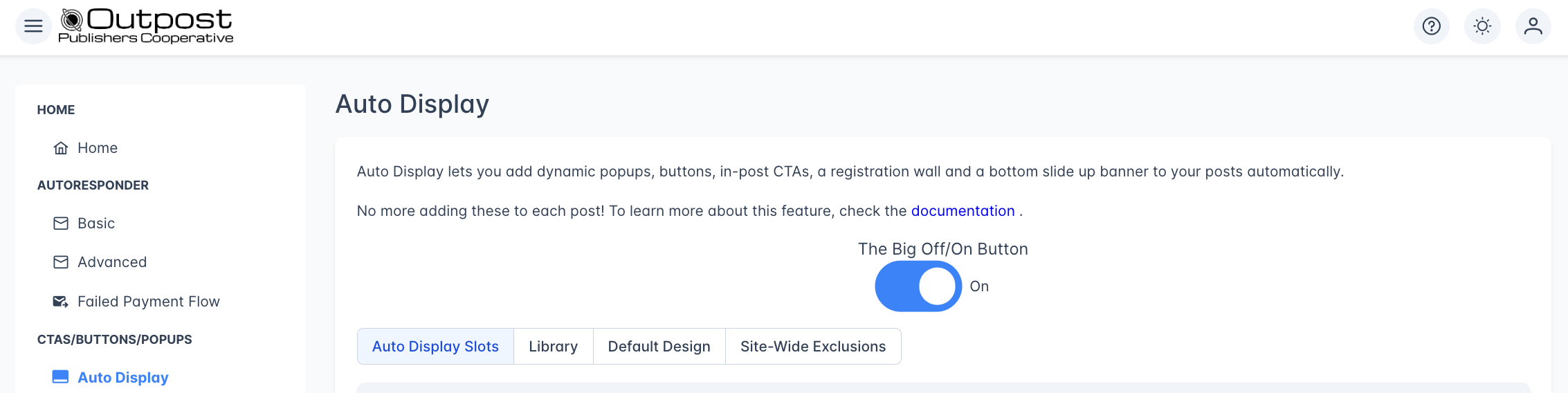
Auto Display Slots
This is where you configure the placement and targeting for each CTA position on your site. There are six slot types, each accessible via tabs across the top of the page.
In-Post
In-Post slots place CTAs directly within the body of your Ghost posts. There are three In-Post slots available, each independently configurable: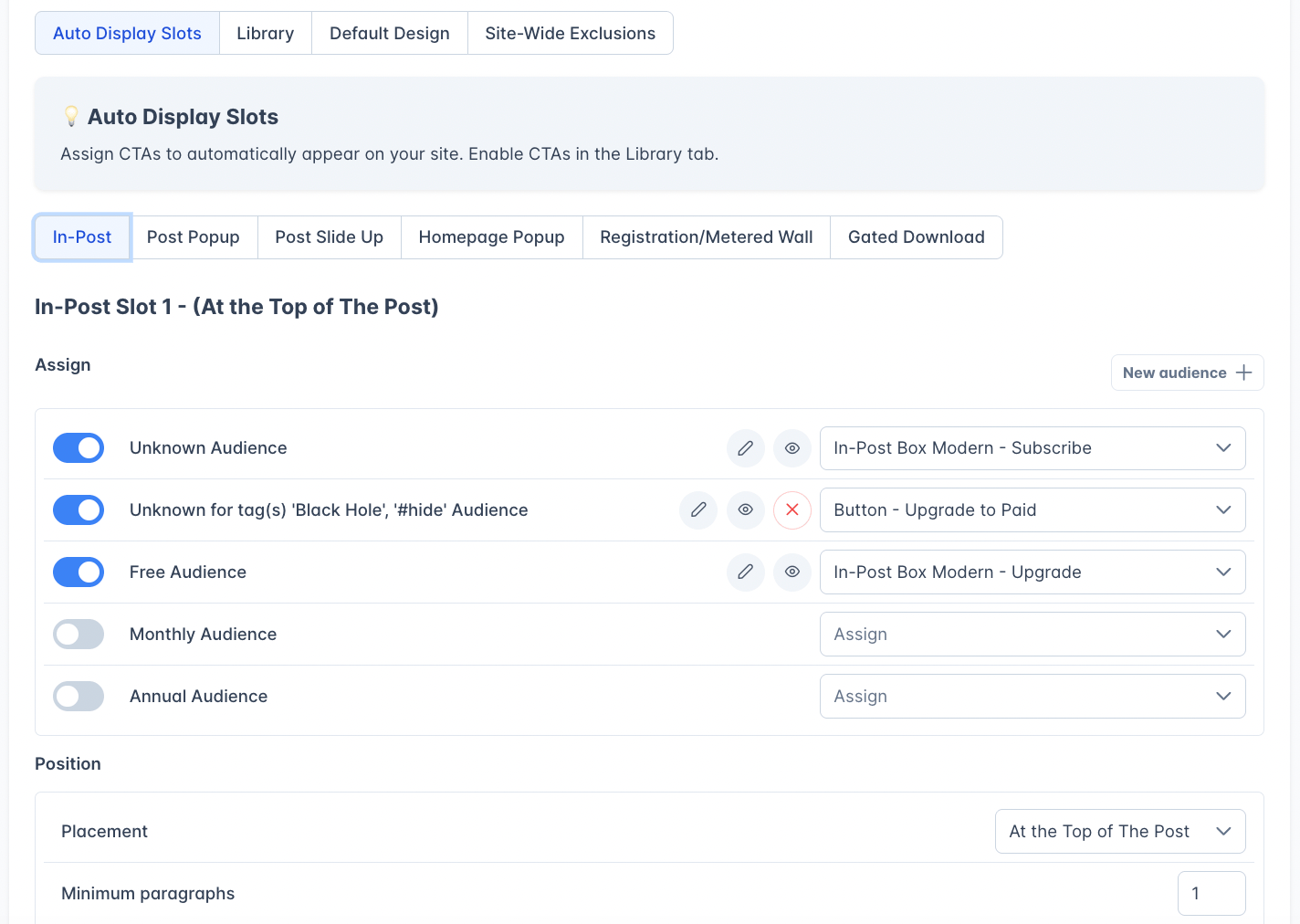
- In-Post Slot 1: Defaults to the top of the post
- In-Post Slot 2: Defaults to manual placement (after paragraph 6, with a minimum of 10 paragraphs required)
- In-Post Slot 3: Defaults to the end of the post
This lets you decide to show a CTA at the top of a post, after the 2nd header, at the end of the post, and decide whether to hide a CTA on a shorter post.
You can see CTAs in Ghost’s preview mode, and the member status you pick there decides which CTA you see. Preview as an anonymous visitor and you see the CTA assigned to your Unknown audience; preview as a free member and you see the Free one. Ghost’s preview can’t tell a monthly subscriber from an annual one, so previewing as a paid member shows whichever of your Monthly and Annual rows is switched on, and the Monthly one when both are.
The status you pick wins even when you are signed in as a member yourself, and preview views are left out of your CTA stats.
If a CTA falls awkwardly on a particular post, you can manually reposition it in that post.
For manual placement, copy a snippet like
<div class="outpost-pub-container" data-box-subscribe-slot-1></div> from the manual snippet field and paste it into a Ghost HTML card where you want the CTA to appear.
If you find this happens more than once, you can save that HTML card as a snippet in your editor so you can easily add it in other posts.
Post Popup
A popup that appears over a Ghost post. You can configure when it triggers - e.g. on page load, after X percent scroll or after a set period of time. Scroll percentage includes the full page, including comments.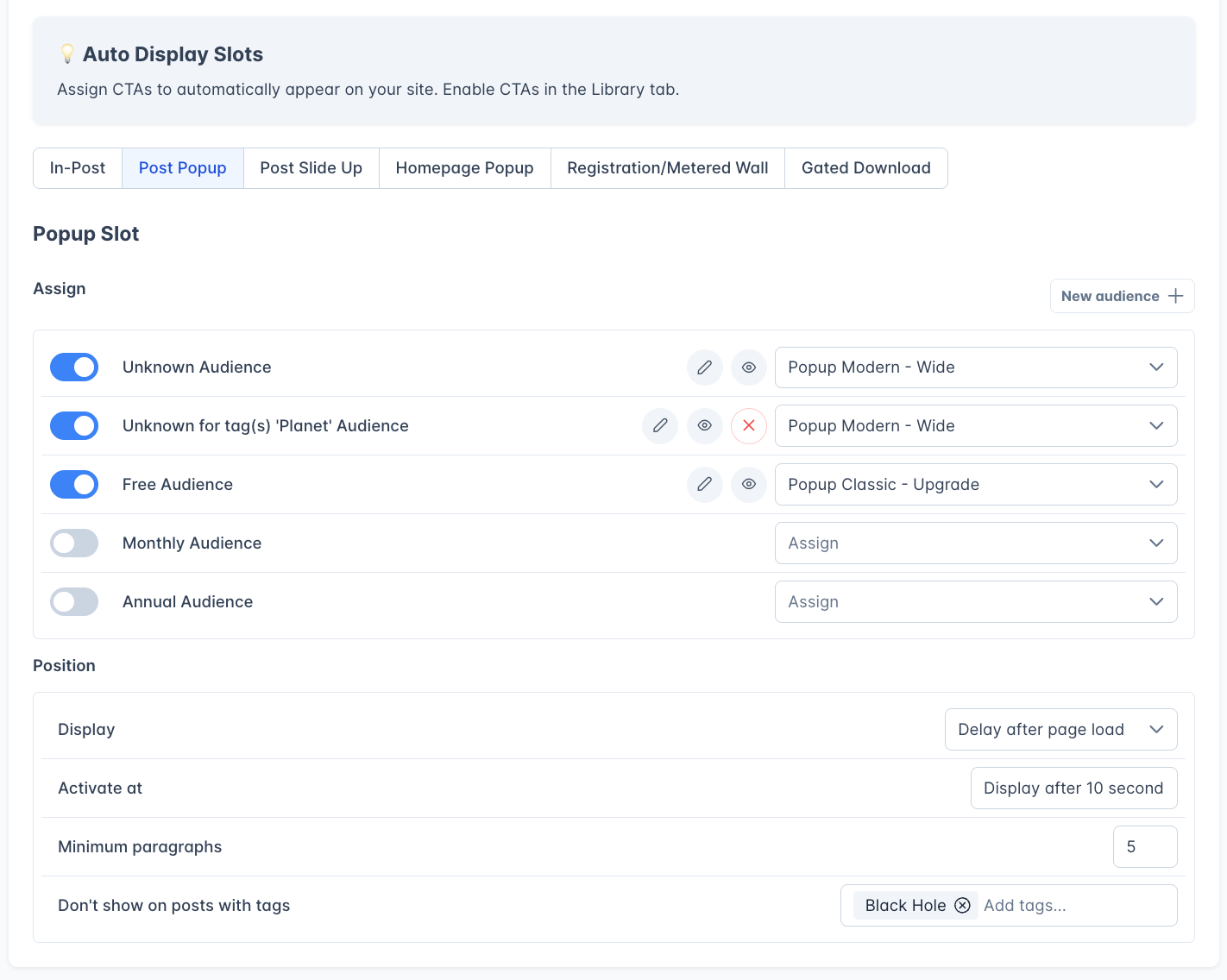
Post Slide Up
A banner that slides up from the bottom of the screen while reading a post. Most sites use either a popup or a Slide Up on a post but not both (unless you have very long articles). Slide-ups support the same trigger options as Post Popups (immediate, scroll depth, or time delay).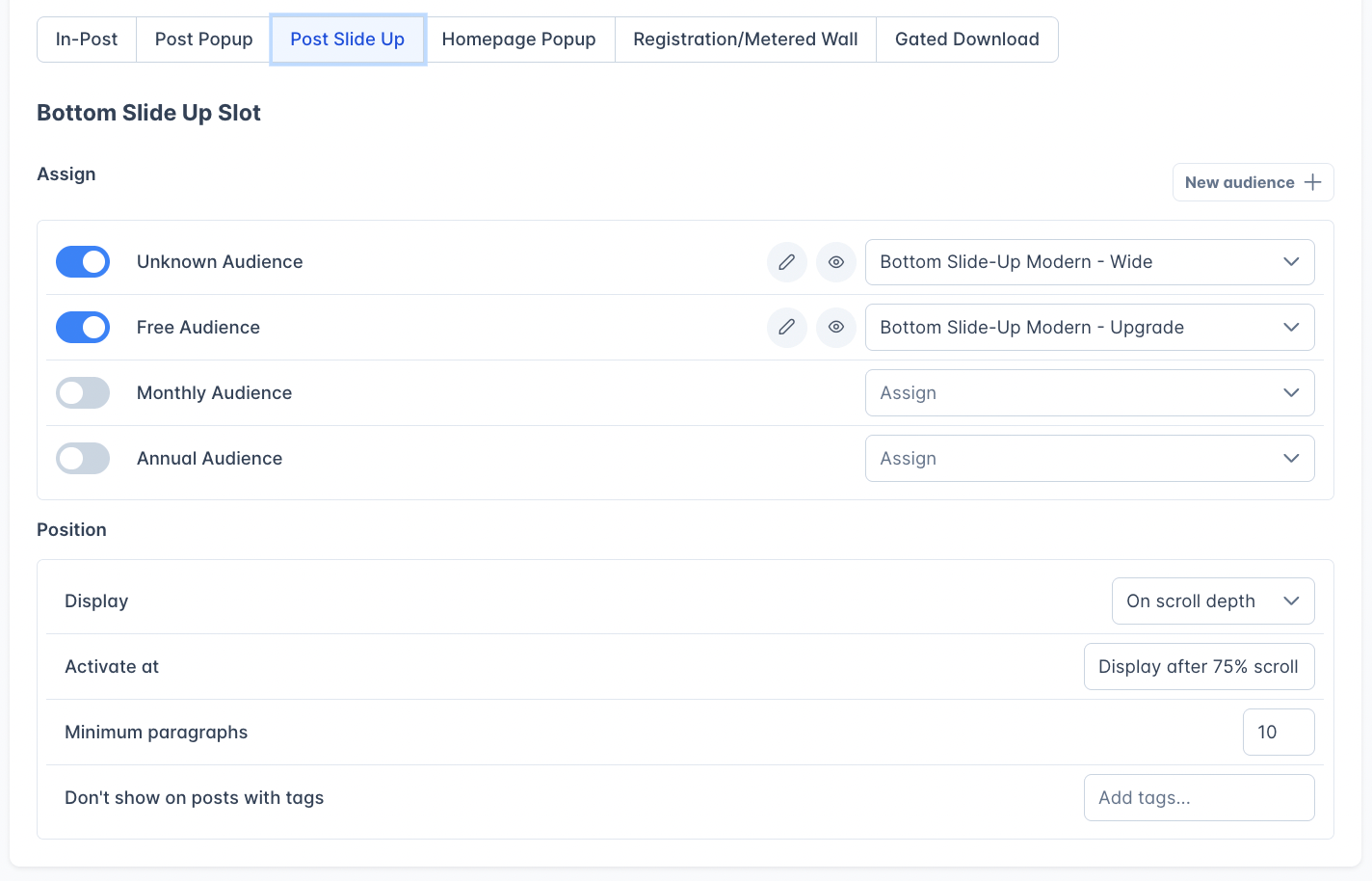
Homepage Popup
A popup that appears on your site’s homepage. This has the same configuration: choose between immediate display on page load, scroll depth trigger, or delay.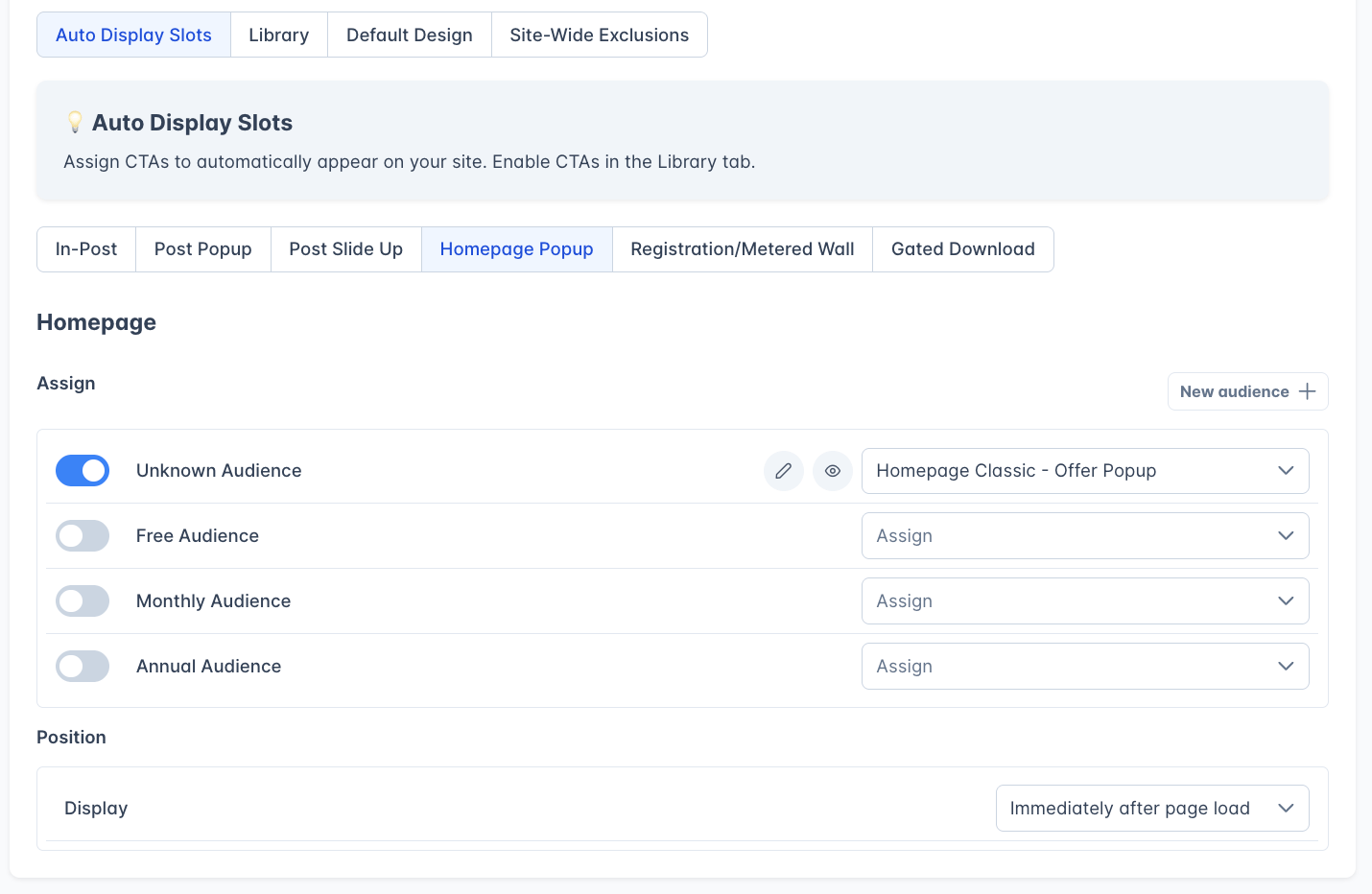
Registration Wall and Metered Paywall
This slot meters how many full posts a reader can view before they’re prompted to get on the free list (registration wall) or upgrade to paid (metered paywall). It works alongside Ghost’s per-post access settings. This slot is disabled by default and supports two independent limits:
Registration/Metered Wall with stats and article limits
The stats box shows real-time performance: how many times the wall and paywall have been shown, how many free signups resulted (with click-through rate), and how many paid upgrades resulted (with click-through rate).
For how reads are counted (the rolling 30-day window, and the difference between unknown and free metering) and the full paywall behavior, see Paywalls.
Gated Download
This works as a lead magnet. It lets you offer a PDF or ePub to a reader in the body of a Ghost post (regardless of whether that post is public, free, or paid), and only grant access if they meet the rules you set. So you can have a completely public post with a PDF download card (a research report, a recipe collection, a buyer’s guide) set to free readers only. To download it, the reader either has to be a free or paid reader or sign up for your free list.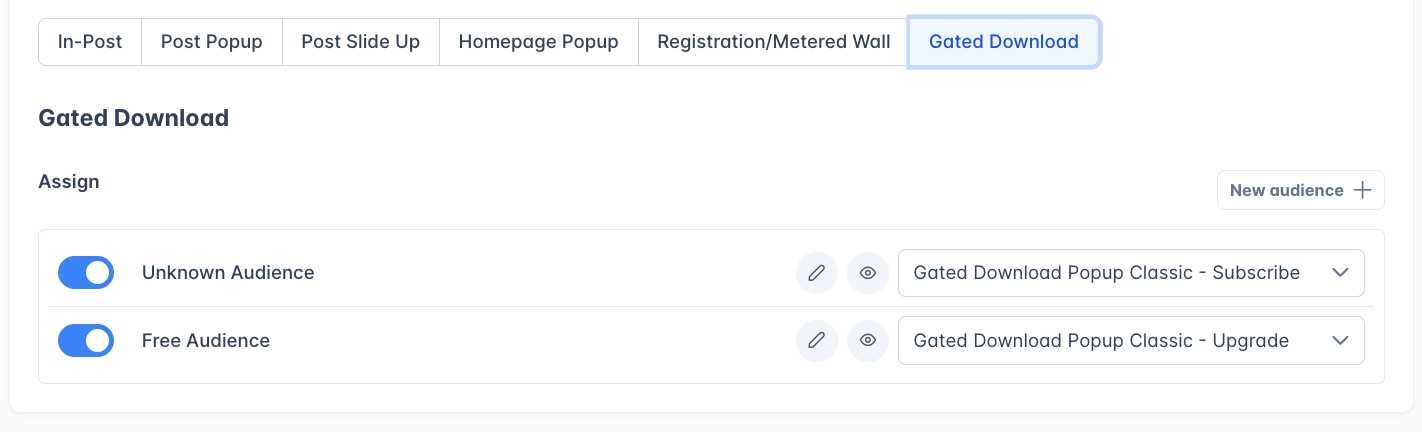
- Unknown Audience: Shows a subscribe popup to non-logged-in visitors
- Free Audience: Shows an upgrade popup to free members trying to access a paid-only PDF
Audience targeting
Each slot can show a different CTA to different audience segments. Every slot has audience rows, each with:- Toggle: Enable or disable this audience
- Audience type: Who this CTA targets
- CTA dropdown: Which CTA to show this audience. The assigned CTA shows by its name, or by its type and creation date if it has none; every other option in the dropdown is a CTA type. If you have only one CTA of that type, choosing it clones a fresh copy and assigns it to this row; if you have more than one, the Select CTA dialog opens so you can pick.
- Browse button: Opens the Select CTA dialog, a full picker of every CTA of the right type, with a sortable Name column (same name-or-type-and-date rule), a column showing when each one was last changed, and buttons to preview, clone, or use it
- Edit button: Jump to edit the selected CTA. Its tooltip and the preview button’s tooltip both name the CTA.
- Preview button: Preview what the reader will see
Audience types
The Registration/Metered Wall and Gated Download slots only show audience rows for Unknown and Free: paid members aren’t a target audience for those walls.
It is not currently possible to target a CTA based on a paid user tier or by labels.
Incompatible audience warning
This applies on sites using the updated CTA editor. See the Settings panels note for how to tell which editor your site has.
- A free sign-up CTA is opened from the Free, Monthly, or Annual audience
- An upgrade-to-paid CTA is opened from the Unknown, Monthly, or Annual audience
- An upgrade-to-annual CTA is opened from the Unknown or Annual audience
- A discount-offer CTA is opened from the Monthly or Annual audience
Open the Select CTA dialog from a row that already holds an incompatible CTA and every CTA in it is the same type as the one on the row, so each shows a red Incompatible badge beneath its status badge. To fix the row, pick a different type from its dropdown rather than another CTA from the dialog.
Tag-based variants
Tag-based variants let you show different CTAs depending on a post’s Ghost tags. For example, you could show a CTA touting your weather newsletter on posts tagged Weather and a different CTA on posts tagged Basketball or Baseball. To create one, click New audience, then choose the audience and the tag or tags. Assign the CTA afterwards, from the new row’s dropdown. A variant sits on top of an audience rather than replacing it: posts matching none of your variants fall back to the plain audience row above, so leave that row switched on and assigned. Switching on any audience row, including a variant, switches the slot itself on.Which variant wins
If a post has several tags and more than one variant could apply, the post’s tag order in Ghost decides. Outpost works through the post’s tags in order and stops at the first one with a matching variant. Internal tags beginning with# count in that order, so a post whose first tag is #featured is checked against #featured first. If two variants target the same single tag, the first one listed in the interface wins.
To make the result predictable on posts with overlapping tags, put the tag you want to win first on the post in Ghost. Note that Ghost treats a post’s first public tag as its primary tag, which most themes use for the label on post cards and for collection routing, so reordering tags can change how the post appears elsewhere on your site.
Tag names
Variants match a tag by its name as it appears in Ghost. Renaming a tag stops any variant pointing at it from matching, so revisit your variants after a rename. Tag names containing an ampersand or an apostrophe are not matched: to target one of those, rename it in Ghost to a plain-text version first. Tag-based variants change only which CTA appears on a post. On the Registration/Metered Wall they never change how many posts a reader gets. To stop CTAs appearing on certain posts, use Site-Wide Exclusions or a slot’s own tag exclusions instead.Site-Wide Exclusions
This allows you to prevent any Auto Display CTAs from appearing on specific content, which you might want to do for things like FOIA content or member announcements.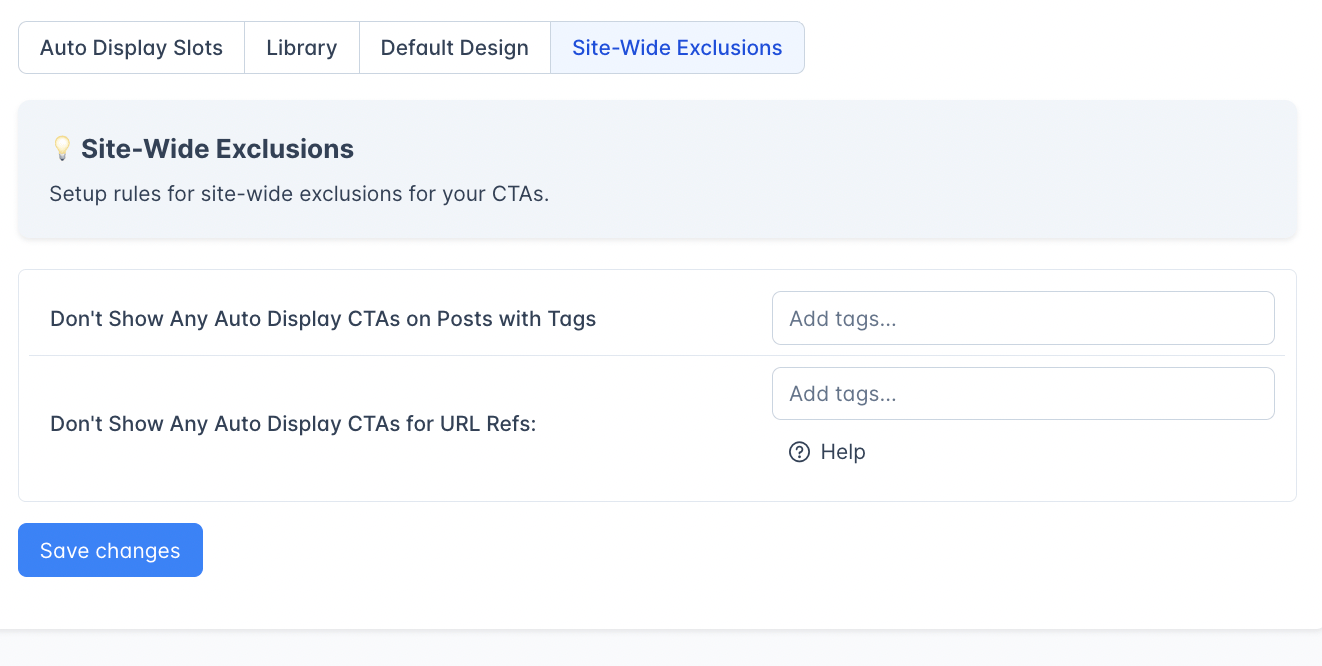
Some sites apply this to URL refs that show up when someone clicks the “read on the web” link in a newsletter, assuming those readers are already members but might not be logged in. To do that, copy the ref for each newsletter you want to exclude. Note: if a newsletter reader shares that link on social, anyone who clicks it inherits the ref and also won’t see CTAs.
These exclusions apply globally across all slots. Individual slots can also have their own tag exclusions in addition to these.
Related
Auto Display CTAs
Overview of how slots, audiences, and CTAs fit together
Library & Styling
Browse, edit, and style the CTAs you assign to slots
Paywalls
Meter content access and prompt upgrades
Gated PDFs
Offer downloadable files exclusively to subscribers