

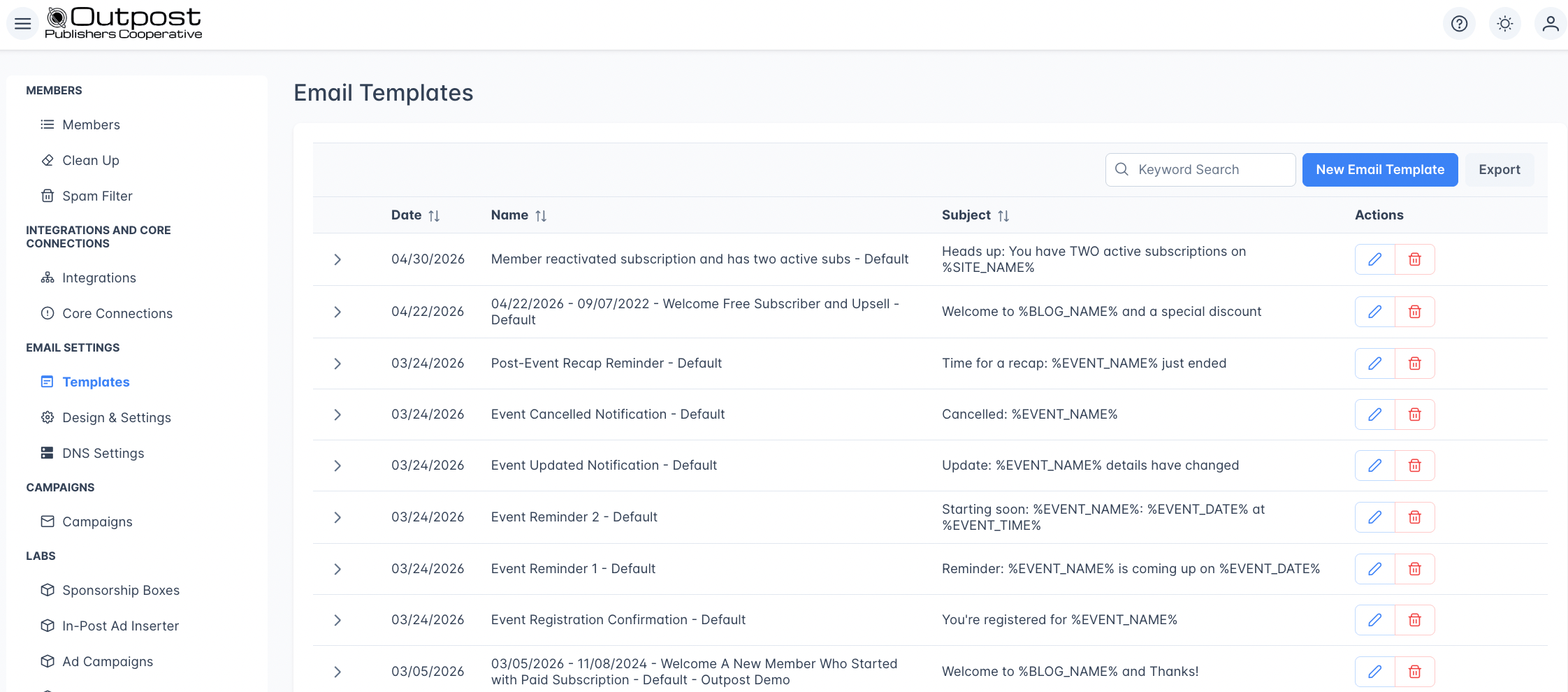
Email Templates list showing name, subject, date created, and expandable preview
Template list
Find the Templates page under the Email Settings Menu, where you’ll find all your templates in a searchable table:
Click a row to expand it and see an HTML preview of the template body. Use the Export button to download your template list.
Creating a template
Go to Email Settings → Templates and click New Email Template. The form opens with the title Add Notification Email Template.Templates you create here are available in Campaigns and the Advanced Autoresponder. To create a template for a Basic Autoresponder action, edit that action’s template on the Autoresponder page instead. See Use your own template in a Basic action.The exception is the New button on a tier’s row inside a Basic action’s Tier Templates drawer. That opens the same form, and the template it creates is attached to that action and that tier.

Images and video
The email body editor has two image blocks. Click the + button in the editor and choose:- Image for a plain image.
- Image with Link for an image that opens a URL when a reader clicks it.
If your site uses the Plain Text email design, images are stripped from every email you send. See Plain text mode.
The preview image comes from a standard YouTube watch or youtu.be link only. The block menu has no video block, and a link from another video host appears in the sent email as a plain text link, not an image; if you add a caption, the caption becomes the link text. Confirm the result with Send Test Email.
Merge fields
Merge fields let you insert dynamic content into your email templates. Wrap the field name in% characters: for example, %SUBSCRIBER_FIRST_NAME%.
Merge fields work in both the subject line and the email body.
Fallback values
Add,fallback="dear reader" to a name field and Outpost uses that wording whenever the member’s name is blank:
Hey ,. Use a fallback on %SUBSCRIBER_FIRST_NAME% or %SUBSCRIBER_FULL_NAME% whenever the name sits inside a sentence.
Single or double quotes both work, and a single word with no spaces needs no quotes at all: %SUBSCRIBER_FIRST_NAME%,fallback=there.
You can check the result in two places. On screen, expand the template row on Email Settings → Templates. The preview is not built for a particular member, so a name field always shows the fallback, and the example above reads “Hey dear reader, thanks for subscribing!” You can also send a test email to your own address. There the name field shows whatever name Outpost has on file for that address, or the fallback if there is no name on file.
Advanced: fallbacks on fields other than a name. You are unlikely to need one, and a fallback on the wrong field is delivered to the member as plain text. Read this before you try it.
%SUBSCRIBER_EMAIL_ADDRESS% reads a fallback in every email Outpost sends, the same way the two name fields do.In a campaign, so do the other member and subscription fields, such as %SUBSCRIBER_TIER_NAME% and %RENEWAL_PRICE_WITH_CURRENCY%. Outpost uses the fallback whenever the value is blank.In every other email, those fields ignore a fallback. That covers Basic Autoresponder actions, Advanced Autoresponder steps, event emails, gift and group subscription emails, the failed payment flow, and a test send. In those emails, %RENEWAL_PRICE_WITH_CURRENCY%,fallback="unavailable" arrives as 123 USD,fallback="unavailable".Site fields like %SITE_NAME% ignore a fallback in every email, so a fallback written on one is delivered as plain text.The on-screen preview cannot warn you about any of this. It removes the ,fallback="..." wording from every field before it draws the page, and then shows the fallback text wherever nothing else filled the field in. So a fallback that does nothing in a real email still looks right on screen. Send a test email before you rely on one.When to skip the fallback
Use a fallback when the name is part of a sentence (“Hi …, thanks for subscribing”). Skip it when the name is the value itself: for example, an account summary that lists what’s on file. Greeting (use a fallback):Outpost watches your templates, autoresponder flows, and campaigns for malformed fallback patterns: common typos like
%VAR%,fallback="unclosed (unclosed quote) or %VAR%,fallback= (empty fallback) show up as warnings so you can fix them before sending.Older templates may use
%SUBSCRIBER_FIRST_NAME%|there: a pipe followed by a single word. This format still works wherever you already have it, but it only accepts one word (so |dear reader falls back to just “dear”). When you write something new, use the ,fallback="..." form above.Member fields
Site fields
These fields pull from your publication’s settings. Use theSITE_ versions. Older templates may still contain %BLOG_NAME%, %BLOG_URL%, and similar; these keep working, but the editor only offers the SITE_ versions when you insert a field.
Subscription and billing fields
Offer and action links
Linking a button to your offer
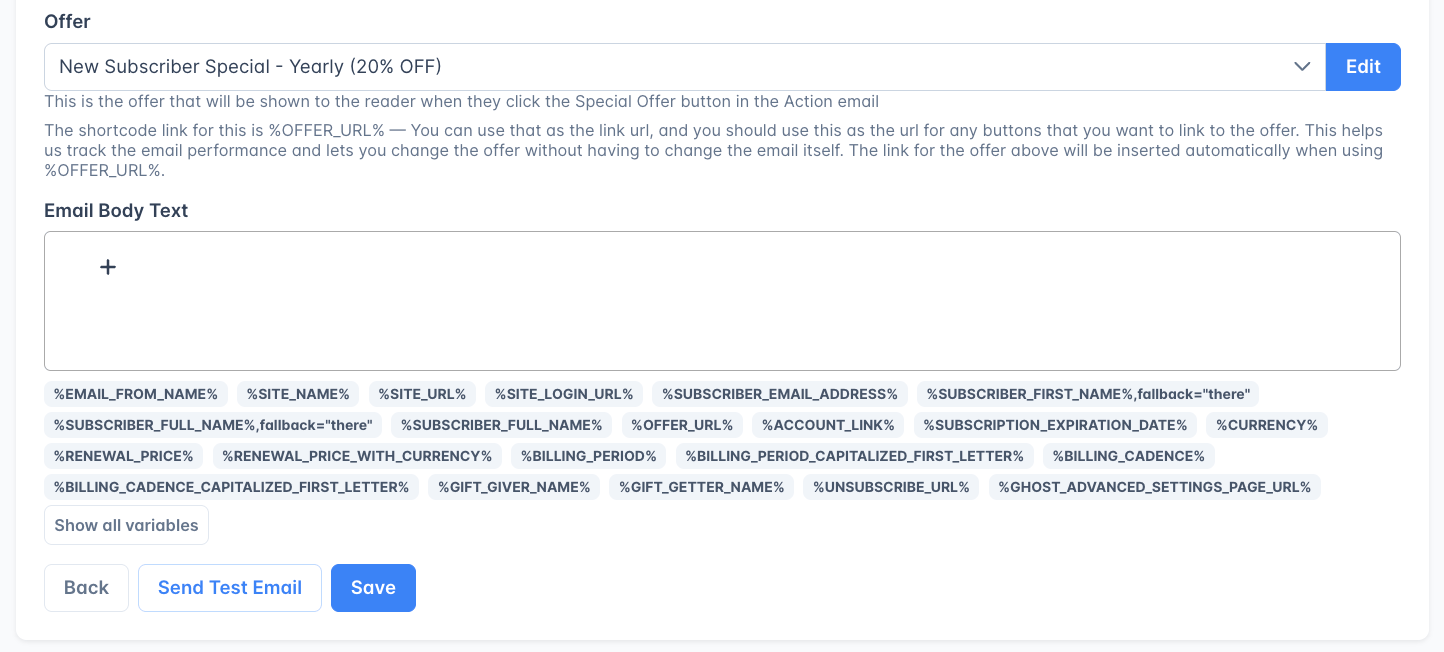
Attaching an offer to a template is only half of the job. The email also has to link to it. Put%OFFER_URL% in the URL field of the offer button, and in any other link in the body that points at the offer, rather than a web address you type yourself. Outpost then works out the right destination for each reader as the email goes out. A web address typed in by hand is the same address for every reader, and a reader who already pays for a subscription can end up starting a second one alongside the one they already pay for.
The template editors show a Copy %OFFER_URL% button under the Offer field, so you can paste the shortcode straight into the button’s URL field.
If an email has an offer attached and no %OFFER_URL% anywhere in its body, no reader can see or use that offer. Outpost tells you: the Basic Autoresponder page shows a warning under the affected action, and the daily Autoresponder problems needs attention email names the emails involved. See Notifications.
Complimentary subscription fields
These fields are only available in templates used by complimentary subscription actions (e.g., renewal reminders for comped members).
Gift subscription fields
These fields are only available in templates used by gift subscription actions. They are populated from the gift subscription record.In the three reminders that ask a gift giver to give again, use
%RENEW_GIFT_URL% for the renewal button and %DO_NOT_RENEW_GIFT_URL% for the opt-out link. Do not use %OFFER_URL% in those emails: it does not produce a gift renewal link. See Gift email templates.Group subscription fields
These fields are only available in templates used by group subscription invite actions.
Gated PDF fields
These fields are only available in CTA gated PDF delivery emails.
Event fields
These fields are only available in event email templates (registration confirmation, reminders, cancellation, and update notifications).
%EVENT_NAME%, %EVENT_DATE%, calendar links, and more. See Event emails for the full list and how to edit each template.
Conditional content blocks
Show or hide sections of your email based on whether the member is on a free or paid plan:Offer templates
If a template is linked to an offer, the%OFFER_URL% merge field generates a personalized URL that takes the member directly to checkout with the offer pre-applied. This is used for:
- Win-back campaigns to bring cancelled members back at a discount
- Renewal reminder emails with a one-click resubscribe link
- Upgrade offers for free members
Gift email templates
Gift pricing lives on your gift settings page, not on the email template. In the Email Settings → Templates editor, the four gift emails that include a price show that price where the Offer field would be, and the price is read-only. The three reminders asking a gift giver to give again show your Gift renewal price. The reminder telling a recipient their subscription ends soon shows your Recipient conversion price. The panel names the price in use, or tells you that none is set and what is offered instead, and it says so when the price you picked is no longer available in Stripe. It also links to the settings page where you change it, under Subscriptions → Gift Subscriptions. See Gift pricing. The other five gift emails, the notifications and the thank-you notes, have no price of their own.This describes the editor you reach from Email Settings → Templates. The editors you reach from a step in the Advanced Autoresponder or from a campaign work the same way for gift emails: they show no Offer field, and no button offering to add one, because gift pricing is set on Subscriptions → Gift Subscriptions rather than on the template. When Outpost sends the reminder telling a recipient their subscription ends soon, it always uses the Recipient conversion price from that settings page.
Preview and test
Expanding a row on Email Settings → Templates and clicking the eye icon on an autoresponder action both render the template on screen. A preview is not built for a particular member, so it fills in your site details and a small set of sample values, including a tier name, a renewal price, and event details. Any other field stays on screen as the field name: writeHey %SUBSCRIBER_FIRST_NAME%, with no fallback and the preview reads Hey %SUBSCRIBER_FIRST_NAME%,.
Fallbacks work on the name fields in every email, which is what almost everyone needs. The preview reads them, so Hey %SUBSCRIBER_FIRST_NAME%,fallback="there" previews as “Hey there”. For a fallback on any other field, read Fallback values first and send yourself a test email before you rely on it.
Before using a template in a flow or campaign:
- Click Send Test Email to send a real email to your own address with actual merge field values.
- If the template has unsaved changes, the button label switches to Send Test Email before saving changes as a reminder to save first.
- Check the email in both desktop and mobile email clients before activating.
Special action templates
Some templates belong to a specific built-in autoresponder action rather than to your general library. Two of those actions use special buttons: Card Expiration Reminder and Nudge someone who clicked an offer but did not buy. Opening either action’s template shows a note above the body saying that those buttons only work for people with failed payments, that they will not work in a preview, and asking you to leave the button links alone.Related features
Email Design Settings
Customize colors, fonts, header image, and custom HTML for all email templates.
Autoresponder
Use templates in automated email sequences.
Campaigns
Send templates as one-time campaigns to targeted segments.
Offers & Discounts
Link offers to templates for personalized checkout links.
FAQ
Can I use HTML in templates?
Can I use HTML in templates?
Yes. The email body editor supports rich text and HTML. For full control over the email layout, you can also set a custom HTML template in Email Design Settings.
Can I put a video in an email?
Can I put a video in an email?
Not as a playable video. Most email clients will not play video inside an email. Paste a YouTube link in the editor and the sent email shows the video’s preview image, linked to the video, so readers click through to watch. For a video hosted anywhere else, or to choose the image yourself, use a still frame linked to the video’s page. See Images and video for how to set it up.
How do I personalize the subject line?
How do I personalize the subject line?
Use merge fields in the subject field: for example,
We miss you, %SUBSCRIBER_FIRST_NAME%,fallback="friend"! will insert the member’s first name, or “friend” if they didn’t share one when they signed up. Ghost stores names in a single optional field, so many members register without a first name: always include ,fallback="..." so your subject reads naturally either way. See Fallback values for the full syntax.What happens if a merge field has no value?
What happens if a merge field has no value?
It renders as an empty string, which can leave awkward gaps like “Hey , thanks for subscribing!” Wrap the field in a fallback so the email reads naturally when the value is blank:
Hey %SUBSCRIBER_FIRST_NAME%,fallback="dear reader", thanks for subscribing! See Fallback values for the full syntax.Should I always add a fallback to a name field?
Should I always add a fallback to a name field?
Not always. Use
,fallback="there" (or similar) whenever the name is part of a sentence: greetings, sign-offs, subject lines. Skip the fallback when the name is the value itself, like an account-summary line (“Name on file: %SUBSCRIBER_FULL_NAME%”). Substituting a generic word there would misrepresent what’s actually on file. See Fallback values for examples.Can I reuse a template across multiple flows?
Can I reuse a template across multiple flows?
It depends on where you want to use it. Campaigns and the Advanced Autoresponder let you pick any template from your library, so you can reuse one template across as many campaigns and advanced flows as you like.The Basic Autoresponder works differently. Each built-in action only lists templates that were created for that specific action, so a template you build from Email Settings → Templates → New Email Template will not appear in a Basic action’s dropdown. To use your own wording in a Basic action, open that action’s current template on the Basic Autoresponder page, edit it, and save. The first time you edit an action’s built-in template, Outpost keeps the default and saves your version as a new template attached to that action. See Use your own template in a Basic action.