


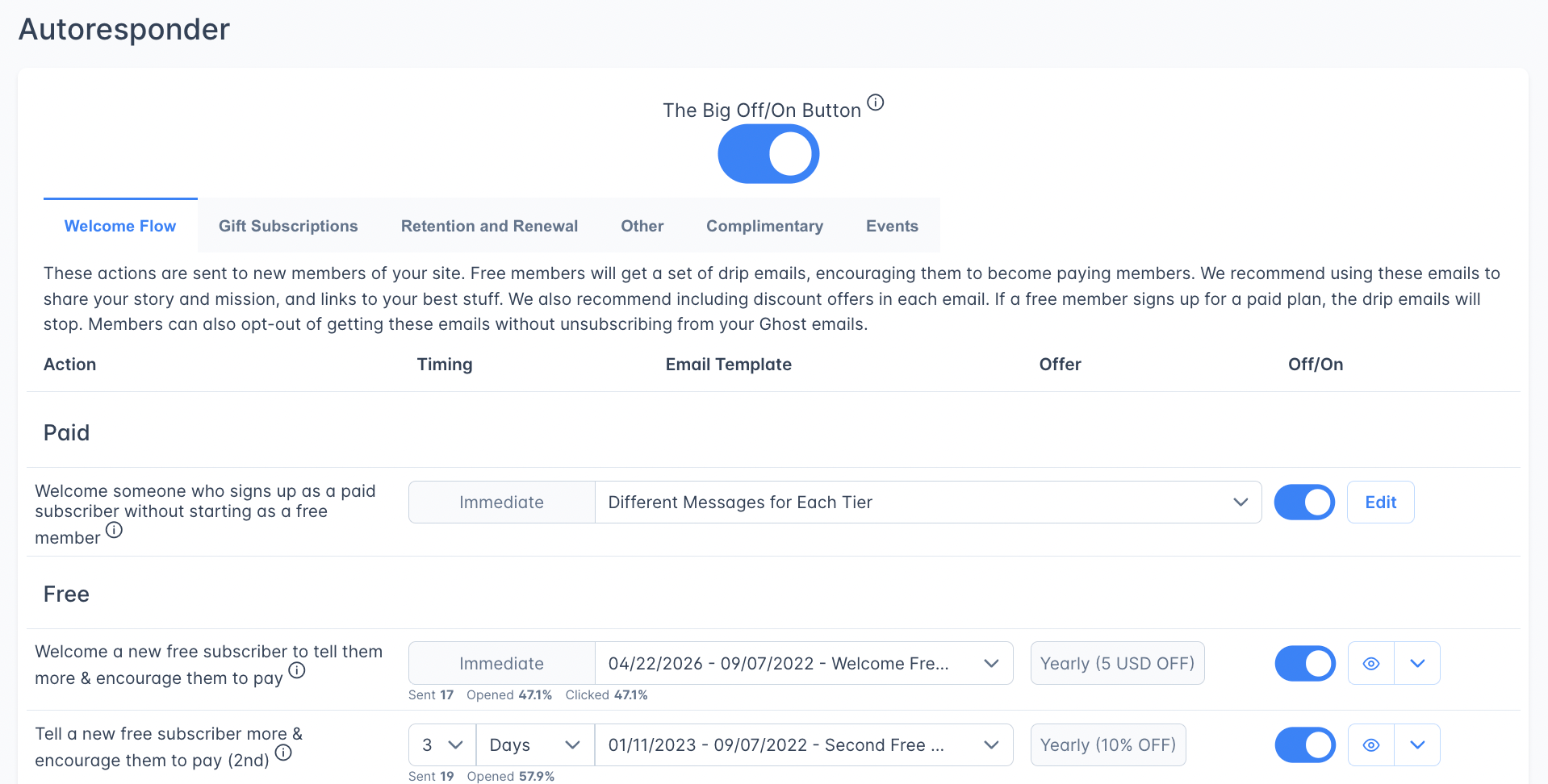
The Basic Autoresponder showing the Welcome Flow tab with pre-built email actions
The Big Off/On Button
The Basic Autoresponder has a master toggle labeled “The Big Off/On Button.” When it’s off, every Basic action is disabled regardless of individual toggles.
Pre-built actions
The Basic Autoresponder contains 68 pre-built email actions organized across 6 tabs. Each action is pre-configured with a default email template, timing, and (where appropriate) a discount offer. You can change the wording, styling, timing, offer, or turn individual actions on or off. We recommend changing the email template to make the messages match your voice.How email timing works
Most autoresponder emails are sent with a 2-minute delay after the triggering event. This handles the case where a member toggles a setting twice in quick succession. Outpost waits until the change sticks before sending. Gift subscription and donation emails are the exceptions and send immediately.Duplicate prevention
Outpost includes two layers of duplicate prevention to avoid sending the same email more than once:- 60-minute deduplication: The same action won’t send the same template to the same member twice within 60 minutes. Important to know when testing: if you send a test and then trigger the action again within an hour, the second email will be silently skipped.
- One-month deduplication for scheduled actions: Actions that run on a schedule (such as card expiration reminders and cart-reminder nudge emails) check whether the same template was already sent to the member within the past calendar month. This prevents subscribers from receiving the same recurring reminder repeatedly.
How Action Items work
Each Action Item has these controls:
Some Action Items display performance stats below them: Sent, Opened %, Clicked %, Converted %, and Revenue.
Some email apps don’t report opens, so Opened % uses whichever is larger: unique opens or unique clicks. It never reads lower than Clicked %. The same applies to the stats in Advanced Autoresponder flows and campaigns.
Ten actions are sent once a day rather than at the moment something happens: the two renewal reminders, the three reminders to a member who has cancelled, and the five complimentary expiry emails. Their timing is set in whole days, one day at the shortest, so those rows don’t offer the Hours option.
Account emails
Some actions are marked Account next to their description. These emails tell a member about money moving on a subscription they already have, so Outpost sends them even to members who have opted out of marketing emails. They are the paid welcome email, the welcome for someone who bought a group subscription, the renewal thank-you, the two renewal reminders, the card expiring reminder, and the four thank-you emails for upgrades. Every other action is a marketing email and is not sent to members who have opted out.Use your own template in a Basic action
Each Basic action’s template dropdown only lists templates built for that action. A template you create from Email Settings → Templates → New Email Template goes into your general template library, but it will not appear in a Basic action’s dropdown. To use your own wording in a Basic action, start from this page instead of the Templates page. Find the action, open its current template with the pencil icon, change the name and content, and save. The first time you do this for an action, Outpost keeps the built-in default and saves your edit as a new template attached to that action. After that, the action uses your own template, and editing it again from this page updates that same template in place.About Auto-Spaced timing
Some flows run over a window whose length depends on the member, not a fixed schedule. Free trials are the clearest case: you might run a 7-day trial on one offer, a 10-day trial on another, and a 14-day trial on a third, all sharing the same flow. Setting an Action Item to Auto-Spaced tells Outpost to compute the send time from this member’s window rather than a fixed delay. With three trial reminders, that means:- On a 7-day trial → reminders land roughly every 2 days
- On a 10-day trial → reminders land roughly every 3 days
- On a 14-day trial → reminders land roughly every 4–5 days
Selecting offers
The Offer cell appears on actions whose email includes an offer link, and on any other single-email action where Outpost has found an offer set up on an email that never links to it, so you can see and change that offer from the row. Actions that send a different email for each tier do not show the cell, because their offers are set per tier in the Tier Templates drawer. None of the four gift reminders show it, for two different reasons. The three reminders to the gift giver include a renewal link rather than an offer link, so there is no offer to set. The reminder to the gift recipient does include an offer link, but the cell is held back so the price comes from the Gift Subscriptions settings page instead. See the Gift Subscriptions tab below. Click the Offer cell to open the Select Offer drawer, which has two tabs:- Ghost Offers: existing Ghost Offers from your site, plus an option to create a new one.
- Outpost Promotions: existing Outpost Promotions organized by product, plus an option to create a new one.
Switching an action off and back on keeps its template, timing, and per-tier messages as you left them. The same is true when Outpost switches actions on for you, for example when you set up gift subscriptions, create a group subscription, or save an institutional subscription. To reset an action to the default template and timing, choose Restore in the menu beside its preview button.
Welcome Flow tab
These emails greet new members and encourage free subscribers to upgrade. If a free member converts to paid, the drip sequence automatically stops. Members can opt out of drip emails without unsubscribing from your Ghost newsletter.You can bring members in without triggering this welcome flow, which is useful when importing a list or adding members who shouldn’t receive these emails. See Skipping Welcome Emails.
Paid section (1 action)
A combined welcome and thank-you for members who sign up directly as paid, skipping the free tier.Free section (5 actions, drip sequence)
A welcome drip series that progressively encourages free subscribers to upgrade. The single highest-impact lever for free-to-paid conversion. Spend time on these.
Each email in the drip sequence can include a different discount offer. Sequences typically perform better when each step uses a steeper discount than the one before.
Trial section (3 actions)
Trial subscriptions come in two flavors, and both fire this set of actions:- Tier-wide trials: a tier is configured in Ghost with a default free-trial period, so everyone who signs up on that tier starts on a trial.
- Offer-based trials: a specific Outpost Promotion (or Ghost Offer) adds a trial to a single tier without making it the default for everyone.
These reminders use Auto-Spaced timing so they distribute evenly across whatever trial length applies: see About Auto-Spaced timing. You can override the first and third reminders to fixed timings (e.g., “send 24 hours before the trial ends”) if you want precise control; the middle reminder always stays Auto-Spaced so it lands sensibly regardless of trial length.
Group Subscriptions section (2 actions)
Institutional Subscription section (1 action)
Gift Subscriptions tab
9 actions covering both the gift giver and the gift recipient: the initial thank-you and gift notification, repeat gifts for someone who already has an active gift, reminders that let the giver give again, and a nudge for the recipient to subscribe on their own.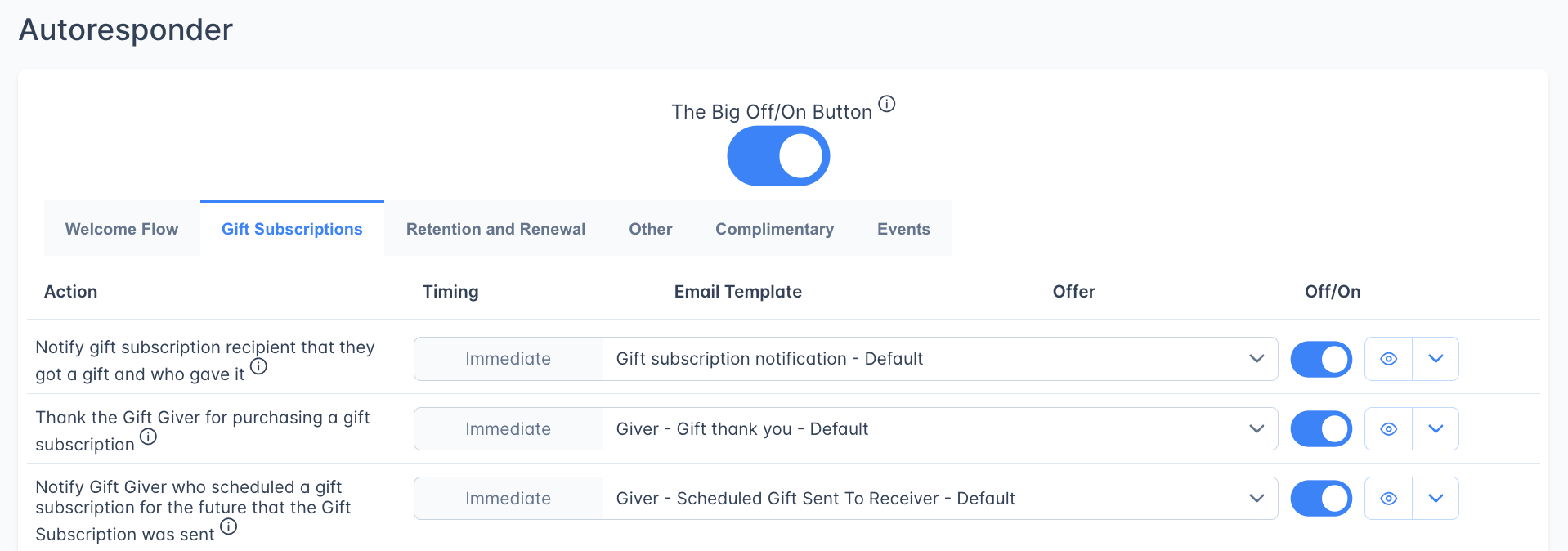
The three reminders telling the giver the gift ends soon, and the reminder telling the recipient their subscription ends soon, take their pricing from Subscriptions → Gift Subscriptions rather than from an Offer cell. Gift renewal price is what the giver is offered in their reminders when they give again. Recipient conversion price is what the recipient is offered in theirs. Leave the renewal price empty and the giver pays what the original gift cost, or your Gift offer price if that price is no longer available in Stripe. Leave the conversion price empty and your Gift offer price is offered instead. Because both prices live in one place, changing one updates every gift reminder that uses it.
When you open one of these four reminder templates under Email Settings → Templates, the price shows as read-only text instead of an Offer field. The giver’s reminders show your Gift renewal price, and the recipient’s reminder shows your Recipient conversion price. Each one links back to Subscriptions → Gift Subscriptions. Only the recipient’s reminder has an offer link. If you use a copy of it in an email campaign, choose an offer in the campaign’s Offer column. The campaign uses that offer, not your Recipient conversion price. See Gift pricing.
Two of these emails cover repeat gifts, a new gift for someone who already has an active gift: the one telling a returning recipient their membership was extended, and the thank-you to the giver for extending the gift. A repeat gift adds its term on top of the time the recipient has left, so their subscription expiration date moves further out. The recipient gets the “membership extended” email rather than the full first-gift welcome, and the giver is thanked for extending rather than for starting something new. If either email is turned off, the matching first-gift email is sent in its place.
Retention and Renewal tab
16 actions organized across 8 sections. This is the most critical tool for reducing voluntary churn.
Renewal Thank You (1 action)
Thanks members who renewed for another year.Renewal Reminders (2 actions)
Due to consumer protection laws in many jurisdictions, we strongly recommend sending renewal reminders at least 30 days and 7 days before a subscription renews. Surprise charges can lead to chargebacks, which are expensive and harmful to your Stripe account.
If a reminder can’t be sent on its day, Outpost tries again on each of the next three days, so a reminder set for 7 days before renewal can arrive as late as 4 days before. A member gets each reminder only once for each renewal. Both reminders are Account emails, so they also go to members who have opted out of marketing emails.
Early Cancellation Acknowledgment (1 action)
When a subscriber cancels auto-renewal more than 45 days before their subscription expires, it usually means they simply don’t want to be auto-charged, not that they’re unhappy right now. Rather than hitting them with a hard-sell retention offer immediately, this email acknowledges their preference, confirms they won’t be auto-renewed, and lets them know to expect special offers as their expiration date approaches.Handling Cancellations with Retention Offers (7 actions)
We recommend offering an annual upgrade discount to monthly subscribers who cancel. Different discount levels are worth testing.When a subscriber turns off auto-renewal, for example in Ghost Portal or the Stripe billing portal, Outpost sends them one email right away:
- An annual subscriber who cancels more than 45 days before their renewal date gets the Early Cancellation Acknowledgment. It confirms their choice and has no offer.
- An annual subscriber who cancels within 45 days of their renewal date gets an email asking them to reconsider, with a special offer.
- A subscriber on a monthly, quarterly, or six-month plan gets an email with a special offer.
The two emails thanking a subscriber for using a retention offer are the confirmations for upgrade offers redeemed by existing subscribers. If you offer upgrades or plan changes to current paid members, turn both on. The one for a new subscription that starts after the existing one ends matters most, because a scheduled second subscription may not show in Ghost Portal. See Upgrading Existing Subscribers.
Unsubscribes (2 actions)
Historically Ghost didn’t distinguish clearly between unsubscribing from email and cancelling auto-renewal. These emails surface that difference and confirm a full unsubscribe when one happens.Failed Payment Flow Thank You (1 action)
A short thank-you to a member who updated their card after a failed renewal.Card Reminders (1 action)
Stripe flags cards it predicts will fail at renewal. This action gives those members a chance to update before then. Stripe’s predictions aren’t always right; some flagged cards still work at renewal.Reactivations (1 action)
Other tab
Actions covering upgrades, donations, nudges, group subscription management, and integration notifications.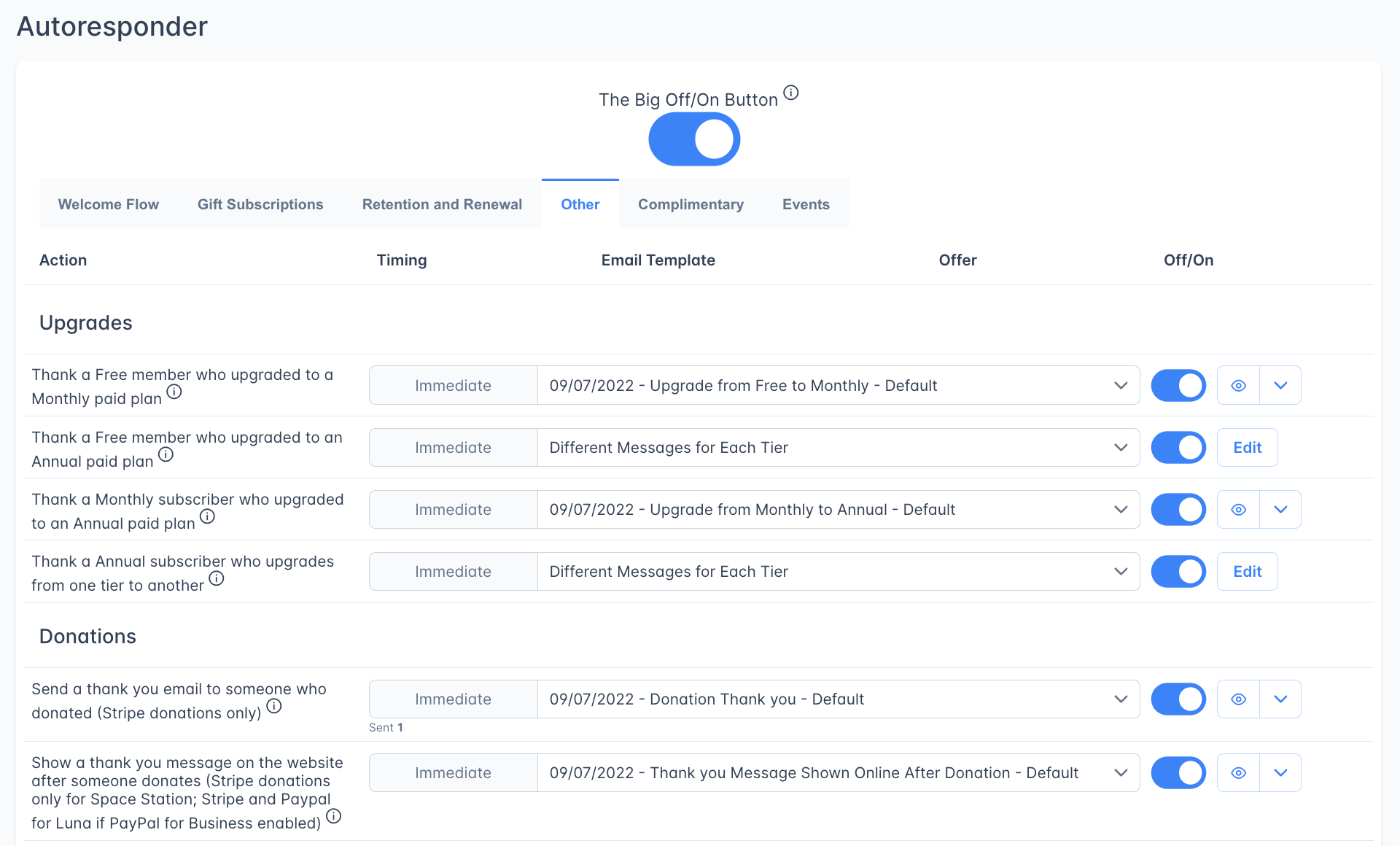
Thank You for Upgrades (4 actions)
The thank-you to a paid subscriber who switched from one tier to another covers any move between tiers. Monthly and annual subscribers both receive it, and so does someone who moves to a less expensive tier. Write that template so it reads well for any of those moves.
To stop these thank-yous going to a particular member, apply the
#Ignore_Upgrade label to that member. It silences all four thank-yous in this section for them, not just the one for switching tiers. See the labels reference.
Donations (2 actions)
Nudge (1 action)
An abandoned-cart message. Sent at most once every 30 days per subscriber.
This action automatically uses the offer the reader originally clicked on.
Group Subscriptions (5 actions)
Integrations (6 actions)
Some integrations rely on a notification email to confirm or reflect access changes.Events tab
6 actions tied to the Events feature. Events require specialized code in your theme. Turning on Enable event emails in Event Settings switches all six of these actions on in one step, and turning it off switches all six off. No other setting does. If you switch a single event action off here afterwards, saving other settings in Event Settings won’t turn it back on.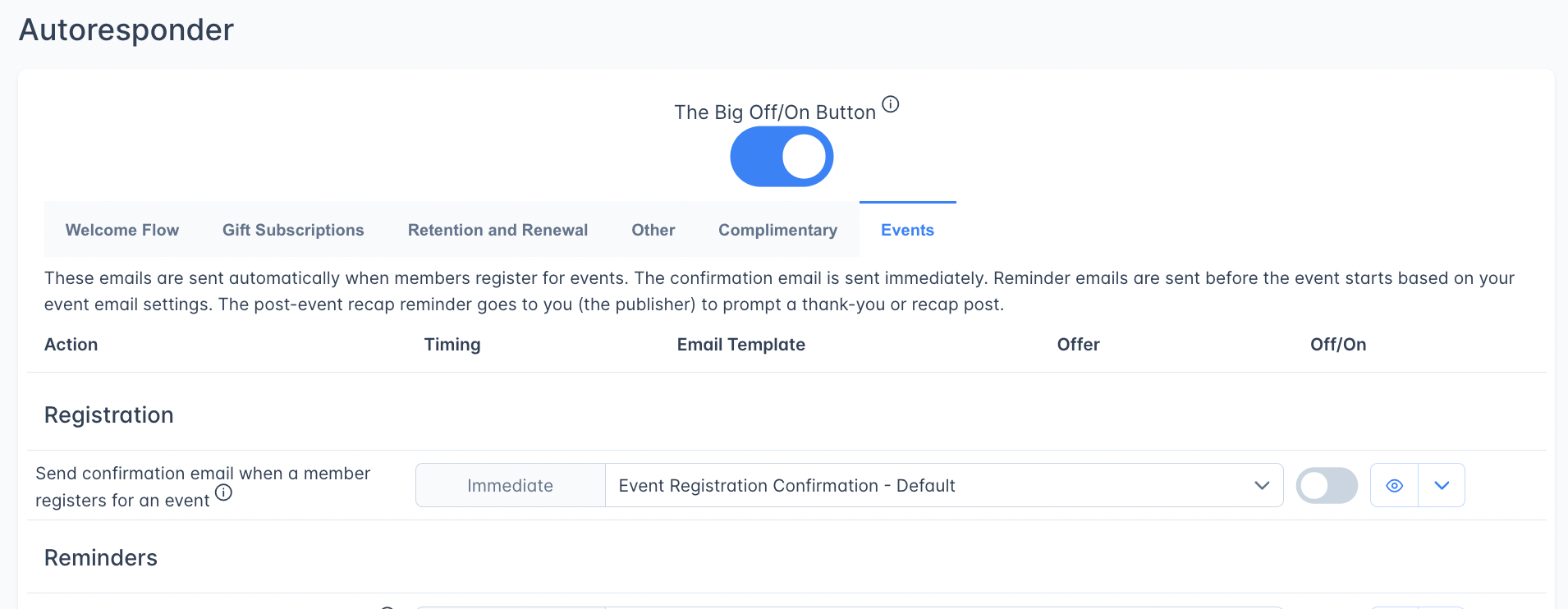
The two reminder rows show the send time you set in Event Settings. You can’t change the timing from this page. A row reads “Off” when your Number of reminders setting doesn’t include that reminder.
Outpost doesn’t send the recap itself. Once an event with at least one registered member has ended, Outpost emails your staff a reminder to send a thank-you or recap to attendees from Ghost, including the label to target so only the people who registered receive it. That reminder goes out whether Enable event emails, this row, and The Big Off/On Button are on or off.
Your staff also get a short checklist about two days before a published event starts, covering the registration count so far, adding the meeting link if the event needs one, and the label to target when you want to email everyone who registered. That reminder has no row on this tab.
Event confirmation emails are transactional and send regardless of a member’s email opt-out setting. Reminder emails respect the member’s preferences.
Complimentary tab
7 actions for managing complimentary (free gifted) subscriptions.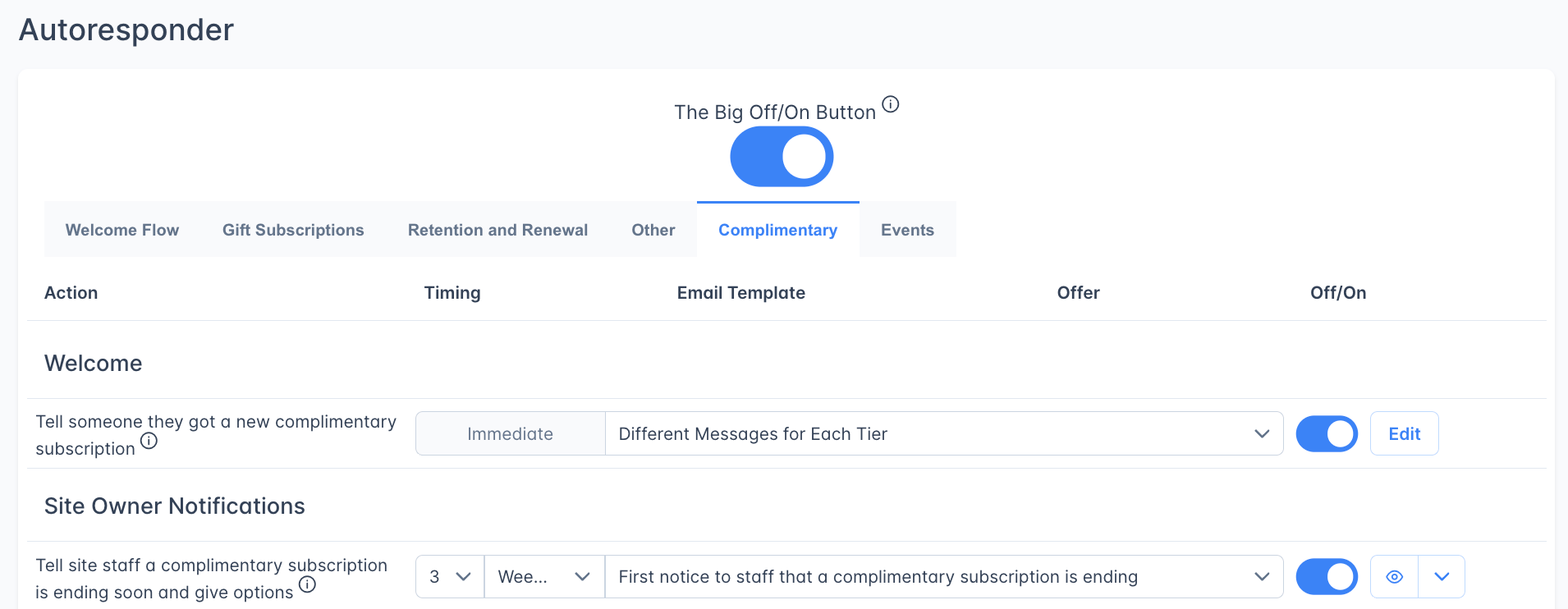
Welcome (1 action)
Site Owner Notifications (2 actions)
These emails go to your staff, not to the subscriber, so you can decide whether to extend the complimentary subscription or let it expire.
Expiring Subscription Upsell (3 actions)
Renewed Complimentary Notification (1 action)
Frequently asked questions
What's the difference between Basic and Advanced Autoresponder?
What's the difference between Basic and Advanced Autoresponder?
The Basic Autoresponder (this page) contains 68 pre-built email actions organized by category. They’re ready to use out of the box: just customize the templates and offers. The Advanced Autoresponder lets you create custom multi-step flows with flexible triggers, audience targeting, and stop conditions for scenarios the pre-built actions don’t cover.
Can I customize the pre-built email templates?
Can I customize the pre-built email templates?
Yes. Every pre-built action uses an email template you can fully customize. Click the pencil icon next to the template name to edit it, or select a different template from the dropdown. The eye icon previews the email.
I created a template in Email Settings, but it's not in the action dropdown. Why?
I created a template in Email Settings, but it's not in the action dropdown. Why?
Basic action dropdowns only list templates built for that specific action, so templates you make from Email Settings → Templates → New Email Template will not show up there. Open the action’s current template with the pencil icon, edit it, and save. The first time you edit an action’s built-in template, Outpost keeps the default and saves your changes as a new template attached to that action. Those library templates are still fully usable in campaigns and the Advanced Autoresponder.
What does 'Different Messages for Each Tier' mean?
What does 'Different Messages for Each Tier' mean?
Some actions (like the paid welcome email) let you send different content depending on which tier the subscriber chose. Click Edit to configure a unique template for each tier.
What does 'Auto-Spaced' timing mean?
What does 'Auto-Spaced' timing mean?
Auto-Spaced lets one flow handle trials of different lengths. Instead of a fixed delay, Outpost spaces the reminders evenly across the trial window: three reminders on a 7-day trial land every ~2 days; on a 14-day trial they land every 4–5 days. See About Auto-Spaced timing for the full explanation.
What's the Nudge action?
What's the Nudge action?
The Nudge action detects when a member clicks an offer link but doesn’t complete checkout. After a configurable delay (default: 1 hour), it sends a follow-up email containing the same offer.
How do I see how well my autoresponder emails are performing?
How do I see how well my autoresponder emails are performing?
Many Action Items show inline stats: emails sent, open rate, click rate, conversion rate, and revenue. The Failed Payment Flow has a dedicated statistics panel showing total save rate and revenue recovered.
Related features
Advanced Autoresponder
Create custom multi-step email flows with flexible triggers and audience targeting.
Failed Payment Flow
Automated dunning sequence for failed subscription renewals.
Email Templates
Create and customize the templates used by autoresponder actions
Offers & Discounts
Create the discount offers used in retention and upsell emails
Events
Event emails (confirmations, reminders, updates, cancellations) are managed here