

How rules work
A rule has three parts:- Condition: What event triggers the rule (label added or removed)
- Audience: Which members the rule applies to (by status, tier, or labels)
- Actions: What happens when the condition is met (subscribe or unsubscribe from a newsletter)
Creating a rule
Go to Labs → Rules Engine in the left navigation and click Create New Rule.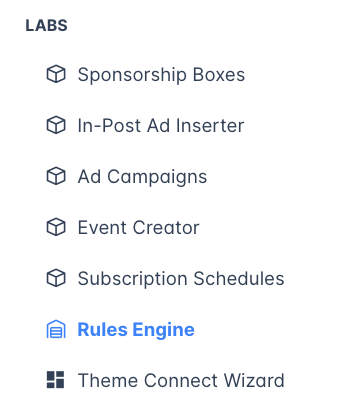

Basic settings
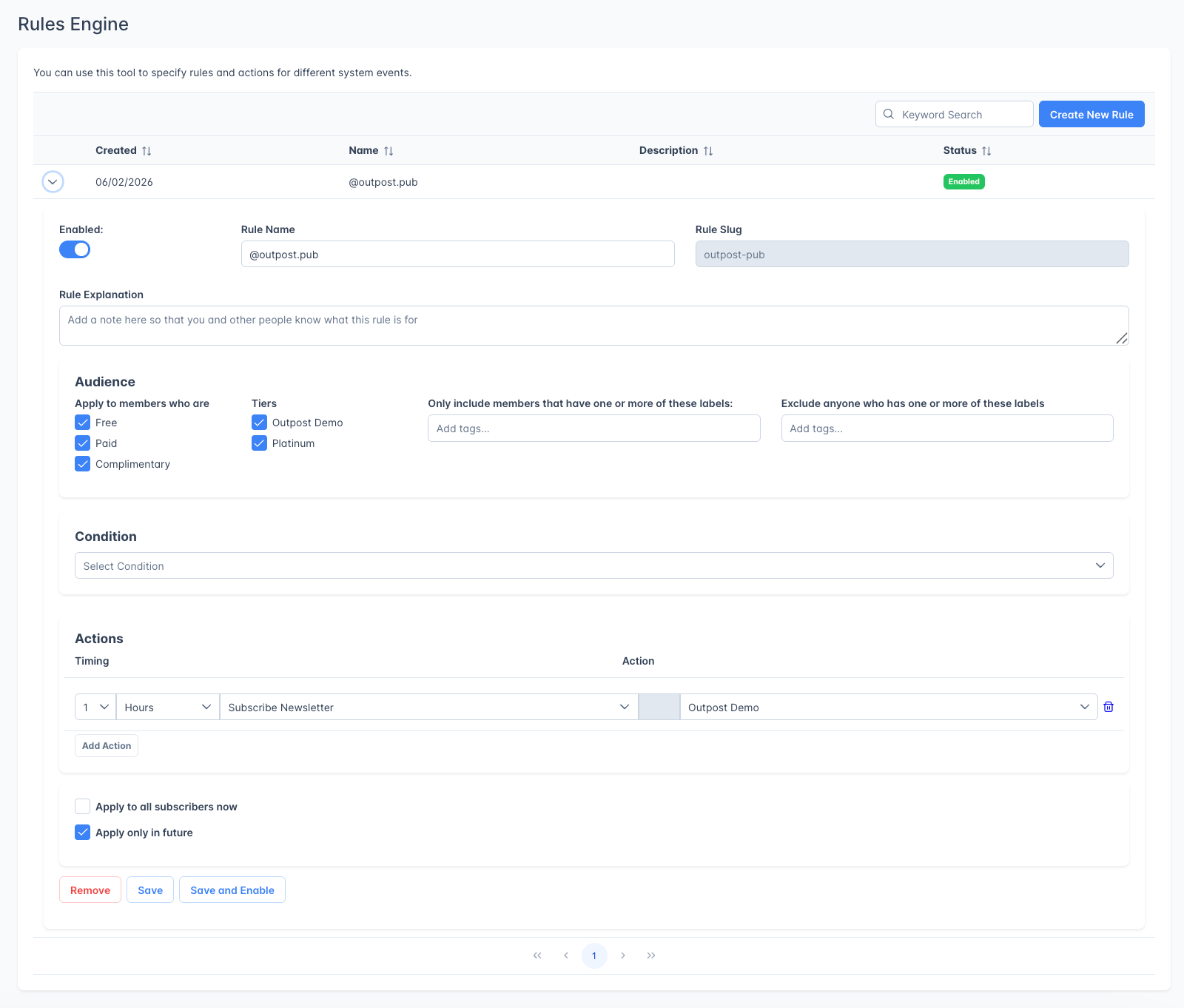
Condition
Audience
Actions
Each rule can have one or more actions, click Add Action to add multiple actions to a single rule.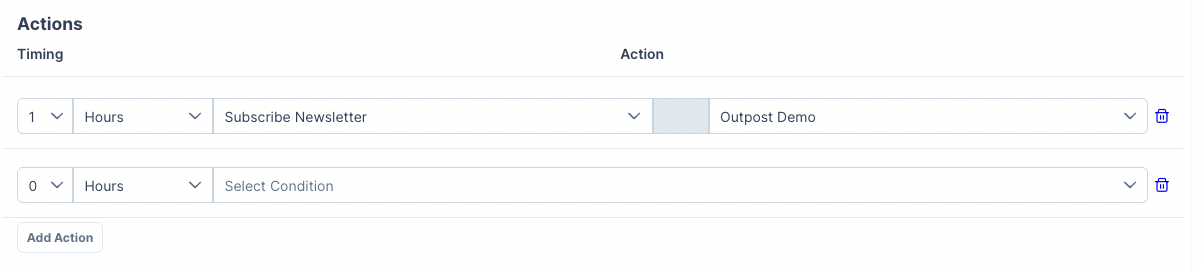
Apply timing
Example rules
Newsletter opt-in via label:- Condition: Label
premium-newsletteradded - Audience: Paid members
- Action: Subscribe to “Premium Weekly Digest” newsletter
- Condition: Label
cancelledadded - Audience: All member types
- Action: Unsubscribe from “Paid Members Only” newsletter
- Condition: Label
vipadded - Audience: Paid members on the “Founder” tier
- Action: Subscribe to “Founders Circle” newsletter
Disabling rules
Toggle the “Enabled” button and the status will change to “Disabled” in the dashboard.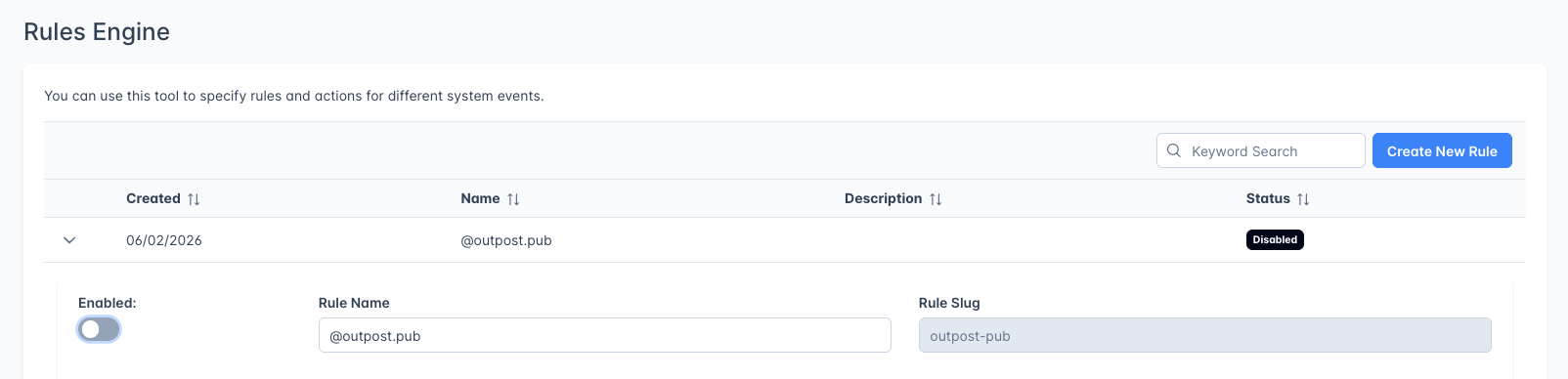
Related features
Autoresponder
Use autoresponder flows for multi-step email sequences.
Labels
Labels are the triggers for rules engine conditions.
Auto-Subscribe Rules
Grant tier or complimentary access automatically when a new member’s email matches a pattern.
FAQ
How is the Rules Engine different from the Autoresponder?
How is the Rules Engine different from the Autoresponder?
The Rules Engine responds to label changes and manages newsletter subscriptions. The Autoresponder is for sending email sequences triggered by registration, renewal, or other lifecycle events. They complement each other: use labels to connect the two.
Can rules fire for existing members?
Can rules fire for existing members?
Yes. When creating a rule, choose “Apply to all subscribers now” to run it against all existing members who match the criteria. Otherwise, it only fires for future label changes.
What happens if multiple rules match the same member?
What happens if multiple rules match the same member?
All matching rules run independently. If two rules both subscribe a member to the same newsletter, the duplicate subscription is simply ignored.
Can I use the Rules Engine to send emails?
Can I use the Rules Engine to send emails?
No. The Rules Engine only manages newsletter subscriptions (subscribe/unsubscribe). To send emails based on conditions, use the Autoresponder with a “Member Label Added” start condition.