

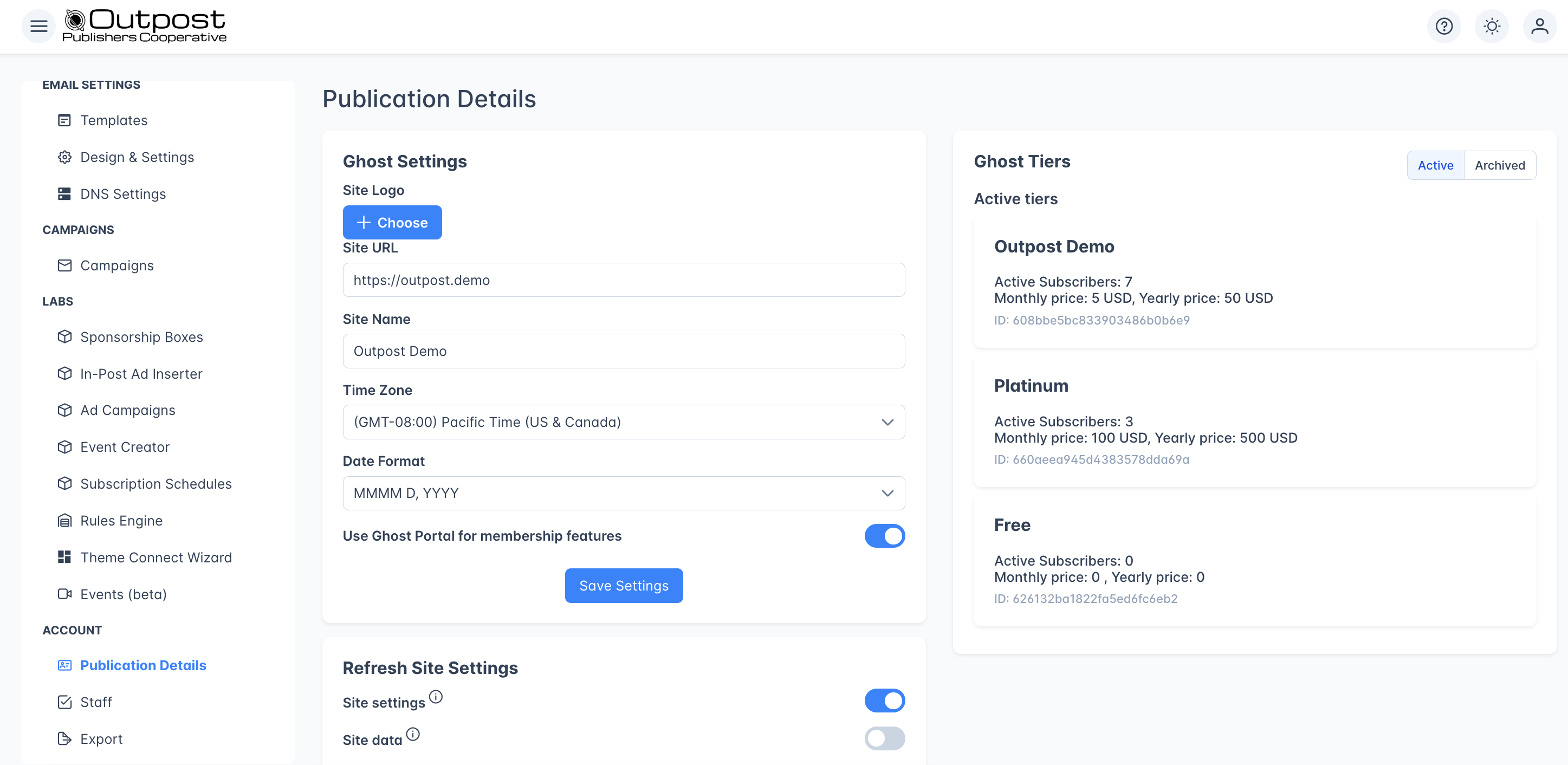
Click Save Settings at the bottom of the card to persist any changes. URL, name, timezone, date format, and the Ghost Portal toggle are all saved together.
Ghost Settings
The Ghost Settings card on the left side of the page controls everything Outpost knows about your publication’s identity and presentation.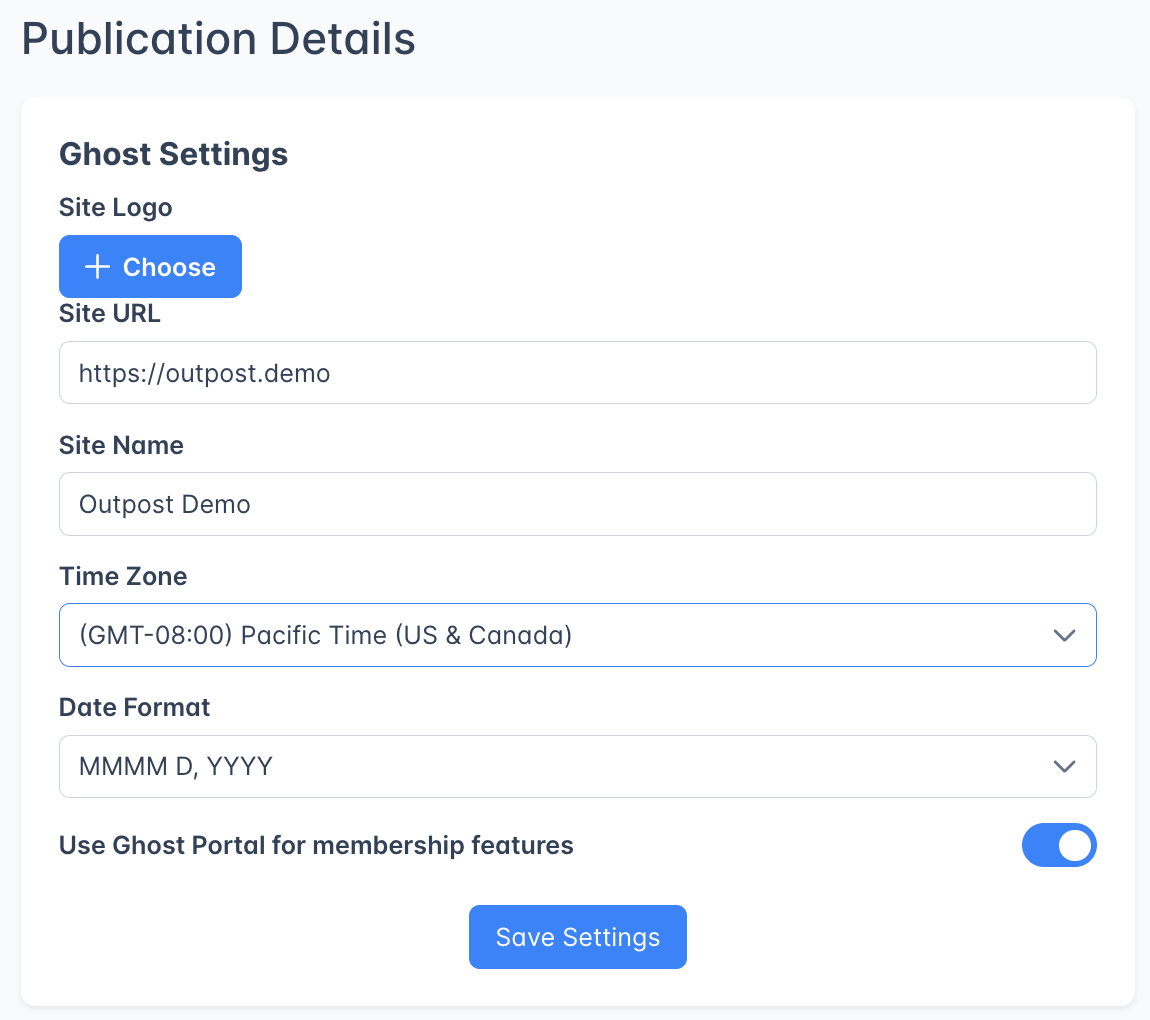
Site Logo
Upload a logo (any standard image format, up to 1 MB) and Outpost stores it as your site logo. The logo appears on the pages Outpost hosts for your site, such as checkout and gift pages, and in CTAs that don’t have an image of their own.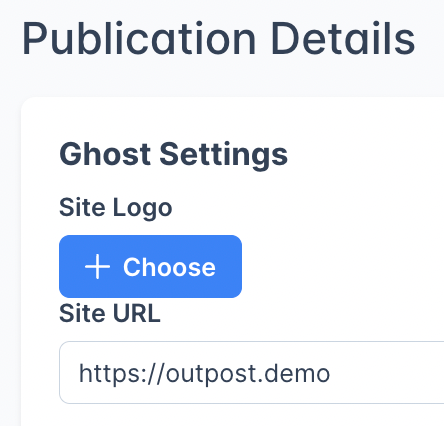
Site URL
The site URL Outpost talks to. Most sites change this once, when they move from the address their Ghost host gave them, such asyoursite.ghost.io on Ghost Pro or the equivalent address from Magic Pages, to their own domain.
Ghost decides what goes in this field, so change it there first. If you type an address here before Ghost is serving it, the next refresh replaces it.API URL on the Ghost integration card under Core Connections is a separate setting, and it usually stays as it is. On Ghost Pro, your original ghost.io address keeps working when you point your own domain at the site. On Magic Pages or a self-hosted site, you will likely need to update API URL as well. Apart from that, change it only if you’ve moved to a different Ghost host. The Core Connections page warns against changes for good reason, so check with support@outpost.pub if you’re unsure.You don’t need to change anything in Ghost’s webhook settings either. The address Ghost sends those notifications to belongs to Outpost, not to your site’s domain, so it doesn’t change.
Site Name
Your publication name. Outpost uses it in email subjects, email bodies, the admin dashboard, and anywhere else%SITE_NAME% is referenced. Change it in Ghost, where it’s called the site title. A refresh with Site settings on replaces the name here with Ghost’s.
Time Zone & Date Format
Pick the time zone you actually operate in using the Time zone dropdown. It affects:- When the Daily Report Email is sent (between 1 AM and 3 AM in your time zone)
- When the Weekly Report Email is sent (Monday, between 6 AM and 8 AM in your time zone)
- Scheduled email sends and campaign timing
- The time zone a new event is pre-filled with (see Events)
- How dates and times are displayed across Outpost
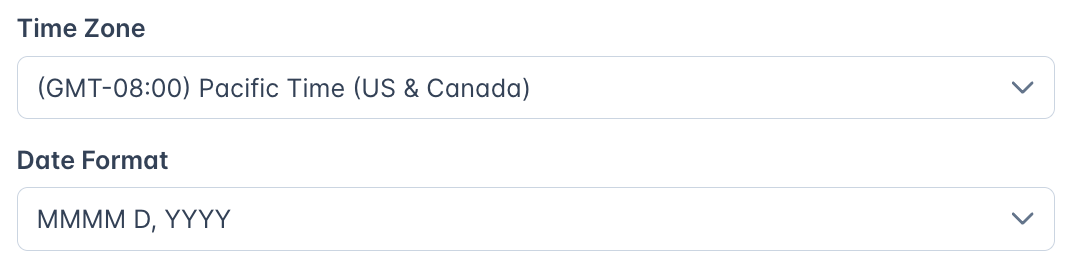
Pick the one that matches your audience’s locale: US publications usually pick MM/DD/YYYY, European publications usually pick DD/MM/YYYY or DD MMMM YYYY, and ISO/data-friendly publications pick YYYY-MM-DD.
Default currency
Set the Default currency for your publication here. It’s the currency Outpost uses when you create new offers and when prices are displayed, so set it before you build tiers and offers rather than assuming US Dollars. The dropdown lists every Stripe currency that uses two decimal places, and you can type in it to search the list. If you accept Tip Jar donations through PayPal, check that your currency is one PayPal can process: the on-site PayPal button only appears for currencies PayPal supports. See PayPal.Membership features
By default, we use Ghost’s built-in Portal for sign-in, sign-up, and account management. If you’ve created a custom theme that has its own membership/sign-in page, you can specify that we do that instead. Toggle Use Ghost Portal for membership features off if you’ve replaced Portal with your own pages. When off, the Edit Membership Links button appears so you can configure custom URLs (see below under Membership links).Membership links
Note: this is only applicable if your site has a customized theme with a personalized sign-up, sign-in, or account management page.
- Subscribe/Membership Page: your pricing or membership landing page
- Sign In: your custom login page
- Sign Up: your free signup page
- Upgrade: the page where members go to upgrade to paid
- Account: where logged-in members manage their account
Your Sign In link is also where the “Sign in” link on a CTA sends readers. New CTAs follow this setting automatically.Two things override it. The Default sign-in URL on the CTA Default Design tab replaces it for every CTA at once, and a URL filled in on a single CTA replaces both for that CTA. CTAs created before the 3.16 release each saved the Ghost sign-in URL on themselves, so they keep sending readers to Ghost until you clear their Sign-in link URL field. See Where the sign-in link points.
Ghost Tiers
The right side of the page lists the subscription products synced from Ghost. Outpost pulls these in but does not let you create or edit tiers here; that still happens in Ghost > Settings > Membership. After making changes in Ghost, use the Refresh button (see below) to bring them into Outpost. The list has two views, toggled by the Active / Archived switch in the card header.Active tiers
Active tiers are listed sorted by subscriber count (highest first). Each card shows the tier name, subscriber count, description, monthly and yearly price, currency, and the underlying Ghost tier ID. The ID is useful when you need to reference the tier in custom integrations, BigQuery queries, or support tickets.Archived tiers with active subscribers
This is the most important part of this page to get right. When you archive a tier in Ghost, existing subscribers stay on it. Ghost doesn’t migrate them to a different tier automatically. Outpost needs to know what to do with those subscribers when sending autoresponder emails, applying autoresponder actions, or evaluating offer eligibility. Archived tiers with subscribers appear with one of two highlight colors:- Orange: the tier hasn’t been “handled” yet. Outpost is waiting for you to decide. You’ll also see an orange info banner elsewhere in the admin (
There is an archived tier 'X' that has subscribers. Please let us know how to handle these subscribers...) until you handle it. - Green: the tier has been handled and Outpost knows how to treat its subscribers.
You can change your selection at any time. Once you pick one, the card turns green and the orange banner clears.
This setting also decides where gift recipients land. If the tier behind your Gift offer price has since been archived, Treat as a tier places new gift recipients on the active tier you picked. With Keep this tier as an option in autoresponder there is no active tier to map to, so recipients are placed on the first active paid tier on your site that has a yearly price instead. See Gift Subscriptions.
Archived tiers with no active subscribers
Tiers you’ve archived in Ghost that have no remaining subscribers appear in a collapsible section at the bottom of the Archived view. Click the + to expand and review them. There’s no action to take; they’re listed only for reference. One archived tier is treated differently even with no subscribers left: the tier behind your Gift offer price. It stays in the section above with the handling controls, so you can point new gift purchases at an active tier.Refresh Site Settings
Click Refresh to re-sync data from Ghost. Two switches let you choose what to pull:
You’ll be asked to confirm before the refresh runs. You almost always want Site settings on; turn Site data on too if you’ve made bulk member or label changes in Ghost (or in another tool that pushes to Ghost) and want them mirrored into Outpost immediately.
A Site settings refresh overwrites any changes you made here to the URL, name, or time zone, and replaces the logo with your Ghost site icon whenever Ghost has one.
A Site settings refresh fills Outpost’s sender address from your Ghost site’s support email address only when Outpost has no sender address of its own. Depending on how your site sends email, that field is Email Reply-to Address or Email from address in Email Design Settings. Once you have set an address there, a refresh leaves it as it is.
When your site URL changes in Ghost
Most often this is the move from the address your Ghost host gave you, such asyoursite.ghost.io on Ghost Pro, to your own domain. Outpost saves the new address whenever it picks one up, from a refresh or from a Save Settings here, and then updates what pointed at the old one. A refresh skips those updates when the only difference is a www prefix, a trailing slash, or http in place of https, since that is the same address written differently. The updates run in the background, so they land shortly after the save rather than the moment it finishes:
- On the Voyager and Luna plans, it refreshes its links to the pages it created on your site: the tip jar page, the group subscription pages, and the gift subscription page if you have a Gift offer price set. The pages themselves are left as they are, so anything you wrote on them stays.
- If the Return URL in your Stripe settings pointed at your old domain, it is moved to the same path on the new one. A Return URL on any other address is left alone.
- If your emails go out on the shared Outpost address rather than your own sending domain, it updates where replies to them are forwarded.
- A sending domain setup you started but never finished is retired, because its DNS records were built for the old address and cannot verify on the new one. Start setup again on the new address. A sending domain that has already verified keeps working and is left alone.
Outpost records the Ghost ID of each page it creates, so a page you renamed in Ghost is still found after the move and its link is updated to the new address.If Outpost has no ID recorded for one of these pages, it looks the page up by its original slug, such as
/tip-jar, and creates a fresh default page at that slug when nothing is there. After a move it is worth opening your tip jar, gift and group subscription pages once to check they are the ones you expect.If you’re on Magic Pages, or you’ve moved to a different Ghost host rather than only changed your domain, set API URL on the Ghost integration card to the new address as well. That’s where Outpost reaches Ghost, and a refresh doesn’t update it.
Outpost Subscription
The Outpost Subscription card shows the state of your Outpost account itself (your billing relationship with Outpost, separate from your Ghost or Stripe billing).
Only the Site owner sees the buttons below the card. Admins see the fields above but not the buttons.
- See your invoices and View/Change your payment method: opens Stripe’s billing portal sign-in page in a new tab, with your billing email already filled in when Outpost can read it. Stripe emails a sign-in link to that address, and following the link opens the portal, where you can download invoices, update card details, or change the billing email. If Outpost can’t read your billing email, the page asks you for the address first. If the sign-in email doesn’t arrive, check your spam folder.
- Cancel Subscription: cancels your Outpost plan. You keep full access through the end of the current billing period, and nothing is lost mid-cycle. After that the site is inactive, and we clear out the data of inactive sites as a matter of routine, so don’t count on it still being there if you come back later.
- Resume Subscription: re-activates a cancelled subscription before it expires. Only shown when the subscription is in the cancelled-but-not-yet-expired window.
Delete my Outpost account and data
At the very bottom of the page is a red Delete my Outpost account and data button. It schedules the permanent removal of everything Outpost holds for the site. Only the Site owner sees it, and it doesn’t appear while a deletion request is already open for the site.What this actually does
Clicking it does not delete anything straight away. Outpost schedules the deletion for 28 days later and tells the Outpost team at the same time. Until that date your site keeps working normally and nothing has been removed. No one at Outpost has to approve the request first: if the date arrives and the deletion hasn’t been cancelled, it runs on its own. On the scheduled date, Outpost permanently deletes its copy of your data. That covers member records, subscriptions and email lists, email templates, autoresponder and campaign history, CTAs, paywalls, offers, gift and group subscriptions, events and registrations, reporting history, any data files Outpost exported for you, and every Outpost login on the site, including your own. It also drops Outpost’s connections to Ghost, Stripe, and PayPal. None of it can be undone. Deleting your data doesn’t cancel your Outpost subscription. If you want billing to stop as well, use Cancel Subscription.Changing your mind
While a deletion is scheduled, Publication Details shows a notice with the deletion date and the number of days left, and the Delete my Outpost account and data button is hidden. The Site owner sees a Keep my site button in that notice. Clicking it cancels the deletion and leaves everything as it was, and you can do that at any point before the date. Only the Site owner can cancel. If you’re an Admin, ask the owner to do it, or reply to one of the emails below and ask us to stop it.Emails about a scheduled deletion
Everyone with an Outpost login on the site is emailed, Site owner and Admins alike, so a deletion nobody expected gets noticed in time. Admins get an extra line explaining why the email reached them. Only the Site owner’s copy explains how to keep the site, because only the owner can call a deletion off.
Each one names the deletion date and tells you how to reach Outpost support. If you receive one and nobody asked for a deletion, reply straight away or write to support@outpost.pub.
When to use it
- Decommissioning a publication: the publication is shutting down and you want member data and Stripe customer linkage cleared out of Outpost
- Migrating away: you’re moving to a different membership tool and want your Outpost data removed afterward
- Handing off ownership: the publication is changing hands, the new owner is starting an Outpost account of their own, and you want your data removed. If they want to keep the setup you built, transfer ownership on the Staff page instead.
Deletion isn’t a way to clear your settings and begin again, because it removes every Outpost login on the site along with the data. To rebuild your setup on the same account, delete the individual CTAs, flows, and templates instead.
What happens to Ghost and Stripe
This button only affects Outpost’s copy of your data. Your Ghost site, Ghost members, and Stripe customers/subscriptions are not touched. Outpost does remove the webhooks it added to your Stripe and PayPal accounts, because those exist only to notify Outpost. If you also need to clean up in Ghost and Stripe, do that directly.Related features
Staff
Manage admin users and invitations for your Outpost account.
Ghost Integration
Details on how Outpost syncs with your Ghost site.
Tiers & Pricing
How tiers are structured and used across Outpost.
Stripe Integration
Manage payment processing for your subscriptions.
Reader Languages
Set the language your readers see on signup, checkout, and emails.
FAQ
How do I change my site URL?
How do I change my site URL?
Change it in Ghost first. Then either click Refresh with the Site settings switch on, or edit the Site URL field here and click Save Settings. Outpost then updates its links to your tip jar, gift, and group subscription pages, and a Stripe Return URL that pointed at the old address moves to the new one. The pages themselves and anything you wrote on them stay as they are. API URL usually stays as it is if you are hosted on Ghost Pro, because your original ghost.io address keeps working when you point your own domain at the site. If you are on Magic Pages or you self-host, you will likely need to update API URL to the new address as well. It also needs updating whenever you move to a different Ghost host. You don’t need to touch Ghost’s webhook settings. See When your site URL changes in Ghost.
Where does the date format apply?
Where does the date format apply?
Everywhere in Outpost: the dashboard, member lists, History tables (e.g. one-person subscriptions), autoresponder emails that include dates, the daily and weekly report emails, and exported CSVs. Pick once and the change propagates.
What should I do when an archived tier still has subscribers?
What should I do when an archived tier still has subscribers?
On the Archived view, find the tier (it’ll be highlighted orange) and pick a handling mode: Keep to treat the archived tier as its own segment in autoresponder targeting, or Treat as a tier to map its subscribers onto an active tier. Once you pick, the card turns green and the orange banner clears.
Why aren't my Ghost tiers showing up?
Why aren't my Ghost tiers showing up?
Click Refresh with the Site settings switch on. Tiers are synced from Ghost on demand and won’t appear until the next sync after you create them in Ghost.
What's the difference between Refresh > Site settings and Refresh > Site data?
What's the difference between Refresh > Site settings and Refresh > Site data?
Site settings pulls configuration: URL, name, time zone, your site’s support email address if Outpost has no sender address set, tiers, site icon (used as your logo), accent color, fonts, and authors. Site data pulls members, labels, and tags as a background job (slower for large sites, but can be useful if you have recently made bulk changes in Ghost and want them reflected straight away rather than waiting for Outpost to pick them up).
What happens if I cancel my Outpost subscription?
What happens if I cancel my Outpost subscription?
You keep full access until the end of your current billing period, and you can resume any time before it expires with Resume Subscription.When the subscription ends, your site becomes inactive and Outpost opens a request to remove its data. Our team reviews these requests, and the site’s data is removed. Everyone with an Outpost login gets an email about it.If you want to keep the site, the Site owner can clear the request with Keep my site on Publication Details and then resume the subscription. If you’d rather have the data removed sooner, or you have questions, write to support@outpost.pub.
What's the difference between Cancel Subscription and Delete my Outpost account?
What's the difference between Cancel Subscription and Delete my Outpost account?
Cancel Subscription stops billing. Your site keeps working until the end of the current billing period, and you can resume before then. It isn’t a way to park your data: once a site is inactive, we clear its data out as a matter of routine, so don’t assume it will still be there if you return. Delete my Outpost account and data schedules the permanent removal of everything Outpost holds for the site, 28 days from the day you ask, including every Outpost login on the site. Everyone with an Outpost login is emailed when it’s scheduled and again as the date approaches, and the Site owner can call it off before the date with Keep my site. Cancel if you want to stop paying. Delete if you want everything gone on a date you choose.
I received an email saying my site will be deleted. What should I do?
I received an email saying my site will be deleted. What should I do?
Everyone with an Outpost login on a site is emailed about a deletion request for it, so the email is genuine. To stop the deletion, the Site owner opens Publication Details and clicks Keep my site in the notice at the top of the page. If the email names a date, do that before the date arrives. If it doesn’t name a date, our team will remove the site’s data once they review the request, so click Keep my site as soon as you can. If nobody asked for a deletion, reply to the email or write to support@outpost.pub straight away. See Delete my Outpost account and data.
Will deleting my Outpost account affect Ghost or Stripe?
Will deleting my Outpost account affect Ghost or Stripe?
No, with one exception. Outpost removes the webhooks it added to your Stripe and PayPal accounts, because those exist only to notify Outpost. Everything else stays as it is: your Ghost site, Ghost members, and Stripe customers and subscriptions are untouched. Clean those up directly in Ghost and Stripe if you also need to.